How to Secure Windows 11 Privacy & Security Settings

Windows Security is a built-in app in Windows 11 version 23H2 and later. It protects your PC from viruses, hackers and online threats without extra software. It covers antivirus, firewall, account protection, device security and more in one place.
- Press the Start key.
- Type Windows Security.
- Select the app in the results. The home screen shows tiles for each protection area. A green check mark means no action is needed, and a yellow or red icon means something needs your attention.
Spend a minute on this screen before you change anything. It shows what is already protecting the PC, so you know what you are building on.
Open Windows Security by pressing the Start key, typing Windows Security, and selecting the app. The home screen displays tiles for antivirus, firewall, account protection and device security. A green check mark means that area is protected; yellow or red icons indicate action needed. Review your current protection status before changing any settings.
Getting Started with PC Security Basics
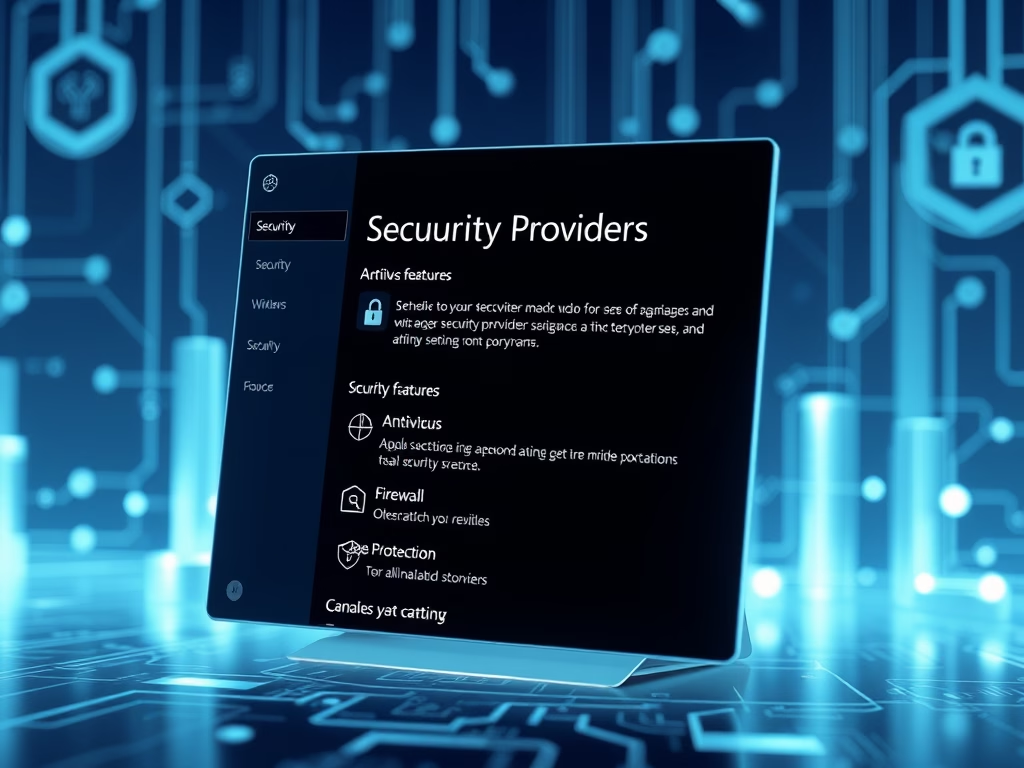
Before you move on to advanced features, check your current security status and set up the basic protections. That means confirming which security providers are active and reviewing the basic privacy settings. Fixing a yellow warning now is easier than tracking it down later.

Managing App and Feature Access
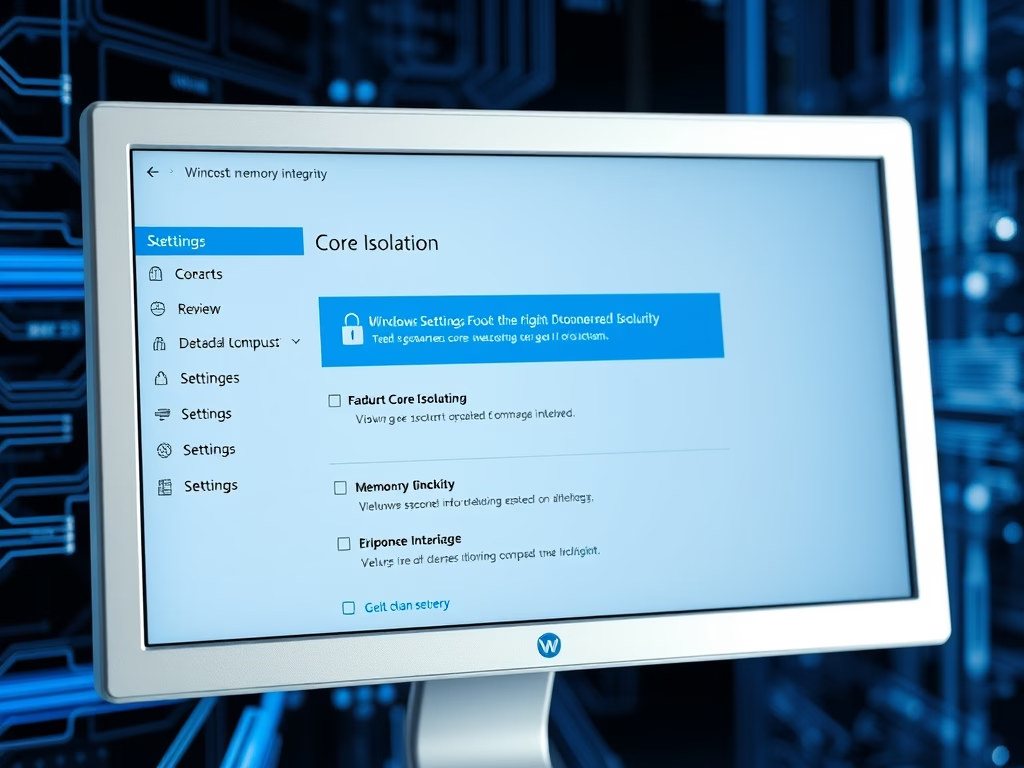
Windows 11 gives you control over how apps and features interact with your system. Most of it lives in Settings. Three areas are worth going through:
- Notificationsturn off alerts from apps that do not need to interrupt you. Notifications can show message previews on a locked screen, which is a privacy risk on a shared or portable PC.
- App recommendationsswitch off suggestions and promotional content you do not want.
- App privacy settingsfor apps like Photos, decide whether the app may use your location, camera or other data. Allow only what the app needs to work.
If a toggle is greyed out, it is usually controlled by your organization (on a work or school PC) or by a parent account. Ask your administrator in that case.

Protecting Your Data with Encryption and Accounts
Sensitive data needs strong encryption. Three steps do most of the work:
- Turn on BitLocker, a tool that scrambles your drive so the files are unreadable without the right key.
- Set up passkeys, which let you sign in with your face, fingerprint or PIN instead of a password that can be stolen.
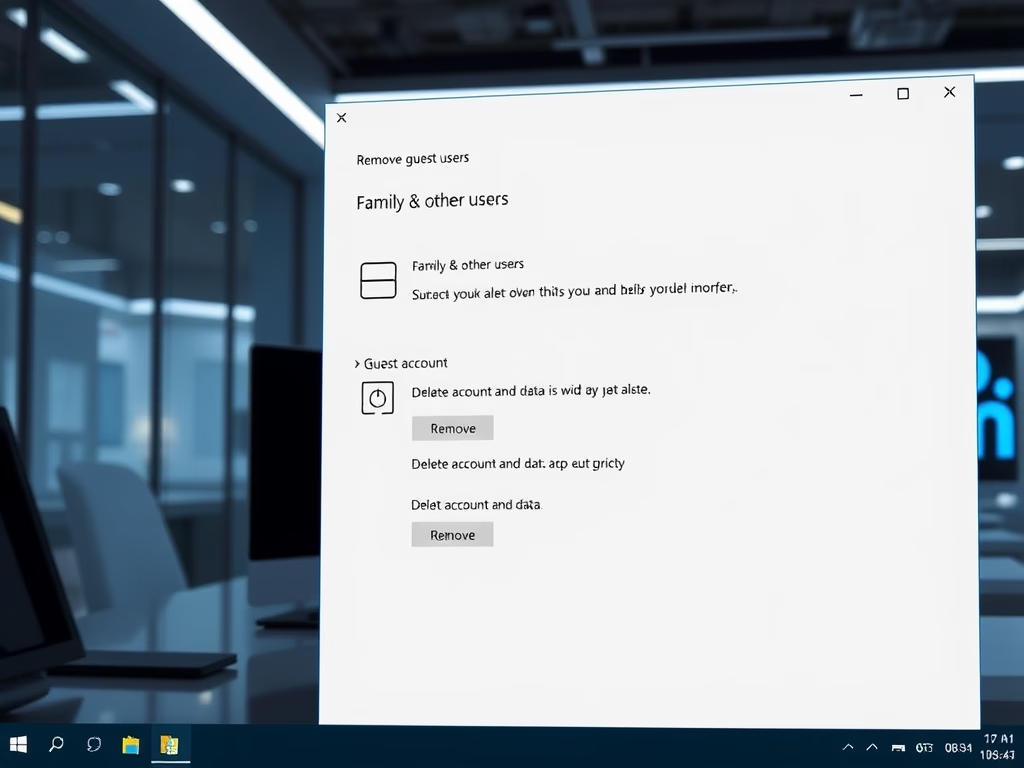
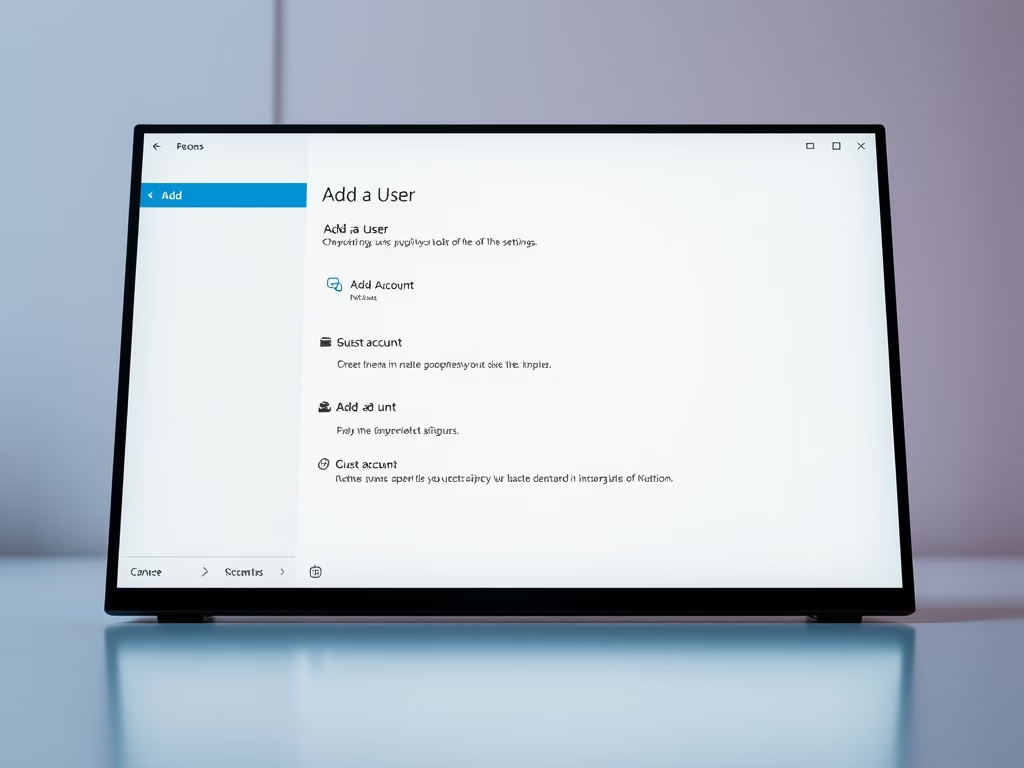
- Manage user accounts so each person has their own sign-in. Day-to-day accounts should be standard users, not administrators.

Advanced Security and Privacy Features
The deeper defenses come next. These steps cover system updates, background scans and controversial features like Recall. None of them are hard, but each one changes how much protection or data collection you have. Read what each setting does before you switch it.


Common questions
How do I know if my 🪟 Windows 11 PC is protected?
To check your security tools, follow these steps:
- Open Windows Security.
- Go to Virus & threat protection > Manage providers.
- Look at the list that opens. It shows your active antivirus utilities and other active safeguards.
You should see Microsoft Defender Antivirus, or the third-party antivirus you installed. If one is listed as off or out of date, open it and fix that first. Two antivirus products running real-time protection at once can slow the PC down, so Windows normally turns Defender’s real-time protection off when another product takes over.
What is BitLocker and why should I use it?
BitLocker scrambles your entire hard drive, turning your files into unreadable code. If the laptop is lost or stolen, whoever has it cannot read your data. You can also set the drive to unlock automatically on trusted devices, alongside the standard configuration controls.
Edition matters here:
- Windows 11 Pro, Enterprise and Education include full BitLocker Drive Encryption with all its controls.
- Windows 11 Home does not include full BitLocker. Supported hardware may offer Device encryption, a simpler version, if you sign in with a Microsoft account.
How can I control what apps can do on my PC?
Windows 11 lets you manage permissions for location access and notifications app by app. Review them and remove anything an app does not need. Disabling Smart App Control, which blocks potentially harmful software from running, sits alongside these options.
Think twice before turning Smart App Control off. It is a useful safeguard, and on some builds you cannot easily turn it back on once it is off. Only disable it if it is blocking software you trust and cannot work around. If the setting is unavailable, it may not be offered on your build or PC.
What is the Recall feature and how does it affect privacy?
Recall takes continuous screenshots of your workflow so you can search for past activity. Privacy advocates flag this tool often, and the concern is reasonable, because those snapshots can contain passwords, messages and other private content. Removing it or tweaking its settings takes only a moment.
A few points to know:
- Recall is only available on Copilot+ PCs. If you do not see it, your PC probably does not support it.
- It is optional, and it needs Windows Hello to be set up to use it.
- You can pause snapshots, delete saved ones and limit what is captured, or remove the feature altogether if you do not want it.
How do I make sure Windows is scanning for threats?
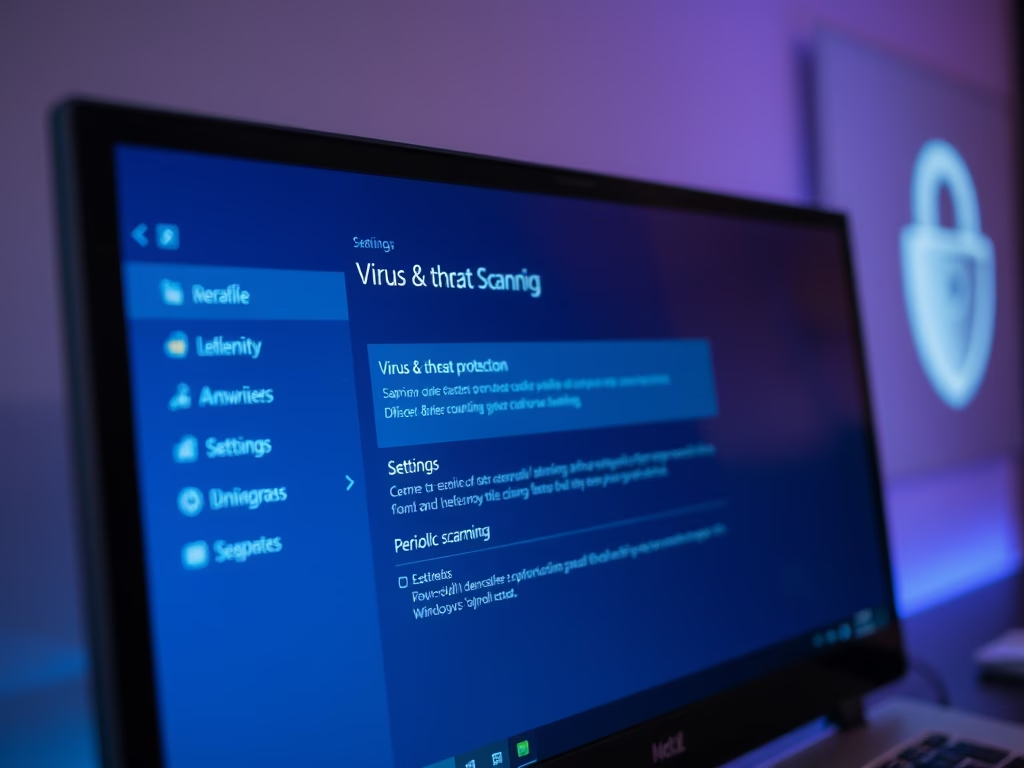
Enabling Microsoft Defender Periodic Scanning gives you an extra safety net. Even with a third-party antivirus installed, Defender runs background checks to catch stray threats the main product may miss.
The option only appears when a third-party antivirus is active. If you use Defender alone, real-time protection already covers you and the option is not shown. Periodic scanning does not replace your main antivirus and does not conflict with it. It only adds a scan from time to time, so you should notice little impact on performance.
Have a question about this guide?
Answered by AI from this guide. Good questions may be added to this page — please don't include personal details.
Did this guide fix your problem?

About the Author
Richard
Tech Writer, IT Professional
Richard is a writer at Geek Rewind who turns complex IT tasks into clear, step-by-step guides. He draws on years of hands-on experience in system administration and enterprise IT operations, focusing on Windows, Linux and WordPress: the problems people actually run into, and the fixes that work. His server and WordPress guides come from systems he runs himself. Richard builds and maintains the platform behind Geek Rewind, from its Ubuntu servers and Nginx configuration to its custom WordPress plugins. Many new tutorials start with readers' questions, and he's always glad to answer them in the comments.
No comments yet — be the first to share your thoughts!