How to Change Location Services in Windows 11 Photos App


Control whether the Windows 11 Photos app uses location data with your pictures. It is a quick change, and it matters if you share photos or care about your privacy.
Open the Photos app, click the Settings gear icon at the top, scroll to Personalization, and toggle Enable Location Based Services on or off. The change applies immediately without restarting the app.
What is the Photos App?
Windows 11 includes a built-in Photos app for viewing, editing, and organizing pictures. It is installed by default on both Home and Pro editions, so you don’t need to download anything.
It also handles background removal, media imports, and iCloud integration. Because it pulls in pictures from your phone, camera, and cloud accounts, it often deals with photos that carry location details.
Why Control Location Features?
Controlling location services in the Windows 11 Photos app is important. This setting determines if your photos are tagged with the location they were taken, which affects both organization and privacy.
A location tag can reveal where you live, work, or travel, even if the picture itself shows nothing identifying.
How to Turn Location Features On or Off
- Open the Photos app on your computer. Use the Start menu and type Photos if it isn’t pinned. You should see your photo library.
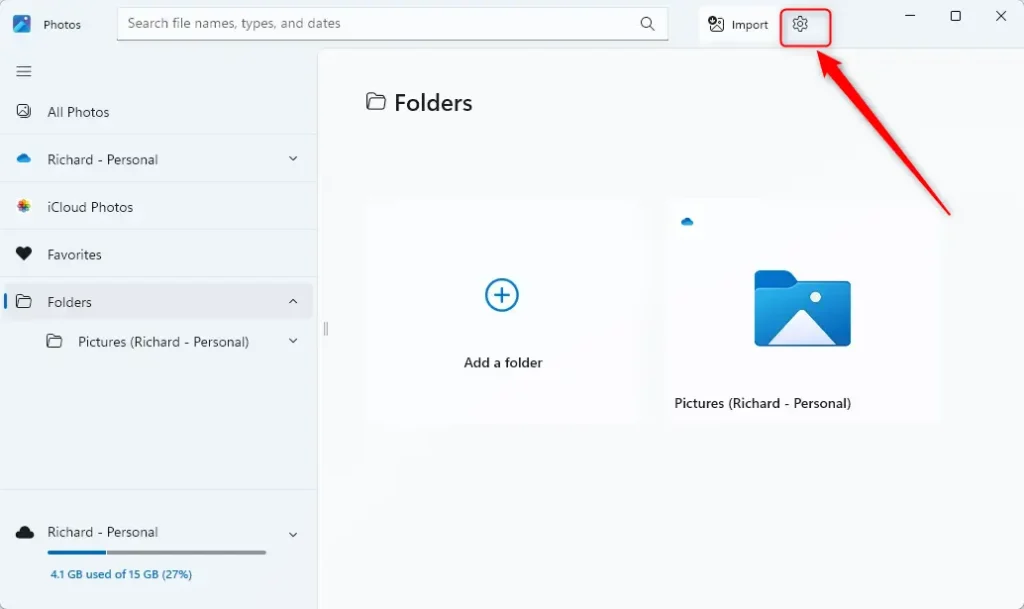
- Click the Settings (gear) icon at the top of the screen. If you don’t see it, click the three dots menu and select Settings. The Settings page should now open inside the app.
- Scroll to Personalization. The options for that section should be listed under it.
- Find the option called Enable Location Based Services.
- Switch the toggle On or Off, depending on what you want. The change applies right away, and you don’t need to restart the app or the PC.
If you can’t find the option, update the Photos app through the Microsoft Store. Wording and placement of settings can differ between versions of the app. If you change your mind, return to the same toggle and flip it back.
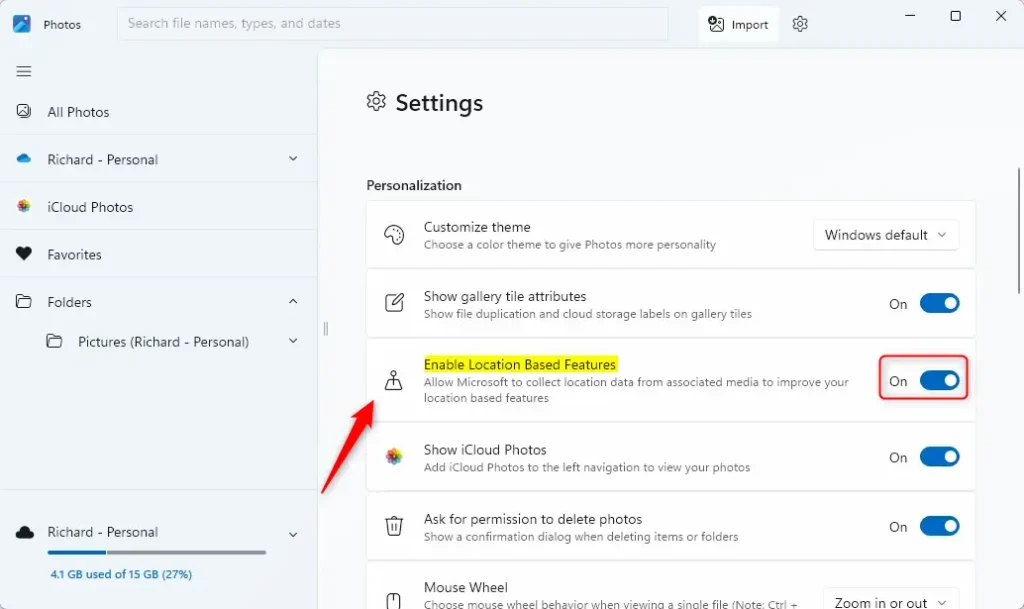
Follow these steps to turn location tagging on or off in the app.
Look for GPS entries such as latitude and longitude. Keep in mind that pictures already carrying location data from a phone or camera may keep it, so check a few files before you share them.
Summary
Windows 11 Photos location services add useful location tags to your pictures. These tags help you find and organize them by where they were captured. However, this feature shares your location data. Privacy concerns make turning it off in the app's settings a reasonable choice. Turning the feature on embeds location data, while turning it off keeps that metadata stripped.
- Turn ON location features: Photos get tagged with location info. It is easier to find and organize photos by where they were taken.
- Turn OFF location features: Photos don't get location tags. Your location stays private.
Changing this setting takes little effort in the Photos app Settings menu. Pick the option that fits your privacy needs. If you share photos often, or send them to people you don't know well, turning it off is the safer default.
Windows also has its own location switch under Settings Privacy & security Location That one controls which apps can use your device location. It is separate from the toggle in Photos, so check both if you want to be thorough.
Was this guide helpful?

About the Author
Richard
Tech Writer, IT Professional
Richard is a writer at Geek Rewind who turns complex IT tasks into clear, step-by-step guides. He draws on years of hands-on experience in system administration and enterprise IT operations, focusing on Windows, Linux and WordPress: the problems people actually run into, and the fixes that work. His server and WordPress guides come from systems he runs himself. Richard builds and maintains the platform behind Geek Rewind, from its Ubuntu servers and Nginx configuration to its custom WordPress plugins. Many new tutorials start with readers' questions, and he's always glad to answer them in the comments.
No comments yet — be the first to share your thoughts!