How to Turn On or off Website Accessing Your Location in Microsoft Edge on Windows 11

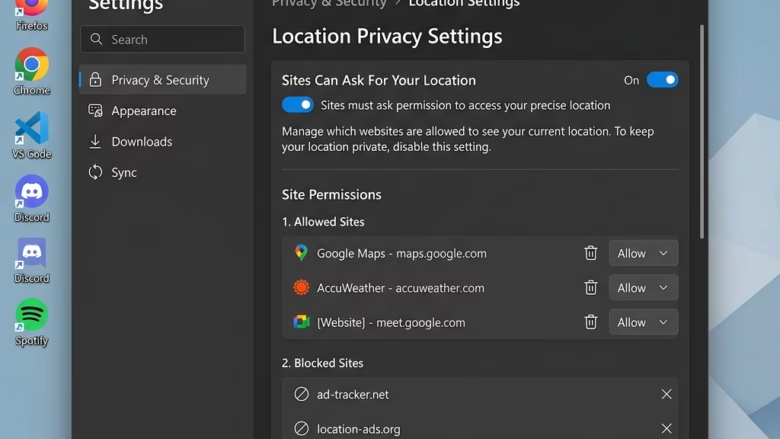
Website location access in Microsoft Edge on Windows 11 controls whether a web page can ask for your physical position, for example to show local news, weather or nearby stores. Many popular websites request this data. You can block every request, or allow specific sites one at a time.
This is a built-in privacy setting. Managing it stops unwanted tracking and keeps your real location private while you browse. It works the same on Windows 11 Home and Pro, and you don’t need to restart the PC or Edge after changing it.
Open Microsoft Edge, click the three dots, select Settings, then click Privacy, search, and services. Scroll down to Site permissions and click Location. Toggle “Ask before accessing” on to let sites request your location, or off to block all requests. The change saves immediately.
How to Find Edge’s Location Settings
Edge keeps its location controls in the site permissions area of Settings. In current versions of Edge you can also reach them through Cookies and site permissions, so if the menu names below look slightly different on your build, look for that entry. The steps below follow the Privacy, search, and services path from the original tutorial.
- Open Microsoft Edge.
- Click the three dots
...in the top-right corner. A menu opens. - Select Settings from the menu. As a shortcut, type
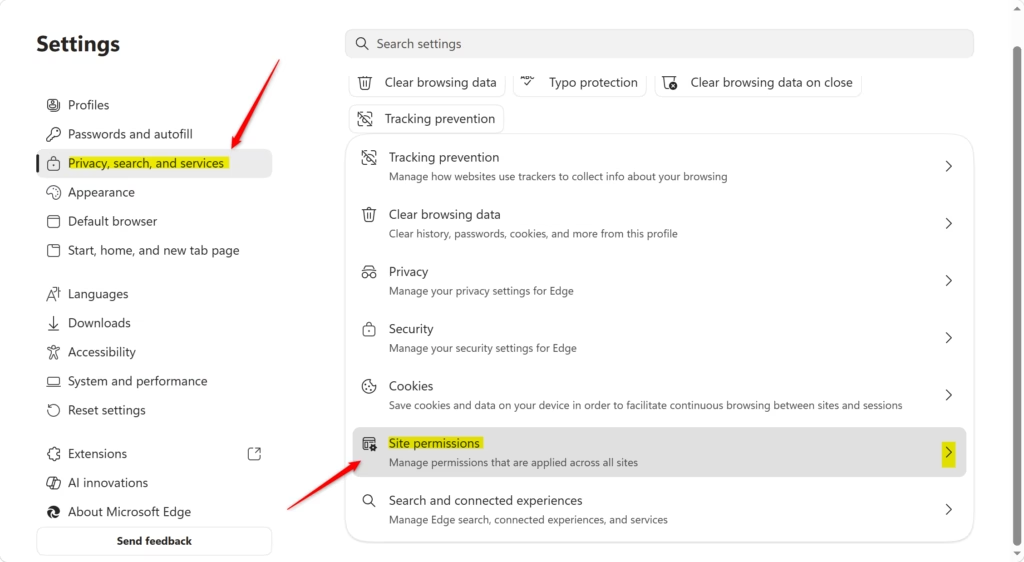
edge://settings/privacyedge://settings/in the address bar and press Enter. Either way, Settings opens in a new tab. - In the Settings tab, click Privacy, search, and services on the left side. The right side now shows the privacy options.
- Scroll down on the right side until you see Site permissions.
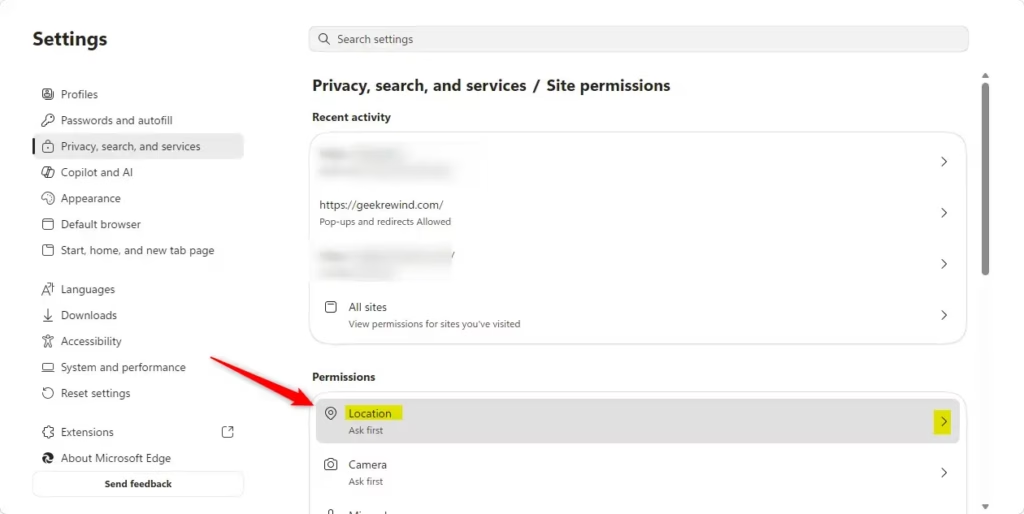
- Look through the list and click Location. The page that opens holds all the location settings, including the toggle and the lists of allowed and blocked sites.
Also note that if your PC is managed by an employer or school, an administrator may have locked these options. In that case they will be greyed out or show a “managed by your organization” notice.

Quick Tip: If you change these permissions often, bookmark edge://settings/content edge://settings/content/location so you can jump straight to the page.
Setting Your Main Location Access
Turning off location access stops websites from asking for your physical coordinates. You do this with the Ask before accessing toggle on the Location page. Once it is off, Edge blocks all new location requests and stops sharing your geographical position with any page you visit.
- Open the Location settings page using the steps above.
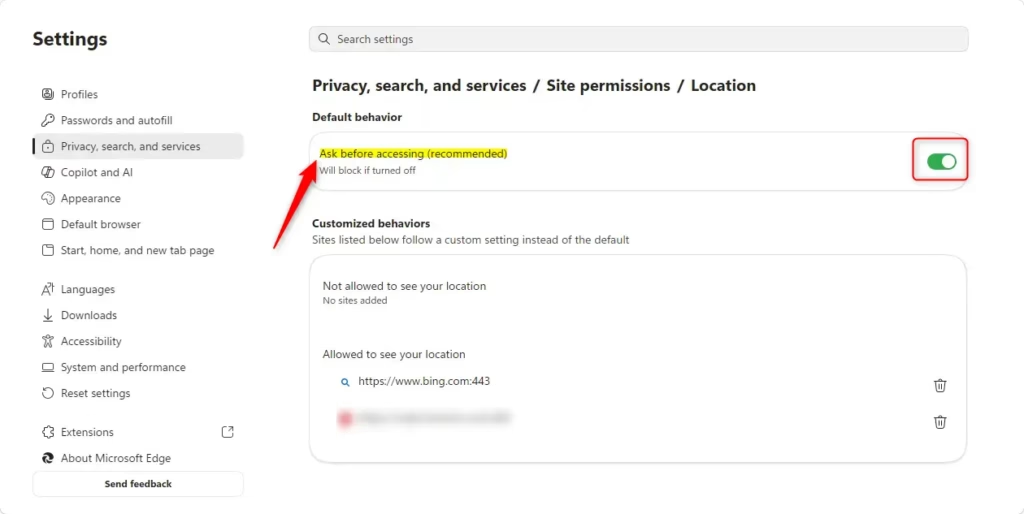
- Find the Ask before accessing switch near the top of the page.
- Click the switch to set it the way you want. The switch changes colour right away, and Edge saves the change without a confirmation button.
- Reload any page that was already open. Edge applies the new setting to pages when they load.
Here is what each position does:
- If you turn OFF "Ask before accessing": Edge stops all websites from getting your exact location. You won't get any more requests. This is the strictest setting.
- If you turn ON "Ask before accessing" (Recommended): This is the default and usually the best choice. When a website wants your location, Edge shows a message asking whether to Allow or Block it for that site. You can change your answer later.
To undo the change, return to the same page and click the switch again. Sites you already allowed or blocked individually stay in their lists, so check those lists if a site behaves differently than you expect.
Blocking requests in the browser does not hide everything. Websites can still estimate your location from your IP address, which is a number assigned to your network connection. That estimate is much less precise than GPS or Wi-Fi positioning. It usually points to your city or region rather than your street. Only a VPN or a similar service changes what the IP address reveals, and Edge's location setting doesn't affect it.
Edge also depends on the Windows location service for precise positioning. If Windows location is off under Settings Privacy & security Location, sites will get little or no precise data even if Edge allows them.
Managing Location for Specific Websites
Instead of one blanket rule, you can set permissions for individual sites. This suits weather apps, maps or game portals that need your location, while everything else stays blocked.
- Open the Location settings page.
- Leave Ask before accessing on, so Edge still prompts you for new sites.
- When a site asks for your location, click Allow for sites you trust or Block for the rest. Edge remembers your choice for that site.
- To review or change these choices later, return to the Location page and look at the Block and Allow lists. Remove a site from a list to make Edge ask about it again.
If you later switch Ask before accessing off, check your allow list, because it is worth confirming that a trusted site still behaves the way you expect.
Method A: While on the Website
Changing location permissions for a specific website while you browse is possible by clicking the icon next to the address bar. This quick method lets you allow or block location access for just the page you are currently viewing without changing your overall browser settings. You can update these choices at any time if you change your mind.- Go to the website in Microsoft Edge.
- Look to the left of the address bar. You will see an icon. It might look like a padlock, an 'i' in a circle, or a warning sign.
- Click that icon. A small menu will appear.
- Look for Permissions for this site. Click it.
- Find Location in the list of permissions.
- Next to Location, use the dropdown menu. Choose Ask (the default), Allow, or Block.
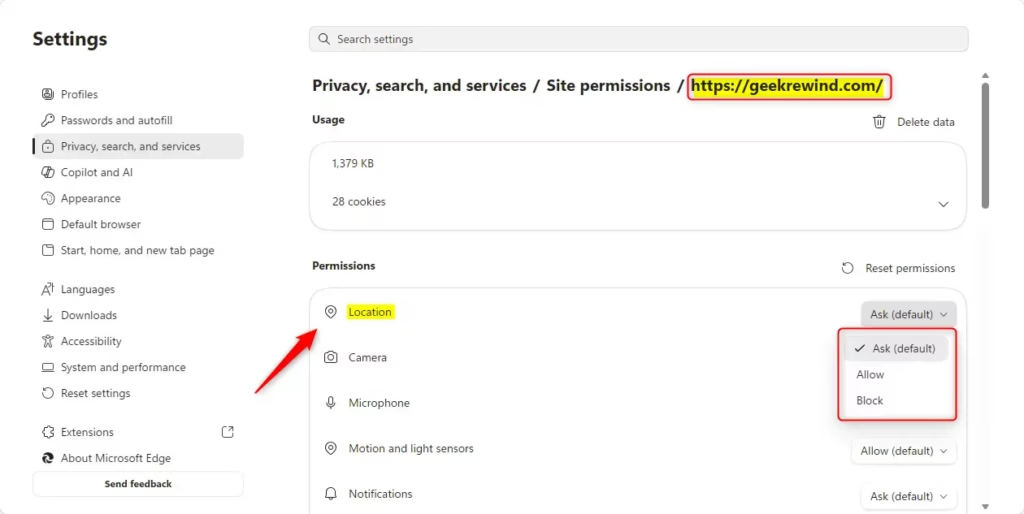
Method B: From the Main Site Permissions List
- Follow Step 1 to get to the site permissions list (
edge://settings/content/all). - Find and click on Location.
- You will see a list of websites that have asked for your location or have permissions set. Click the 'X' next to a site to remove its permission. You might also be able to change permissions directly from this list.
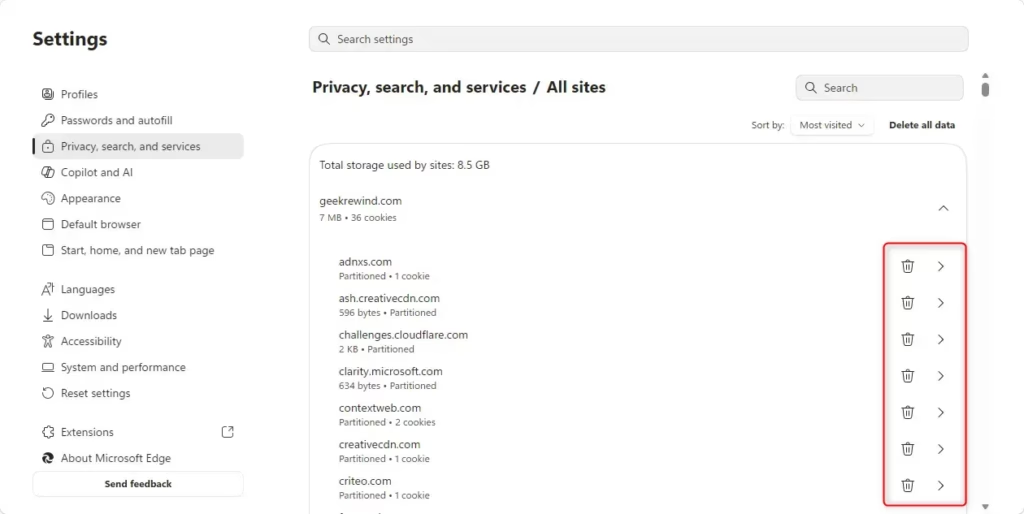
Managing website location permissions from the main site list lets you review every page that has ever asked for your location. You can view all saved choices in one place and remove unwanted sites by clicking the trash or X icon next to them. This helps you clean up old permissions and keeps your private data secure.
Reference:
https://support.microsoft.com/en-us/edge/location-and-privacy-in-microsoft-edge
Summary
Microsoft Edge manages website location prompt permissions completely. Disabling all requests or permitting specific sites preserves privacy while supporting services requiring geographical data.
Have a question about this guide?
Answered by AI from this guide. Good questions may be added to this page — please don't include personal details.
Did this guide fix your problem?

About the Author
Richard
Tech Writer, IT Professional
Richard is a writer at Geek Rewind who turns complex IT tasks into clear, step-by-step guides. He draws on years of hands-on experience in system administration and enterprise IT operations, focusing on Windows, Linux and WordPress: the problems people actually run into, and the fixes that work. His server and WordPress guides come from systems he runs himself. Richard builds and maintains the platform behind Geek Rewind, from its Ubuntu servers and Nginx configuration to its custom WordPress plugins. Many new tutorials start with readers' questions, and he's always glad to answer them in the comments.
No comments yet — be the first to share your thoughts!