How to Turn On or off Microsoft Edge Sharing Data with Other Windows Features

Microsoft Edge can share your browsing data, including your most visited websites, with other Windows features on Windows 11 and Windows 10. Windows uses that data to personalize your PC. For example, it can show relevant sites on the Start menu and improve search suggestions.
Microsoft describes this as sharing between Edge and Windows on your own PC. You can turn it on or off at any time in Edge’s profile settings, and the change takes effect without a restart. This tutorial shows where the setting is, what to expect when you switch it off, and how to switch it back on.
Open Microsoft Edge, click the three dots menu, select Settings, click Profiles in the left sidebar, scroll to Share browsing data with other Windows features, and toggle it off. The sharing stops immediately without restarting.
How to Turn Off Sharing Data
You change this setting inside Microsoft Edge. You don’t need to open the Windows Settings app, and it works the same on Windows 11 and Windows 10, Home or Pro.
- Open Microsoft Edge. You can click its icon on the taskbar , find it in the Start menu , or search for Edge. The browser window opens.
- Click the three dots
...in the top-right corner of the window. The Settings and more menu opens. - Click Settings. Edge opens a new tab showing its settings, with a list of categories on the left.
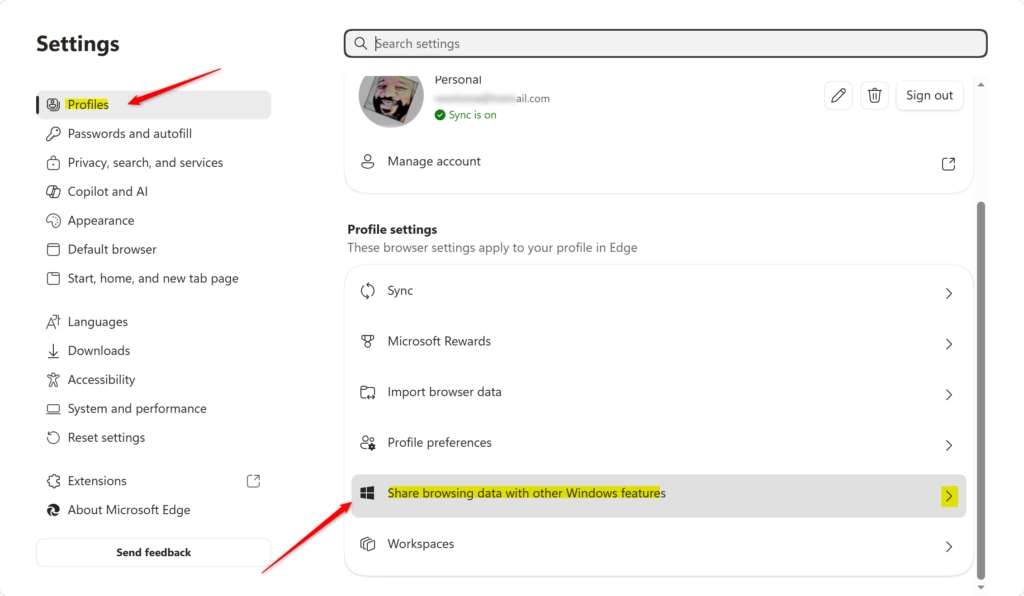
- Click Profiles in the left-hand list. The page shows your profile and the options tied to it, such as sync, Microsoft Rewards and importing browser data.
- Scroll down the Profiles page until you find Share browsing data with other Windows features. This is the setting that controls whether Edge passes your browsing activity to Windows. It is on the Profiles page, not under Privacy, search, and services.
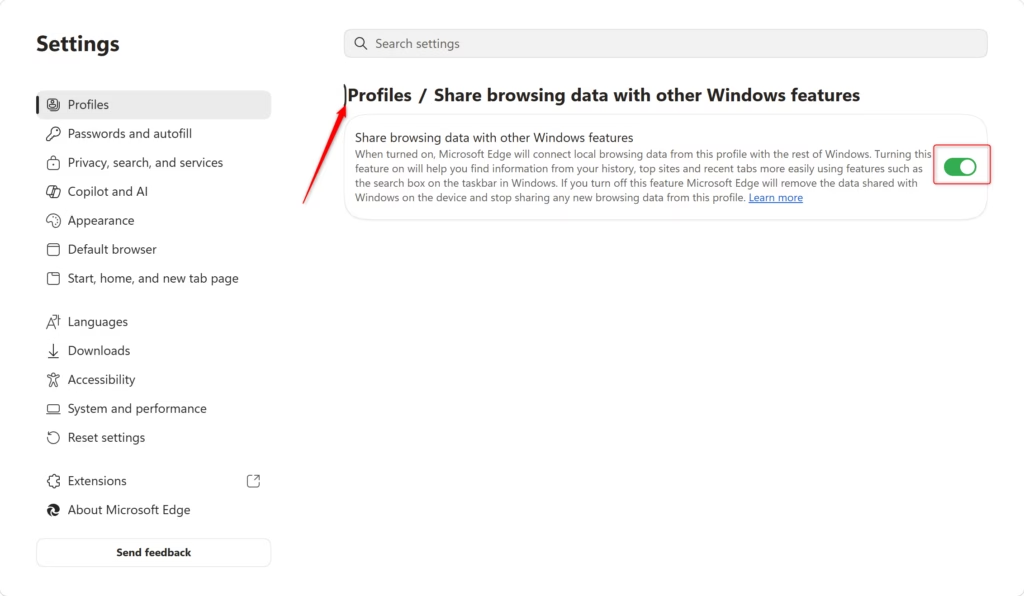
- Click the toggle next to Share browsing data with other Windows features to turn it off. When it is off, the toggle looks grey and unfilled instead of colored. Edge stops sending your browsing data to other Windows features from that point on.
If you want the sharing back, return to the same page and click the toggle again so it shows as on. There is nothing to save and no need to restart Edge or Windows.
A few things to know:
- The option is missing: Edge is probably out of date. Update it from Settings by choosing About Microsoft Edge in the left-hand list. Edge checks for the update and may ask you to restart the browser.
- The toggle is greyed out or locked: On a work or school PC, an administrator may control this setting through policy. Ask your IT team, since you can’t override it from the browser.
- Windows still shows old suggestions: Turning the setting off stops future sharing. Items Windows already picked up may stay visible for a while.

Reference:
https://support.microsoft.com/en-us/edge/microsoft-edge-browsing-data-and-privacy
Summary
To turn it off, open Edge, go to Settings, then Profiles, and switch off Share browsing data with other Windows features. To reverse it, switch the same toggle back on.
Have a question about this guide?
Answered by AI from this guide. Good questions may be added to this page — please don't include personal details.
Did this guide fix your problem?

About the Author
Richard
Tech Writer, IT Professional
Richard is a writer at Geek Rewind who turns complex IT tasks into clear, step-by-step guides. He draws on years of hands-on experience in system administration and enterprise IT operations, focusing on Windows, Linux and WordPress: the problems people actually run into, and the fixes that work. His server and WordPress guides come from systems he runs himself. Richard builds and maintains the platform behind Geek Rewind, from its Ubuntu servers and Nginx configuration to its custom WordPress plugins. Many new tutorials start with readers' questions, and he's always glad to answer them in the comments.
No comments yet — be the first to share your thoughts!