How to Turn Show Frequent Sites on Taskbar on or off in Microsoft Edge on Windows 11

Show frequent sites is a Microsoft Edge setting that puts your most visited websites in the taskbar jump list on Windows 11. A jump list is the menu that appears when you right-click an app’s taskbar icon. With this setting on, the Edge icon’s menu includes shortcuts to the pages you open most, so you can reach them without searching your history.
Microsoft tests this feature in preview channels such as Canary, Beta, and Dev before it reaches stable public releases. You can turn the setting on or off whenever you like. The steps below work the same on Windows 11 Home and Pro, because the setting lives inside Edge and not in Windows.
Open Microsoft Edge, click the three dots menu, select Settings, then Privacy, search, and services. Scroll down to Search and connected experiences and toggle Show frequent sites on Windows taskbar On or Off. Your most visited websites then appear in the jump list when you right-click the Edge taskbar icon.
Here’s How to Change the Setting:
- Open Microsoft Edge.
- Click the three dots icon in the top right corner. This is the Settings and more menu, and you can also open it by pressing Alt+F. Then click Settings. A Settings tab opens.
- In the left sidebar, click Privacy, search, and services. On the right side, scroll down and click Search and connected experiences.
- If you don’t see a left sidebar, click the three lines button in the top left corner. You can also make the Edge window wider until the sidebar appears.
- Find the setting called Show frequent sites on Windows taskbar. Switch it On or Off. The default is Off, so if you have never changed it, the toggle will read Off. The toggle changes right away, and there is no Save button.
- If you can’t find the setting, your Edge build probably doesn’t have it yet. Because the feature is tested in preview channels first, it may not be available in the stable version you are running. Update Edge, or try a Canary, Beta, or Dev build.
- If the toggle is greyed out or the page says your browser is managed by your organization, a policy set by your administrator is controlling the option, and you will need to ask them to change it.
- Close the Settings tab in Microsoft Edge.
- To check the result, right-click the Edge icon on the taskbar . With the setting on, you should see your frequently visited sites listed in the jump list. If the list looks unchanged, close the menu and right-click again. Edge may also need a little browsing history before it has any sites worth listing.
To undo the change, repeat the same steps and flip the toggle back. Nothing is installed or removed, so you can switch it as often as you want.

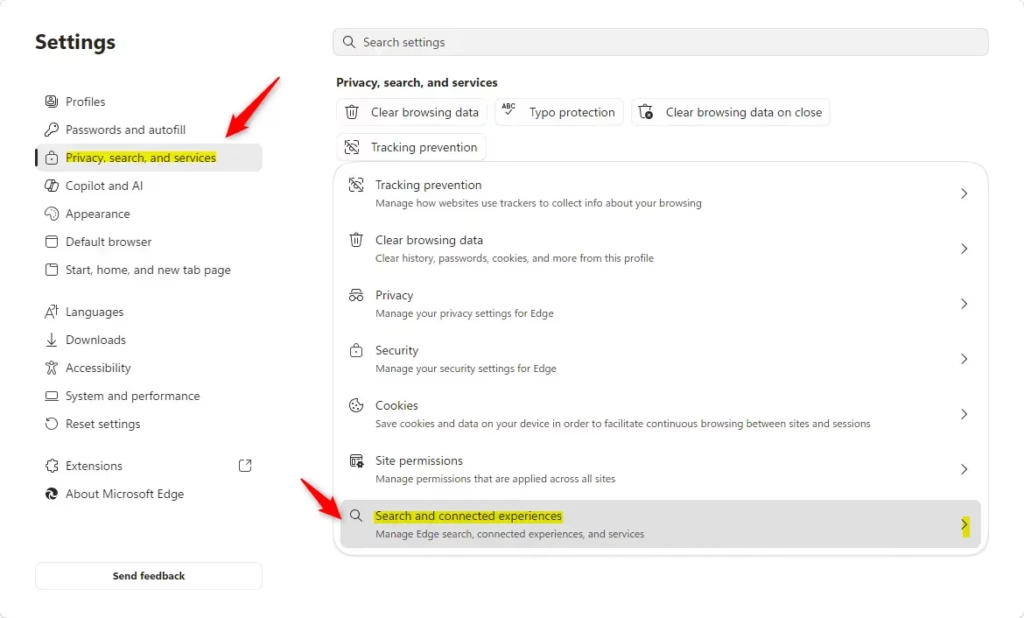
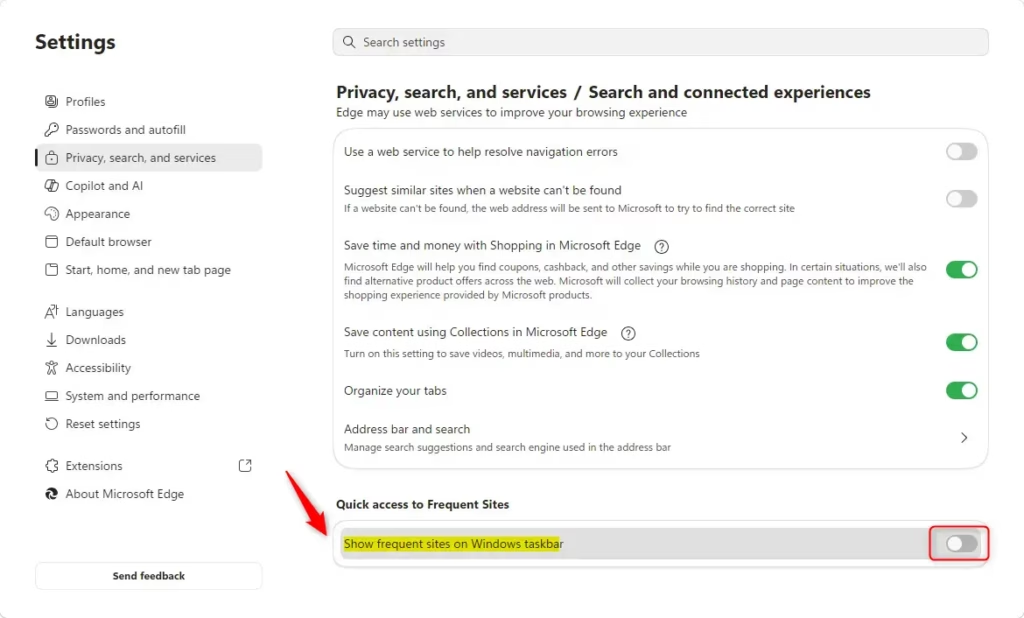
Open the settings menu, go to Privacy, search, and services, open Search and connected experiences, and use the Show frequent sites on Windows taskbar toggle. This controls whether your most visited websites show up when you right-click the Edge icon on your Windows 11 taskbar.
Summary
Managing this setting lets you control exactly which websites appear in your Edge jump list.
Was this guide helpful?

About the Author
Richard
Tech Writer, IT Professional
Richard is a writer at Geek Rewind who turns complex IT tasks into clear, step-by-step guides. He draws on years of hands-on experience in system administration and enterprise IT operations, focusing on Windows, Linux and WordPress: the problems people actually run into, and the fixes that work. His server and WordPress guides come from systems he runs himself. Richard builds and maintains the platform behind Geek Rewind, from its Ubuntu servers and Nginx configuration to its custom WordPress plugins. Many new tutorials start with readers' questions, and he's always glad to answer them in the comments.


No comments yet — be the first to share your thoughts!