

Your Microsoft Edge home page is the website you get when you click the Home button. Many people also expect it to load when the browser opens, but Edge treats the two as separate settings. Setting both to the same site gets you to your favorite news site, email inbox or search engine without typing a web address.
These steps were written for Microsoft Edge version 118. Newer versions of Edge on Windows 11 use the same settings, though wording and layout can shift a little. Everything is in the main settings menu and takes only a few clicks. You can set Edge to open a blank page, restore your last open tabs, or load a specific site every time you launch it. No restart is needed. Changes apply as soon as you make them.
Open Microsoft Edge and click the three dots menu at the top right, then Settings. In the left sidebar, click Start, home, and new tab page. Under Home button, toggle Show Home button on the toolbar to On, then select Enter URL for a page that you want to use as your home page and type your chosen website address.
Step 2Find the Startup Settings
Start by opening the page that holds the startup and home button settings:
- Open Edge and click the Settings and more button (the three dots) at the top right of the window.
- Click Settings. A settings page opens in a new tab.
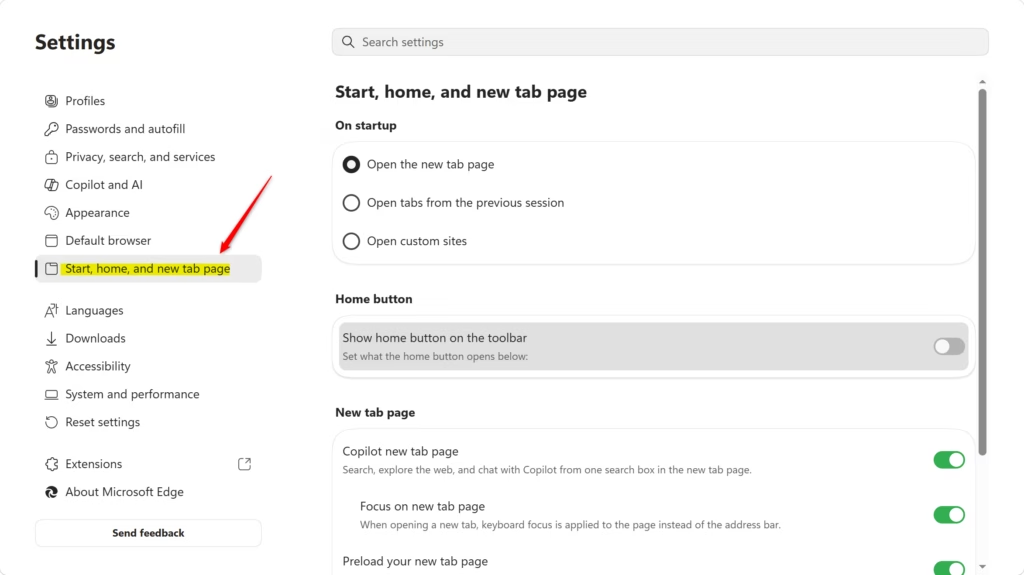
- In the left sidebar, click Start, home, and new tab page. If you don’t see the sidebar, the window may be too narrow. Widen it, or click the menu icon at the top left of the settings page.
The main window now shows the startup options. The When Edge starts section controls what opens at launch. It offers Open the new tab page, Open tabs from the previous session and Open these pages. Below it is the subsection for the Home button. If your PC is managed by an employer or school, some of these options may be greyed out and marked as managed by your organization. Only your administrator can change them.
Step 3Turn on the Home Button
Now put the Home button on the toolbar:
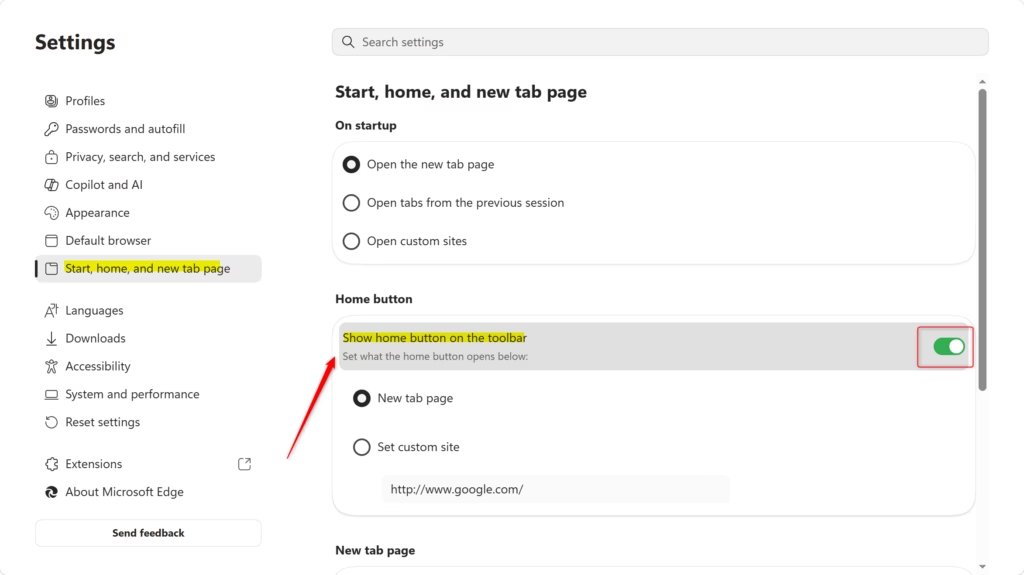
- In the Home button subsection, find Show Home button on the toolbar.
- Turn the toggle On.
Step 4Pick Your Homepage
Once the toggle is on, you choose where the house icon sends you. It can open Edge’s default new tab page or a website you pick. The choice is two radio buttons under the toggle.
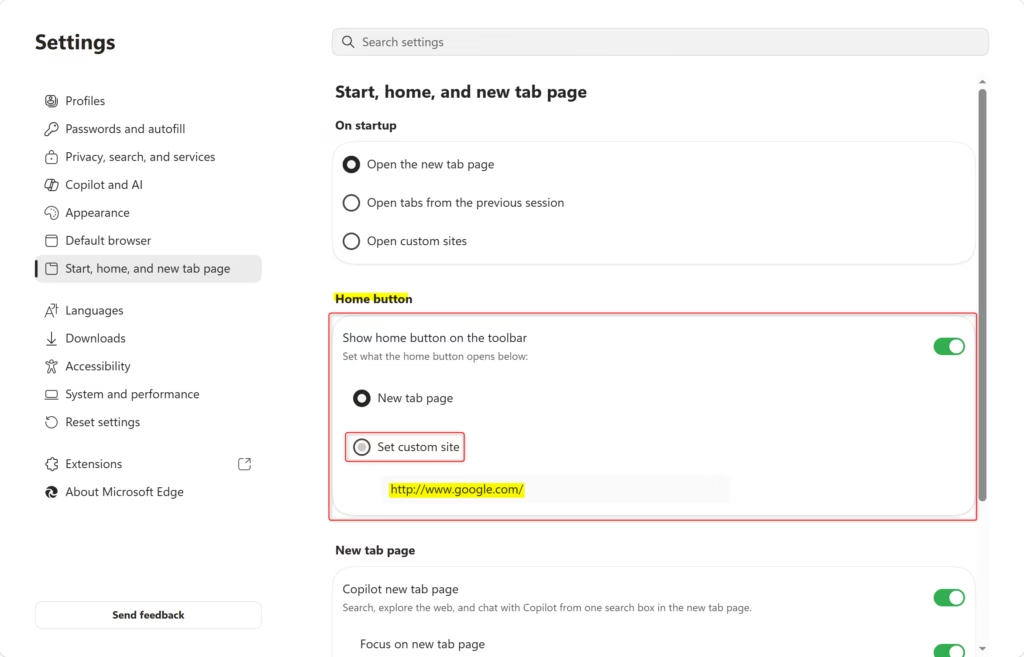
- Under Show Home button on the toolbar, select one of the two options below.
- If you chose the custom option, click the text box that appears and type or paste the full web address, for example a news site or your webmail login page.
- Click Save next to the box if it is shown. Edge stores the address, and the Home button uses it right away.
The two options are:
- New tab page: Clicking the Home button opens a new tab with Edge’s normal new tab screen. This usually has a search bar and links to sites you visit often.
- Enter URL for a page that you want to use as your home page: This is where you make it your own. When you select it, a text box appears. Type or paste the web address (URL) of any site you want as your home page.
Reference:
Summary
You now have a Home button on the toolbar that goes to the page you chose. That saves typing addresses or digging through bookmarks for the sites you use every day.
Click the house icon to confirm it takes you to your chosen destination. If it opens the wrong page, return to Start, home, and new tab page and check the address you entered for typos.
Have a question about this guide?
Answered by AI from this guide. Good questions may be added to this page — please don't include personal details.
Did this guide fix your problem?

About the Author
Richard
Tech Writer, IT Professional
Richard is a writer at Geek Rewind who turns complex IT tasks into clear, step-by-step guides. He draws on years of hands-on experience in system administration and enterprise IT operations, focusing on Windows, Linux and WordPress: the problems people actually run into, and the fixes that work. His server and WordPress guides come from systems he runs himself. Richard builds and maintains the platform behind Geek Rewind, from its Ubuntu servers and Nginx configuration to its custom WordPress plugins. Many new tutorials start with readers' questions, and he's always glad to answer them in the comments.
No comments yet — be the first to share your thoughts!