
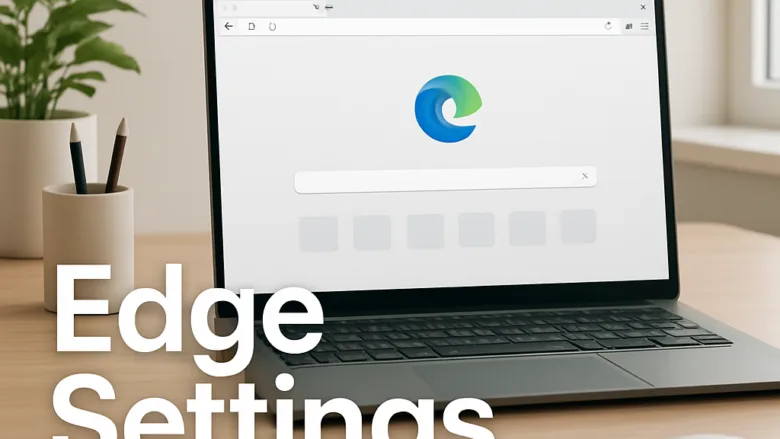
Microsoft Edge settings let you change how your web browser looks, blocks pop-up ads, and protects your personal data. You can open this main control panel in two ways:
- Click the Settings and more button (the three dots) in the top-right corner of the Edge window.
- Choose Settings from the menu. A Settings page opens in a new tab, with a list of categories on the left.
You can also type edge://settings into the address bar and press Enter. That takes you to the same page and is quicker once you know it.
Adjusting these built-in options helps you block tracking cookies, pick a custom homepage, and save passwords safely. These tweaks speed up your browsing and keep your computer secure without extra software. Most changes apply as soon as you flip the switch, so you rarely need to restart Edge. If one doesn’t take effect, close and reopen the browser.
To change your search engine in Microsoft Edge, go to Settings, then Privacy, search, and services. Scroll down to the Address bar and search section and select your preferred search engine from the dropdown menu. This helps customize your browsing experience.
Get Your Browser Set Up How You Like It
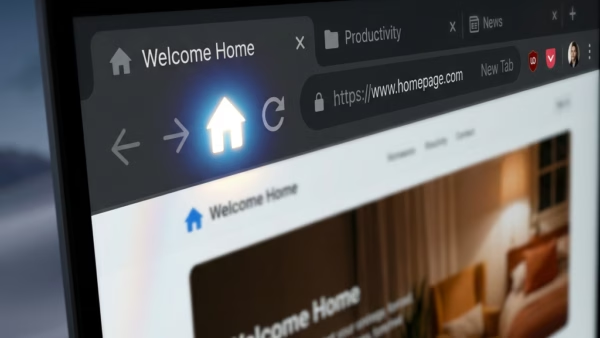
Before you turn to the advanced features, make sure the browser works the way you want. This section covers changing your default search engine, setting your homepage, and controlling what appears on your taskbar.
Most of these options live in two places: Start, home, and new tabs for the homepage and what opens at startup, and Privacy, search, and services for search behavior. If an option is missing or greyed out and shows a note such as “Managed by your organization,” a work or school policy controls it. In that case only your administrator can change it.

Boost Your Privacy and Security
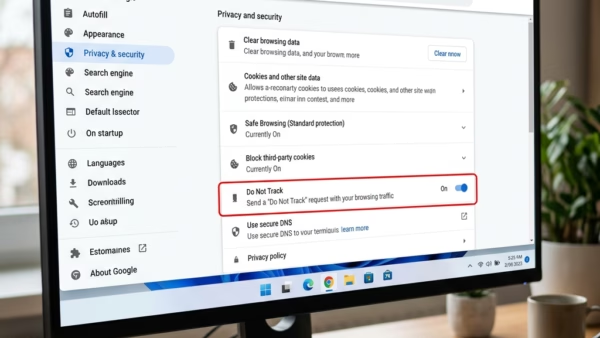
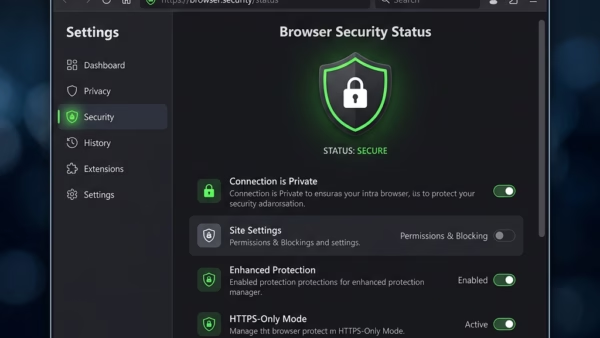
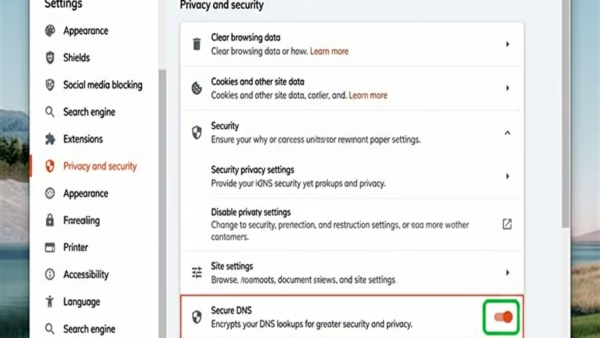
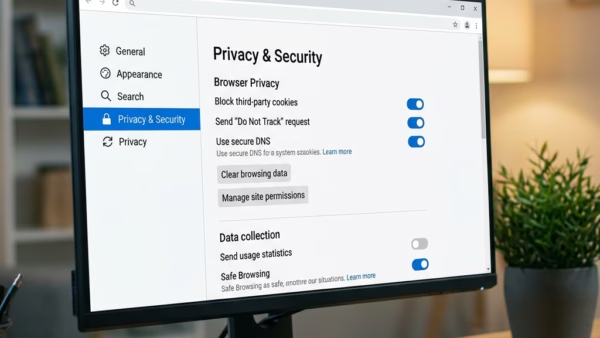
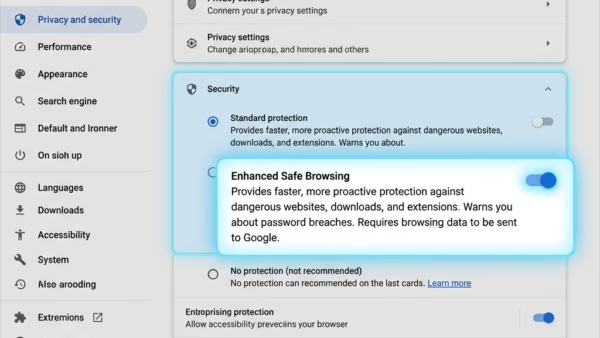
Protecting your online activity matters. This section explains how to enable strong security features like secure DNS, manage password monitoring, and understand how Edge shares data with other Windows features.
Password monitoring is under the Profiles section of Settings, and secure DNS is under Privacy, search, and services. Neither needs a restart. Both can be turned off again from the same page if they cause trouble, so you can test them safely.

Use Copilot for Smarter Browsing
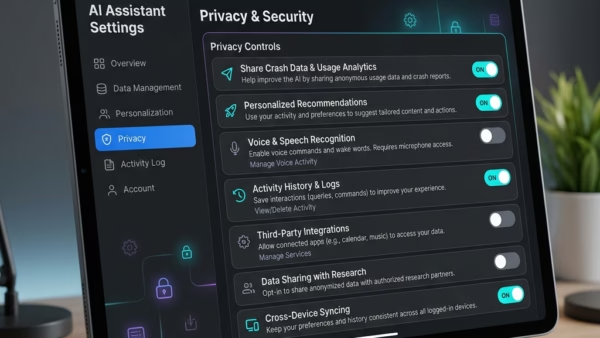
Copilot helps you understand web pages and conversations better. These guides show how to use Copilot to summarize content, create podcasts from pages, and control what information Copilot uses.
Copilot features change often. The exact menu names and toggles can differ depending on your Edge version and whether you signed in with a personal or a work account. If a feature doesn’t appear, update Edge first. Open Settings, choose About Microsoft Edge and let it check for updates.

Manage Network and Data Access
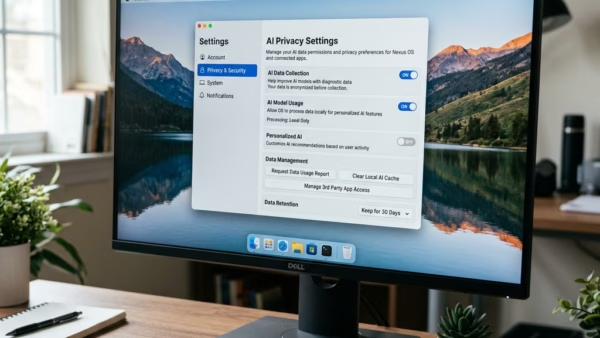
Sometimes you need to control how your browser interacts with your local network or other Windows features. This section explains how to manage these specific access settings.
These settings decide which sites and features can reach things outside the browser. Review them after any major Edge update, because new versions can add permissions you haven’t seen before.
Common questions
How do I change my search engine in Edge?
To change your search engine, follow these steps:
- Open Edge and go to Settings Privacy, search, and services.
- Scroll to the bottom of the page and select Address bar and search. The search options for the address bar appear.
- Find the setting for the search engine used in the address bar and open its dropdown menu.
- Select your preferred search engine from the list. The change applies right away.
To test it, type a word into the address bar and press Enter. The results should come from the engine you picked. If the engine you want isn’t listed, visit its website first and then check the dropdown again. Edge often adds it to the list once you have used it. To go back, repeat the steps and choose Bing.
How do I stop Copilot from remembering my chats?
You can block Copilot from using past conversations and Bing activity in the Copilot settings:
- Open Edge and go to Settings.
- Select the Copilot and sidebar category on the left, then open the Copilot settings.
- Look for the options related to chat history and personalization.
- Turn off the setting that allows Copilot to remember your previous interactions. The switch should now show as off.
Names vary slightly between Edge versions, so look for wording about history, memory or personalization. Turning this off stops Copilot from using earlier chats to shape its answers. It doesn’t necessarily delete what is already stored. To clear existing history, use the Microsoft account privacy options for your account. You can turn the setting back on at any time.
What is secure DNS and how do I turn it on?
Secure DNS (Domain Name System) encrypts the lookups your browser makes to find websites, which makes it much harder for snoops on your network to see which sites you visit. It doesn’t hide your traffic from the sites themselves. To turn it on:
- Open Edge and go to Settings Privacy, search, and services.
- Scroll down to the Security section.
- Find the Use secure DNS option and switch it on. Edge shows extra choices below the switch.
- Choose either your current service provider or a different provider from the list.
If some sites stop loading afterward, especially on a work network or behind a filter, switch the option off again or pick another provider. Some organizations rely on their own DNS and manage this setting, so it may be greyed out on a work PC.
How can I stop Edge from using my webpage content for Copilot?
To stop Copilot from using your current webpage, browser history, or preferences, use the Copilot settings:
- Open Edge and go to Settings.
- Select Copilot and sidebar, then open the Copilot settings.
- Find the option that lets Copilot access your browsing activity or page content.
- Turn it off. The switch should now show as off.
With this off, Copilot can’t read the page you have open or use your history to answer questions about it, so features like page summaries may stop working. Switch the option back on if you want those features again. As with other Copilot settings, the wording can differ by Edge version, and a managed device may lock it.
What does the 'Local Network Access' feature do?
This feature allows certain websites to access devices on your local network, like printers or smart home hardware. You can turn it on or off in Edge’s Privacy, search, and services settings to control which websites have this access:
- Open Edge and go to Settings Privacy, search, and services.
- Look through the page for the local network access option.
- Switch it on to allow it, or off to block it.
This is a newer setting, so it may not appear in older versions of Edge. Update the browser if you can’t find it. If you turn it off and a web-based tool can no longer find your printer or smart device, turn it back on. As with the other settings here, a work or school policy can lock it.
Have a question about this guide?
Answered by AI from this guide. Good questions may be added to this page — please don't include personal details.
Did this guide fix your problem?

About the Author
Richard
Tech Writer, IT Professional
Richard is a writer at Geek Rewind who turns complex IT tasks into clear, step-by-step guides. He draws on years of hands-on experience in system administration and enterprise IT operations, focusing on Windows, Linux and WordPress: the problems people actually run into, and the fixes that work. His server and WordPress guides come from systems he runs himself. Richard builds and maintains the platform behind Geek Rewind, from its Ubuntu servers and Nginx configuration to its custom WordPress plugins. Many new tutorials start with readers' questions, and he's always glad to answer them in the comments.
No comments yet — be the first to share your thoughts!