Set ChatGPT as Default Search Engine in Edge


Setting ChatGPT as your default search engine in Microsoft Edge replaces the built-in Bing search with AI-powered answers that appear whenever you type a query into the address bar. Microsoft Edge is the default web browser built into Windows 11 and Windows 10.
Switching your search engine takes about 2 minutes by installing the official ChatGPT Search extension from the Edge Add-ons store. Once you finish this quick setup, typing a web search automatically brings up ChatGPT replies with source links instead of a standard list of web pages.
Install the “ChatGPT Search” extension from the Edge Add-ons store and click “Add extension.” Alternatively, go to Edge settings, then Search engines, click Add, and input the ChatGPT URL. Finally, set ChatGPT as the default in the Search engines menu.
Set ChatGPT Search with its extension
You can set ChatGPT as your default search engine in Edge by installing the official browser extension from the Chrome Web Store. This method adds the AI search tool straight to your address bar so you can type questions and get answers instantly without visiting the main website first.
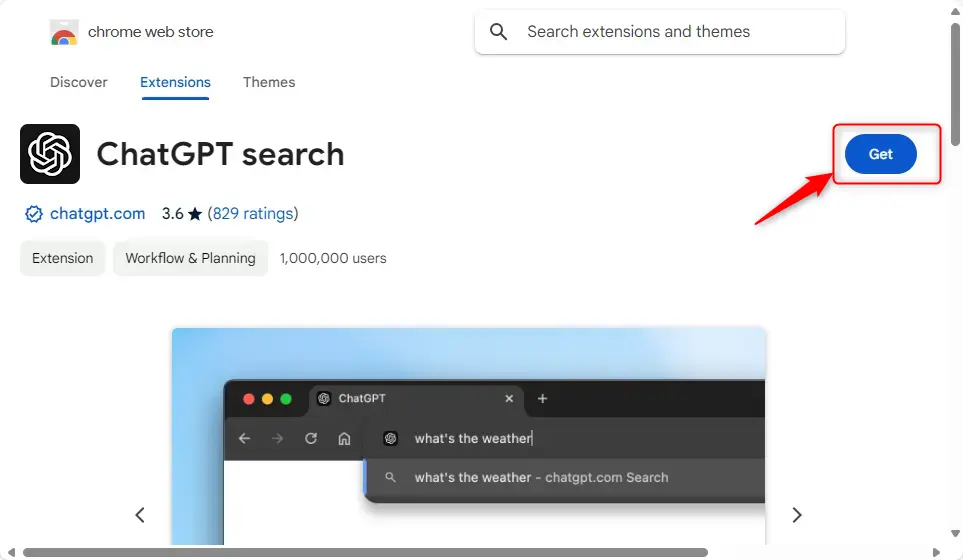
First, open the ChatGPT Search extension page.
Next, click the Get button.
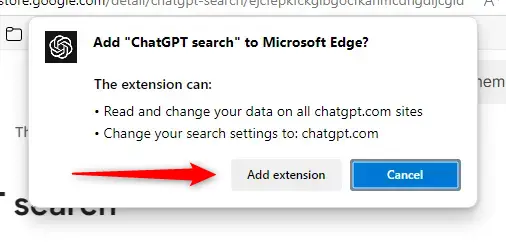
Select the Add extension button.
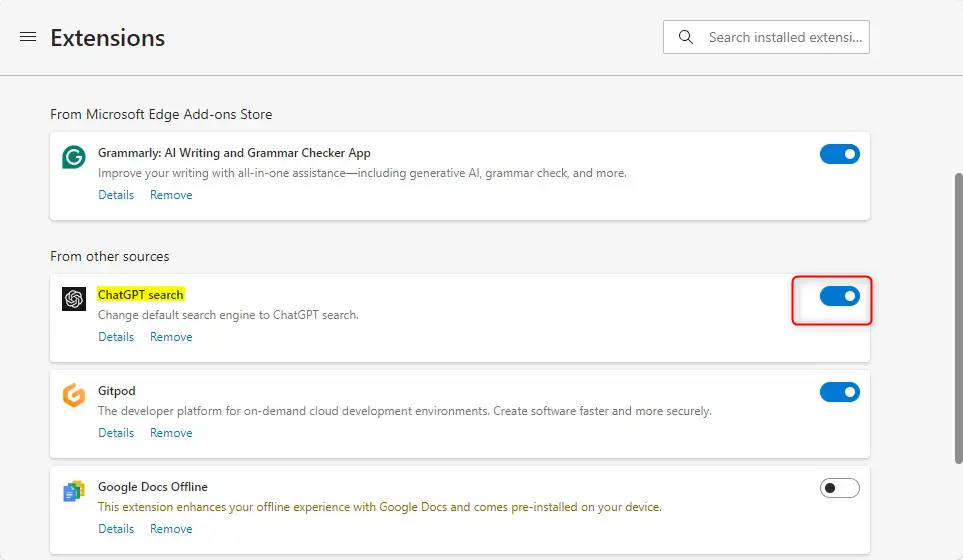
Edge occasionally disables new extensions automatically. A prompt appears requesting permission to activate the add-on when this occurs.
Alternatively, open the edge://extensions page to manually activate the “ChatGPT Search” extension.
Set ChatGPT Search as default in Edge Settings
You can set ChatGPT Search as your default search engine in Edge manually through the browser settings without installing any third-party extensions. This built-in method lets you add custom search engines by entering the proper URL query and shortcut directly into the address bar preferences.
Launch Edge and navigate to the settings menu.
edge://settings/searchEngines
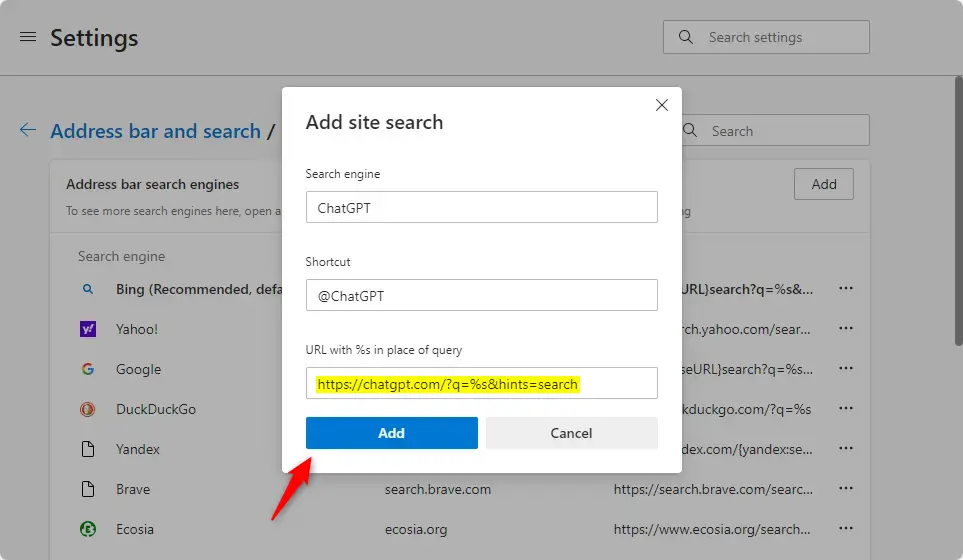
Locate the manage search engines section and select Add.
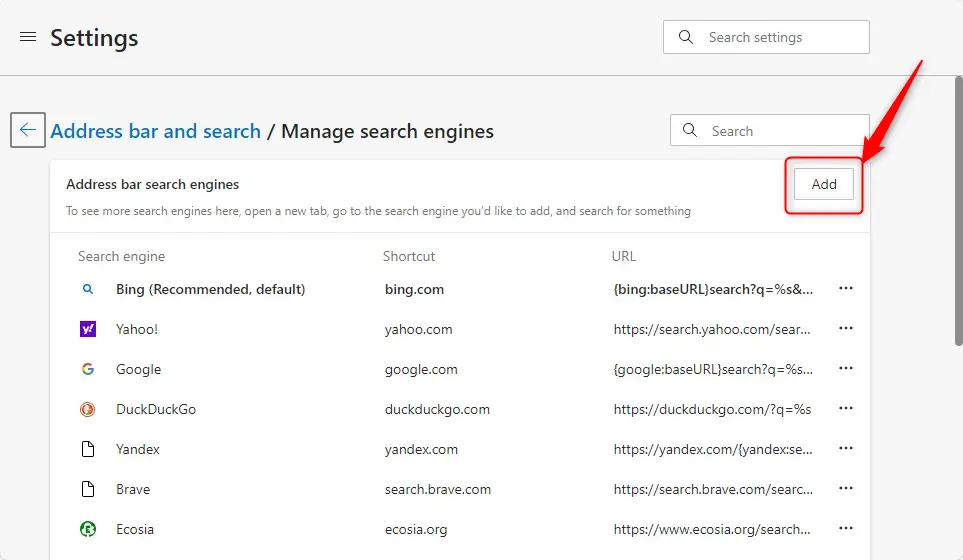
Input the following parameters for ChatGPT:
Name: ChatGPT
Shortcut: @ChatGPT
URL query: https://chatgpt.com/?q=%s&hints=search
Open the three-dot menu next to the new entry and choose Make default.
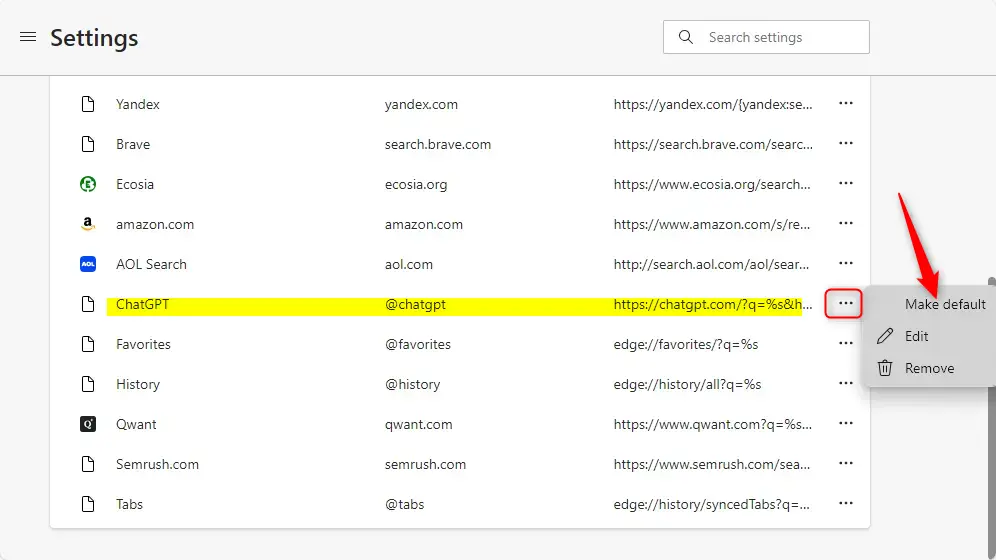
Configuration is now complete.
If this didn't work:
If the search engine reverts to Bing after an update, reopen edge://settings/search and set ChatGPT as the default again.
- Install the ChatGPT Search Extension: Easily add the extension from the Chrome Web Store to start using ChatGPT for web searches.
- Enable the Extension: Ensure the extension is activated in Edge so that it can utilize its features without interruptions.
- Manual Settings Adjustment: For those who prefer not to use the extension, you can manually set ChatGPT as a search engine via Edge's settings.
- Simple Configuration: Adding ChatGPT to your search engines involves filling in a few details, including name, shortcut, and URL query.
- Set as Default: Don’t forget to mark ChatGPT as your default search engine for seamless integration into your browsing routine.
Applying these adjustments unlocks native AI-powered search capabilities within the browser environment.
Was this guide helpful?

About the Author
Richard
Tech Writer, IT Professional
Richard is a writer at Geek Rewind who turns complex IT tasks into clear, step-by-step guides. He draws on years of hands-on experience in system administration and enterprise IT operations, focusing on Windows, Linux and WordPress: the problems people actually run into, and the fixes that work. His server and WordPress guides come from systems he runs himself. Richard builds and maintains the platform behind Geek Rewind, from its Ubuntu servers and Nginx configuration to its custom WordPress plugins. Many new tutorials start with readers' questions, and he's always glad to answer them in the comments.


As of my test today, the Plug In/Extension does not seem to be required to allow this. Maybe due to ChatGPT opening up their search function to all without an account required.
So the instructions from this heading down set it up for me on Edge:
Set ChatGPT Search as default in Edge Settings