How to Enable or Disable Windows Ready Print In Windows 11

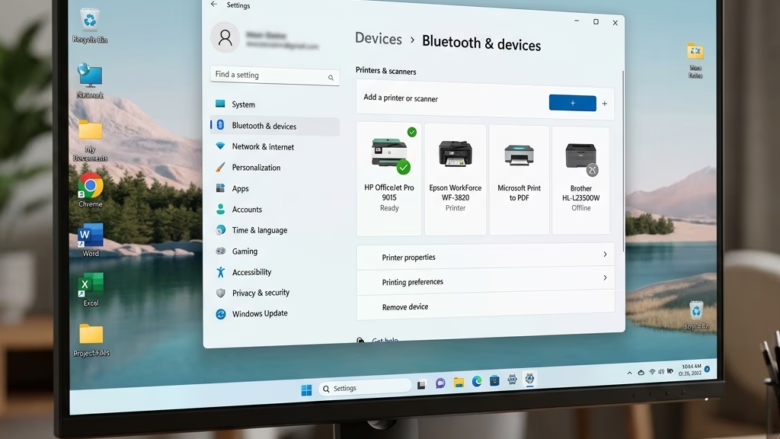
The Windows Ready Print switch is in Settings Bluetooth & devices Printers & scanners, under Printer preferences. Turn Default install printers using Windows Ready Print on or off there. Windows Ready Print makes your PC use IPP (Internet Printing Protocol) when it sets up a printer, which makes installation more reliable.
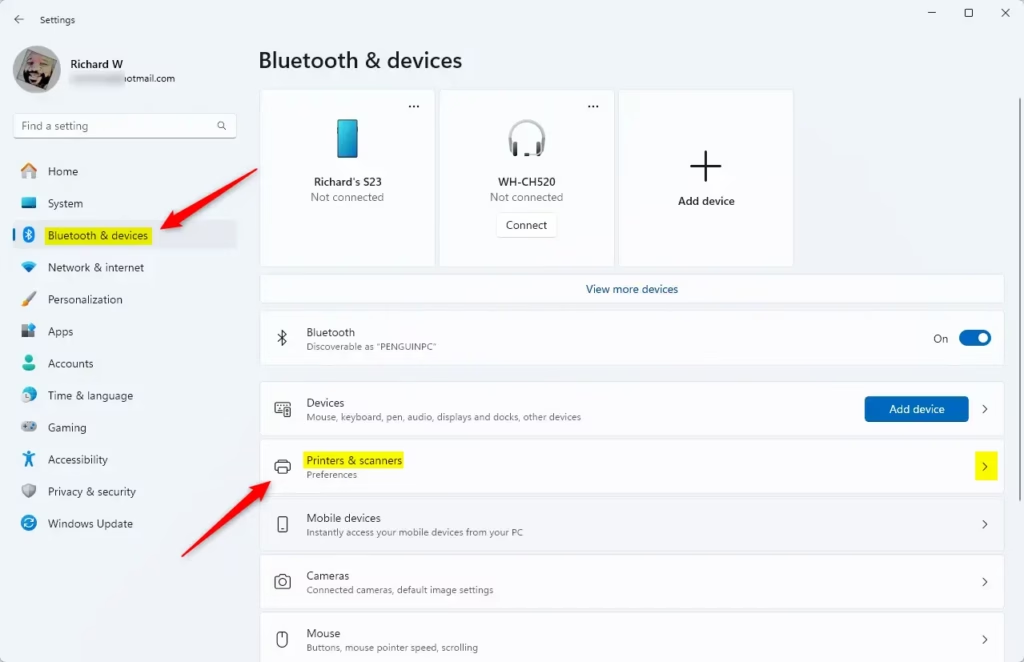
Open Settings , go to Bluetooth & devices, then Printers & scanners. Toggle the “Default install printers using Windows Ready Print” switch to enable or disable the feature. This setting controls whether your PC uses the IPP protocol for printer installations.
Starting in May 2026, Microsoft relies on this protocol by default to phase out older printer drivers. With the setting on, Windows installs new printers the modern way whenever it can. With it off, your computer can fall back on older installation methods, depending on what the printer needs. If you have an older printer that only installs with its legacy driver, turning the setting off is the first thing to try. For everything else, leaving it on is the better choice.
- Open Settings. The quickest way is to press Win+I on your keyboard. The Settings window opens with the list of categories on the left.
- Click Bluetooth & devices on the left side.
- On the right side, click Printers & scanners. You should now see your installed printers and, further down, a section called Printer preferences.
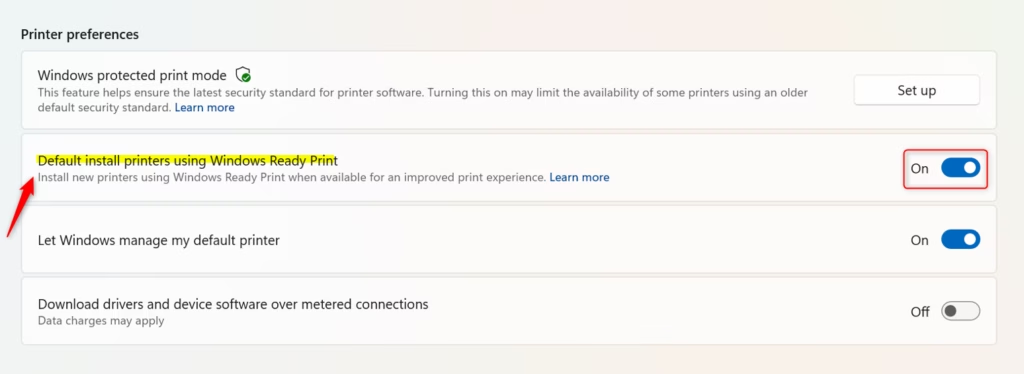
- Find Default install printers using Windows Ready Print under Printer preferences. It has a switch next to it.
- Set the switch to On to let Windows install new printers using the modern IPP method whenever possible. Set it to Off to allow the older installation methods.
- Close the Settings window. The change applies as soon as you flip the switch. I haven’t seen a restart requested for it.
If you don’t see the option, your copy of Windows 11 probably doesn’t have it yet. Run Windows Update , install any pending updates, and check again. On a work PC, your organization may also manage printer settings, so the switch may not behave as you expect. To undo your change, go back to the same page and flip the switch the other way. The setting only affects how new printers are installed, so you can change it whenever a new printer needs a different method.
Summary
Managing the Windows Ready Print setting in Windows 11 takes only a few moments inside the Settings app. Choosing between the Ready Print IPP method and traditional alternatives lets administrators control how new hardware integrates with the workstation. If a new printer won’t install cleanly with one choice, switch to the other and try adding it again.
How to enable Windows Ready print?
Open Settings and press Win+I. Go to Bluetooth & devices, then Printers & scanners. Find "Default install printers using Windows Ready Print" and toggle the switch on. This lets Windows use the modern IPP method for new printer installations.
What is Windows Ready print?
Windows Ready Print is a setting that makes your PC install printers using IPP (Internet Printing Protocol), a modern, more reliable method. Starting May 2026, Microsoft uses this by default instead of older printer driver installation methods.
Why won't 🪟 Windows 11 let me print?
Check that your printer is connected and powered on. Open Settings Bluetooth & devices Printers & scanners and look for your printer in the list. If it's missing, select "Add device" to install it. Restart your printer and PC if it still won't appear.
How do I switch back to the old print dialog in 🪟 Windows 11?
Open Settings, go to Bluetooth & devices, then Printers & scanners. Toggle off "Default install printers using Windows Ready Print." This lets Windows use traditional printer installation methods instead of the newer IPP approach.
Have a question about this guide?
Answered by AI from this guide. Good questions may be added to this page — please don't include personal details.
Did this guide fix your problem?

About the Author
Richard
Tech Writer, IT Professional
Richard is a writer at Geek Rewind who turns complex IT tasks into clear, step-by-step guides. He draws on years of hands-on experience in system administration and enterprise IT operations, focusing on Windows, Linux and WordPress: the problems people actually run into, and the fixes that work. His server and WordPress guides come from systems he runs himself. Richard builds and maintains the platform behind Geek Rewind, from its Ubuntu servers and Nginx configuration to its custom WordPress plugins. Many new tutorials start with readers' questions, and he's always glad to answer them in the comments.
No comments yet — be the first to share your thoughts!