How to Enable or Disable Ignore Touch Input When Using Pen in Windows 11

Ignore touch input when using a pen is a built-in Windows 11 setting that stops palm marks and stray finger taps from ruining your handwriting or sketches. When the pen gets close to the screen, Windows stops responding to touch. That lets you rest your hand on the glass the way you would on paper.
This matters most for note-taking and drawing, where one stray touch can scroll the page, drop a mark in the wrong place or switch tools. Below are two ways to turn the setting on or off: the Settings app, and an administrator command method. Settings is the easier one and works on both Home and Pro.
Go to Settings Bluetooth & devices Pen & Windows Ink Additional pen settings. Check or uncheck the box next to “Ignore touch input when I’m using my pen” to enable or disable it. This prevents accidental touches from interfering with your pen.
What is a Touchscreen?
If you have ever drawn or taken notes on a touchscreen, you know the problem. Your palm touches the display while the pen is writing, and Windows treats the palm as another finger. The result is random dots, lines or a cursor that jumps around.
Why Use This Feature?
The Ignore touch input when I’m using my pen setting fixes this. While it is on, the display does not register finger contact when the pen is near the screen. Palm contact no longer causes erratic cursor jumps, so handwriting and sketching come out much cleaner. Touch works normally again once the pen moves away.
The setting only exists on devices with a touchscreen and pen support. If you do not see it, the PC probably has no pen-capable display, or Windows has not detected a pen yet.
Option 1Use Settings
- Press
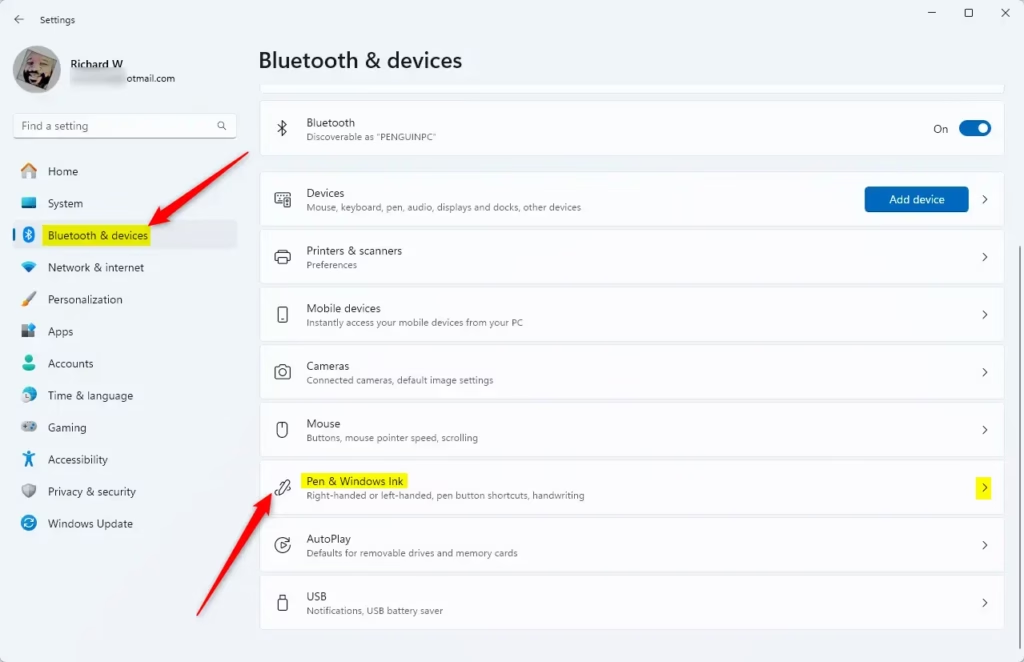
Win+Ito open Settings . - Click Bluetooth & devices in the left pane. The device options appear on the right.
- Click Pen & Windows Ink on the right side. The pen settings page opens (see image below).
If Pen & Windows Ink is missing from the list, Windows does not see a pen-capable screen on this device. Check that the pen is paired or connected, then look again.
- Click Additional pen settings to expand it. The extra options appear below the heading.
- Check the box next to Ignore touch input when I’m using my pen to turn the feature on. Uncheck it to turn it off (see image below).
The change takes effect right away. You do not need to restart or sign out. Test it by resting your palm on the screen while the pen hovers over it. The palm should do nothing.
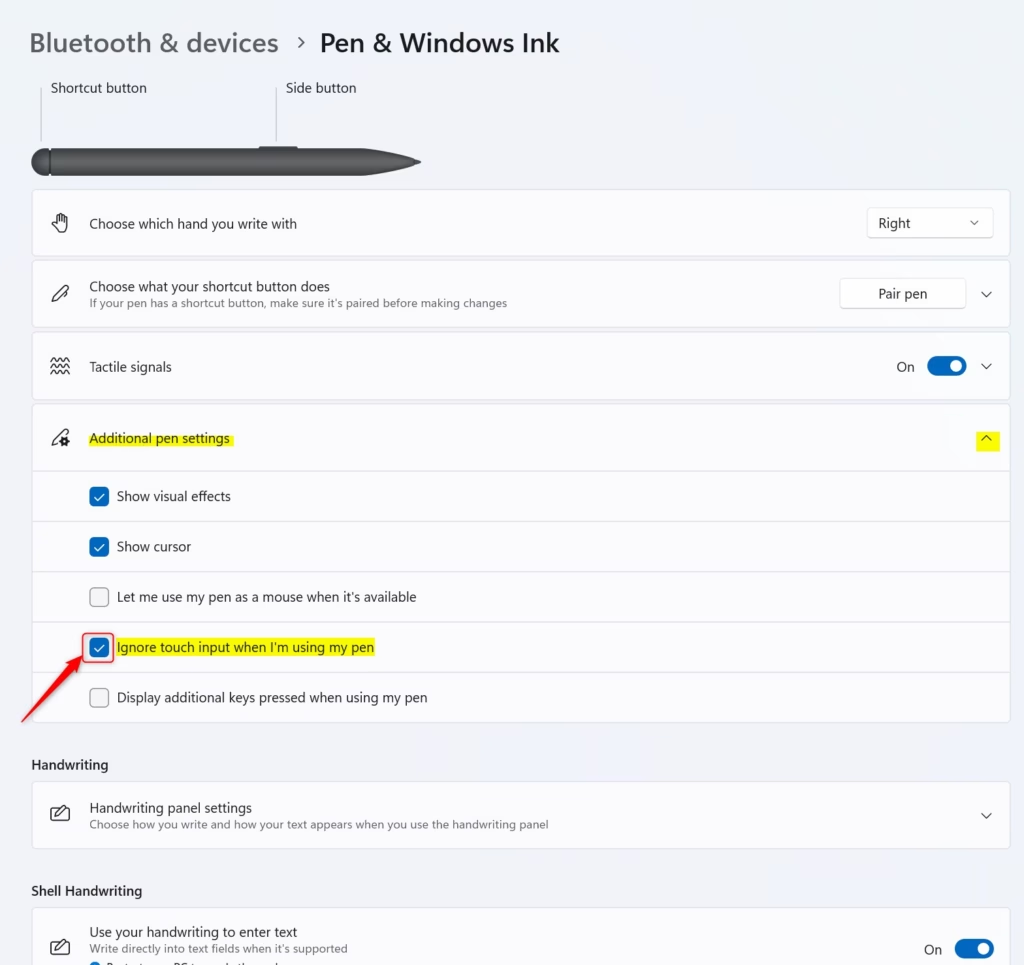
Turning this setting on takes only a few clicks in the Settings app. You can switch it back whenever you like by returning to Bluetooth & devices Pen & Windows Ink Additional pen settings
To undo the change at any time:
- Go back to Settings Bluetooth & devices Pen & Windows Ink
- Expand Additional pen settings.
- Uncheck Ignore touch input when I’m using my pen. Finger touch will work alongside the pen again.
Option 2Use Registry
⚠️ REQUIRES ADMIN PRIVILEGES
Open the Terminal app as administrator and run the commands below. If Windows asks for permission, click Yes. Without admin rights the commands will fail with an access error.
These commands change the setting through the Windows Registry, so use them only if the Settings page is not available to you. A common case is an administrator setting this up on a managed PC. If you are not sure, use the Settings method above.
Enable Ignore Touch Input when using Pen
reg add "HKEY_CURRENT_USER\Software\Microsoft\Wisp\Touch" /v TouchGate /t REG_DWORD /d 1 /f
Disable Ignore Touch Input when using Pen
This restores the default behavior.
reg add "HKEY_CURRENT_USER\Software\Microsoft\Wisp\Touch" /v TouchGate /t REG_DWORD /d 0 /f
Summary
The Settings app is the quickest way to switch this behavior on or off. The Registry commands are meant for advanced administrators. Both stop unwanted touch input while you work with the pen. If a Registry change does not seem to apply, sign out and back in, or restart the PC, then check the Settings page again.
Frequently asked questions
How to disable touch input in 🪟 Windows 11?
Open Settings, select Bluetooth & devices, then click Touch and switch the Touch toggle to Off. Finger input stops working on the screen, so use a mouse or keyboard to return to Settings later and switch the toggle back on.
Why does my Surface Pen write when I'm not touching the screen?
The pen is probably hovering close enough for the screen to read it, or its side button is pressed or stuck. Clean the tip and check the button. Make sure Ignore touch input when I'm using my pen is turned on in Settings. If it continues, restart the PC and update the pen's driver in Device Manager.
Why isn't my stylus Pen working on my touchscreen?
Charge the pen and confirm it is paired under Settings, then Bluetooth & devices. Next, turn on Pen & Windows Ink in Settings. Restart the computer. If the pen still does nothing, update the touchscreen driver in Device Manager.
How do I disable touchscreen mode?
Windows 11 has no single touchscreen mode switch. Open Settings, select Bluetooth & devices, then click Touch and turn off the toggle. The screen stops responding to finger touches, while the pen and mouse keep working. Turn the toggle back on to restore touch.
Still have a question?
Answered by AI from this guide. Good questions may be added to this page — please don't include personal details.
Did this guide fix your problem?

About the Author
Richard
Tech Writer, IT Professional
Richard is a writer at Geek Rewind who turns complex IT tasks into clear, step-by-step guides. He draws on years of hands-on experience in system administration and enterprise IT operations, focusing on Windows, Linux and WordPress: the problems people actually run into, and the fixes that work. His server and WordPress guides come from systems he runs himself. Richard builds and maintains the platform behind Geek Rewind, from its Ubuntu servers and Nginx configuration to its custom WordPress plugins. Many new tutorials start with readers' questions, and he's always glad to answer them in the comments.
No comments yet — be the first to share your thoughts!