How to Manually Set the Default Printer in Windows 11

Setting a default printer in Windows 11 lets you choose one device to receive your print jobs automatically. By default, Windows manages this for you and picks a printer on its own. That is how documents end up on the wrong machine.
You turn off automatic printer management and pick your main device in Settings. It takes under a minute. You can also use the Control Panel if you prefer the older Devices and Printers view. This tutorial uses Settings because it works the same on Windows 11 Home and Pro.
Open Settings Bluetooth & devices Printers & scanners, turn off Let Windows manage my default printer, click your printer’s name, then click Set as default. Your printer is now locked in and won’t change automatically.
Manually Setting Your Default Printer
This works well if you have one printer you use for almost everything. It also stops Windows from changing that choice behind your back. Neither step needs a restart, and you do not need administrator rights to change your own default printer on most home and work PCs.
Open Windows Settings
- Click the Start button on the taskbar .
- Click the gear icon (Settings). If you don’t see it in the pinned apps, type Settings and press Enter. You can also press the Win+I.
The Settings window should open, with a list of categories on the left.
Go to Printers & Scanners
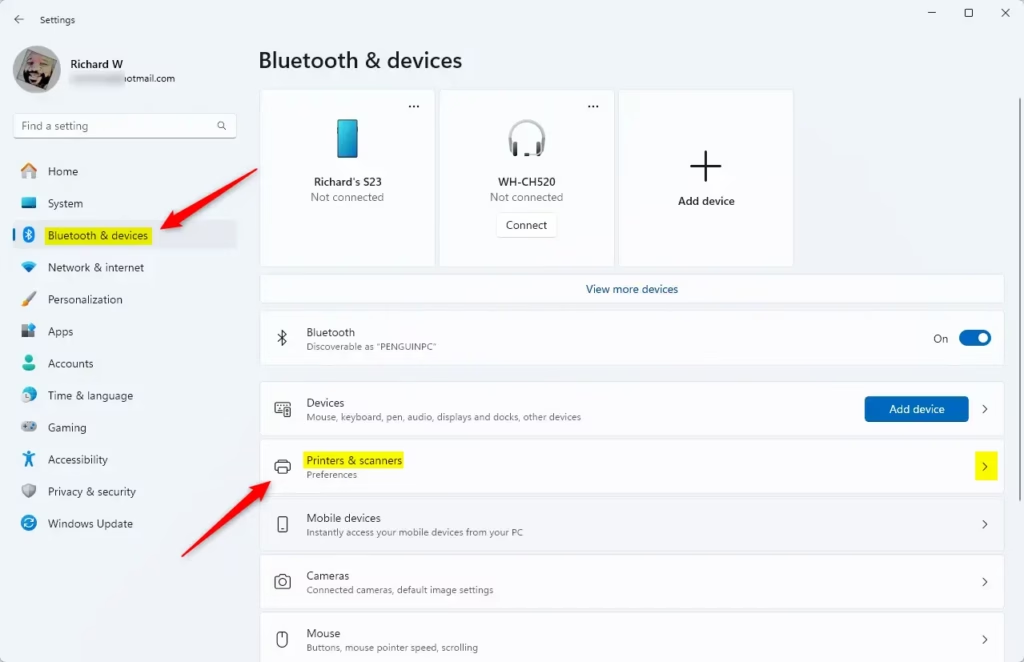
- In the left-hand menu of Settings, click Bluetooth & devices.
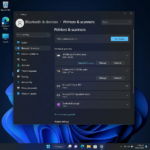
- Scroll down the right-hand pane and click Printers & scanners.
You should now see a switch near the top and a list of your printers underneath.
Turn Off Automatic Printer Management
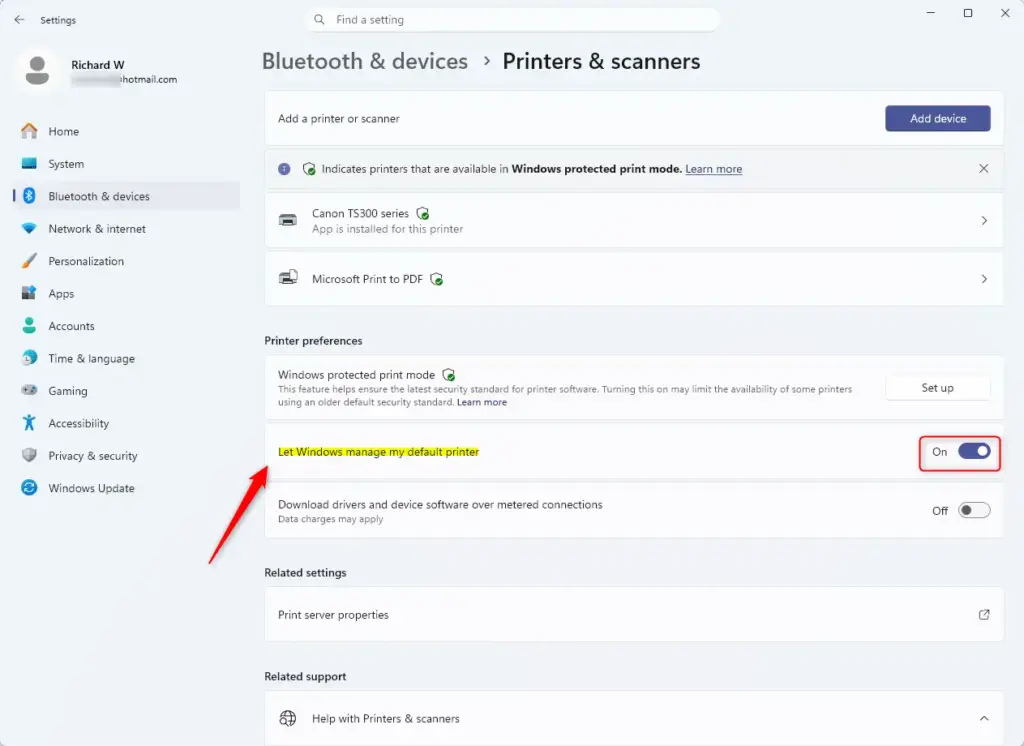
While it is on, Windows makes the last printer you used the default. If you print to a PDF printer or a shared office printer once, it can take over as the default. This setting is also why the Set as default button is greyed out or missing on a printer’s page.
- Go to Settings Bluetooth & devices Printers & scanners
- Find Let Windows manage my default printer.
- Click the switch to turn it Off.
The label next to the switch should now read Off. Your chosen printer will stay selected until you change it yourself. To undo this later, return here and switch it back to On.
Choose Your Printer
This usually includes virtual ones such as Microsoft Print to PDF, plus any network or USB printers you have added. If your printer is not listed, check that it is powered on and connected, then add it with the Add device button at the top of the page.
- Find the printer you want to use as your default.
- Click its name.
A new page opens with details and options for that printer.
Set It as Default
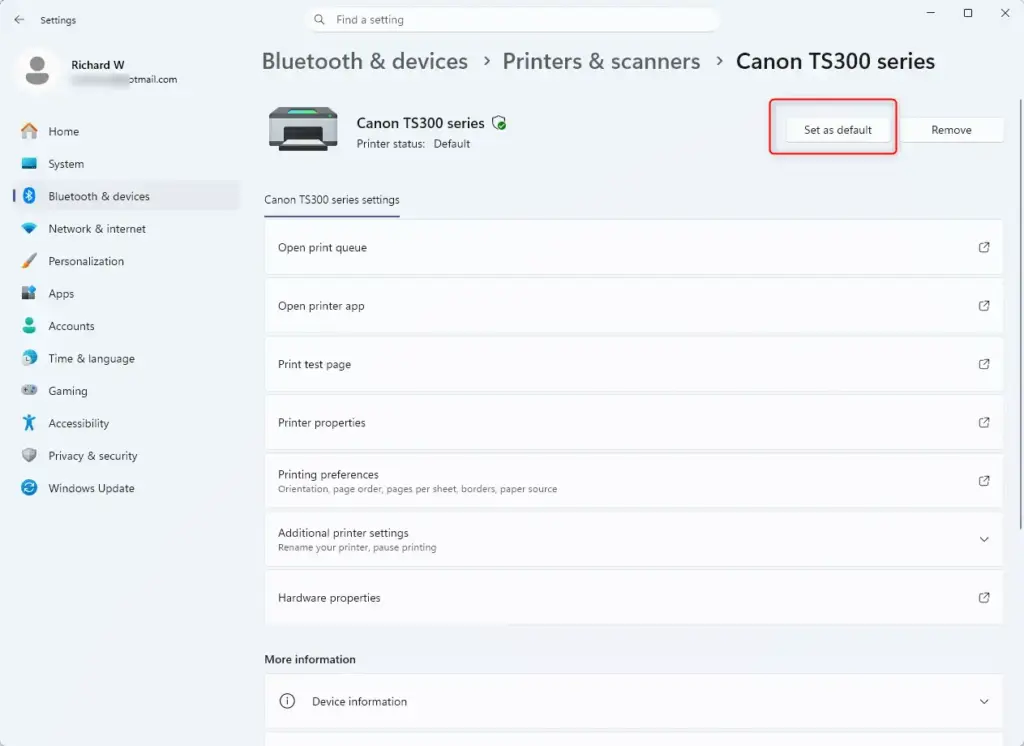
- On the printer's page, click Set as default.
- Go back to the printer list. The printer you chose should now show Default under its name.
If the button is greyed out, go back and make sure Let Windows manage my default printer is set to Off. If you later pick a different printer, repeat these steps for the new one.
You have now told Windows 11 which printer to use for your print jobs. Open any document and press Ctrl + P to check. The default printer should be preselected in the print dialog. You can still choose another printer for a single job there without changing your default.
Summary
Setting your default printer manually prevents printing mistakes and saves you from checking the printer name before every job. Windows will only change it if you change it yourself or turn automatic management back on. If you move between locations, such as home and the office, you may prefer to leave automatic management on. Otherwise, set it once and leave it alone.
Was this guide helpful?

About the Author
Richard
Tech Writer, IT Professional
Richard is a writer at Geek Rewind who turns complex IT tasks into clear, step-by-step guides. He draws on years of hands-on experience in system administration and enterprise IT operations, focusing on Windows, Linux and WordPress: the problems people actually run into, and the fixes that work. His server and WordPress guides come from systems he runs himself. Richard builds and maintains the platform behind Geek Rewind, from its Ubuntu servers and Nginx configuration to its custom WordPress plugins. Many new tutorials start with readers' questions, and he's always glad to answer them in the comments.

No comments yet — be the first to share your thoughts!