How to Enable or Disable Mobile Device Notification Previews on Hover in Start Menu on Windows 11

Mobile device notification previews on hover in the Start menu on Windows 11 let you view phone alerts, battery percentage, and text messages directly from your desktop. This built-in feature uses the Phone Link app to connect Android and iOS devices to Windows 11 Build 22621 or later, so you can read alerts without unlocking your phone.
You can turn these pop-up alerts on or off in a few clicks. Turning them off helps protect your privacy when you share your screen or present to a room. It also keeps your desktop free of pop-ups. Nothing here needs a restart, and you can reverse it at any time by repeating the same steps.
Before you start, check three things:
- Your PC runs Windows 11 Build 22621 or later. To check, press Win+R, type winver and press Enter.
- Your phone is already linked to your PC through the Phone Link app.
- Phone Link is up to date. Microsoft changes its menus often, so an old version may not show the options described below.
Open Phone Link, click the Settings gear icon, select Start menu personalization, then find the notification preview toggle in the notifications section and switch it On or Off. Changes apply immediately without restarting.
Control Notification Previews in the Start Menu
Now that your phone is linked, let’s manage the notification previews on your Start menu. Here you decide whether to see the full content of your phone’s alerts or only a quick summary.
Step 1Go to Phone Link Settings
- Open the Phone Link app and wait until your phone appears as connected.
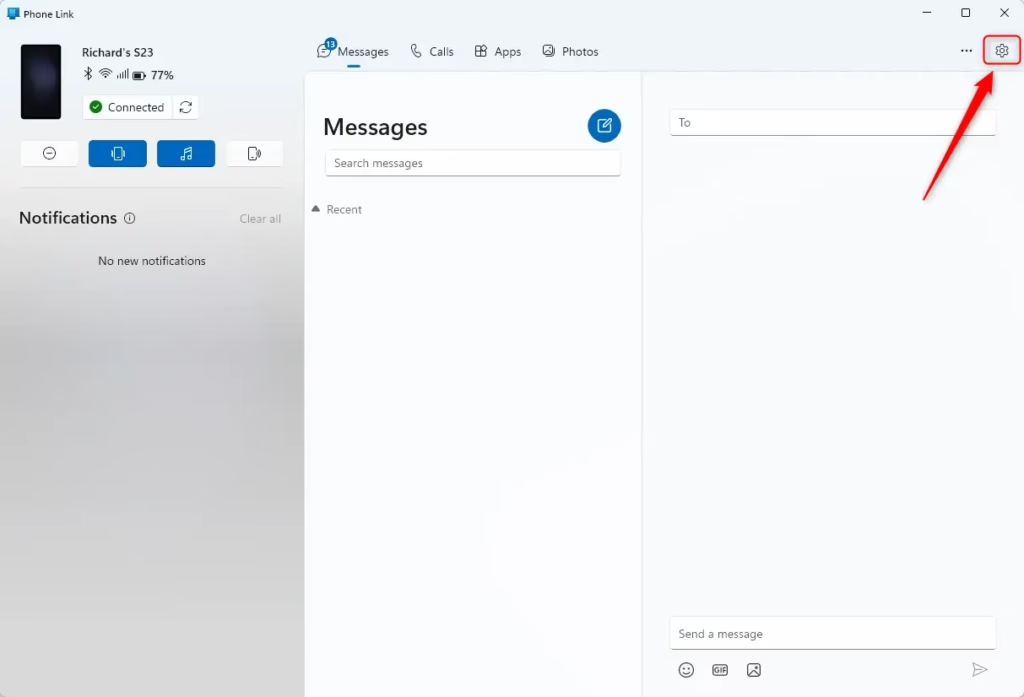
- Locate the Settings gear icon, usually in the top-right corner of the app window.
- Click the gear icon. The Phone Link settings menu opens. This is where PC and phone interactions are managed.
Step 2Find Start Menu Settings
In the Phone Link settings, look for the option that controls how your phone appears on the Windows Start menu.
- Scan the settings list for the Start menu entry. Depending on your Phone Link version, it may be under a general or features section.
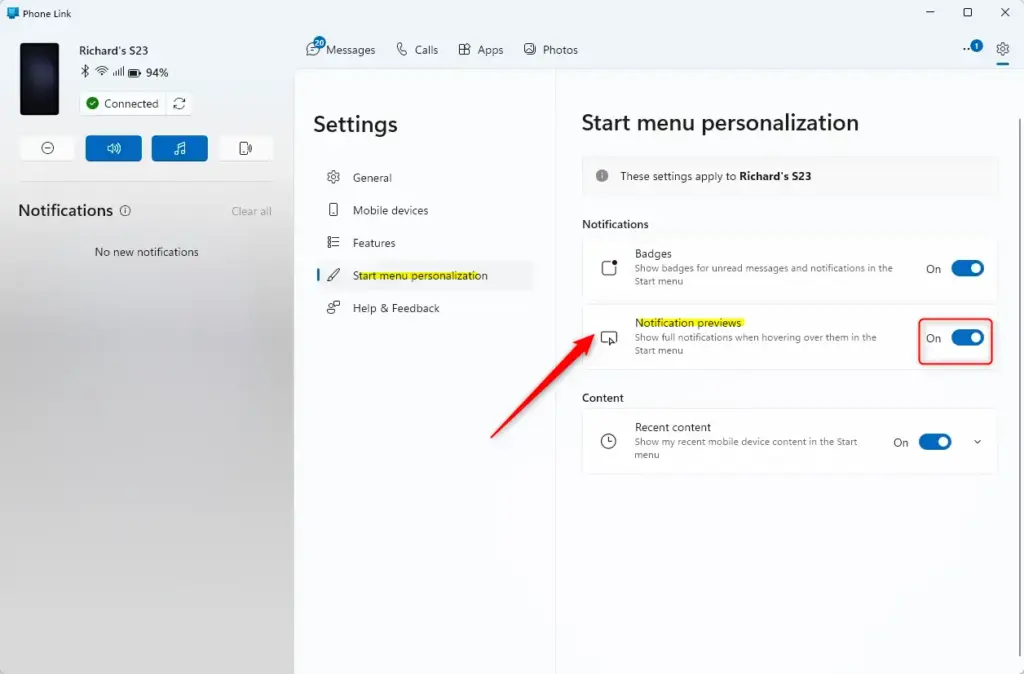
- Click Start menu personalization. You should now see the options that control how your phone appears and what information it shows on your Start menu.
Step 3Change Notification Preview Settings
You can manage Windows 11 notification previews in the Phone Link app settings to choose how much detail appears on your screen. Open the app settings, go to the features section, and find the notifications section. From there, you can turn previews on or off so your phone alerts show either the full message or a simple summary when you look at the Start menu.
- In the Phone Link settings, open the notifications section described above.
- Find the notification preview toggle.
- Switch it On or Off, depending on what you want. The toggle should change position right away.
- Turn On Notification PreviewsIf you want to see the full content of your phone’s notifications when you hover over your phone’s icon in the Start menu, make sure this option is turned ON. This is usually the default. Be aware that anyone looking at your screen can read those messages too.
- Turn Off Notification PreviewsIf you don’t want to see the full details of your notifications on the Start menu, turn this option OFF. You’ll still get notifications, but you’ll need to open the Phone Link app or check your phone to see the full message. This is a good choice for screen sharing and meetings.
Step 4Save Your Changes
Changes to this setting apply automatically without requiring a manual save or a restart. You can now test it out. Send yourself a message from another device, then open the Start menu and hover over your phone’s icon to see whether you get the full text or only a summary.
If the result isn’t what you expect, go back to the same setting and flip the toggle. If nothing changes, close and reopen Phone Link and check that your phone is still connected.
Summary
Managing Windows 11 notification previews lets you control what information pops up from your phone on your computer screen. You can turn on previews to read incoming messages right away, or turn them off to keep your screen private and free from distractions while you work on your PC using the Phone Link app.
Have a question about this guide?
Answered by AI from this guide. Good questions may be added to this page — please don't include personal details.
Did this guide fix your problem?

About the Author
Richard
Tech Writer, IT Professional
Richard is a writer at Geek Rewind who turns complex IT tasks into clear, step-by-step guides. He draws on years of hands-on experience in system administration and enterprise IT operations, focusing on Windows, Linux and WordPress: the problems people actually run into, and the fixes that work. His server and WordPress guides come from systems he runs himself. Richard builds and maintains the platform behind Geek Rewind, from its Ubuntu servers and Nginx configuration to its custom WordPress plugins. Many new tutorials start with readers' questions, and he's always glad to answer them in the comments.
No comments yet — be the first to share your thoughts!