How to Check Your Notification History in Windows 11

- 27 steps
- Needs administrator rights
Windows 11 doesn’t keep a permanent notification history. The Notification Center (the panel that pops up with your alerts) is the only place to review notifications, and they disappear once you dismiss them or select Clear all. Open it anytime by pressing Win+N to see what’s still there.
This means you can’t go back and find a notification you missed hours or days ago — Windows doesn’t store old ones. But if you’re looking for records of specific events like system updates, security alerts, or messages from individual apps, there are other places to check.
This guide shows you where to find notification history in Windows 11 and explains why a notification you expected might be missing. No administrator privileges are needed.
Press Win+N to open Notification Center and view all undismissed notifications listed by app, newest first. Dismissed notifications cannot be recovered; Windows 11 keeps no permanent notification history log.
What 🪟 Windows 11 Keeps and What It Doesn’t
Android has a setting that logs every notification for the past day. Windows 11 has nothing like it. A notification appears as a banner (the pop-up in the corner of your screen). If you don’t act on it, it moves into notification center and stays there until you remove it.
That gives you three practical rules:
- A notification you haven’t dismissed is still in notification center, even if the banner vanished before you read it.
- A notification you dismissed, cleared or clicked is usually gone from notification center and cannot be recovered there.
- A notification that the app never sent to notification center never appears in the list. Whether an app does this depends on that app’s settings, covered in the next section.
Some apps and Windows tools keep their own records. These are often more useful than notification center for older alerts, and the later sections cover them.
How to Check Notification History in Notification Center
This is the fastest way to see what you missed. It works the same on Windows 11 Home and Pro.
Open Notification Center
You can open notification center from the taskbar, from the keyboard, or by touch.
- Click the date and time at the right end of the taskbar. Alternatively, press Win+N. On a touchscreen, swipe in from the right edge of the screen.
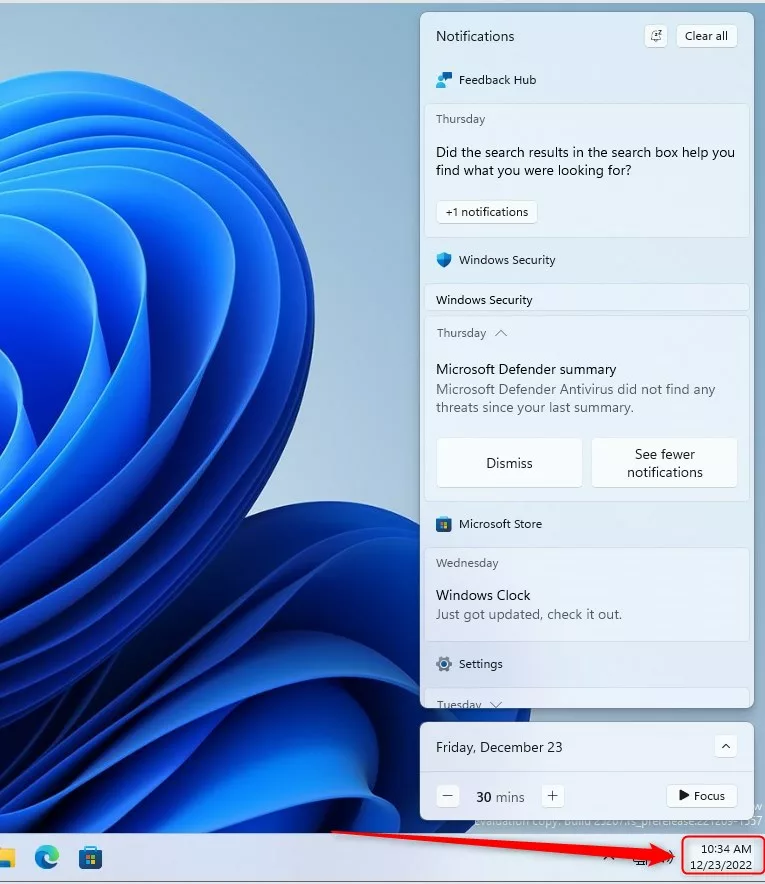
windows notification center flyout - Look at the top of the panel that opens. Your notifications are listed there, newest first, with a calendar below them.
If the panel shows No new notifications, Windows is holding nothing for you. Go to the troubleshooting section below to find out why.
If the panel opens but the notifications area looks different from this description, check which Windows 11 version you have. The original release and later updates arranged the calendar and notifications slightly differently. The notification list works the same way in all of them.
Read Grouped Notifications
Windows groups notifications by app. Several alerts from the same app collapse into one entry, showing you the latest and a count of how many others there are.
- Find the app name above a group of notifications.
- Select the small arrow next to the app name or the group to expand it.
- Scroll through the individual notifications. You should now see each one with its own time stamp.
- Select the arrow again to collapse the group.
Read the notification text without clicking it where you can. Clicking a notification normally opens the app and removes the notification from the list. If you want to keep it for reference, note the details first, or take a screenshot with Win+Shift+S.
Dismiss Notifications You No Longer Need
Dismissing is the step that destroys history, so do it deliberately. You cannot undo it.
- Point at a notification or an app group to show its X button.
- Select the X to remove that notification or group.
- To remove everything at once, select Clear all at the top of the notification list.
After you select Clear all, the list resets to No new notifications. Nothing in Windows can bring those entries back.
Why a Notification Is Missing From the List
A notification can fail to show up for four main reasons. Work through them in order, starting with the setting that has the widest effect.
Check That Notifications Are Turned On
The master switch controls every app at once. When it is off, Windows neither shows banners nor stores notifications in notification center.
- Open Settings System Notifications.
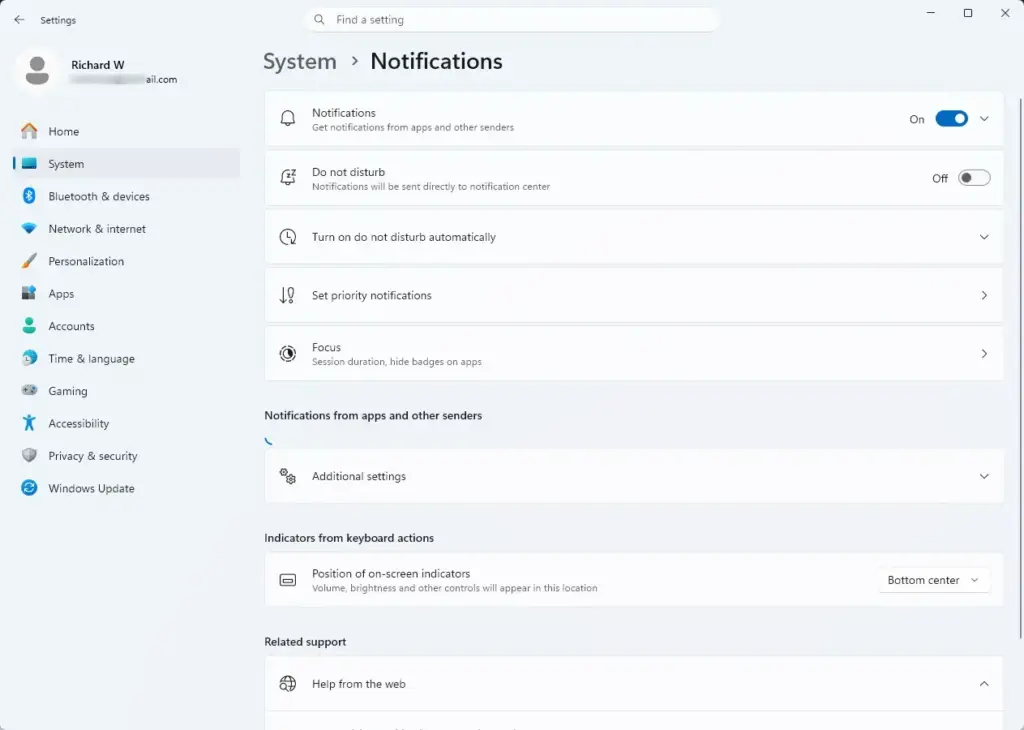
Settings › System › Notifications - Find the Notifications toggle at the top of the page.
- Set it to On if it is off.
Notifications that arrived while the switch was off are not recovered. Only new ones appear from now on. To reverse the change, set the toggle to Off again.
Check Do Not Disturb
Do not disturb is a mode that silences banners and sounds so alerts don’t interrupt you. It does not discard them. Notifications that arrive while it is on go straight to notification center, which is why you may see banners missing but notifications present.
- Open Settings System Notifications.
- Find the Do not disturb toggle.
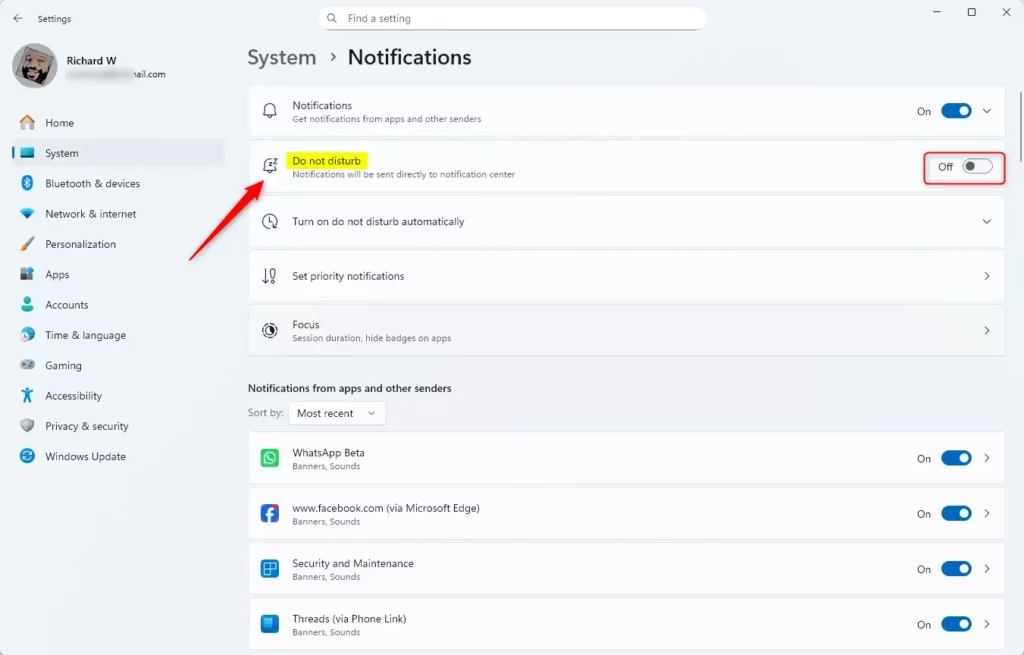
- Check whether it is on. If it is, the bell icon in the taskbar’s notification area also shows a do-not-disturb state.
- Open notification center to read what arrived while it was on.
The same page also has options to turn do not disturb on automatically, for example during certain activities. The exact list of automatic rules depends on your Windows 11 version, so read the options on your own screen. If notifications go quiet at the same time every day, check this list first.
Check the Setting for Each App
Each app has its own permission to place notifications in notification center. An app can show banners but never store them in notification center. This is the most common reason that one app is missing while others are present.
- Open Settings System Notifications.
- Scroll down to the list of apps and other senders.
- Select the name of the app you are looking for. Its options expand below it.
- Find Show notifications in notification center and set it to On.
If the app isn’t in the list, it either hasn’t sent a notification through Windows yet or handles alerts on its own. In either case, check the app’s settings directly.
Setting the option back to Off reverses the change. Notifications already in the list stay until you dismiss them.
Accept That Cleared Notifications Are Gone
If you selected Clear all, clicked a notification, or selected its X, Windows removed it. There is no recycle bin for notifications. Use the app-level records in the next section to rebuild what you missed.
Where to Find Older Alerts Outside Notification Center
Many of the alerts people want to look back on come from a few sources that keep their own records. Check those records instead of notification center.
Windows Security Protection History
Windows Security (the built-in antivirus and security app) records threats it found and actions it took, even after the notification is dismissed.
- Click Start, type Windows Security, and open the app.
- Select Virus & threat protection.
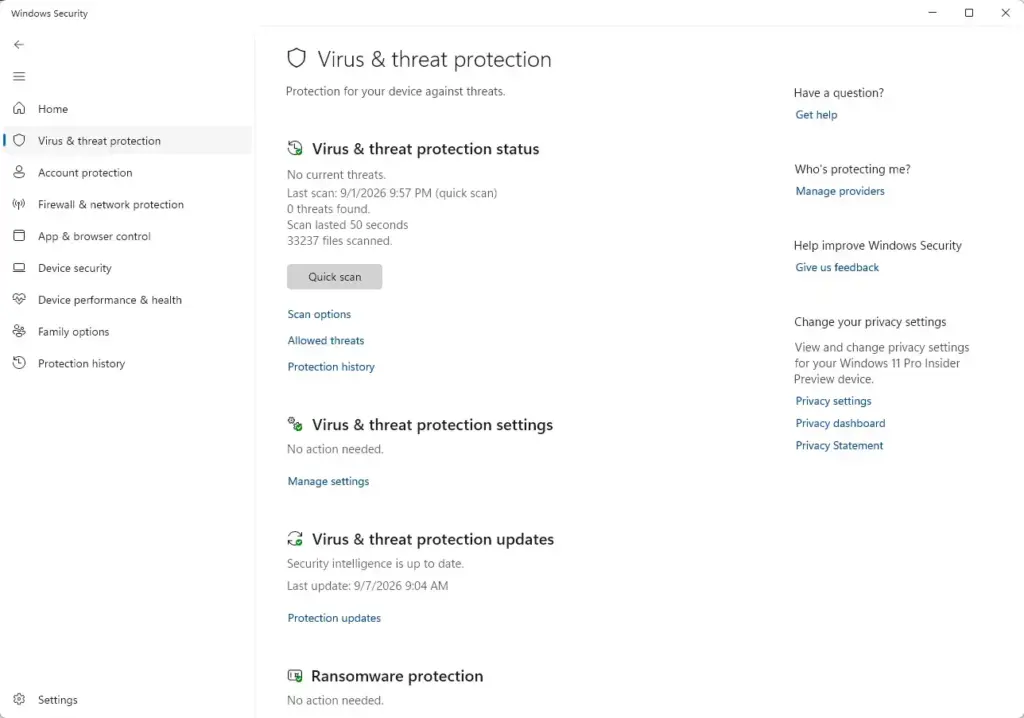
Windows Security › Virus & threat protection - Select Protection history.
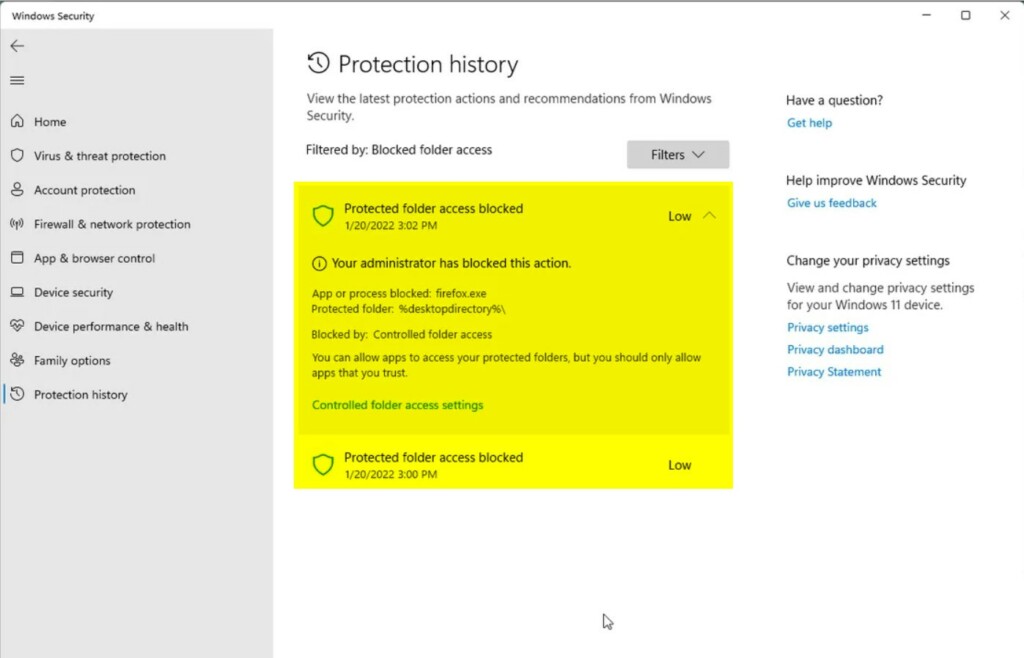
microsoft defender protection history list - Review the list. You should see each item with a date and the action Windows took. Select an entry to expand its details.
If the list is empty, Windows Security has not recorded any events to show.
Windows Update History
If you dismissed an update notification and want to know what actually installed, check the update log. It lists updates by type and date.
- Open Settings Windows Update.
- Select Update history.
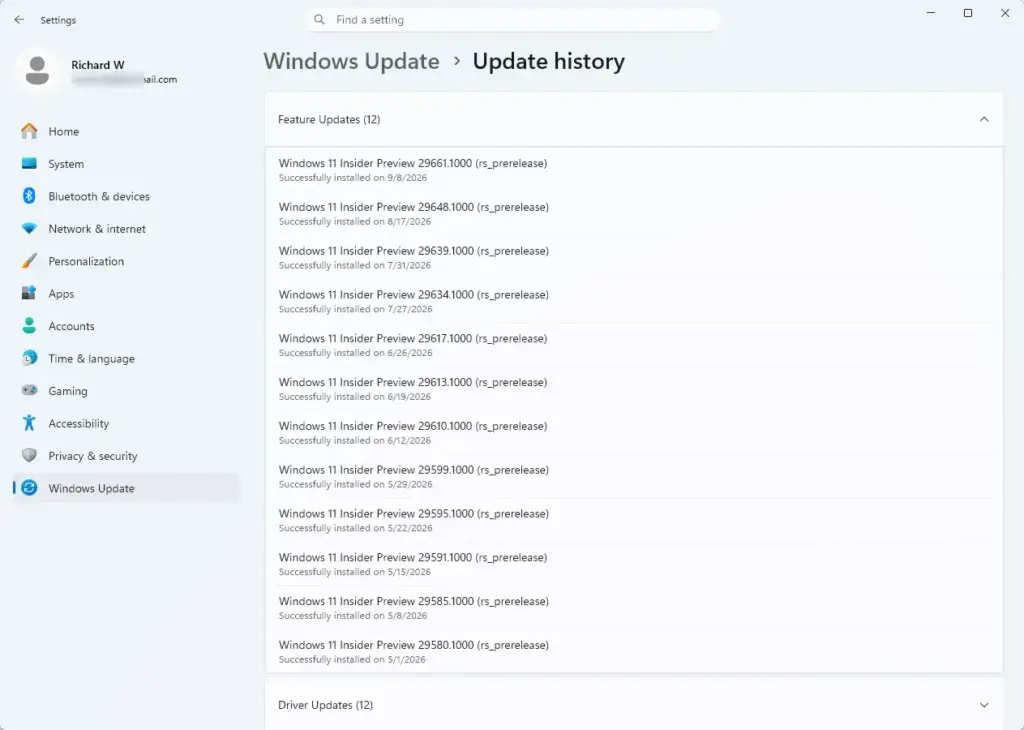
Settings › Windows Update › Update history - Expand a category, such as Quality Updates, to see the individual updates and whether each one succeeded or failed.
The App’s Own Inbox or Activity Feed
Email, chat and collaboration apps keep their own message records. A notification banner is just a copy of something that already exists in the app. If a message notification disappeared, open the app and check its inbox, activity feed or unread list. This is usually the best place to recover the content of a message you missed.
How to Keep Notifications Longer
You cannot extend Windows 11’s notification history, but you can reduce how often you lose alerts. Three habits help:
- Leave Show notifications in notification center on for the apps you care about, as described above.
- Avoid Clear all unless you have read everything. Dismiss individual notifications instead.
- Turn on do not disturb rather than turning notifications off when you need quiet. Banners stay silent, but the alerts are saved for you to read later.
Third-party tools that log notifications exist, but their reliability and privacy handling vary, and I can’t verify them here. Windows 11 itself provides no setting for this.
What to Do Next
Once notification center shows the alerts you expect, adjust which apps are allowed to send them under Settings System Notifications. If one app is too noisy, turn off only its banners and leave Show notifications in notification center on, so its alerts still collect quietly in the list. If you need the content of a message that has already been cleared, open the sending app and check its inbox or activity feed.
Frequently asked questions
How do I see my notification history?
Open Notification Center by pressing Win+N. It shows only the notifications you haven't dismissed or cleared yet. Windows 11 doesn't keep a permanent log, so once you dismiss a notification, you can't view it there again. To find older alerts, check the app that sent it, such as Mail or Teams.
How to see deleted messages in notification history?
Windows can't show deleted notifications, because it doesn't store them after you dismiss or clear them. Check the app that sent the message instead. Mail, Teams, and most messaging apps keep their own history in their inbox or chat list. If the message was deleted in the app, it usually can't be recovered from Windows.
How to see notifications on iPhone after they disappear?
This guide covers Windows 11, but the answer is similar on iPhone. iOS removes a notification from Notification Center once you clear it, and it doesn't keep a log. To find the message again, open the app that sent it. Mail and Messages keep the full conversation even after the alert is gone.
How do I get my notifications to show again?
Turn notifications back on in Settings. Open Settings, select System, then Notifications, and make sure the toggle at the top is on. Then check Focus, which can silence alerts while it's active. Turn it off, or add the app to its allowed list.
Still have a question?
Answered by AI from this guide. Good questions may be added to this page — please don't include personal details.
Did this guide fix your problem?

About the Author
Richard
Tech Writer, IT Professional
Richard is a writer at Geek Rewind who turns complex IT tasks into clear, step-by-step guides. He draws on years of hands-on experience in system administration and enterprise IT operations, focusing on Windows, Linux and WordPress: the problems people actually run into, and the fixes that work. His server and WordPress guides come from systems he runs himself. Richard builds and maintains the platform behind Geek Rewind, from its Ubuntu servers and Nginx configuration to its custom WordPress plugins. Many new tutorials start with readers' questions, and he's always glad to answer them in the comments.
No comments yet — be the first to share your thoughts!