Reset Windows 11 and Remove Everything

Reset this PC in Windows 11 includes a Remove everything option that deletes your personal files, apps and settings, then reinstalls Windows. To remove everything, open Settings System Recovery, select Reset PC, and choose Remove everything.
The steps are the same on Windows 11 Home and Pro. Reset this PC is built into Windows 11, so you need no extra software or installation media while Windows still starts.
This process cannot be undone. Once it starts, your files are gone unless you backed them up first.
To remove everything from Windows 11, open Settings , select System, then Recovery, and click Reset PC. Choose Remove everything, which deletes your personal files, apps and settings before reinstalling Windows. Back up your files first, because this cannot be undone. Windows 11 Home and Pro use the same steps.
Before You Remove Everything
A reset wipes the drive Windows is installed on. Spend a few minutes preparing first. It prevents most regrets and most failed resets.
Back Up What You Want to Keep
Check that the copy opens before you continue. The reset deletes the local copies on this PC. Your OneDrive files stay in your online account.
If the PC has a second internal drive, Windows can offer to wipe it as well. You will see that choice during the reset, so decide beforehand what is on it.
Check Your BitLocker Recovery Key
BitLocker (Microsoft's drive encryption) or Device encryption may be active on your PC. Many new Windows 11 PCs turn it on automatically when you sign in with a Microsoft account. If your PC asks for a recovery key at startup after the reset, you need that key. Look for it in your Microsoft account online, under the devices that belong to you, before you begin.
Know What Comes Back and What Does Not
- Returns: Windows 11 itself, and on a PC that came with Windows, the apps the manufacturer installed (if you leave that option on).
- Does not return: Apps you installed, your settings, local user accounts and any files stored on the PC.
- Activation: Windows 11 normally reactivates by itself, because the license is a digital license (a record that your PC is licensed for Windows, stored with Microsoft). It links to your hardware or Microsoft account.
Check That You Have Administrator Rights
This task requires administrator privileges. If you sign in with a standard account, Windows asks for an administrator password. On a work or school PC, your organization may also block the reset. The section on a missing or greyed-out option covers that case.
Remove Everything From 🪟 Windows 11 Using Settings
Use this route when Windows starts and you can sign in. The steps below remove everything from the PC and reinstall Windows 11 from start to finish. Labels can differ slightly between Windows 11 versions, so the article notes where that is likely.
- Back up your files. Copy anything you need to an external drive or cloud storage, and confirm the copy opens.
- Plug in the power adapter. A laptop that runs out of battery during a reset can fail to finish and may leave Windows unusable.
- Open Settings. Press Windows + I. The Settings window appears with System selected in the left pane.

- Select System. Scroll down the list of System settings until you see Recovery.
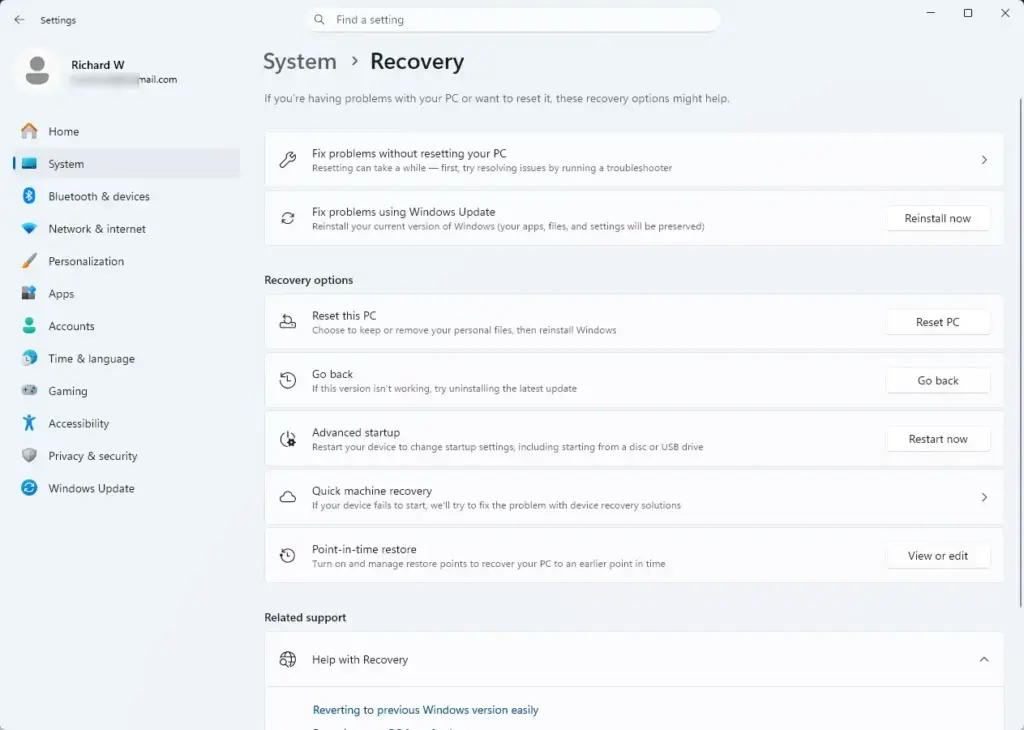
Settings › System › Recovery - Select Recovery. The page shows a section called Recovery options.
- Select Reset PC. The button sits next to Reset this PC. A window opens called Choose an option.
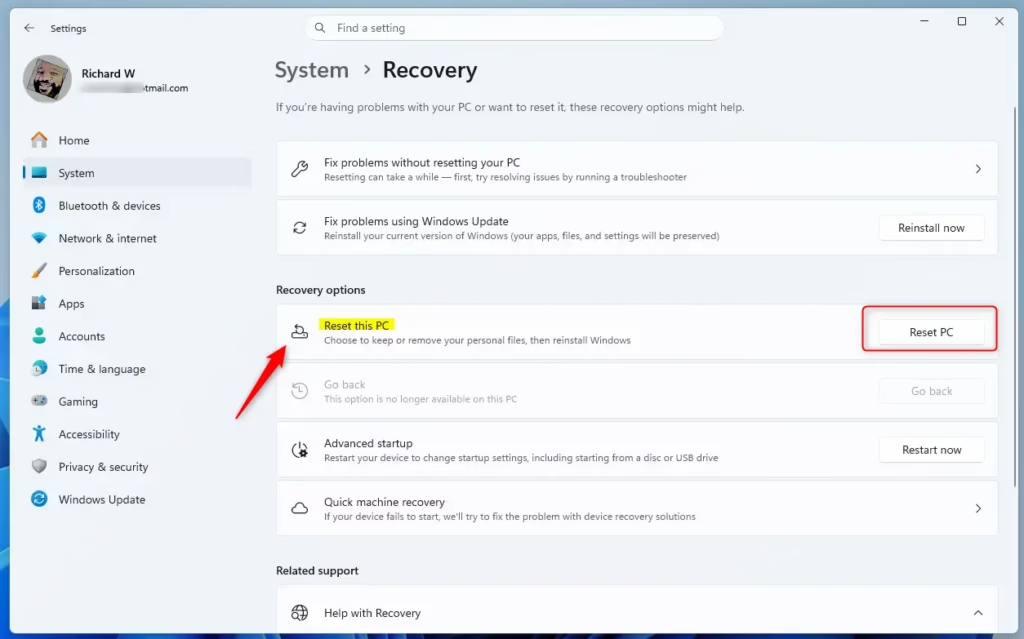
Reset this PC button in Windows 11 settings. - Select Remove everything. The other choice, Keep my files, removes apps and settings but leaves your personal files, so do not pick it here.
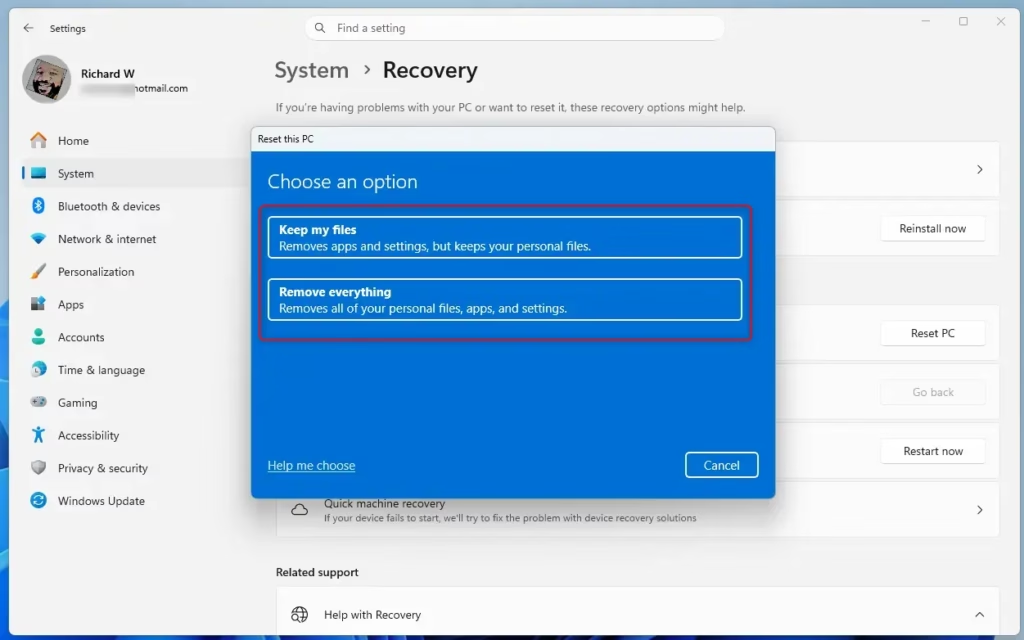
Windows 11 reset option: keep files or remove everything. - Choose how to reinstall Windows. Pick Cloud download or Local reinstall. Cloud download fetches a fresh copy of Windows over the internet and uses a lot of data. Local reinstall rebuilds Windows from files already on the PC and works offline, but it can carry over damaged system files.
- Review the Additional settings. The screen lists the current choices. Select Change settings if you want to alter them. Wait for the option labels to load.
- Set the data-wipe options. If you are keeping the PC, the defaults are fine. If you are selling or giving it away, turn on the setting named Clean data (some builds label it differently). It overwrites the drive so deleted files are much harder to recover, and it takes noticeably longer.
- Choose which drives to wipe. If the PC has more than one drive, Windows may ask whether to clear only the drive Windows is on or all drives. Choose the first to protect other drives. Choose all drives only if you have backed up everything.
- Decide on preinstalled apps. On a PC that shipped with Windows, Restore preinstalled apps may appear. Leave it on to get the manufacturer's apps back. Turn it off for a cleaner install. The option does not appear on a PC built from a plain Windows install.
- Select Confirm, then Next. Windows may spend a moment preparing the reset before the next screen appears.
- Read the summary. The Ready to reset this PC screen lists what will happen, including that all apps and files will be removed. Select View apps to be removed if you want the full list.
- Select Reset. The PC restarts and shows a progress percentage. This is the point of no return.
- Wait for the reset to finish. The PC restarts several times, and the screen can go black for long stretches. Do not hold the power button. Leave it plugged in until you reach the setup screen.
- Complete Windows setup. Choose your region and keyboard layout, connect to a network and sign in. You now see a clean Windows 11 desktop with none of your old apps.
What to Do When Windows Will Not Start
If Windows fails to load or you cannot sign in, you can still remove everything from the Windows Recovery Environment, or Windows RE. It is a small repair system stored on your drive that runs outside normal Windows.
Open Windows RE From the Sign-in Screen
Use this when you can reach the sign-in screen but cannot get into Windows.
- Select the Power button at the bottom right of the sign-in screen.
- Hold the Shift key and select Restart. Keep holding Shift until the blue screen appears.
- Select Troubleshoot on the Choose an option screen.
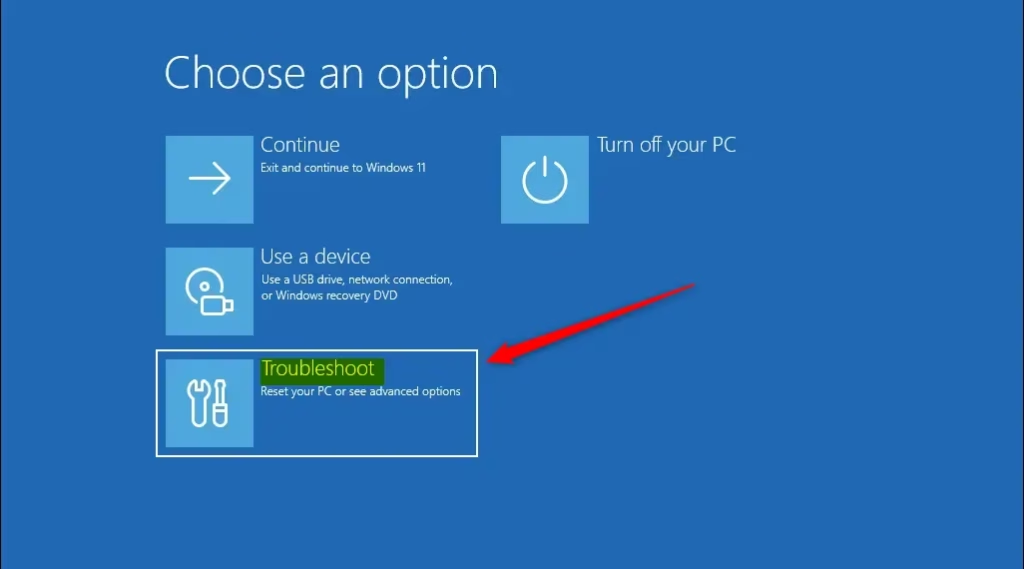
Windows RE troubleshoot screen with multiple options. - Select Reset this PC.
- Select Remove everything, then follow the same prompts as in the Settings route above.
Open Windows RE When the PC Will Not Reach Sign-in
Windows opens its repair screen on its own after a few failed startups. Forcing a shutdown with the power button can risk file damage, so only use this when Windows will not load at all.
- Turn the PC on and, as soon as the logo or spinning dots appear, hold the power button until it switches off.
- Repeat this two or three times until the screen says Preparing Automatic Repair.
- Select Advanced options when the repair screen appears. If it says the PC did not start correctly, the option is on that screen.
- Select Troubleshoot Reset this PC Remove everything.
If this does not work, the Windows RE files may be missing or damaged. You then need Windows 11 installation media on a USB drive, made from another PC with Microsoft's Media Creation Tool. Start the PC from that drive to do a clean install. A clean install also removes everything on the drive.
If Reset PC Is Missing, Greyed Out or Fails
Many guides skip these cases, but they cause most reset problems.
The Reset PC Button Is Greyed Out or Missing
The most common reason is a managed device. A work or school PC can have its reset option disabled by the organization that controls it. Check Settings Accounts Access work or school. If an organization account is listed, ask your IT team before you try again.
A missing Windows RE is another cause. Check it from a Command Prompt that you open with administrator rights.
- Right-click the Start button and select Terminal (Admin). Select Yes at the User Account Control prompt.
- Type
reagentc /infoand press Enter. - Read the line labeled Windows RE status. If it says Disabled, type
reagentc /enableand press Enter, then check the Recovery page again.
If the enable command reports an error, the recovery files are likely missing. Reinstalling Windows from installation media is then the dependable fix.
The Reset Fails With "There Was a Problem Resetting Your PC"
This message usually means system files are damaged. Windows reports that no changes were made, so your files are intact. Try the Cloud download option instead of Local reinstall, because it does not rely on the damaged local files. If that fails too, use installation media.
The Reset Seems Stuck
A reset that looks frozen is often still working, especially with the Clean data option turned on, which takes longer because it wipes the drive more thoroughly, or on a slow hard disk. Wait at least a couple of hours before you assume it has hung. If the screen is black, look for any drive activity light before you act. Force a restart only after a very long wait with no activity.
After the Reset: Get the PC Ready to Use
A freshly reset PC is missing updates, drivers and apps. Work through these in order.
- Open Settings Windows Update and select Check for updates. Install everything offered, restarting as needed. Check again until no updates remain.
- Check activation at Settings System Activation The status should read Active. If it does not, sign in with the Microsoft account you used before.
- Install drivers from the PC maker's support site if any device does not work, such as Wi-Fi, audio or a touchpad.
- Restore your files from the backup you made earlier, then reinstall your apps.
If you are selling or giving away the PC, stop at the setup screen and power it off. The new owner then sets it up from the start. Also remove the device from your Microsoft account online, so it no longer appears in your device list.
What to Do Next
Once Windows Update shows no pending updates and the Activation page reads Active, the PC is ready for your files and apps. A reset cannot be reversed, so if you want a safety net, set up a regular backup now, for example with Windows Backup or File History. If a device still misbehaves, install its driver from the manufacturer's site before you assume the reset failed.
Frequently asked questions
How to reset 🪟 Windows 11?
To reset Windows 11, open Settings, then go to System and Recovery. Click Reset PC next to Reset this PC. Choose Keep my files to reinstall Windows and leave your personal files in place, or Remove everything to wipe the drive. Back up first, because removing everything cannot be undone.
How to factory reset 🪟 Windows 11?
Windows 11 has no separate factory reset. The Reset this PC option does the same job. Open Settings, go to System and Recovery, and click Reset PC. Select Remove everything to return the PC to its original state. This deletes your files, apps and settings, so back them up first.
How to reset 🪟 Windows 11 installation?
Resetting the Windows 11 installation reinstalls Windows while the PC keeps running. Open Settings, go to System and Recovery, and click Reset PC. Choose Cloud download for fresh system files, or Local reinstall to use the files already on the PC. Keep my files keeps your documents. Back up first.
How to reset 🪟 Windows 11 laptop?
To reset a Windows 11 laptop, plug in the charger first so the battery does not run out mid-reset. Then open Settings, go to System and Recovery, and click Reset PC. Pick Keep my files or Remove everything. The steps match the desktop version. Remove everything deletes your files, so back them up beforehand.
Still have a question?
Answered by AI from this guide. Good questions may be added to this page — please don't include personal details.
Did this guide fix your problem?

About the Author
Richard
Tech Writer, IT Professional
Richard is a writer at Geek Rewind who turns complex IT tasks into clear, step-by-step guides. He draws on years of hands-on experience in system administration and enterprise IT operations, focusing on Windows, Linux and WordPress: the problems people actually run into, and the fixes that work. His server and WordPress guides come from systems he runs himself. Richard builds and maintains the platform behind Geek Rewind, from its Ubuntu servers and Nginx configuration to its custom WordPress plugins. Many new tutorials start with readers' questions, and he's always glad to answer them in the comments.
No comments yet — be the first to share your thoughts!