How to Back Up Your BitLocker Recovery Key in Windows 11

A BitLocker recovery key is a 48-digit number that unlocks your encrypted drive if Windows detects unexpected hardware changes. If you lose it, you lose access to your files for good.
Saving a copy of the key protects your data before a problem happens. Windows 11 Pro and Enterprise let you save the key to a USB flash drive, print a paper copy, save it to a file, or save it to your Microsoft account. On Windows 11 Home you don’t get the full BitLocker controls in Control Panel . Home uses a simpler feature called device encryption, which usually saves the key to your Microsoft account automatically when you sign in with one.
Open Control Panel , select BitLocker Drive Encryption, click Back up your recovery key next to your encrypted drive, then choose to save to your Microsoft account, USB flash drive, file, or print a paper copy. The key saves immediately to your chosen location.
Why Back Up Your BitLocker Recovery Key?
Windows can ask for the recovery key after a motherboard or firmware change, a BIOS/UEFI update, a change to the boot settings, or a hardware swap. It usually happens at the worst moment, and you can’t get the key from a locked machine.
Secondary and removable data volumes are worse off. Unlocking them without the key requires a complete format, which erases everything stored on them:
- If Windows asks for the recovery key and you don’t have it, you can’t unlock your computer.
- If it’s a data or removable drive and you lose the key, the data will be lost unless you format the drive (which deletes everything).
How to Back Up Your BitLocker Recovery Key
You can save the key to a Microsoft account, a USB flash drive, a plain text file, or a physical paper printout. All four start from the same place:
- Open the Control Panel . Click Start, type Control Panel , and press Enter.
- Select BitLocker Drive Encryption. If you can’t see it, open System and Security first. If it isn’t listed at all, you are probably on Windows 11 Home, which doesn’t include this panel.
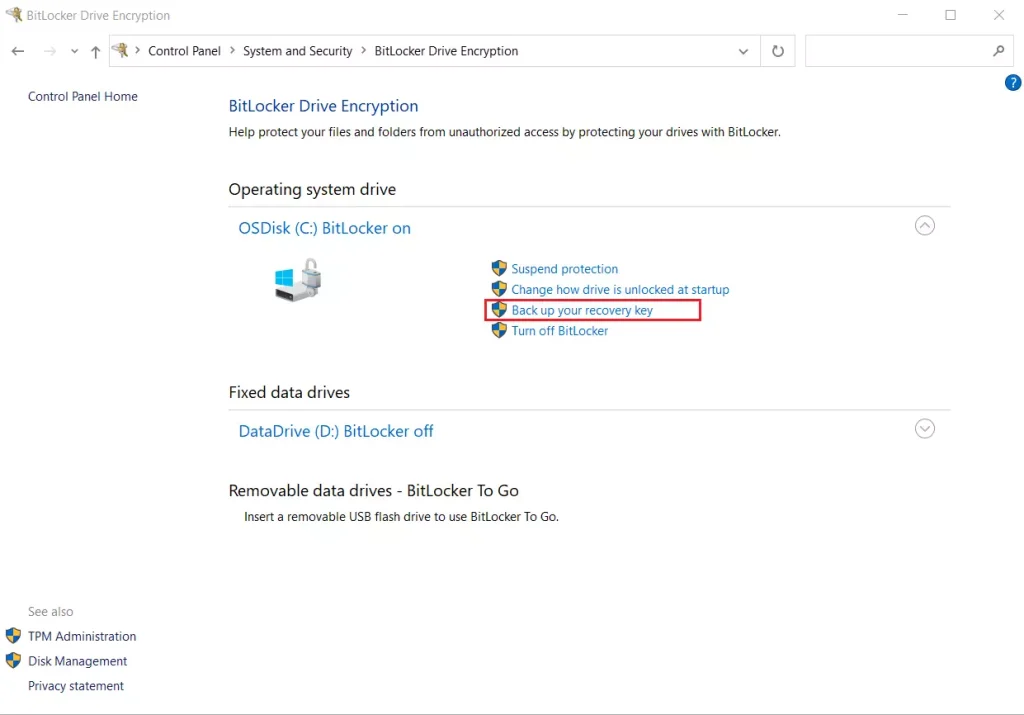
- Find the drive you want to protect, then click Back up your recovery key next to it. Approve the User Account Control prompt if one appears. You need administrator rights.
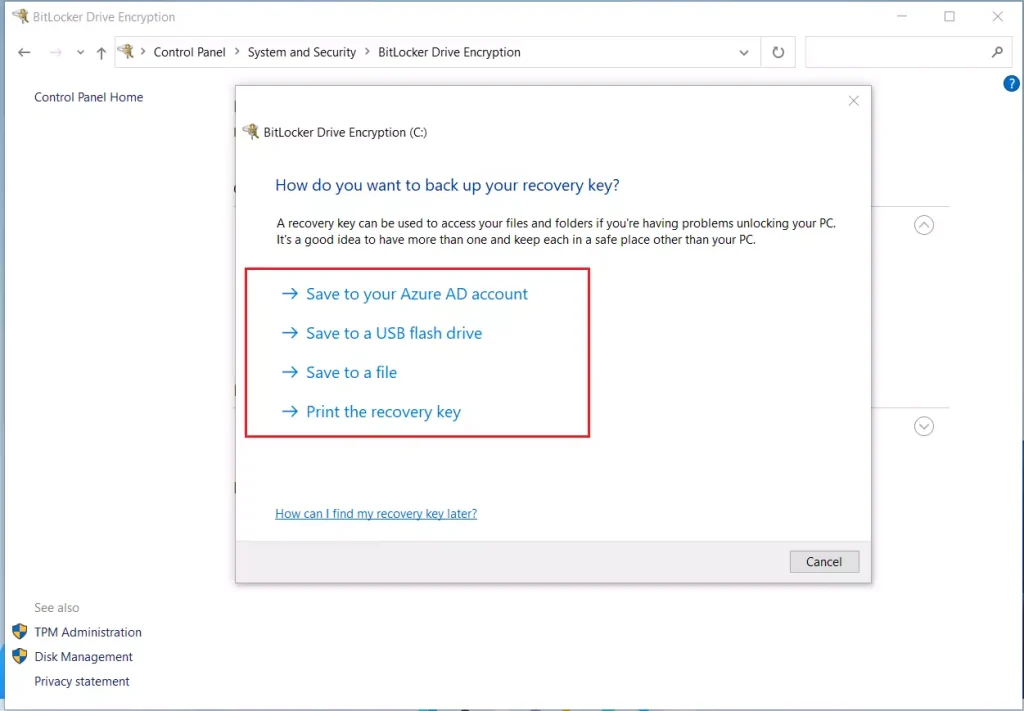
- Choose where to save the key from the list that appears. The sections below cover each choice.
Repeat this for every encrypted drive. Each drive has its own recovery key.
Switch the view to 'Large icons' or 'Small icons' if necessary, then click 'BitLocker Drive Encryption.'
Click on Back up your recovery key.
- Save to your Microsoft account – saves your key online so you can get it anytime by logging in.
- Save to a USB flash drive – saves the key as a file on a USB stick.
- Save to a file – save the key on your computer or another location.
- Print the recovery key – print out a paper copy to keep somewhere safe.
Save to Your Microsoft Account
Linking the backup to your online profile keeps the key secure yet reachable from any browser. That helps if the PC won't start, because you can read the key on a phone or another computer.
- Click Save to your Microsoft account.
- Sign in if Windows asks you to. Use the same Microsoft account you use on this PC.
- Wait for the confirmation that the key has been backed up, then click Next or Finish.
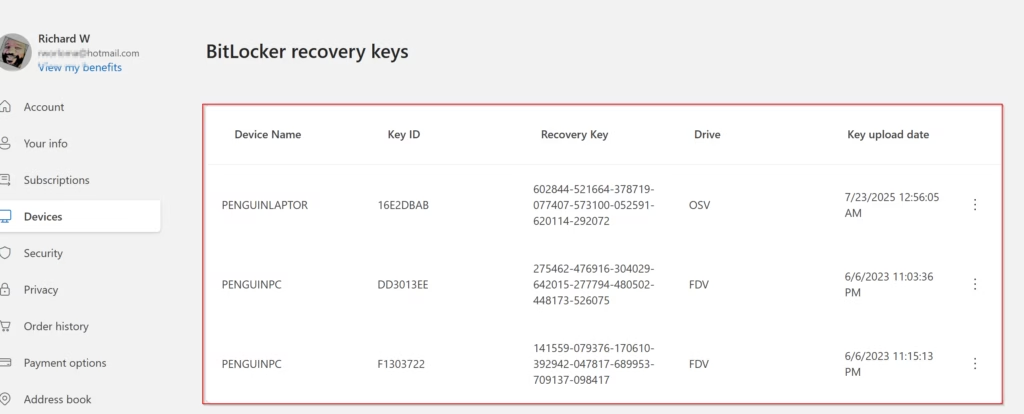
You can open the Microsoft Account Recovery Keys page at any time to retrieve the code. Check it once after saving to confirm the key is listed. The entry shows a key ID, which you can match to the ID Windows displays on the recovery screen when you're locked out.
Save to a USB Flash Drive
- Plug in a USB flash drive to your PC.
- Click Save to a USB flash drive.
- Select the USB drive from the list and click Save.
If the option is greyed out or the drive doesn't appear, wait a few seconds for Windows to detect it, or try another USB port. You can't save the key to the drive that BitLocker is encrypting.
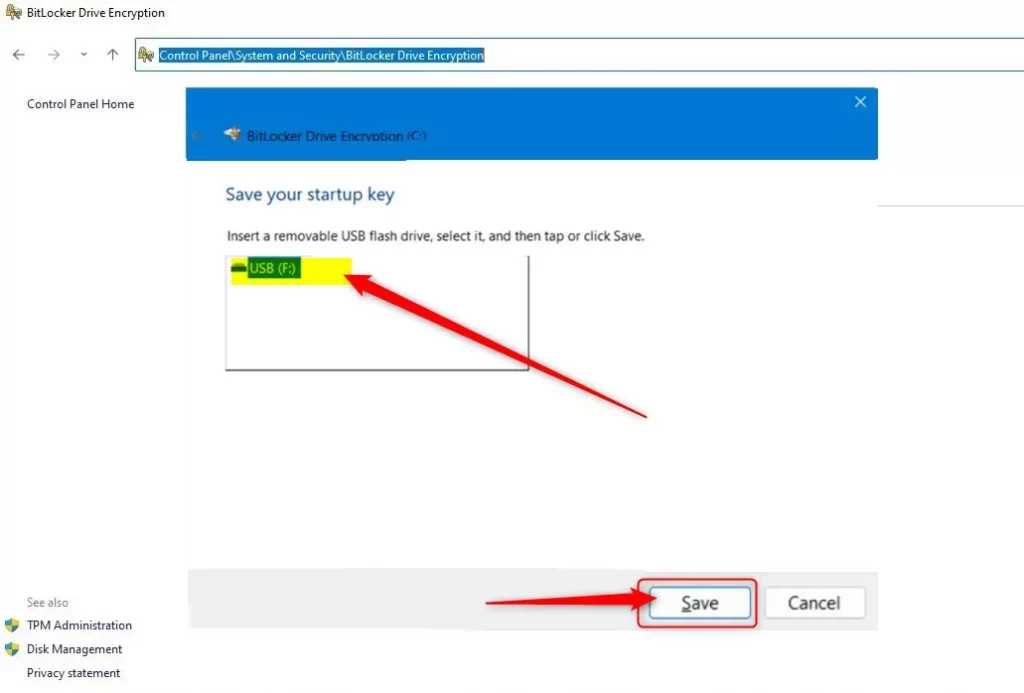
The system stores the recovery credentials inside a text document on the inserted flash drive. Label the drive clearly and keep it somewhere safe, away from the PC. Anyone who has the file can unlock your drive.
Save to a File on Your Computer
- Click Save to a file.
- Choose a safe folder on your computer to save the file. Pick a different drive from the one being encrypted, such as an external drive or a network location you trust.
- Click Save.
A copy that sits only on the encrypted drive is useless when you're locked out. Copy the file somewhere else, such as a USB drive or a secure cloud folder.
Print the Recovery Key
- Make sure your printer is turned on and connected.
- Click Print the recovery key.
- Choose your printer and click Print.
Check that the full 48-digit number and the key ID printed clearly. Keep the page somewhere secure, such as a locked drawer or a safe, and not taped to the computer.
Summary
- Backing up your BitLocker recovery key keeps your data safe and accessible.
- You can save your key to your Microsoft account, a USB drive, a file, or print it out.
- Store your recovery key somewhere secure to stop others from accessing it.
- If you lose the recovery key and are locked out, you risk losing access to your data.
- Check your backup methods regularly, especially if you change or update your computer.
Backing up your BitLocker recovery key keeps your files safe and accessible by giving you a reliable way to unlock your encrypted drives. You can save your recovery key to your Microsoft account, a USB drive, a file, or print it out on paper for safekeeping. Saving it in two places, such as your Microsoft account plus a paper copy, covers you if one copy goes missing.
Frequently asked questions
How can I recover data from a BitLocker-encrypted hard drive?
To recover data from a BitLocker drive, you need its 48-digit recovery key or the drive password. Check your Microsoft account at account.microsoft.com, your Active Directory, or any USB drive or printed page where you saved the key. Enter the key when prompted, and the drive unlocks so you can copy your files. Without either, the data cannot be recovered.
How to find recovery key in command prompt?
Open Command Prompt as administrator, then type manage-bde -protectors -get C: and press Enter. The output lists each key protector under Numerical Password, with a 48-digit recovery password beneath it. Replace C: with the drive letter if your encrypted drive is different. The command only reads the key, so nothing on your drive changes.
How can I get BitLocker recovery keys for Active Directory using PowerShell?
Open PowerShell as administrator on a computer with the Active Directory module installed. Run Get-ADObject -Filter {objectclass -eq 'msFVE-RecoveryInformation'} -SearchBase 'CN=Computer1,DC=contoso,DC=com' -Properties 'msFVE-RecoveryPassword', replacing the search base with your computer's distinguished name. You need rights to read these keys, and they exist only if your organization has enabled BitLocker backup in Group Policy.
How can I transfer a BitLocker-encrypted drive to another computer?
Plug the drive into the new PC and enter its password or 48-digit recovery key when Windows asks. Choosing to format the drive erases everything on it, so decline that option if Windows offers it. Once unlocked, the drive appears in File Explorer like any other drive, and you can copy or use your files.
Still have a question?
Answered by AI from this guide. Good questions may be added to this page — please don't include personal details.
Did this guide fix your problem?

About the Author
Richard
Tech Writer, IT Professional
Richard is a writer at Geek Rewind who turns complex IT tasks into clear, step-by-step guides. He draws on years of hands-on experience in system administration and enterprise IT operations, focusing on Windows, Linux and WordPress: the problems people actually run into, and the fixes that work. His server and WordPress guides come from systems he runs himself. Richard builds and maintains the platform behind Geek Rewind, from its Ubuntu servers and Nginx configuration to its custom WordPress plugins. Many new tutorials start with readers' questions, and he's always glad to answer them in the comments.
No comments yet — be the first to share your thoughts!