How to Find Your BitLocker Recovery Key in Windows 11


A BitLocker recovery key in Windows 11 is a unique 48-digit number that protects your files and locks your drive if the system detects an unexpected security risk. Windows asks for this code when it notices a sudden hardware change, a BIOS update, or repeated failed sign-in attempts.
Where the key is stored depends on how you set up your PC. Check your online Microsoft account first. Then look for a USB flash drive you plugged in during setup, or a printed copy you filed away. On a work or school PC, the key may be held by your IT department.
Go to https://account.microsoft.com/devices/recoverykey on another device, sign in with your Microsoft account, find your device name, and compare the Key ID on the blue recovery screen with the one shown online. If they match, type the 48-digit key into your locked PC.
What is a BitLocker Recovery Key?
A BitLocker recovery key is a 48-digit number, shown as eight groups of six digits. Windows creates it so you can still unlock the drive if it cannot confirm you are the owner. You will usually be asked for it at startup after a hardware change, a BIOS or firmware update, or too many incorrect sign-in attempts. A changed Secure Boot or boot configuration can also trigger it.
The blue recovery screen also shows a Key ID, which is the first few characters of an identifier. Write it down. If you find several keys in your account or on paper, the Key ID tells you which one belongs to this drive.
If you signed in with a Microsoft account during Windows 11 setup, your recovery key was probably backed up to that account automatically. This is especially common on Home editions, which use device encryption rather than full BitLocker. See Microsoft account for how this works on Windows 11 PCs.
Where to Find Your BitLocker Recovery Key
Your recovery key is usually in one of four places. It may be in your online Microsoft account, in a text file on a computer or USB drive, on a printed sheet of paper, or with your work or school IT department if the device is managed.
- Microsoft Account: If the key was saved online, you can view it by signing in to your Microsoft account from any other device.
- Printed Paper: You may have printed the key during setup and put it somewhere safe.
- USB Flash Drive: The key could be saved on a USB drive you plugged in during setup.
- Work or School Account: If your device is connected to your workplace or school, the key may be stored in their directory (Azure Active Directory, now called Microsoft Entra ID) or held by your system administrator.
Start with the Microsoft account. It is the quickest check and the most likely place to find the key on a personal PC.
How to Check Each Location
1Find Your Recovery Key Online with Your Microsoft Account
You need a second device for this, such as a phone or another computer, because your locked PC cannot get past the recovery screen.
- On the other device, open a browser and go to https://account.microsoft.com/devices/recoverykey.
- Sign in with the same Microsoft account you use on the locked PC. If you have more than one account, try each one.
- Find your device name in the list. You should see the recovery key listed under it, along with its Key ID.
- Compare the Key ID on the blue recovery screen with the one in your account. If they match, type the 48-digit key into the locked PC.
If no keys appear, the key was probably not backed up to this account. Try any other Microsoft accounts you own, then move on to the other locations below.
2Find Your Printed Recovery Key
Printed recovery sheets look like the example below. Look for a page titled with BitLocker Drive Encryption recovery key, a Key ID, and the 48-digit number.
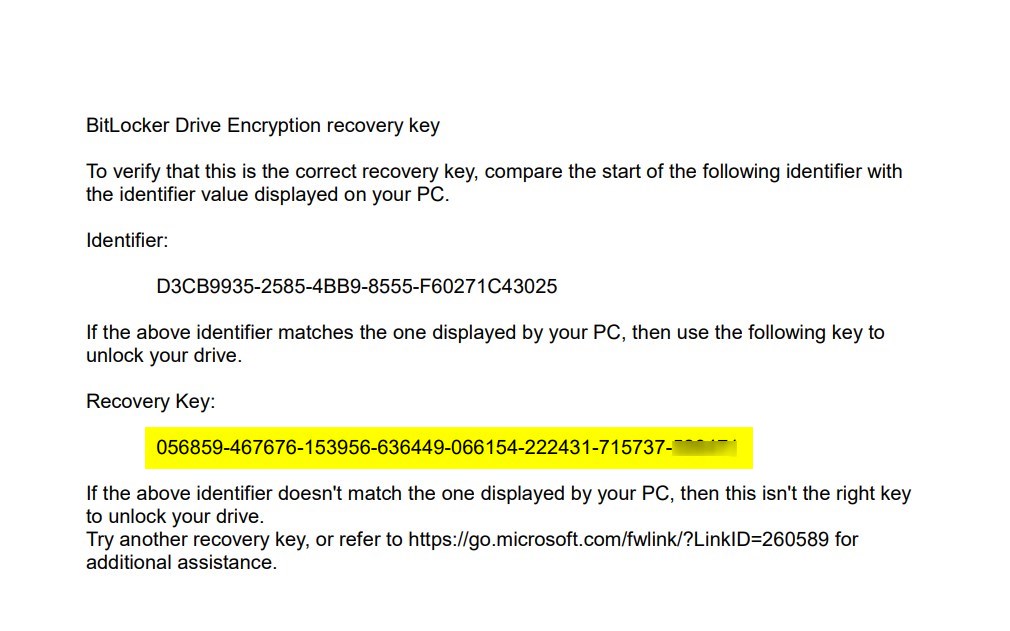
Check places where you keep important paperwork, such as filing cabinets, home safes, folders with your PC’s manuals or receipts, and desk drawers. Check the Key ID on the page against the one on your screen before you type anything in.
3Find Your Recovery Key on a USB Flash Drive
- Plug the flash drive into any working computer.
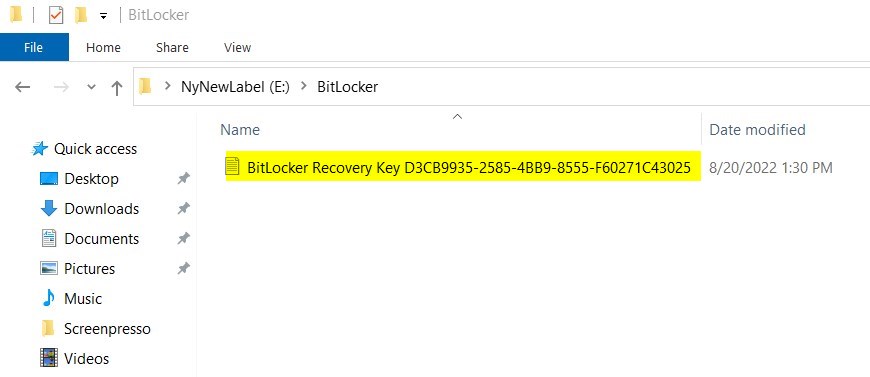
- Open the drive in File Explorer .
- Look for a text file with a name like
BitLocker Recovery Key.txt. - Open the file. You should see the Key ID and the 48-digit recovery key.
Do not copy the file to a shared or public location, since anyone with the key can unlock the drive.
4Check with Your Work or School
Organization-managed devices often store recovery keys in a cloud directory such as Azure Active Directory (Microsoft Entra ID), or the IT department keeps them. Contact your system administrator or help desk and give them the Key ID from the recovery screen so they can find the right key. You usually cannot retrieve these keys yourself, and you may be asked to verify your identity first.
What if You Can’t Find Your Recovery Key?
Use it only if you have checked every location above and Windows still demands the key. Resetting removes your personal files and installed applications, so anything you have not backed up elsewhere is lost. On a work or school device, ask IT before you reset anything.
Review the full factory reset procedure here: How to Factory Reset Windows 11
Summary
- The BitLocker recovery key unlocks your computer when Windows cannot confirm your identity, for example after a hardware change or a BIOS update.
- You can save this key in your Microsoft account, on paper, on a USB drive, or with your organization if it is a work or school device.
- Match the Key ID on the recovery screen with the one on your saved key.
- Keep your recovery key safe and easy to find, and store it somewhere other than the PC it protects.
- If you lose the key and cannot unlock your PC, resetting Windows may be your last option.
Finding your BitLocker recovery key lets you get past the blue recovery screen and reach your files again without wiping the drive. Check your online Microsoft account first, then look through saved paper copies and USB drives. If you still cannot find it, ask your IT administrator. Once you are back in Windows, make sure a copy of the key is saved somewhere safe so you are not caught out next time.
Frequently asked questions
How to get BitLocker key 🪟 Windows 11?
Sign in to your Microsoft account at account.microsoft.com/devices/recoverykey using the account linked to your PC. Your key appears there under the matching device name. If you set up BitLocker with a work or school account, ask your IT department instead, since they may hold the key.
What is a recovery key 🪟 Windows 11?
A recovery key in Windows 11 is a 48-digit code that unlocks your encrypted drive when BitLocker cannot verify it is you. It works as a backup to your normal sign-in. You need it after a hardware change, a BIOS update, or repeated wrong passwords.
What is BitLocker recovery key 🪟 Windows 11?
The BitLocker recovery key is the 48-digit number BitLocker uses to open a locked drive when normal startup fails. It appears as eight groups of six digits. Windows asks for it after a hardware change, a firmware update, or too many failed sign-ins, so store it somewhere safe before you need it.
How can I get my bitloker key without Microsoft account?
Look for a copy you saved yourself: a USB flash drive you plugged in during setup, a printed page, or a text file in a folder you chose. On a work PC, ask your IT department. Without the key, the drive stays locked, so check every place you might have stored it.
Where is the BitLocker key locatid in the files folder?
The BitLocker key is not kept in one fixed spot in your files. Windows saves it only where you chose during setup, such as a USB flash drive, a text file, your Microsoft account, or a printout. Search your drives for a file starting with BitLocker Recovery Key, or check the folder you picked when you turned on BitLocker.
Where can I find my backup recovery key in 🪟 Windows 11?
Your backup recovery key is the copy you saved when you first turned on BitLocker. Sign in to your Microsoft account online to view it, or find the USB drive, printed page, or text file you chose during setup. While the drive is unlocked, you can also open Control Panel, go to BitLocker Drive Encryption, and select Back up your recovery key.
Still have a question?
Answered by AI from this guide. Good questions may be added to this page — please don't include personal details.
Did this guide fix your problem?

About the Author
Richard
Tech Writer, IT Professional
Richard is a writer at Geek Rewind who turns complex IT tasks into clear, step-by-step guides. He draws on years of hands-on experience in system administration and enterprise IT operations, focusing on Windows, Linux and WordPress: the problems people actually run into, and the fixes that work. His server and WordPress guides come from systems he runs himself. Richard builds and maintains the platform behind Geek Rewind, from its Ubuntu servers and Nginx configuration to its custom WordPress plugins. Many new tutorials start with readers' questions, and he's always glad to answer them in the comments.
No comments yet — be the first to share your thoughts!