How to Create a Windows Recovery Drive for Windows 11


A Windows recovery drive is a bootable USB backup that lets you fix, reset, or reinstall Windows 11 when your computer fails to start. To build one, you need an empty USB flash drive with at least 16GB of storage space.
Having this safety net ready before your PC crashes gives you a reliable way to run startup repairs or reinstall the operating system without needing an installation disc. The tool is built into both Windows 11 Home and Pro, so the steps are the same on either edition.
Open Settings System Recovery, or search for Recovery Drive and select Create a recovery drive. Plug in a USB drive with at least 16GB, check Back up system files to the recovery drive, and follow the prompts to create a bootable backup that lets you repair or reinstall Windows 11 if your PC fails to start.
What is a Recovery Drive?
A Windows recovery drive is a bootable USB stick that holds essential system files and troubleshooting tools. You use it to fix your PC when it refuses to start properly. It lets you reinstall Windows or use advanced repair options even if your main operating system is completely broken and inaccessible.
Here’s why it’s useful:
- System Files: It has the Windows files needed to start the PC and run the recovery tools. If you include the system files backup, it also holds what Windows needs to reinstall itself.
- Troubleshooting Tools: It gives you access to advanced tools like Startup Repair, System Restore, Command Prompt, and options to reset or reinstall Windows. You reach them from the blue recovery screen after booting from the drive.
- Manufacturer Tools: If your computer maker added special recovery tools or drivers, they might also be copied to the drive.
A Windows recovery drive does not save personal files, such as photos or documents. Use a separate backup method for those, such as File History, OneDrive, or a copy on an external disk. The recovery drive’s sole purpose is to fix the Windows system itself.
The drive is also specific to the PC it was made on. Build one for each computer you want to protect rather than sharing a single stick between machines.
How to Create a Windows Recovery Drive
Creating your computer's safety net begins now. Before you open any tools, get two things ready:
- A USB flash drive with at least 16GB of space. A larger drive works too, but the extra space becomes unusable for normal storage while the drive is set up as a recovery drive.
- A PC that is plugged into power and connected to the internet. A laptop that dies halfway through the copy will leave you with an unusable drive.
Double-check that there's nothing important on it before you start. If there is, copy those files somewhere else first.
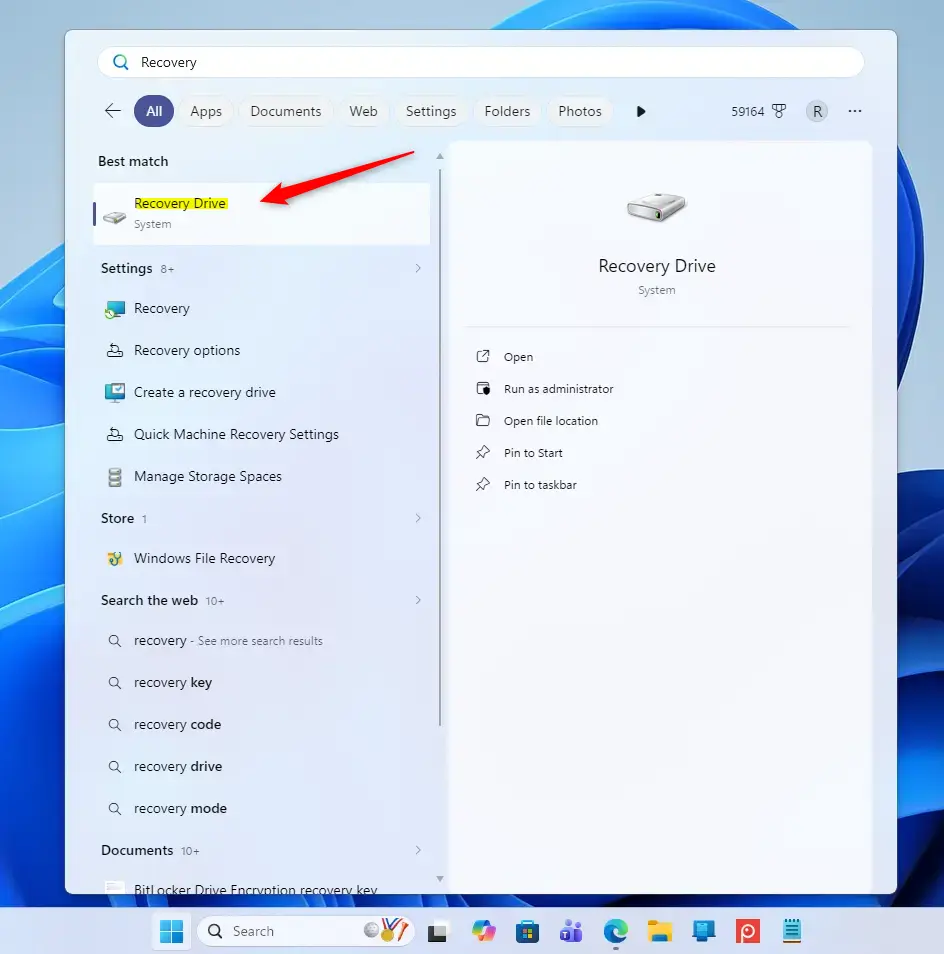
Search for the Recovery Drive Tool
- Click the Start button.
- Type Recovery Drive. The search results should list the tool.
- Select Create a recovery drive from the results.
- If a User Account Control prompt appears, click Yes. You need an administrator account to run this tool. If you are signed in with a standard account, Windows asks for an administrator password.
The Recovery Drive window opens.
Connect Your USB Drive
- Plug your empty USB flash drive into an available USB port on your computer.
- Make sure it connects securely. On a desktop, a port on the back of the case is more reliable than a front-panel port or an unpowered hub.
Windows may pop up an AutoPlay notice or open File Explorer. You can close it. Don't format the drive yourself, since the tool does that.
Set Up the Recovery Drive
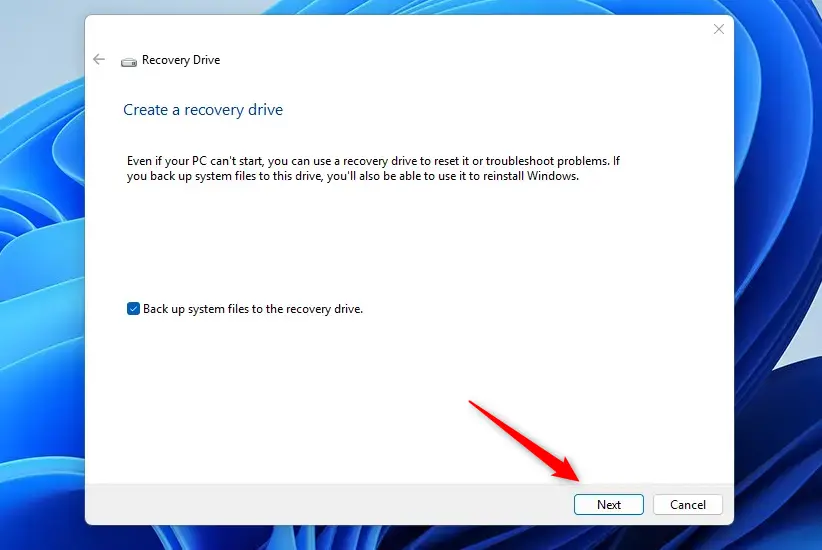
- In the Recovery Drive window, check the box labeled Back up system files to the recovery drive. This ensures you can fully reinstall Windows later if needed.
- Click Next after confirming that box is checked.
If you leave the box unchecked, the drive will be much smaller and quicker to make. It will only hold the repair tools, so you could run Startup Repair or System Restore but not reinstall Windows from it. If the checkbox is greyed out or missing, the PC has no recovery image it can copy, and you will only get the repair-tools version.
Choose Your USB Drive
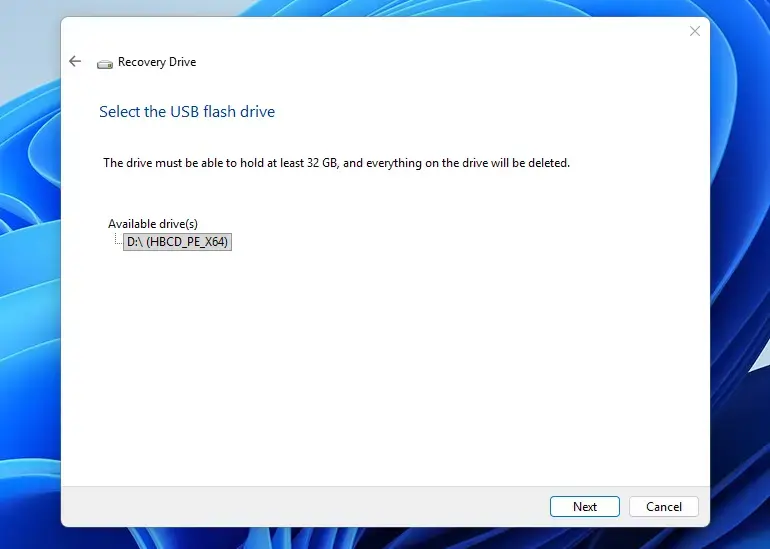
- Wait while the tool scans for connected USB drives. You should see a list of available drives.
- Select your USB drive from the list. Verify you selected the right one by checking the drive letter and size, because its contents will be erased.
- Click Next to continue.
If your drive doesn't appear, unplug it, try a different USB port, and reopen the tool. The tool also warns you if the drive is too small for the files it needs to copy.
Start Creating the Drive
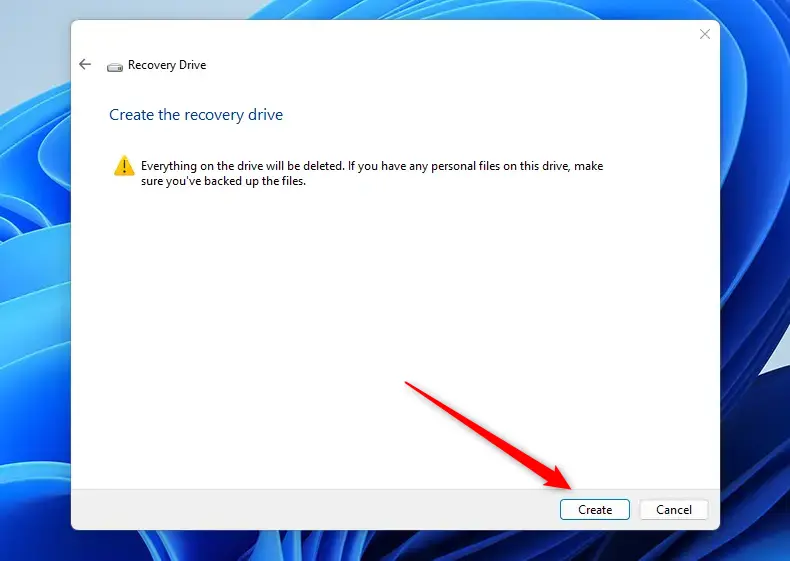
Creating a Windows recovery drive requires a blank USB flash drive with at least 16GB of space and an active internet connection. After you confirm the drive, the tool shows a final warning that everything on it will be deleted.
- Click Create to confirm and start copying your system files.
- Watch the progress bar. It first formats the drive and then copies the files.
- Leave the PC running and the USB stick plugged in until the process finishes.
This file transfer takes between 20 minutes and over an hour, depending on computer speed and the number of system files. The computer may run slower while Windows copies files, so it's best to leave it alone until the copy is done. The tool may appear stuck at certain percentages, which is normal.
Finish and Store Safely
- Wait until the progress bar finishes and the tool reports that the recovery drive is ready.
- Click Finish, the final confirmation button.
- Remove the USB stick safely. Use the Safely Remove Hardware and Eject Media icon in the taskbar's system tray before you unplug it.
- Label the drive clearly and store it in a safe, dry place where you can find it if your computer fails to boot.
Only choose that if you are short on space and you are sure the USB drive works. The partition is a second copy of your recovery tools.
Reference:
https://support.microsoft.com/en-us/windows/recovery-drive-abb4691b-5324-6d4a-8766-73fab304c246
A Windows Recovery Drive is a bootable USB stick that fixes startup problems, resets, or reinstalls Windows. A 16GB USB drive is necessary. To create the drive, search for "Create a recovery drive," follow the on-screen instructions, and select "Back up system files to the recovery drive." This action will erase all data on the USB drive.
To use the drive, plug it into the PC that won't start, then turn the PC on and open the boot menu. The key varies by manufacturer, and common ones are F12, F2, Esc, and Del, so check your PC's manual if none of them work. Choose the USB stick, pick your keyboard layout, and select the recovery options from the screen that follows. Recreate the drive each year so it has the most recent updates.
Have a question about this guide?
Answered by AI from this guide. Good questions may be added to this page — please don't include personal details.
Did this guide fix your problem?

About the Author
Richard
Tech Writer, IT Professional
Richard is a writer at Geek Rewind who turns complex IT tasks into clear, step-by-step guides. He draws on years of hands-on experience in system administration and enterprise IT operations, focusing on Windows, Linux and WordPress: the problems people actually run into, and the fixes that work. His server and WordPress guides come from systems he runs himself. Richard builds and maintains the platform behind Geek Rewind, from its Ubuntu servers and Nginx configuration to its custom WordPress plugins. Many new tutorials start with readers' questions, and he's always glad to answer them in the comments.
… liked this!