How to Use Startup Repair to Fix Issues with Windows 11

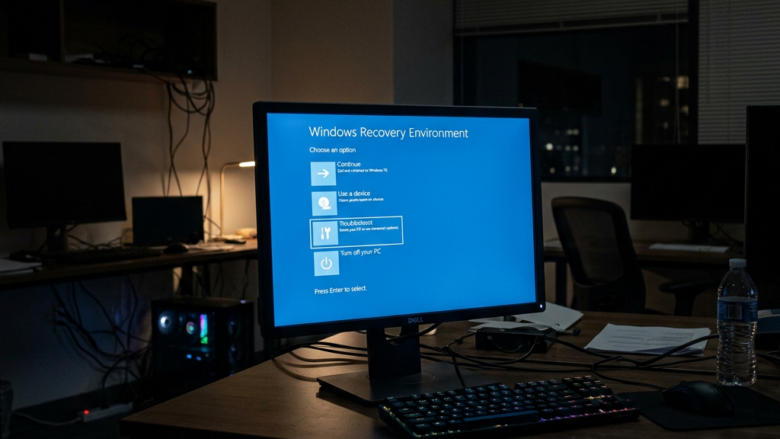
Startup Repair is a built-in recovery tool in Windows 11 that automatically scans your computer and fixes problems that stop it from booting. It checks for missing or damaged system files, broken boot settings, and bad drivers so your desktop can load normally again.
You run Startup Repair from the Windows Recovery Environment when your PC gets stuck on a black screen or fails to start after a bad update. The tool works even when your normal desktop refuses to open. It is not a cure for everything. It will not fix failing hardware, and it will not bring back deleted files. It only repairs what keeps Windows from starting.
Open Settings System Recovery, click Restart now next to Advanced startup, then select Troubleshoot Advanced options Startup Repair from the blue recovery menu. Startup Repair scans for damaged system files and boot problems, then fixes them automatically.
Getting Your PC to Start Again: Using Startup Repair
Startup Repair fixes common problems that stop your computer from booting properly. It runs inside the Windows Recovery Environment, a small repair system that opens before Windows starts. If your PC loops on a loading screen, restarts over and over, or fails to boot, this tool scans for missing or damaged system files and boot settings and tries to fix them automatically.
It does not touch your personal files in the normal course of a repair. Even so, if the PC holds data you cannot lose, back it up when you can.
Startup Repair runs inside the Windows Recovery Environment (WinRE), a diagnostic screen that loads before Windows starts. If your computer can’t start Windows after a few tries, WinRE may open on its own. If it doesn’t, you can open it manually.
There are three ways in. You can use Settings if Windows still boots, you can interrupt the startup process a few times, or you can boot from a Windows installation USB drive or a recovery drive. The sections below cover each one.
Step 1Getting to the Windows Recovery Environment (WinRE)
Opening WinRE gives you access to the repair tools. If your PC still boots to the desktop, you can reach WinRE from the Settings app. Go to Settings System Recovery, then click Restart now next to Advanced startup. Your PC reboots straight into the repair menu.
If Windows won't reach the desktop, use one of the other methods below. The Settings route only works when you can sign in.
Method 1Getting to WinRE from inside Windows
If your PC still boots to the desktop, this is the quickest way to reach WinRE. Save your work and close your apps first, because the restart happens right after you confirm.
- Open Settings. Click the Start button and then the gear-shaped Settings icon, or press the
Windows key + Ion your keyboard. The Settings window opens. - Go to System. In the list on the left side of the Settings window, click System. In Windows 11 the recovery options are here. The Update & Security page you may remember is from Windows 10 and no longer exists.
- Choose Recovery. Scroll down the System page and click Recovery. You will see a list of recovery options, such as Reset this PC and Advanced startup.
- Select Advanced startup. Click the Restart now button next to Advanced startup. If Windows warns you that it will restart, click Restart now again. The PC restarts to a blue screen titled "Choose an option."
You can also reach the same screen from the sign-in screen. Hold down the Shift key while you click the power button and then Restart. This helps when you can reach the sign-in screen but can't get to Settings.
Method 2Getting to WinRE when Windows Won't Start
This is the situation where people most often need Startup Repair. If your PC fails to start Windows correctly a couple of times in a row, Windows will usually open the recovery environment on its own. If it doesn't, or if you want to trigger it yourself, follow the steps below.
Use this method only when Windows really won't start. Cutting power on a PC that is working normally, or one that is installing updates, can cause the very damage you are trying to fix.
- Turn on your PC. Wait until you see the Windows logo or your computer maker's logo. A spinning dots animation usually appears under the Windows logo.
- Force a shutdown. As soon as you see the logo, press and hold the power button until the PC turns off completely. This interrupts the startup process. On a laptop, you may need to hold the button for about five to ten seconds.
- Do it again. Turn your PC back on, wait for the logo, and force a shutdown two more times. That makes three interruptions in total. If you see "Preparing Automatic Repair" earlier than that, stop interrupting and let it load. Some PCs get there after only two interruptions.
- Enter WinRE. The next time you turn on your PC, let it start normally. Windows sees that it failed to start correctly and shows "Preparing Automatic Repair," then "Diagnosing your PC," and then the Windows Recovery Environment. You may see a screen with Advanced options. Click that to reach the menu.
If you only get a normal startup attempt and never reach the repair screen, the recovery environment on the drive may be missing or damaged. In that case, use the installation media method in the next section.
Method 3Using Windows Installation Media or a Recovery Drive
When your PC is badly damaged or the other methods fail, start from a Windows 11 installation USB drive or a recovery drive you made earlier. This works even if the recovery files on the PC's own drive are broken, because the repair tools load from the USB drive. If you don't have one, you can make it on another working PC.
- Put in your installation media or recovery drive. Plug it into a USB port on your PC. Use a port directly on the computer rather than a hub if you can.
- Restart your PC. You might need to open the boot menu or change the boot order in your computer's BIOS or UEFI settings so it starts from USB first. This usually means pressing a key like
F12,F10,ESC, orDELright after you turn on the computer. The right key depends on the manufacturer. The startup logo screen or the PC's manual will tell you which one to use. - Choose the right starting device. Pick your USB drive or recovery drive from the boot menu. If prompted with "Press any key to boot from USB," press a key quickly. The drive may be listed by its brand name, and some PCs list it twice, once for UEFI.
- Follow the instructions. When the Windows Setup screen shows up, choose your language, time and currency format, and keyboard method, then click Next. If you booted from a recovery drive, you may only see a keyboard layout choice before the menu appears.
- Go to repair options. On the next screen, click Repair your computer in the bottom-left corner. Do not click Install now, because that starts a new installation. The "Choose an option" screen appears.
Once the repair is done and the PC starts, remove the USB drive. Then restart so the PC boots from its own drive again.
Step 2Finding Startup Repair
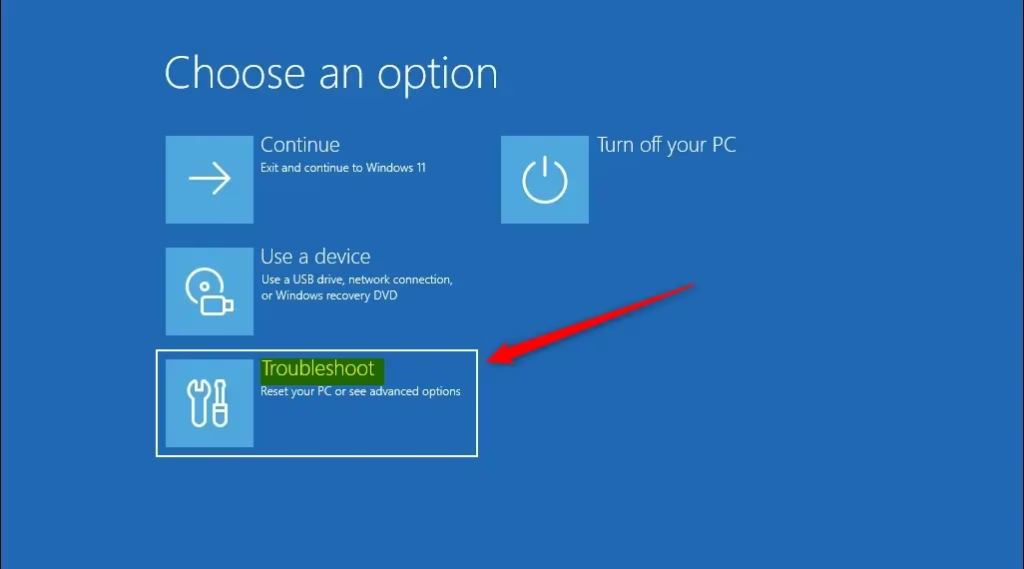
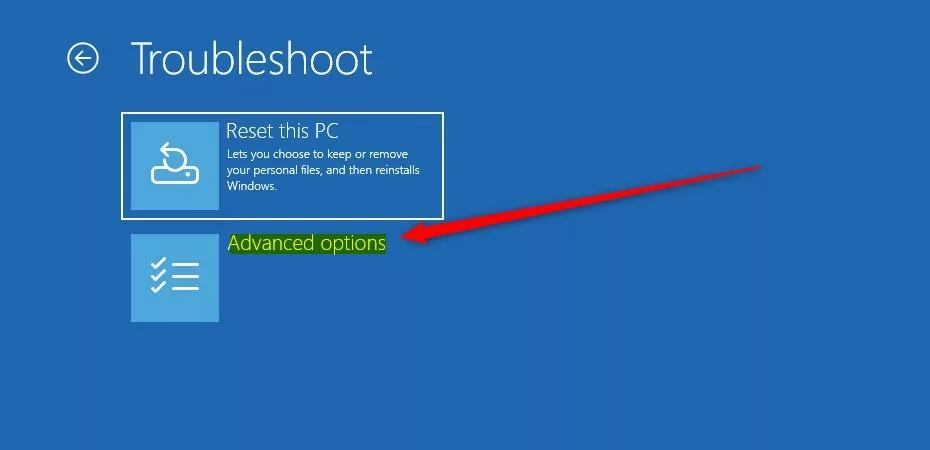
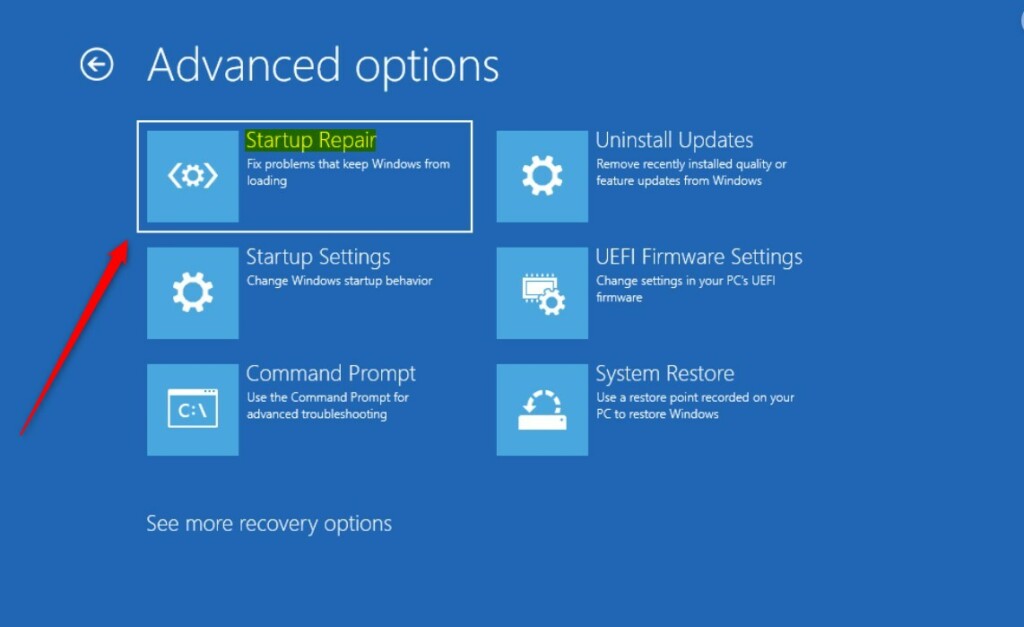
Once you are in WinRE, finding Startup Repair takes three clicks across two menu screens. From the "Choose an option" screen, click Troubleshoot, then Advanced options, then Startup Repair. Your computer restarts and scans for boot problems automatically after you pick this option.
- Choose Troubleshoot. On the "Choose an option" screen, select Troubleshoot. This is where all the advanced repair tools are. The "Troubleshoot" screen opens with Reset this PC and Advanced options.
- Select Advanced options. On the "Troubleshoot" screen, click Advanced options. You will see a list of more specific tools, such as System Restore, Uninstall Updates, and Command Prompt.
- Choose Startup Repair. Click Startup Repair. This tool checks your computer for startup problems and tries to fix them automatically. If it is missing from the list, the recovery environment may be damaged. In that case, boot from an installation USB drive and try again.
- Choose your operating system. If asked, pick the operating system you want to fix. Usually there is only one option, your current Windows. You may also be asked to choose an account and type its password. Use an administrator account. Enter the password for that account, not the sign-in PIN.
- Let Startup Repair work. Your computer restarts, and Startup Repair starts its scan with a "Diagnosing your PC" message and a progress indicator. This can take a few minutes or over an hour, depending on how bad the problems are and how fast your computer is. Do not turn off the PC while it runs. A long wait with little change on screen is normal.
Startup Repair may restart the PC more than once. If it fixes the problem, Windows starts as usual. If it fails, you will see a message that says "Startup Repair couldn't repair your PC." That screen gives you the choice to shut down or go to Advanced options. From there you can try System Restore or Uninstall Updates, especially if the trouble began after an update.
Make sure you have this key before you start. If you don't know it, you can often find it by signing into your Microsoft account online. Many Windows 11 PCs turn on device encryption by default when you sign in with a Microsoft account, so you may have a key even if you never set one up. On a work or school PC, ask your IT department for the key.
What happens when Startup Repair is done?
After Startup Repair runs, it will let you know whether it fixed any issues, and your PC should then start normally. Sign in and check that your apps and files are there. Then run Windows Update, since a pending or failed update is a common reason for boot trouble.
If the same problem comes back, Startup Repair is only treating the symptom. A failing drive, bad memory, or a faulty driver may be the real cause, so check those next.
Reference:
https://support.microsoft.com/en-us/windows/startup-repair-85deb0b9-fa3d-44a3-a3d0-d0f1515c2c9b
Summary
Startup Repair is a helpful Windows 11 tool for fixing startup problems. You reach it through the Recovery Environment by choosing Troubleshoot and then Advanced options. You can open that environment from Settings, by interrupting startup, or from a USB drive. If Startup Repair can't fix the problem, try System Restore or Uninstall Updates from the same Advanced options menu.
Have a question about this guide?
Answered by AI from this guide. Good questions may be added to this page — please don't include personal details.
Did this guide fix your problem?

About the Author
Richard
Tech Writer, IT Professional
Richard is a writer at Geek Rewind who turns complex IT tasks into clear, step-by-step guides. He draws on years of hands-on experience in system administration and enterprise IT operations, focusing on Windows, Linux and WordPress: the problems people actually run into, and the fixes that work. His server and WordPress guides come from systems he runs himself. Richard builds and maintains the platform behind Geek Rewind, from its Ubuntu servers and Nginx configuration to its custom WordPress plugins. Many new tutorials start with readers' questions, and he's always glad to answer them in the comments.
No comments yet — be the first to share your thoughts!