3 Windows 11 Backup and Recovery Methods to Save Files

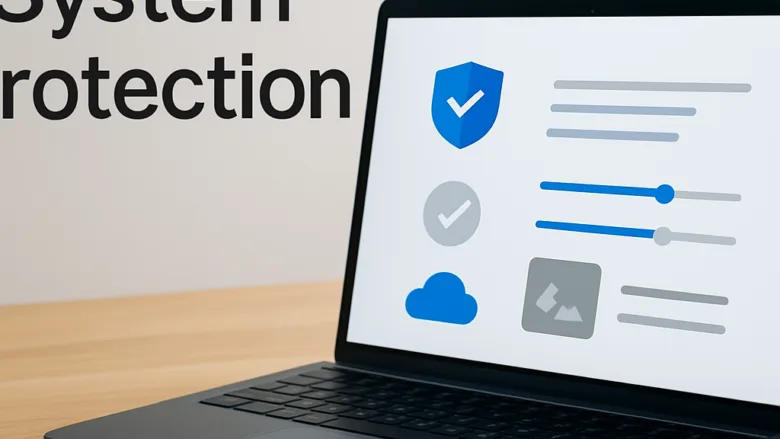
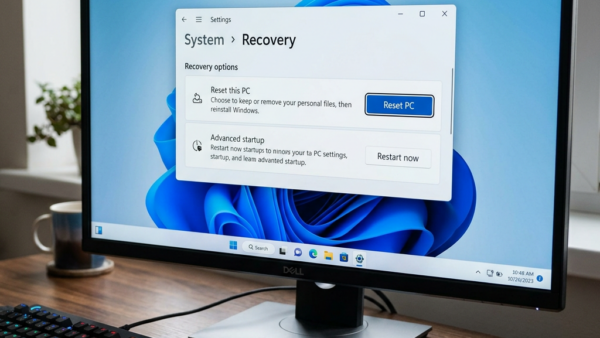
Windows 11 has three built-in tools that protect your personal files and let you recover when something breaks. File History saves copies of your documents, System Restore undoes bad updates and driver changes, and Reset This PC gives you a fresh start when Windows stops working properly.
You can reach all three from the Settings app and Control Panel. They cover different problems, so it helps to set up more than one. Doing it early is what prevents you from permanently losing photos, documents, and installed apps.
Windows 11 has three built-in backup and recovery tools: File History copies your documents to an external drive, System Restore saves restore points to undo bad updates, and Reset This PC reinstalls Windows or wipes your PC clean. Access all three from the Settings app or Control Panel.
Set Up Safety Nets Before Problems Happen
Here is a short checklist to work through:
- Connect an external drive or choose a network location for File History, so your files are copied somewhere other than the PC itself.
- Check that System Restore is switched on for your system drive. On some PCs it is off by default, and with it off, Windows creates no restore points.
- Have a USB flash drive ready for a recovery drive. Creating one erases everything on the stick, so use an empty one.
These tools work the same way on Windows 11 Home and Pro.


Fix Daily Glitches and Undo Bad Changes
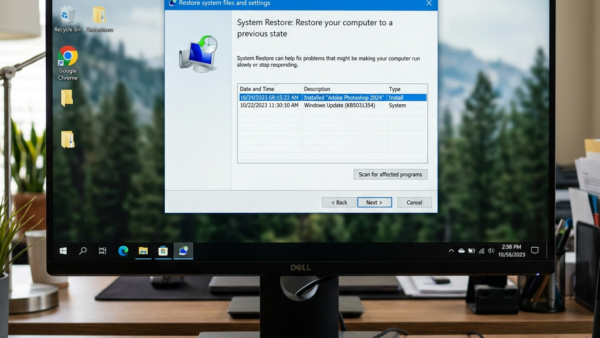
Use these guides when a recent app install, driver, or system update makes your computer crash or act strangely. They let you roll the system back to a healthy state without wiping your personal files.
Try the least drastic fix first. Rolling back to a restore point or uninstalling the update that caused the problem takes minutes and is usually enough. If a restore point is not offered, or the problem remains afterwards, move on to the heavier options in the next section.
Start Fresh When Your PC Stops Working
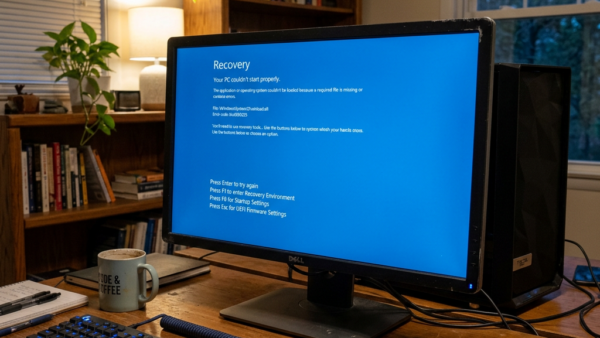
These guides cover the heavier rescue options for when Windows 11 will not start normally or runs too slowly to use. You will learn how to reinstall the operating system or reset your computer, and how to choose whether to keep your personal files.
Common questions
What is the difference between a restore point and a full backup?
Will resetting my 🪟 Windows 11 PC delete my personal files?
A restore point saves only system files, settings, registry data, and installed programs. It is meant to fix software glitches, and it leaves your personal photos and documents alone. That also means it cannot bring back a file you deleted.
A full backup copies your personal files, and optionally the operating system as well, to an external drive. That is what you need to recover from a total hardware failure or a drive that dies. Restore points are stored on the same drive as Windows, so they will not help if that drive fails. For real protection, use both: restore points for quick software fixes, and a backup on a separate drive for everything else.
How do I use recovery tools if Windows will not boot?
It depends on the option you choose during the reset. Windows asks you to pick one of two choices:
- Keep my files removes your apps and settings but leaves your personal files in place.
- Remove everything wipes your files, apps, and settings for a completely clean slate.
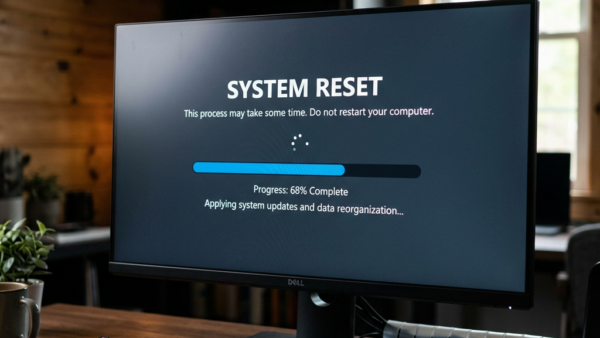
Even with Keep my files, make a separate backup first. Things can go wrong during a reset, and apps you installed yourself will need to be installed again afterwards.
How often should I create a recovery drive?
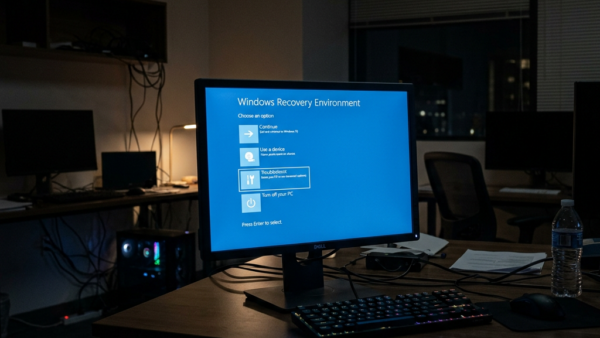
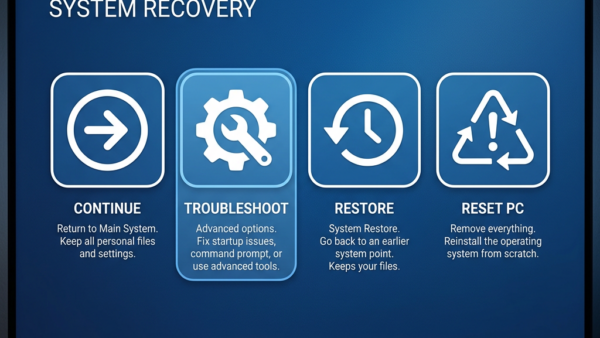
If your desktop will not load, you can use a USB recovery drive to start the computer into the Windows Recovery Environment. You may need to open your PC’s boot menu at startup and choose the USB drive. The key for that differs by manufacturer, so check your PC’s manual or the manufacturer’s site.
From there you can run startup repair tools, open System Restore, or reinstall the operating system. These tools are under Troubleshoot Advanced options on the blue recovery screen. If the drive is encrypted with BitLocker, Windows may ask for your recovery key, so make sure you know where it is stored.
You only need to create a recovery drive once, but it is a good idea to make a new one after major Windows feature updates. That way the recovery tools match the version of Windows you are running. Store the drive somewhere safe and label it with the PC it belongs to, since a recovery drive is best used on the computer that created it.
Frequently asked questions
Can I coy a restore point on my 🪟 Windows 11 to pendrive for backup?
No. A restore point stays on your system drive and can't be copied to a USB drive as a restore point. To get a copy you can use elsewhere, make a system image with Backup and Restore (Windows 7) in Control Panel, or create a recovery drive. Both can be stored on a pendrive.
How to use snapshots to back up files 🪟 Windows 11?
Windows 11 doesn't offer a snapshot tool for personal files. Use File History to copy documents, pictures, and desktop files to an external drive on a schedule. Restore points and Previous Versions can bring back older copies of files only if System Protection is turned on.
How to take back up from laptop 🪟 Windows 11 in advanc option?
Advanced startup can't create a backup. It only restores one, through System Image Recovery or a restore point. To make a system image, open Control Panel, select System and Security, then Backup and Restore (Windows 7), and click Create a system image. Choose an external drive as the destination.
How to back up files on PC before a system reset?
Copy your files to an external drive or cloud storage before you start. Reset This PC's Keep my files option can still lose data or remove installed apps, so don't rely on it alone. Copy your Desktop, Documents, Pictures, and Downloads folders, then open a few copies to confirm they work.
What file folders should I backup 🪟 Windows 11?
Back up your user folders: Desktop, Documents, Downloads, Pictures, Videos, and Music. You'll find them under your user name in File Explorer. Also copy browser bookmarks, game save files, and any folder you created yourself. Installed apps will need reinstalling, so note their license keys first.
How to take recovery backup of 🪟 Windows 11?
Use an empty USB drive of at least 16 GB, because creating a recovery drive erases everything on it. Search the Start menu for Recovery Drive and open it. Check Back up system files to the recovery drive, then follow the prompts to finish.
Still have a question?
Answered by AI from this guide. Good questions may be added to this page — please don't include personal details.
Did this guide fix your problem?

About the Author
Richard
Tech Writer, IT Professional
Richard is a writer at Geek Rewind who turns complex IT tasks into clear, step-by-step guides. He draws on years of hands-on experience in system administration and enterprise IT operations, focusing on Windows, Linux and WordPress: the problems people actually run into, and the fixes that work. His server and WordPress guides come from systems he runs himself. Richard builds and maintains the platform behind Geek Rewind, from its Ubuntu servers and Nginx configuration to its custom WordPress plugins. Many new tutorials start with readers' questions, and he's always glad to answer them in the comments.
No comments yet — be the first to share your thoughts!