How to Repair Apps in Windows 11

- 21 steps
- Needs administrator rights
- Includes a restart or sign-out
App repair in Windows 11 fixes broken, frozen, or crashing software using built-in tools that leave your saved files alone. Windows 11 includes a quick fix for Microsoft Store apps and desktop programs. In most cases it takes only a few clicks.
Open Settings, go to Apps and then Installed apps, find the program that gives you trouble, and click the advanced options link to find the repair button. This built-in fix replaces missing or broken app files so you can get back to work. The link only shows up for apps that support it, mostly Microsoft Store apps. For other programs, use the Control Panel or command-line methods later in this guide.
Go to Settings Apps Installed apps, click the three dots next to the app, select Advanced options, and click Repair. For older programs, open Control Panel Programs Programs and Features, right-click the program, and select Repair or Change.
Why repair your apps?
Programs stop working when their core files or settings get corrupted. This usually happens after a failed update, a sudden power loss, a full disk, or a security tool that quarantined the wrong file. Repairing an app refreshes its internal data without a full reinstall. This preserves personal preferences and saves time. Repairing an app can help fix performance issues or sluggish loading times stemming from damaged installation files.
Try the repair tools in the order they appear here. Start with the gentlest one (Settings), then move to the Control Panel, and use the command-line tools last.
What happens when you are done?
Windows refreshes core program files during the repair process. Personal data remains safe in most cases. However, certain programs revert to default factory settings, requiring a fresh sign-in. This means your app will be like it was when you first installed it, but personal files stay intact.
Repair and Reset are not the same thing. Repair tries to fix the app and keeps its data. Reset wipes the app’s data and returns it to a fresh install. Always try Repair first, and back up anything important before you use Reset.
Prerequisite: Check for Windows Updates
Check for Windows updates before you start troubleshooting to prevent common software glitches. Outdated system components trigger many common software glitches. Keeping Windows current serves as a reliable first step for troubleshoot application errors in Windows 11.
- Go to
Settings > Windows Update. - Click
Check for updates. Windows contacts Microsoft and lists any updates that are waiting. - Let any updates download and install. If Windows asks for a restart, save your work and restart before you test the app again.
If the app works after the restart, you do not need to go any further.
Repairing apps via Settings
Microsoft Store apps are particularly quick to fix directly through the Windows settings menu. This approach avoids removing and re-adding software packages. Navigate to the settings interface, locate the troubled program, and select the repair utility. The steps below work on Windows 11 Home and Pro alike, and you do not need an administrator account for most Store apps.
Latest Update
To repair apps in Windows 11 from the Microsoft Store, open Settings and go to Apps Installed apps. Find your app, click the three dots next to it, and select Advanced options. Scroll down to the Repair section and click the Repair button to fix broken files without losing your saved data or settings.
- Click the Start button and open Settings.
- Select Apps, then click on Installed apps. You should see a list of everything installed on the PC. Use the search box at the top if the list is long.
- Find the app you want to fix in the list.
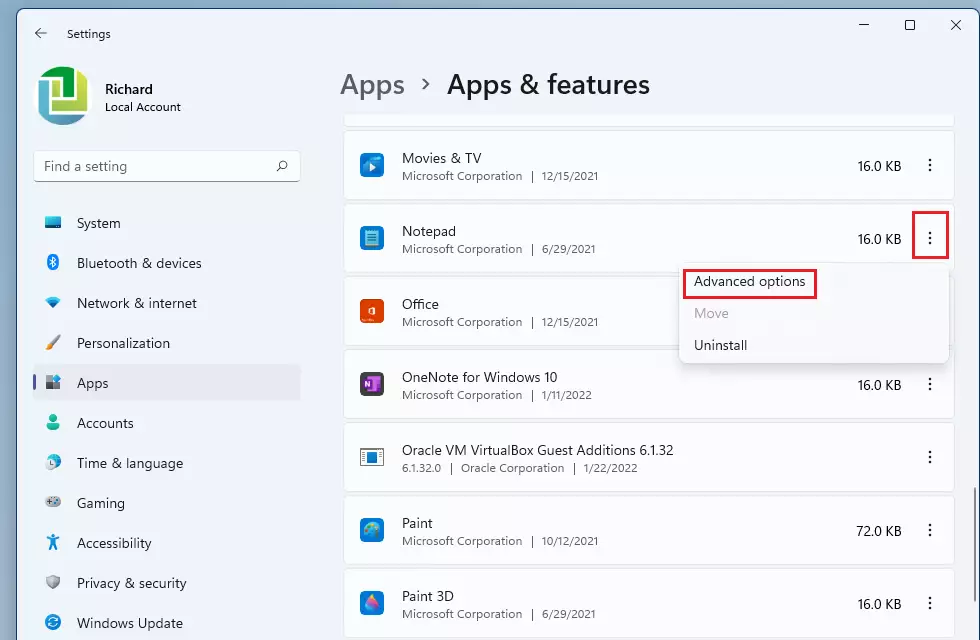
- Click the More (three dots) icon next to the app. A small menu opens. For Store apps it normally shows Advanced options and Uninstall. Classic desktop programs usually show Modify and Uninstall instead.
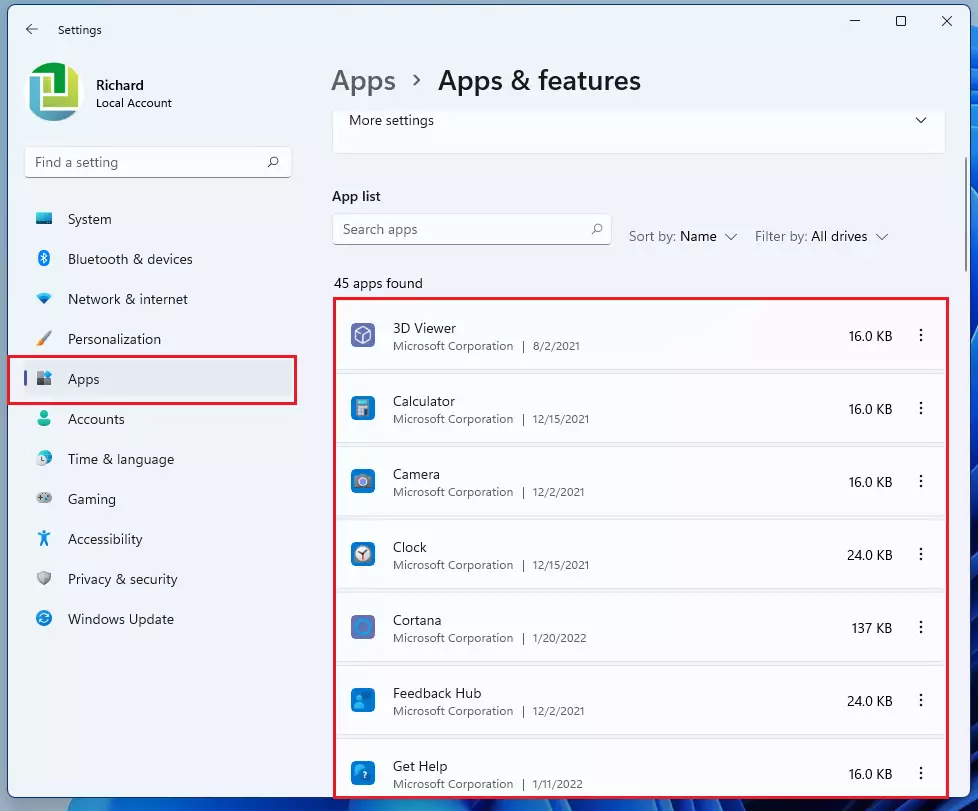
- Select Advanced options. The app’s settings page opens. Note: If you do not see this link, the app does not support a repair through this menu. Use the Control Panel method below instead.
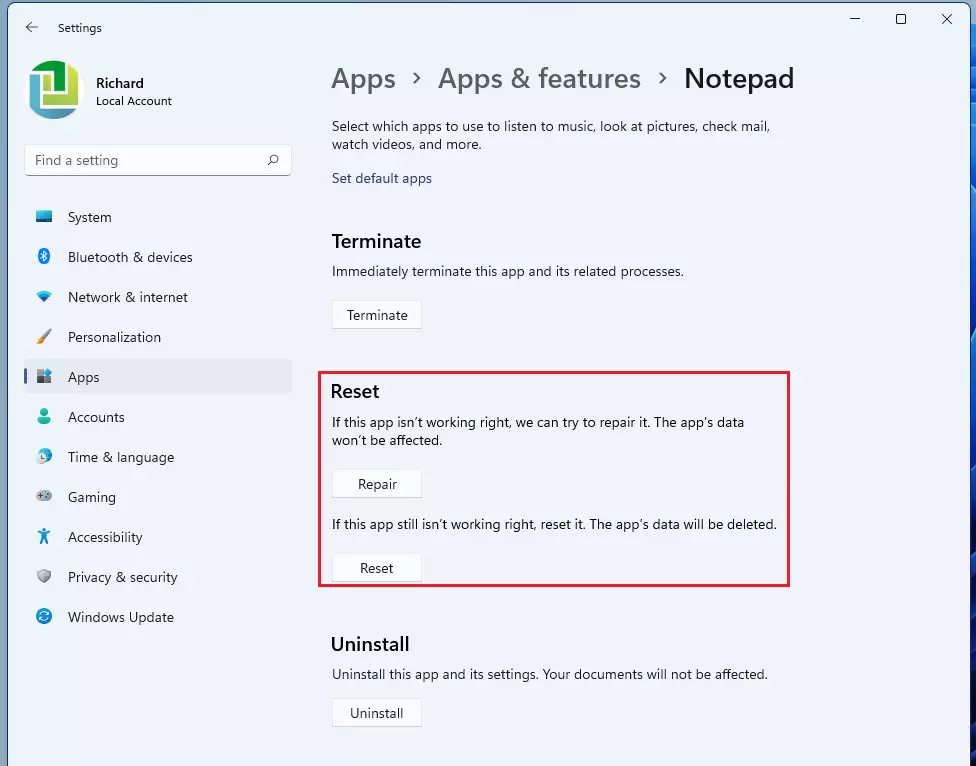
- Scroll down to the Reset section and click the Repair button if it is available. Windows works for a few seconds, and a check mark appears next to the button when it finishes. Open the app and see if the problem is gone. If the app still does not work, you can click Reset to start fresh.
Be careful with Reset. It deletes the app’s data on this PC, including settings and sign-in details, and Windows asks you to confirm. If the app is greyed out or has no Repair button, it was not built to be repaired this way.
Repairing programs via Control Panel
Desktop software malfunctioning on a Windows 11 PC often responds well to Control Panel repairs. This utility resolves numerous program errors without requiring a full reinstall. Open the Control Panel utility and navigate to the program management section to find repair options. Whether a repair is offered depends on the program’s own installer, so some programs will not show it.
Latest Update
Desktop software malfunctioning on a Windows 11 PC often responds well to Control Panel repairs. This utility resolves numerous program errors without requiring a full reinstall. Open Control Panel (you can search for it) and navigate to Programs > Programs and Features. Select the program you want to repair, and if available, you’ll see a Repair option. This is how you repair apps that are not installed from the Microsoft Store.
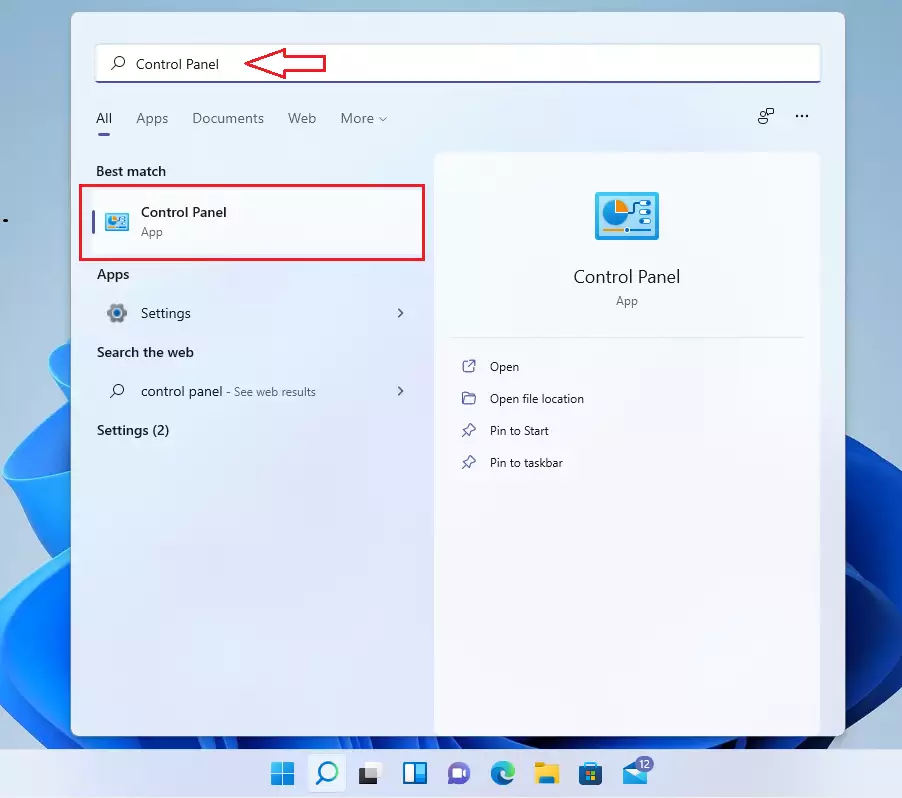
- Search for Control Panel in your taskbar and open it. The Control Panel window opens.
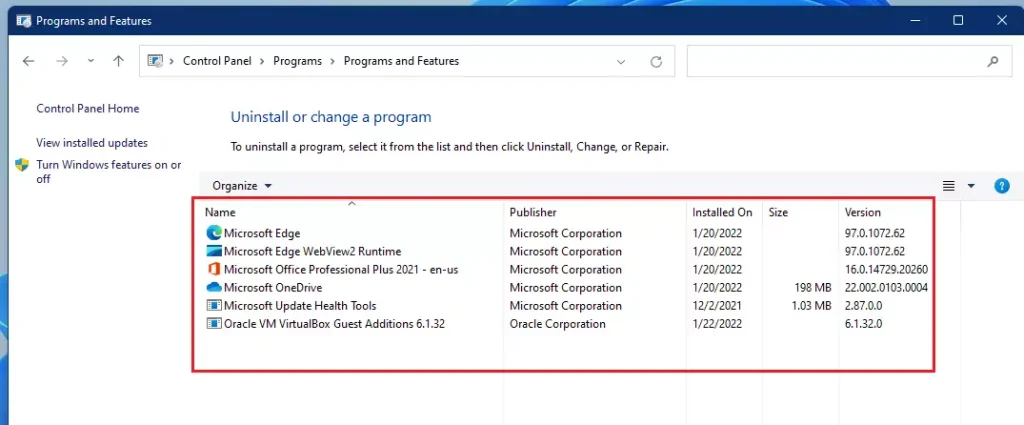
- Click Programs, then select Programs and Features. You should see a table of installed desktop programs. If you do not see Programs, set the View by option at the top right to Category.
- Find the program you want to fix in the list.
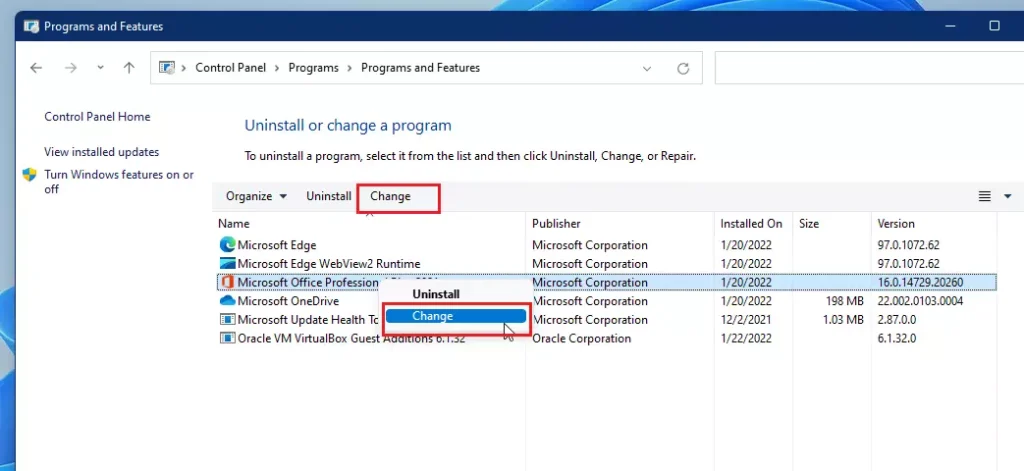
- Right-click the program name and select Repair. If that option is missing, select Change. Accept the User Account Control prompt if one appears. The program’s own installer opens, and with Change you may need to pick a repair option inside it.
Follow the installer’s prompts and let it finish. Close the program first if it is running. Restart the PC if the installer asks, then test the program again.
Advanced Repair via Command Prompt and PowerShell
To repair system files in Windows 11 when standard menus fail, use built-in command tools like the System File Checker or Deployment Image Servicing and Management (DISM). Open Command Prompt as an administrator and run the sfc /scannow command to automatically find and replace corrupted files causing app failures.
Command-line utilities step in when standard menus fail to resolve stubborn system errors. These tools target corrupted core files responsible for deep-seated software failures. Users can run the System File Checker with sfc /scannow or deploy the DISM tool to repair the Windows system. These commands are powerful ways to fix corrupted apps Windows 11 when other methods fail. You need an administrator account to run them.
- Right-click the Start button and open Terminal (Admin). Click Yes if User Account Control asks for permission. A Terminal window opens.
- Type
sfc /scannowand press Enter. Windows will scan your system for corrupted files and attempt to repair them. This process can take some time, so leave the window open until it reaches 100%. - Read the result. A message saying Windows found no integrity violations means your system files are fine. A message saying it repaired corrupt files means you should restart and test the app again.
- If
sfc /scannowfinds issues it can’t fix, you can use the DISM tool. To do this, first typeDISM /Online /Cleanup-Image /RestoreHealthand press Enter. DISM usually needs an internet connection to get clean copies of files. - After DISM finishes, run
sfc /scannowagain, then restart the PC.
Here are the commands again for quick reference.
Run the System File Checker (SFC) to fix corrupted system files: sfc /scannow
If issues persist, use the DISM tool: DISM /Online /Cleanup-Image /RestoreHealth
To reinstall a specific app via PowerShell, use: Get-AppxPackage *AppName* | Remove-AppxPackage followed by a reinstall from the Microsoft Store. Treat this as a last resort for a single stubborn Store app. Removing an app can delete its local data, so back up anything you need first.
Fixing Microsoft Store Issues
Clearing the cache resolves unresponsive Store applications. Use it when the Store itself will not open, or when apps will not download or update.
- Press Win + R to open the Run box.
- Type
wsreset.exe(this command clears the Microsoft Store cache), and press Enter. A blank command window opens. It may look like nothing is happening, so give it a minute. - Wait for the window to close. The Microsoft Store then opens on its own, which tells you the reset is done.
This action clears temporary store data without deleting installed programs. You do not need to restart afterward.
Summary
Fixing apps in Windows 11 resolves persistent performance degradation through multiple avenues, spanning basic settings adjustments for modern packages, Control Panel utilities for legacy desktop software, and advanced command-line tools for underlying OS corruption.
Work from the simplest fix to the most involved: update Windows, then Repair, then Reset, then SFC and DISM. Most problems are solved in the first two steps. If an app still fails after all of this, uninstall it and install a fresh copy from its official source.
What Changed
- Windows 11 includes a built-in Troubleshooter that can automatically detect and fix common problems with apps.
- The
Settings > Apps > Installed appssection is the primary location for managing and repairing Microsoft Store apps. - Control Panel remains a valid method for repairing traditional desktop applications.
Frequently asked questions
What should I do if the Repair button is greyed out?
A greyed-out or missing Repair button in Windows 11 means the app does not support built-in fixes. To solve this, you need to completely uninstall the program, restart your computer, and install a fresh copy using the official installer file from the developer's website.
Still have a question?
Answered by AI from this guide. Good questions may be added to this page — please don't include personal details.
Does repairing an app delete my personal data?
Repair functions attempt to correct damaged files while preserving user data and configurations. Choosing the Reset alternative, however, purges all application data, caches, and customized preferences, returning the software to its default factory condition.
How It Compares
Repairing an app in Windows 11 fixes broken program files while keeping your personal data, login info, and saved settings safe. Resetting an app deletes all its stored data, cache, and preferences, which wipes the software back to its original factory state and forces you to set it up again from scratch.- Repair vs. Reset:
- Repairing an app attempts to fix corrupted files while keeping your personal data and settings intact.
- Resetting an app will clear all its data, cache, and preferences, returning it to its original, out-of-the-box state.
- Resetting is a more drastic step and will require you to set up the app again, including signing in.
Did this guide fix your problem?

About the Author
Richard
Tech Writer, IT Professional
Richard is a writer at Geek Rewind who turns complex IT tasks into clear, step-by-step guides. He draws on years of hands-on experience in system administration and enterprise IT operations, focusing on Windows, Linux and WordPress: the problems people actually run into, and the fixes that work. His server and WordPress guides come from systems he runs himself. Richard builds and maintains the platform behind Geek Rewind, from its Ubuntu servers and Nginx configuration to its custom WordPress plugins. Many new tutorials start with readers' questions, and he's always glad to answer them in the comments.
Get the fix before you need it
One email when we publish a guide worth your time — new Windows features, the fixes that actually work, and a heads-up when Microsoft breaks something. Unsubscribe in one click.
No comments yet — be the first to share your thoughts!