How to Reset Microsoft Store App in Windows 11


Resetting the Microsoft Store in Windows 11 clears out corrupted cache files and bad data that stop apps from downloading or opening correctly. This built-in repair tool fixes common issues like error code 0x80070005 (an “access denied” error) without deleting any of the games or programs you already installed on your PC.
The quickest route is Settings Apps Installed apps. Find the Microsoft Store there, open its advanced options and run the reset. You only need to sign back into your Microsoft account after the process finishes. This guide covers four methods, from the mildest to the most thorough, so you can stop as soon as the Store works again.
Open Settings Apps Installed apps, click the three dots next to Microsoft Store, and choose Advanced options. Click Repair first, which keeps your data; if the Store still fails, click Reset and confirm. Your installed apps and purchases stay put, and you only need to sign back into your Microsoft account afterwards.
Prerequisites
Check for pending updates in Settings Windows Update and click Check for updates . Install anything that is waiting and restart if Windows asks you to. A Store that fails to open is sometimes just running on an out-of-date system, and an update fixes it without any reset. Also check that your clock and time zone are correct, because a wrong date can cause Store sign-in and download errors.
Keeping your Windows 11 system updated is the best defense against app problems. If the Store still misbehaves after updating, move on to the methods below.
Method 1Using App Settings
You can reset the Microsoft Store through the App settings menu when the app freezes or fails to download apps. This built-in option clears corrupted app data and local cache files without deleting your personal files or purchased apps, making it a safe first step to fix everyday store errors. It works the same on Windows 11 Home and Pro, and you don’t need an administrator account.
- Open your Start menu .
- Find the Microsoft Store icon. It is usually pinned at the top. If it isn’t, click All apps and scroll to the M section.
- Right-click on it and select App settings. If you don’t see that option in the first menu, choose More and then App settings. The Microsoft Store page opens in Settings.
You can also reach the same page from Settings Apps Installed apps. Click the three dots next to Microsoft Store and choose Advanced options.
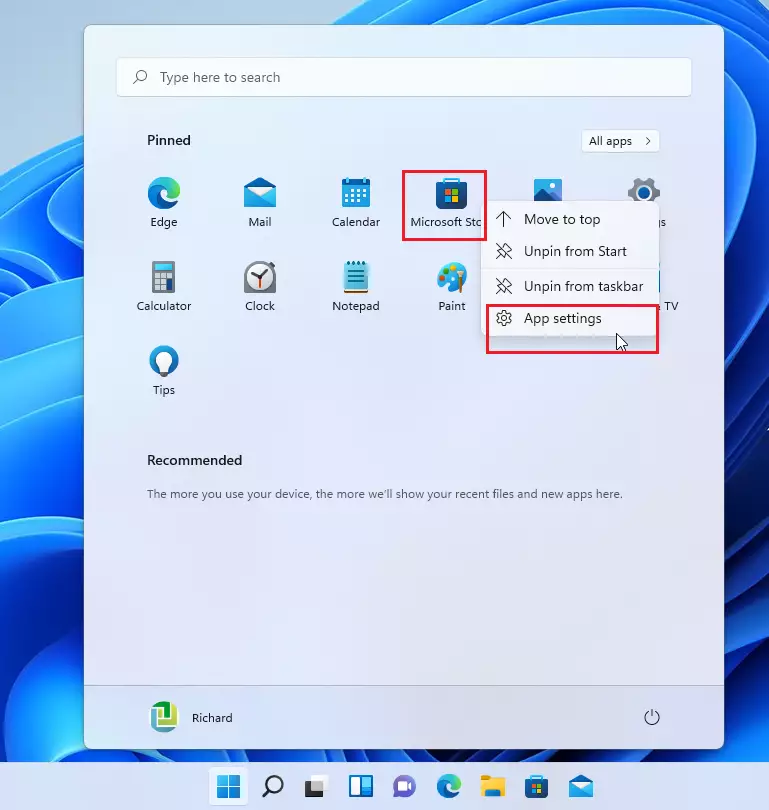
- Scroll down to the Reset section.
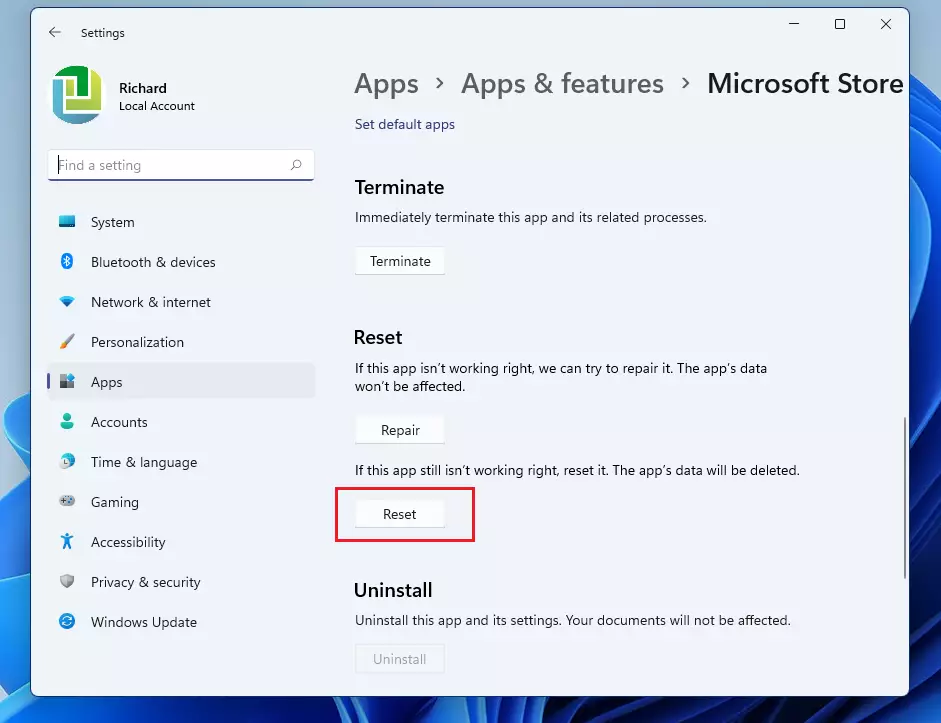
- Click the Repair button first, since this won't delete your data. Windows runs the repair and shows a check mark next to the button when it is done.
- Open the Store and see if the problem is gone. If it still fails, come back to this page and click the Reset button.
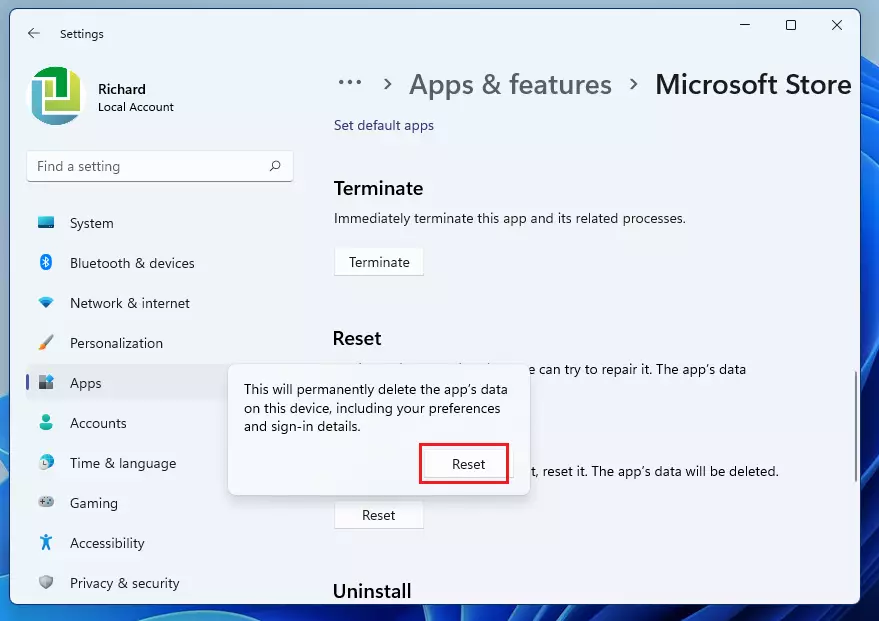
Confirm by clicking Reset again. Wait a few seconds until a check mark appears next to the Reset button. Then open the Store and sign in again with your Microsoft account. Your installed apps and purchases are not affected. A restart is not normally needed, but if the Store still won't open, restart the PC and try again.
Method 2Using WSReset.exe
You can use the built-in WSReset.exe command to clear the Microsoft Store cache when downloads get stuck or the app refuses to open. Running this tool deletes temporary files and restarts the store automatically in a few seconds, fixing most common glitches without changing your account settings. It does not need administrator rights, and it also works when the Settings page for the Store won't load.
- Press Windows Key + R on your keyboard. The Run dialog box opens.
- Type wsreset.exe and press Enter.
- A blank command prompt window will open. Wait for it to close automatically; the Store will then launch on its own. Don't close the window yourself. It can sit there for a minute or longer on a slow PC.
If the Store opens, try the download that was failing before. If nothing happens, restart the PC and run the command once more.
Method 3Using PowerShell (Admin Required)
You can re-register the Microsoft Store using PowerShell as an administrator when basic repairs fail to fix persistent errors. This advanced step registers the store package again from the system files already on your PC, giving you a fresh copy of the app without a download. Use it after the first two methods have failed, and type the commands carefully.
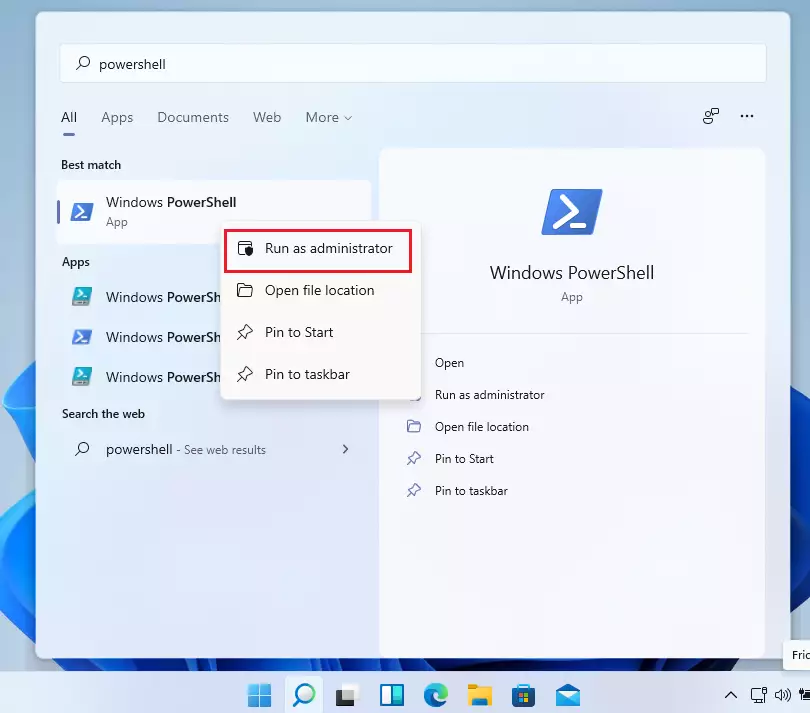
- Click the Start button and type PowerShell. Windows PowerShell appears at the top of the results.
- Right-click the result and choose Run as administrator. Click Yes if User Account Control asks for permission. A blue window opens, and the title bar should say Administrator.
To reset the store for your own user account, copy and paste the following command into the window and press Enter:
To reset the Microsoft Store app with the reset command instead, use this one: `Get-AppxPackage *WindowsStore* | Reset-AppxPackage`. It returns the Microsoft Store to its default settings and clears accumulated errors or data issues. Run as written, it applies to the account you are signed in with, so repeat it from other accounts on the PC if they have the same problem. Reset-AppxPackage is only available on current Windows 11 builds, so if PowerShell says it doesn't recognize the command, install the latest updates first.
Get-AppxPackage -AllUsers *WindowsStore* | Foreach {Add-AppxPackage -DisableDevelopmentMode -Register "$($_.InstallLocation)\AppXManifest.xml"}
Advanced Repair: SFC and DISM
If the Store continues to misbehave, system files on your PC might be damaged. The two commands below check for that and repair it. Requires admin privileges. Each one can take several minutes, so give it time.
- Open PowerShell as administrator, the same way as in the previous method.
- Type
sfc /scannowand press Enter. Wait for it to reach 100% and show a result. Keep the window open until it does. - After that finishes, type
DISM /Online /Cleanup-Image /RestoreHealthand press Enter. Wait for it to report that it completed.
Restart your PC when both commands are done, then open the Microsoft Store and test it. These tools repair Windows itself, so they help with problems that reach beyond the Store.
Summary
If your Microsoft Store is crashing or not opening in Windows 11, fix it by resetting the app through its settings or by using the WSReset.exe tool. Start with Repair, then Reset, and only move on if the problem stays. For more stubborn issues, re-registering the app with PowerShell resolves deeper problems, and the system file checks cover damage in Windows itself. After any reset, sign back into the Store and your installed apps will still be there.
Was this helpful? Let us know in the comments below!
Have a question about this guide?
Answered by AI from this guide. Good questions may be added to this page — please don't include personal details.
Did this guide fix your problem?

About the Author
Richard
Tech Writer, IT Professional
Richard is a writer at Geek Rewind who turns complex IT tasks into clear, step-by-step guides. He draws on years of hands-on experience in system administration and enterprise IT operations, focusing on Windows, Linux and WordPress: the problems people actually run into, and the fixes that work. His server and WordPress guides come from systems he runs himself. Richard builds and maintains the platform behind Geek Rewind, from its Ubuntu servers and Nginx configuration to its custom WordPress plugins. Many new tutorials start with readers' questions, and he's always glad to answer them in the comments.
No comments yet — be the first to share your thoughts!