How to Reset Default Apps in Windows 11

Want to reset default apps in Windows 11 back to Microsoft’s original choices? You can do it from the Settings app in a few clicks. It works the same on Windows 11 Home and Pro, and you don’t need to restart afterward.
Open Settings, go to Apps Default apps, scroll to the bottom and click Reset all default apps. Windows restores Microsoft’s recommended app for every file and link type on your user account, with no restart needed. Your installed programs stay, but any custom choices you made must be set again by hand.
What is a Default App?
A default app is the program Windows automatically chooses to open a certain type of file or link. Your web browser opening website links is the usual example. The same idea applies to PDFs, photos, music, video and email links. When you double-click a file, Windows checks which app is assigned to that file type and opens it there.
Over time those assignments change. Installers often grab file types without asking, and you may have switched a few yourself. Resetting returns every assignment to the choices Microsoft ships with Windows 11. It is a good fix when files open in the wrong program, links go to a browser you no longer use, or you can’t remember what you changed.
The reset only affects your user account. Other people who sign in to the same computer keep their own settings.
Two more things to know before you start:
- The reset does not uninstall any programs. It only changes which program opens which file or link type.
- There is no undo button. If you had custom choices you want back, write them down first (for example, which browser and PDF reader you used), so you can set them again by hand afterward.
How to Reset All Default Apps in 🪟 Windows 11
These steps reset default apps in Windows 11 so every file type and link type goes back to what Windows recommends.
- Open Settings . Press the Win+I to open it right away, or click the Start menu and select Settings.
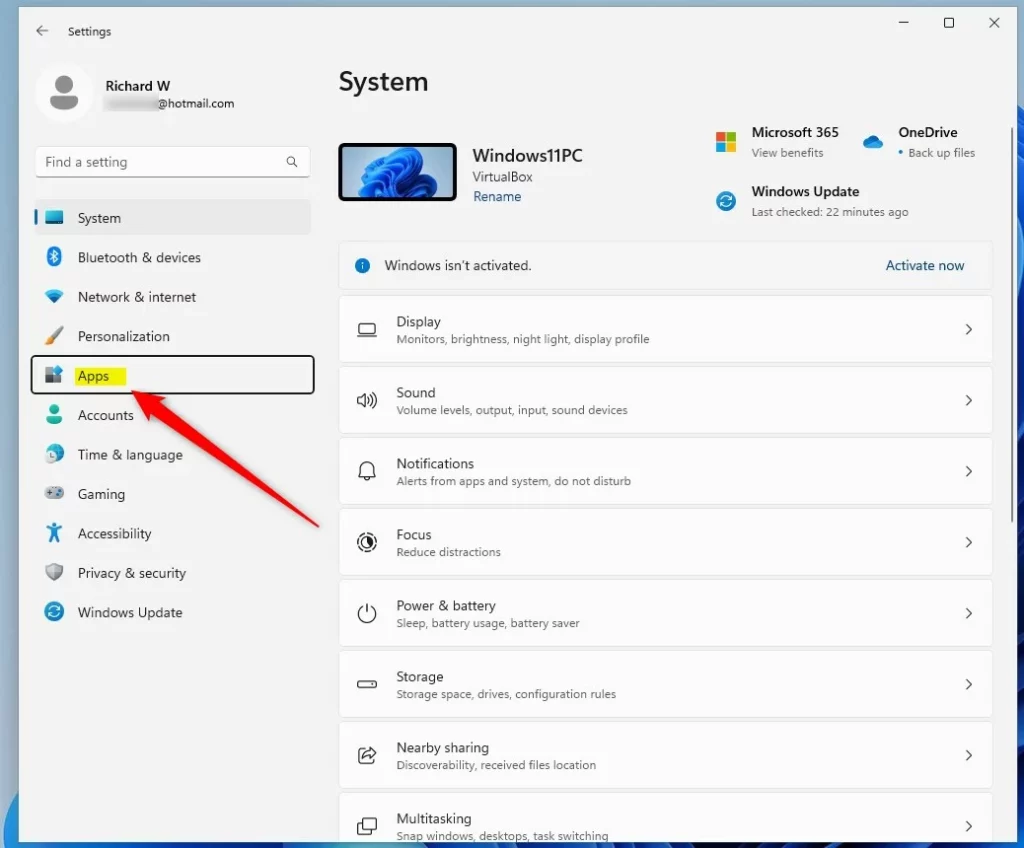
- Click Apps. It is in the left side menu, and the right side now shows the app-related pages.
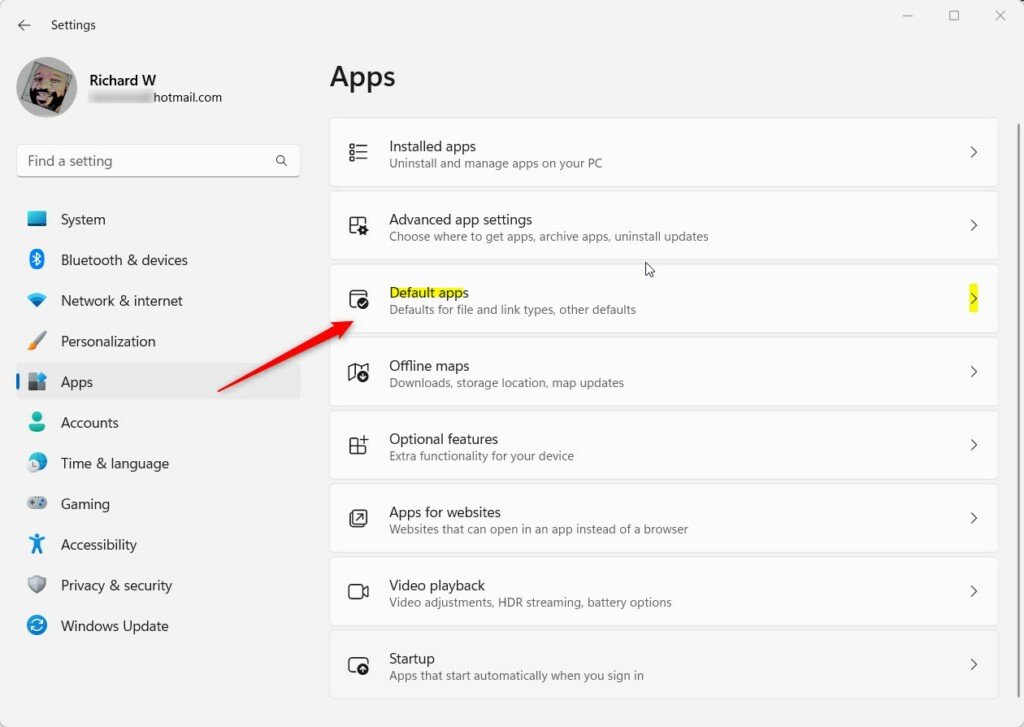
- Click Default apps. You should see a list of installed apps with a search box above it.
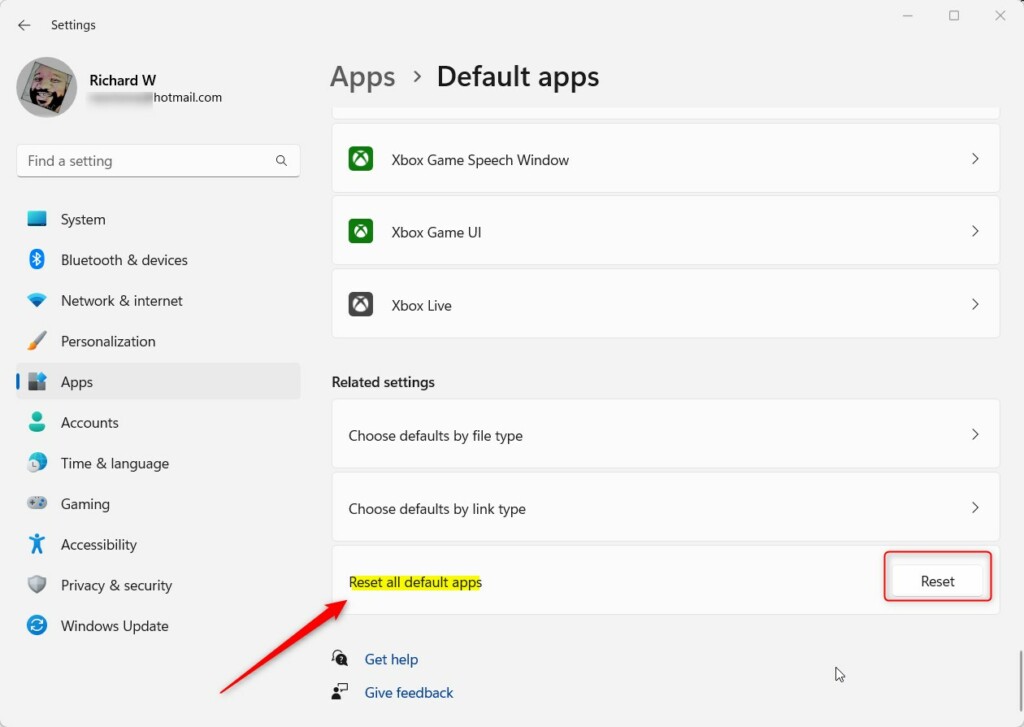
- Scroll to the bottom of the page. The reset option sits below the list of apps, so keep scrolling if you don’t see it right away.
- Click Reset all default apps. On some Windows 11 builds this is a row with a Reset button beside it, and you click that button.
- Click OK if a confirmation message appears. Some builds ask you to confirm before they go ahead, and others reset straight away.
- Wait for the checkmark. It appears next to the reset button when the reset is done. Nothing else will pop up, and you don’t need to sign out or restart.
If the reset seems to do nothing on a work or school PC, your organization may enforce certain default apps through policy. In that case, the managed choices come back after the reset and you will need to ask your IT department to change them.
What Happens Now?
Any custom choices you made before are gone. Windows will use its recommended apps to open files and links, such as Microsoft Edge for web links.
To check the result, open a file you had trouble with, such as a PDF or a photo, and see which program opens it. If you prefer a different app for something, go back to Settings Apps Default apps, pick the app from the list and set it for the file or link types you want. This is also how you restore any custom choices you noted down before the reset.
Summary
- A default app is the program Windows automatically opens for certain files or links.
- Resetting brings back Microsoft's original recommended apps for all file types.
- This change only affects your user account. Other accounts on the computer stay the same.
- The reset takes just a few seconds in the Windows 11 Settings app, with no restart needed.
- It doesn't uninstall any apps, and it can't be undone with one click. You have to set any custom defaults again by hand.
- After you're done, Windows will use its default apps again.
Default apps are programs Windows automatically picks to open specific files or links. Resetting them returns your account to Microsoft's original recommended programs for all file types. Other accounts are not touched, and the whole reset takes a few seconds in Settings Apps Default apps. After resetting, Windows will use its default apps for everything until you choose different ones.
Have a question about this guide?
Answered by AI from this guide. Good questions may be added to this page — please don't include personal details.
Did this guide fix your problem?

About the Author
Richard
Tech Writer, IT Professional
Richard is a writer at Geek Rewind who turns complex IT tasks into clear, step-by-step guides. He draws on years of hands-on experience in system administration and enterprise IT operations, focusing on Windows, Linux and WordPress: the problems people actually run into, and the fixes that work. His server and WordPress guides come from systems he runs himself. Richard builds and maintains the platform behind Geek Rewind, from its Ubuntu servers and Nginx configuration to its custom WordPress plugins. Many new tutorials start with readers' questions, and he's always glad to answer them in the comments.
No comments yet — be the first to share your thoughts!