How to Choose Default Apps in Windows 11

Windows 11 uses default apps to decide which program launches when you open a specific file type or web link. This guide covers four ways to change them: the “Open with” menu, file Properties, the app-based page in Settings, and the file-type list in Settings.
Open Settings , go to Apps Default apps, then select an app or file type to change its default. To change the default for one file, right-click it, choose Open with, then Choose another app and click Always. The change applies to your user account only and takes effect the next time you open a file of that type.
Why This Matters
Windows relies on default apps to decide which program launches when you double-click a file or click a web link. Your preferred browser opens automatically when you click any web link, for instance.
Customized defaults apply to the currently signed-in user account. Other profiles on the same computer are not affected. If several people share the PC, each person needs to set their own defaults.
What Happens When Done
Configuring default apps tells the operating system which software handles particular files and protocols. Photos open directly in your preferred image editor, while web links launch your chosen browser. Setting these preferences once keeps your daily workflow predictable.
Reference: Change Default Apps in Windows – Microsoft Support
Windows 11 build 23419 Microsoft redesigned the “Open with” dialog box to match the look of Windows 11. It now follows your light or dark system theme. Changing a default handler takes a single click.
Microsoft also introduced a dedicated link using a URI scheme (a short address format that tells Windows which page or app to open). It takes you straight to the correct page in Settings.
Recent updates to Windows 11 (builds 22631.5549 and 26100.4484) include changes for setting browser defaults:
- New file and link types are set automatically for the new default browser.
- The new default browser is pinned to the Taskbar and Start menu, unless you uncheck those boxes.
- Browsers now have a one-click button to change your .pdf default.
Windows 11 builds 26120.4162 and later show recommendations from the Microsoft Store inside the "Open with" dialog. Software that comes from the Store has a dedicated icon next to its entry.
Builds 26220.7344 and later list Microsoft Store applications directly in the Open with menu, so you no longer need to go to a separate Store window. If your PC runs an older build, you may not see these entries. Windows Update will bring them in over time.
Option 1Choose Default App Using the Context Menu
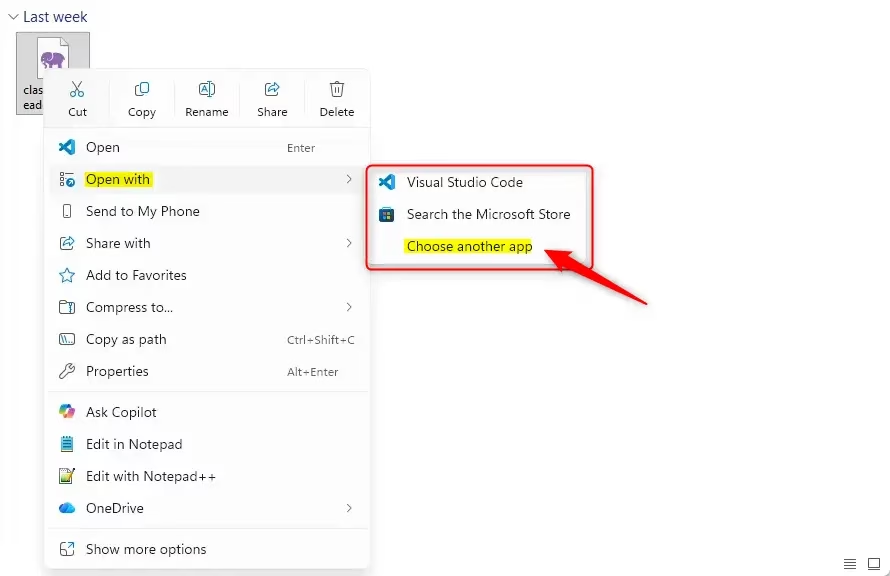
You can change the default app for a specific file straight from the right-click menu. This is the fastest route when you are already looking at the file. If the app you want is not listed at first, Choose another app shows more programs.
- Right-click, or press and hold, a single file. Click Open with. A submenu opens with a list of apps.
- Choose one of these options:
- If no default app exists for this file type, only Open with appears in the menu.
- Click an app (like Notepad) to open the file "Just once" with that app. This does not change your default. Go to step 4.
- Click Choose another app and go to step 3. A dialog opens with a list of apps.
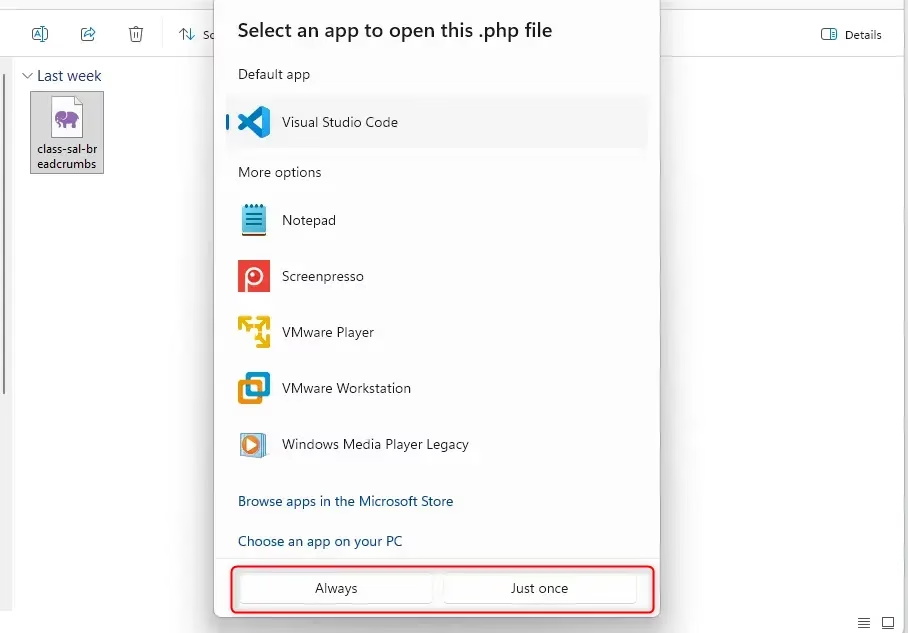
- Choose an app using one of these methods:
- If this file type already has a default app, you'll see it listed under Default app.
- Select a listed app and click Always to set it as the default, or Just once to use it this time only.
- Click Browse apps in the Microsoft Store to find and install an app. Return to step 1 to select the new app.
- Click Choose an app on your PC. Browse for an app file (.exe, .pif, .com, .bat, or .cmd). Click Open, then click Always or Just once.
- The file now opens with the app you selected. If you picked Always, every file of that type opens with it from now on. To undo that, repeat these steps and choose a different app.
Option 2Choose Default App Using File Properties
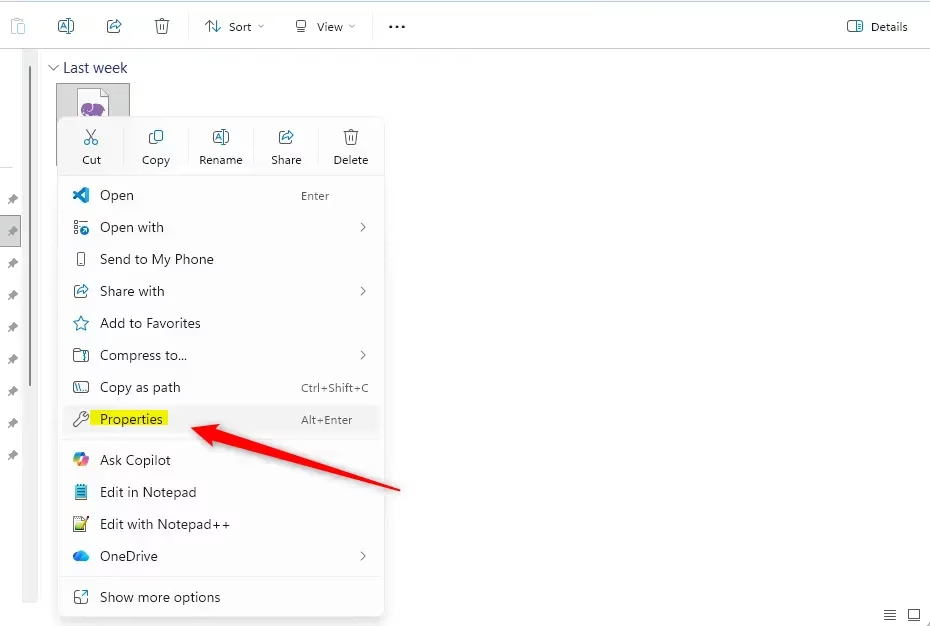
You can also change the default program for a whole file type, such as all .pdf documents, from the file's Properties window. Any file of that type will do. Once you save the change, every file of that type opens with the new app.
- Right-click, or press and hold, a single file. Click Properties.
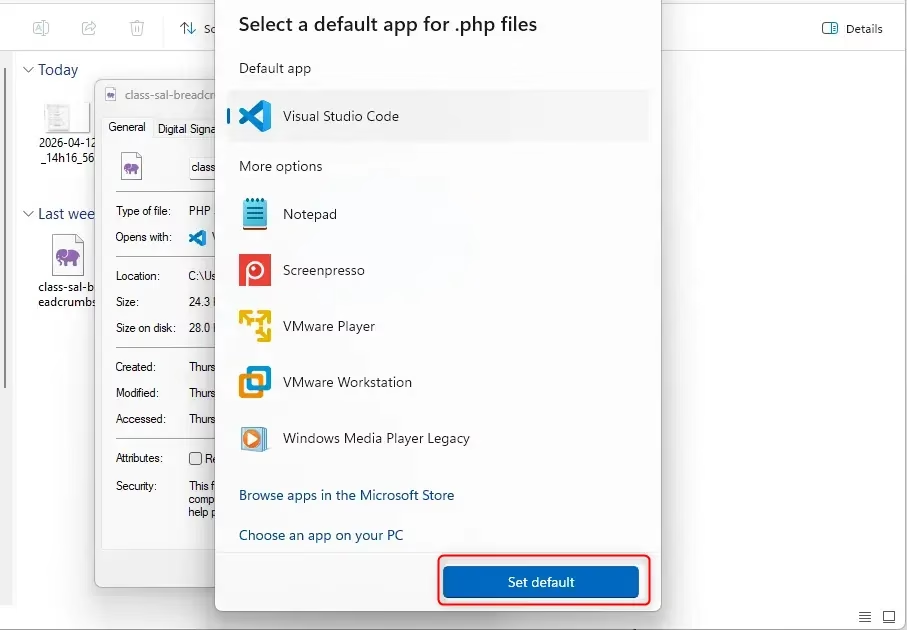
- On the General tab, click the Change button next to Opens with. The current default app for this file type, if there is one, is listed next to Opens with. A dialog opens with a list of apps.
- Choose an app using one of these methods:
- If a default app already exists, you'll see it listed under Default app.
- Select a listed app and click Set default to make it the default.
- Click Browse apps in the Microsoft Store to find and install an app from the Microsoft Store. Return to step 2 to select the new app.
- Click Choose an app on your PC. Browse for an app file (.exe, .pif, .com, .bat, or .cmd). Click Open, then click Set default.
- Click OK in the Properties window to save the change. The Opens with entry should now show your chosen app.
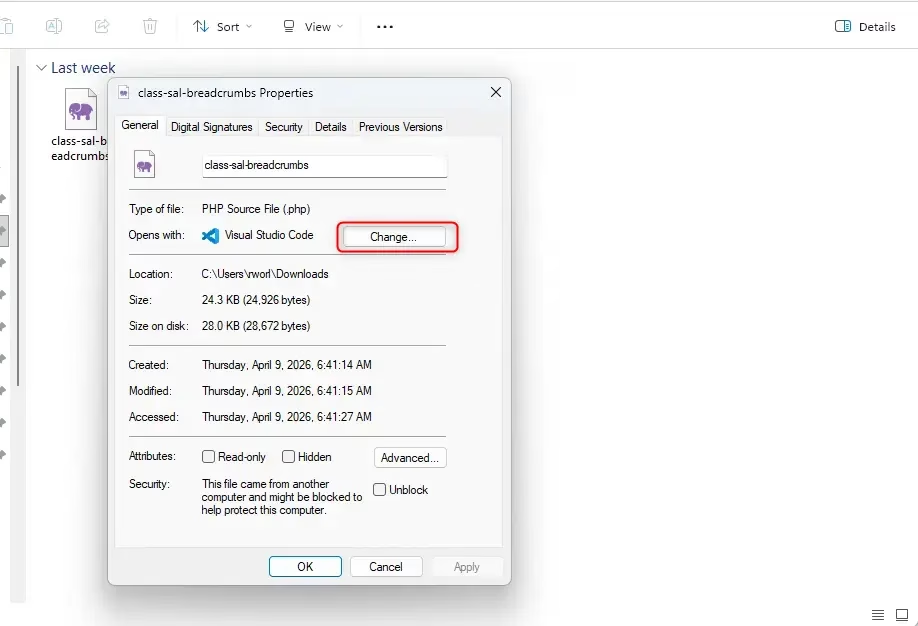
Option 3Choose Defaults by App in Settings
The Settings app lets you manage all your app associations in one place. When you pick an app, Windows lists every file format and protocol linked to it, so you can see what it currently handles.
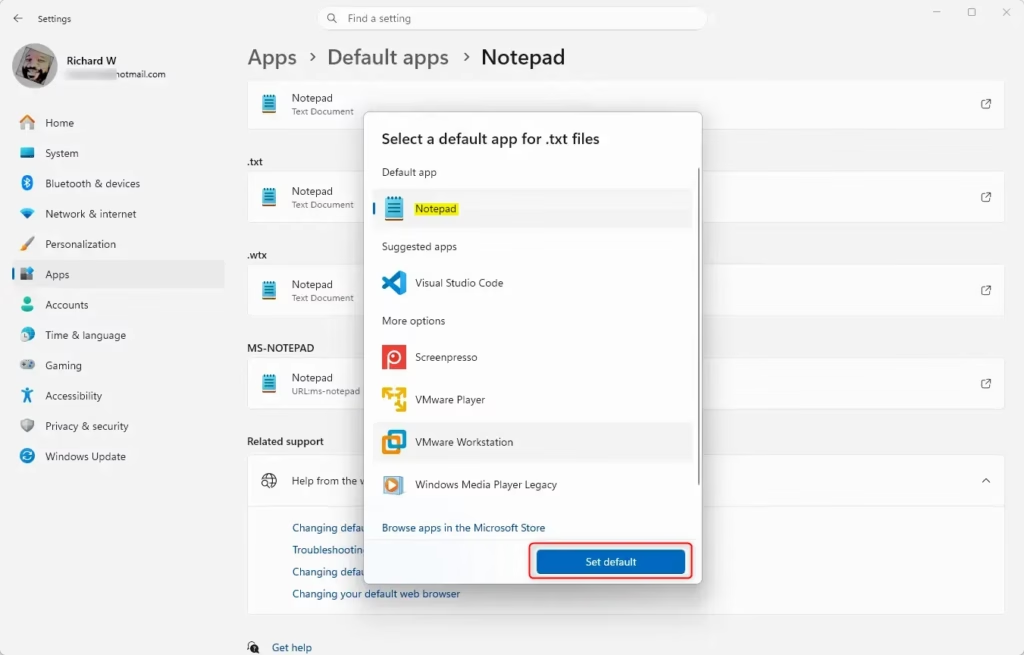
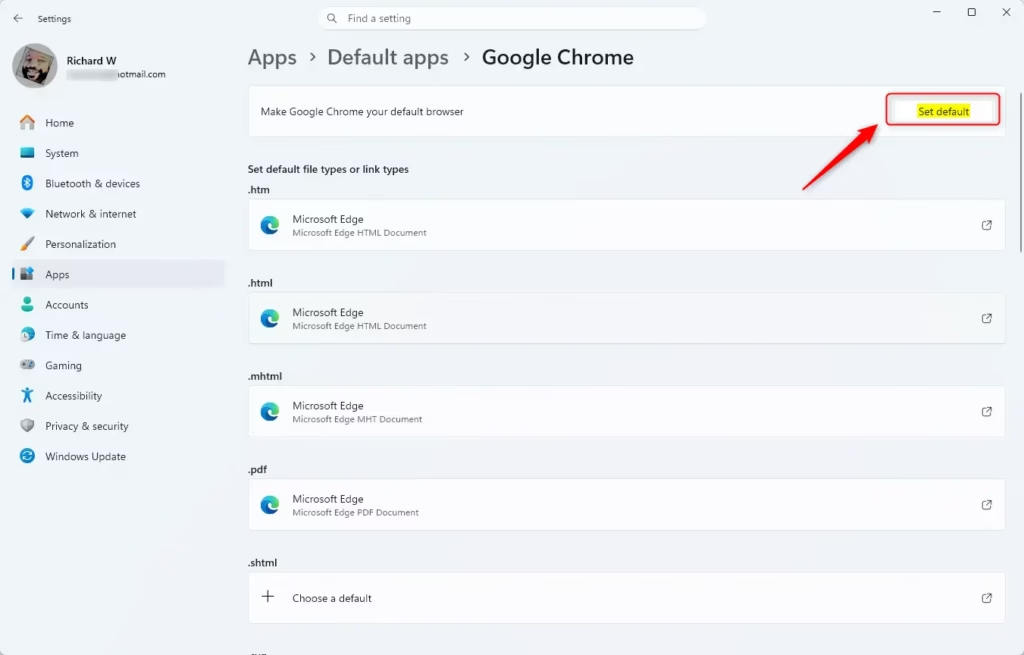
The quickest method in current Windows 11 is the Set default button at the top of each app's page. It makes that app the default for all the file and link types it supports in one click. Steps 1 to 3 below get you to that page. If you only want to change one type, such as .txt, carry on to step 4.
- Press Win+I to open Settings.
- Click Apps on the left, then click Default apps on the right. Open Default apps settings
- Search or scroll for the app you want to set defaults for (like Notepad). Click it. The app's page opens with the file and link types it can handle. Click Set default at the top of the page if you want it to handle all of them at once. Otherwise go to step 4.
- Click the file or link type (like .txt) you want to set a default app for. The current default app for that type is shown below the file type.
- Choose an app using one of these methods:
- If a default app already exists, you'll see it listed under Default app.
- Select a listed app and click Set default.
- Click Browse apps in the Microsoft Store to find and install an app. Then return to step 3 to find the new app.
- Click Choose an app on your PC. Browse for an app file (.exe, .pif, .com, .bat, or .cmd). Click Open, then click Set default.
- Close Settings when you are finished. No restart is needed.
If associations get changed unexpectedly, for example after an update or after you uninstall an app that was a default, the Default apps page can put things back. Scroll down to Reset all default apps and click the Restore button next to it. This returns every association to Microsoft's recommended defaults. It does not uninstall anything. It also wipes the choices you made, so you will need to set your preferred browser and other apps again afterwards.
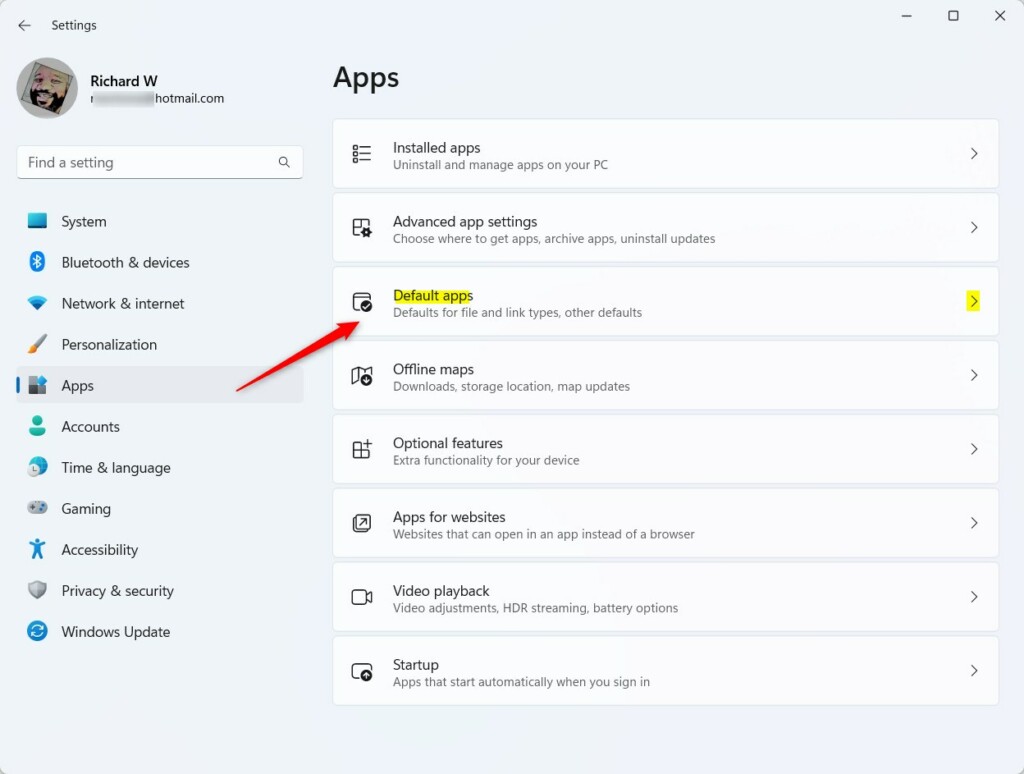
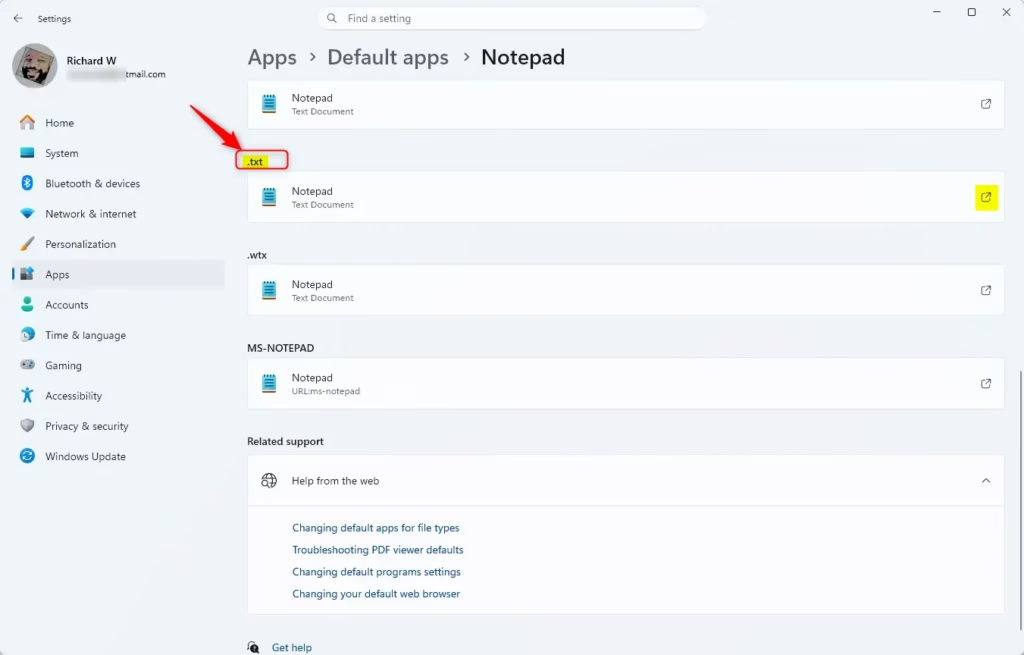
Option 4Choose Defaults by File Type in Settings
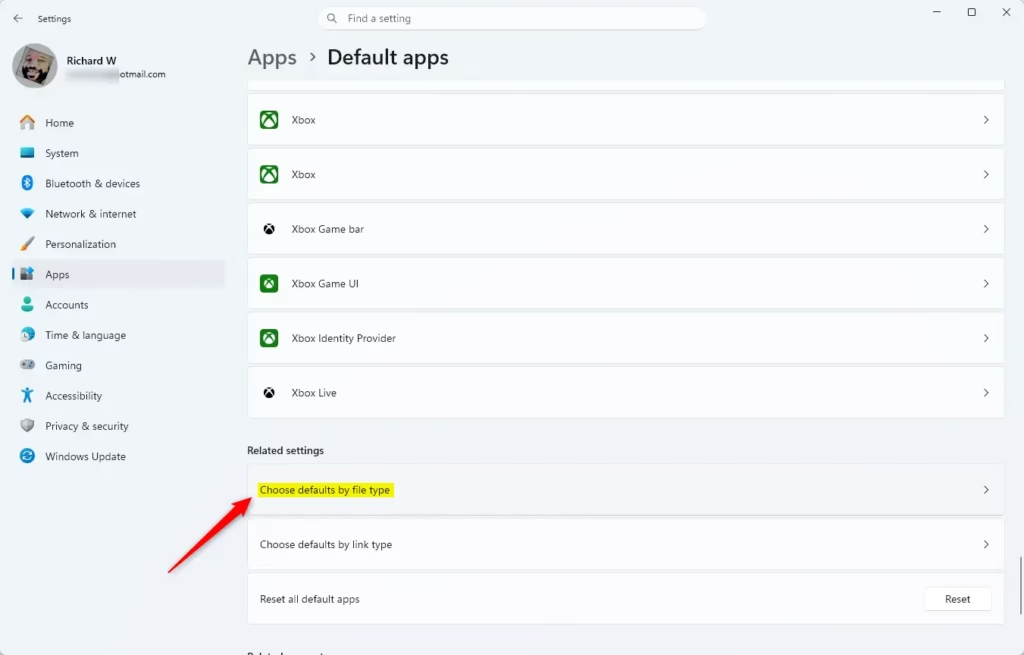
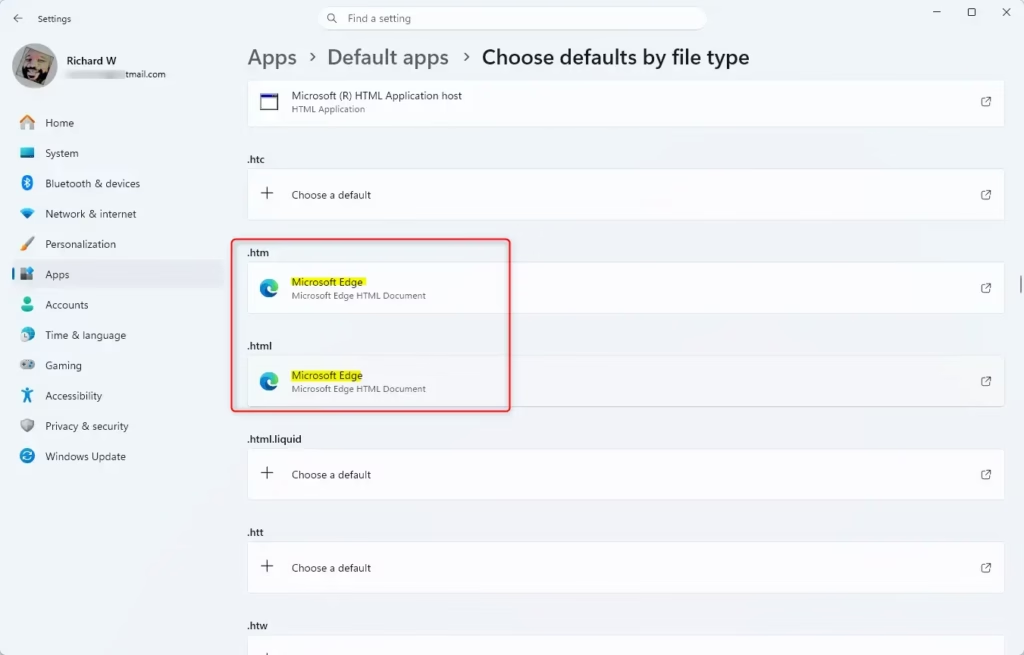
To assign a program to a specific file extension, such as .txt documents or .jpg images, use Choose defaults by file type in Settings. You will find it at the bottom of the Default apps page. It lets you set every extension by hand, which is useful when you want one file type to open in a different app from the rest.
- Press Win+I to open Settings.
- Click Apps on the left, then click Default apps on the right. Open Default apps settings
- Click Choose defaults by file type at the bottom of the right side. A list of file types opens.
- Search or scroll for a file type (like .txt). Click it.
- Choose an app using one of these methods:
- If a default app already exists, you'll see it listed under Default app.
- Select a listed app and click Set default.
- Click Browse apps in the Microsoft Store to find and install an app. Return to step 4 to select the new app.
- Click Choose an app on your PC. Browse for an app file (.exe, .pif, .com, .bat, or .cmd). Click Open, then click Set default.
- Close Settings when you are finished. The new default applies the next time you open a file of that type.
Option 5Choose Defaults by Link Type in Settings
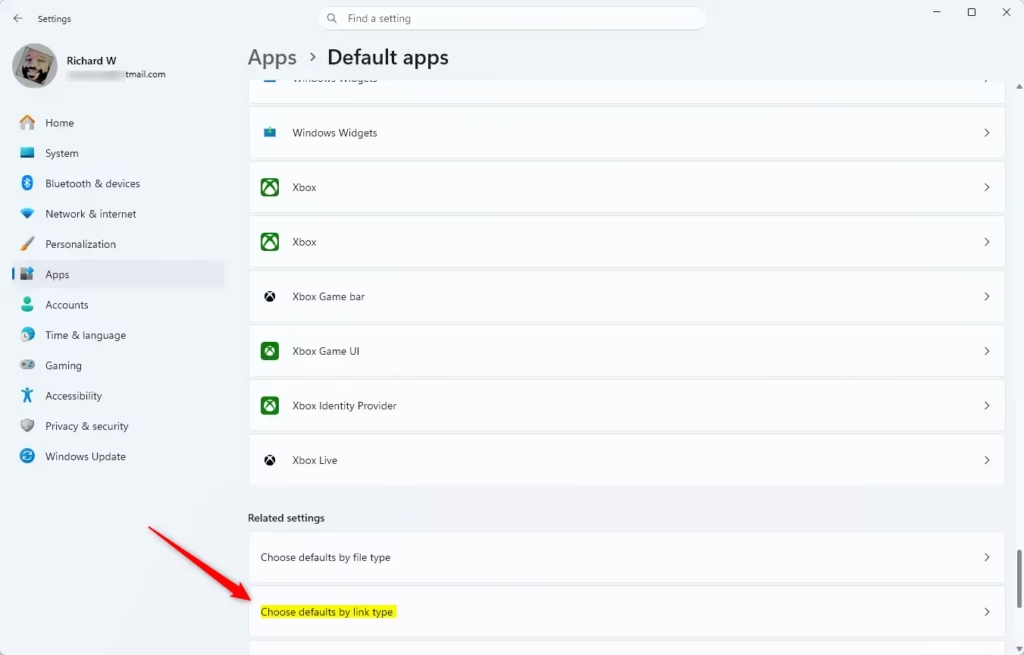
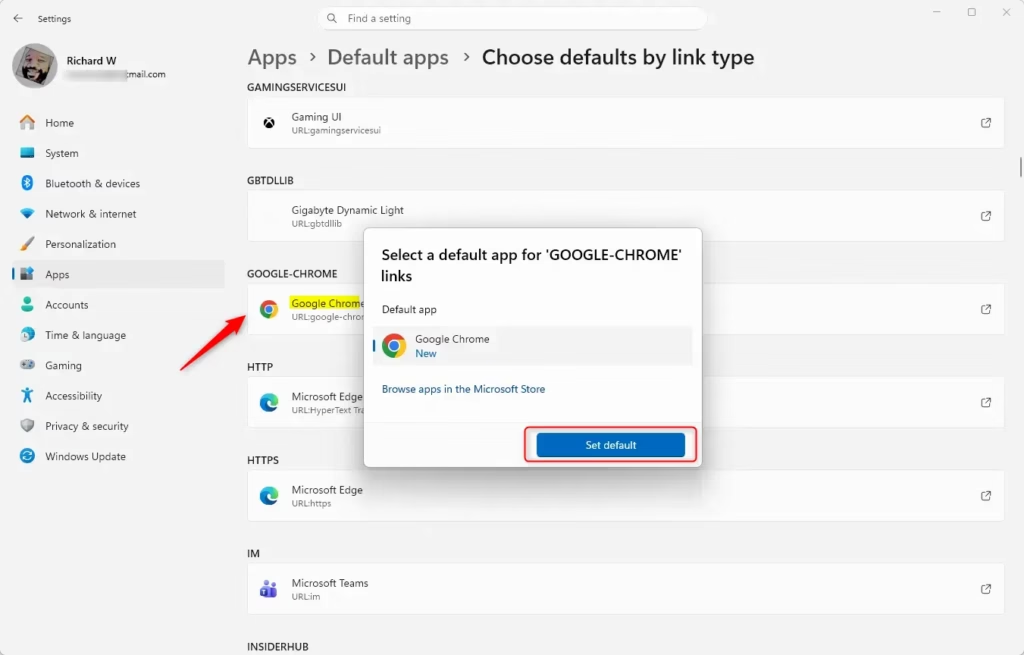
You can also change which app handles link protocols like MAILTO or web hyperlinks. Navigating to 'Default apps' within Settings and selecting the 'Choose defaults by link type' tool ensures specific protocols launch intended desktop clients.- Open Settings (press Win+I). Settings
- Click Apps on the left, then click Default apps on the right. Open Default apps settings
- Click Choose defaults by link type towards the bottom of the right side.
- Search or scroll for a link type (for example: "MAILTO") you want to choose defaults for, and click on the link type (for example: "MAILTO"). The current default app (for example: "Mail") for a link type will show under the link type.
- Perform one of the following actions to select an app:
- If this link type has a default app currently assigned to it, the default app (for example: "Notepad") will show under Default app.
- Select a listed app to open the file with, and click Set default to open with and set as default app.
- Click Browse apps in the Microsoft Store to select, download, and install an app from the Microsoft Store. You will need to go back to step 2 to select the new app from the Microsoft Store.
- When finished, you can close Settings if you like.
Option 6Choose Default Web Browser in Settings
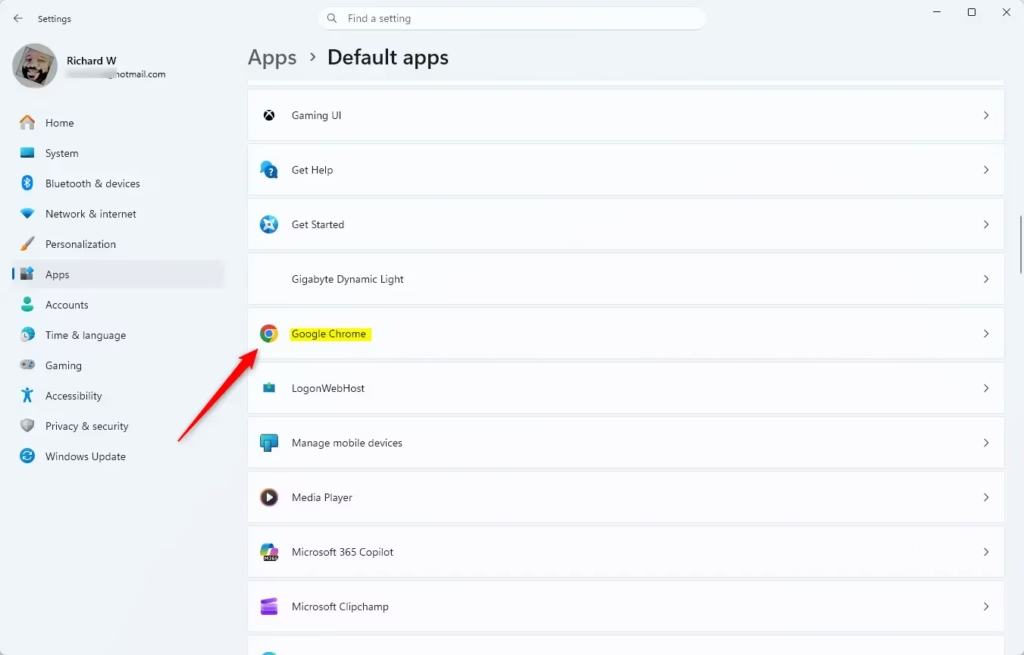
Designating a primary web browser requires navigating through the 'Default apps' menu. Locating the preferred browser within the application list exposes controls to alter protocol assignments for web browsing.
- Open Settings (press Win+I). Settings
- Click Apps on the left, then click Default apps on the right. Open Default apps settings
- Click on the web browser (for example: "Google Chrome", "Mozilla Firefox", "Microsoft Edge", etc.) you want to set as the default web browser.
- Click the Set default button at the top. You will see a check mark indicating it has been set as the default web browser for your account.
- You can now close Settings if you like.
Summary
Windows 11 provides multiple pathways for managing file associations and protocol handlers, accommodating individual adjustments or comprehensive system-wide overhauls.
```Have a question about this guide?
Answered by AI from this guide. Good questions may be added to this page — please don't include personal details.
Did this guide fix your problem?

About the Author
Richard
Tech Writer, IT Professional
Richard is a writer at Geek Rewind who turns complex IT tasks into clear, step-by-step guides. He draws on years of hands-on experience in system administration and enterprise IT operations, focusing on Windows, Linux and WordPress: the problems people actually run into, and the fixes that work. His server and WordPress guides come from systems he runs himself. Richard builds and maintains the platform behind Geek Rewind, from its Ubuntu servers and Nginx configuration to its custom WordPress plugins. Many new tutorials start with readers' questions, and he's always glad to answer them in the comments.
[…] How to Choose Default Apps in Windows 11 […]