How to Check If an App or Program Is Installed in Windows 11

Checking whether an app or program is installed in Windows 11 takes a few clicks in the Settings app. The software list there covers Microsoft Store apps, classic desktop programs, and games from launchers like Steam. The Start menu gives you a second, quicker way to look.
The fastest route is to press the Win plus I to open Settings , pick Apps, and then select Installed apps. Scroll through the list, or type the name into the search box at the top to jump straight to a specific program.
Open Settings by pressing Win plus I, click Apps, then select Installed apps. Scroll through the list or type the program name into the search box at the top to find it.
How to Check What Apps Are Installed in 🪟 Windows 11
Step 1See Your Installed Apps List
The Installed apps list in Settings is the most complete record of what is on your PC. It is also the best place to check what is taking up space. Here is how to get to it.
- Click the Start button, the Windows logo on the taskbar . The Start menu opens.
- Open Settings by clicking the gear icon in the Start menu . If you don’t see it, type “Settings” into the search box and press Enter. As a shortcut, press
Windows key + Ion your keyboard and skip the Start menu entirely. The Settings window opens with a list of categories on the left. - Click Apps in the left-hand list. This section is where Windows manages your software.
- Click Installed apps. The full list of software loads on the right. On the first Windows 11 release (version 21H2) this page is called Apps & features, and the older name still appears in some guides.
- Type the program name into the Search apps box at the top of the list. The list narrows to matching entries as you type. If nothing matches, try a shorter or different part of the name, because some programs are listed under the publisher’s product name rather than the name you know them by.
The full path, if you want to note it down, is Settings Apps Installed apps
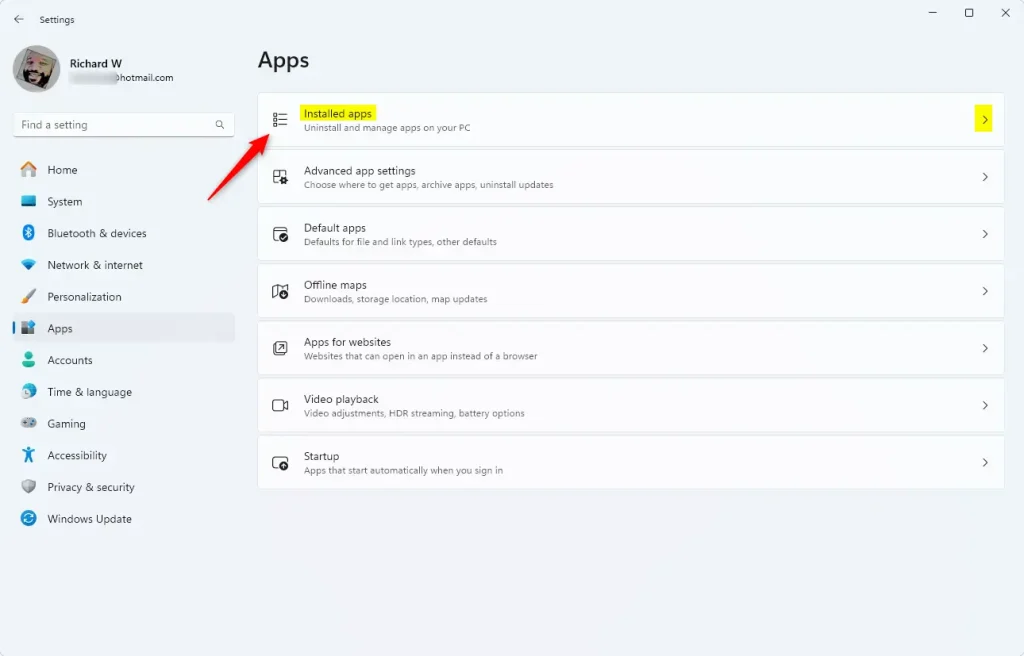
Don’t read it top to bottom. Use the search box, or sort the list to find what you need.
What You Will See:
Each entry shows the app name. On most builds you will also see the publisher, the install date, the size on disk, and the version number. Together these make a handy record of what is on the system.
- Use the Sort by drop-down to order the list by name, size, or install date. Sorting by size is a quick way to find what is eating disk space. Sorting by date shows what was installed most recently.
- Use the Filter by drop-down to show apps on a single drive if you have more than one.
- Click the three-dot menu at the right of an entry to see options such as Advanced options, Modify, or Uninstall. Which options appear depends on the app. Checking the list doesn't change anything, so it is safe to browse. Just don't click Uninstall unless you mean to remove the program.
These run from a folder or USB stick without being installed, so they never register with Windows. If a program is missing from the list but you know you have it, search for its name in the Start menu or look in the folder where you saved it.
Step 2Check the Start Menu
The Start menu is a quicker way to check, and you don't need to open Settings. It lists apps that have a Start menu shortcut, and you can browse them alphabetically. This works well when you just want to confirm a program is there, or open it.
- Click the Start button again. The Start menu opens with your pinned apps at the top.
- Click All apps in the top-right corner of the pinned area. On newer Windows 11 builds this button may be labelled All. A full alphabetical list of programs and apps appears.
- Scroll through the list, or click a letter heading to jump to a different part of the alphabet. Depending on your version, you may also see a "Most used" section near the top, or a Recommended area on the main Start screen, which shows what you open often.
This method only shows programs that created a Start menu shortcut, so some background tools, drivers, and components won't appear here even though they are installed. If you can't find a program in the Start menu, check the Installed apps list in Settings before deciding it isn't on the PC.
Reference:
Summary
Both methods take seconds. Use the Installed apps list in Settings when you want the full picture, including size, version, and install date. Use the alphabetical list in the Start menu when you just want to see whether a program is there and open it.
Was this guide helpful?
100% of readers found this helpful (1 votes)

About the Author
Richard
Tech Writer, IT Professional
Richard is a writer at Geek Rewind who turns complex IT tasks into clear, step-by-step guides. He draws on years of hands-on experience in system administration and enterprise IT operations, focusing on Windows, Linux and WordPress: the problems people actually run into, and the fixes that work. His server and WordPress guides come from systems he runs himself. Richard builds and maintains the platform behind Geek Rewind, from its Ubuntu servers and Nginx configuration to its custom WordPress plugins. Many new tutorials start with readers' questions, and he's always glad to answer them in the comments.
No comments yet — be the first to share your thoughts!