How to Delete Files from Your Computer but Keep Them in OneDrive on Windows 11

Deleting files from your computer while keeping them in OneDrive on Windows 11 saves hard drive space without losing anything in the cloud. Normally OneDrive keeps identical copies of your files on your PC and on Microsoft’s servers.
The “Free up space” feature removes the local copy of a file and leaves a small online-only placeholder in its place. The file stays in your OneDrive account. Opening the placeholder downloads the file again when you need to view or edit it.
Do not delete the file in File Explorer to get this result. Inside your OneDrive folder, a normal delete removes the file from the cloud too, and it ends up in the OneDrive recycle bin . Use Free up space instead.
Right-click files in your OneDrive folder in File Explorer and select Free up space. This removes the local copy from your computer and replaces it with a cloud icon placeholder, while the file stays in your OneDrive account. Opening the placeholder downloads the file again when needed.
Why Use OneDrive Files On-Demand?
Files On-Demand is a built-in OneDrive setting that saves hard drive space. You see all your OneDrive files in File Explorer , but they only download when you open them. Nothing is deleted from your account.
Online-only files use almost no local storage and show a cloud icon in File Explorer . Opening one downloads it from OneDrive, so you need an internet connection. Files you mark Always keep on this device stay on your computer’s storage until you change that setting.
Files On-Demand is available in Windows 11 Home and Pro, and it is usually on by default. You only need to check it if the Free up space option is missing.
Step 1Find Your OneDrive Files on Your PC
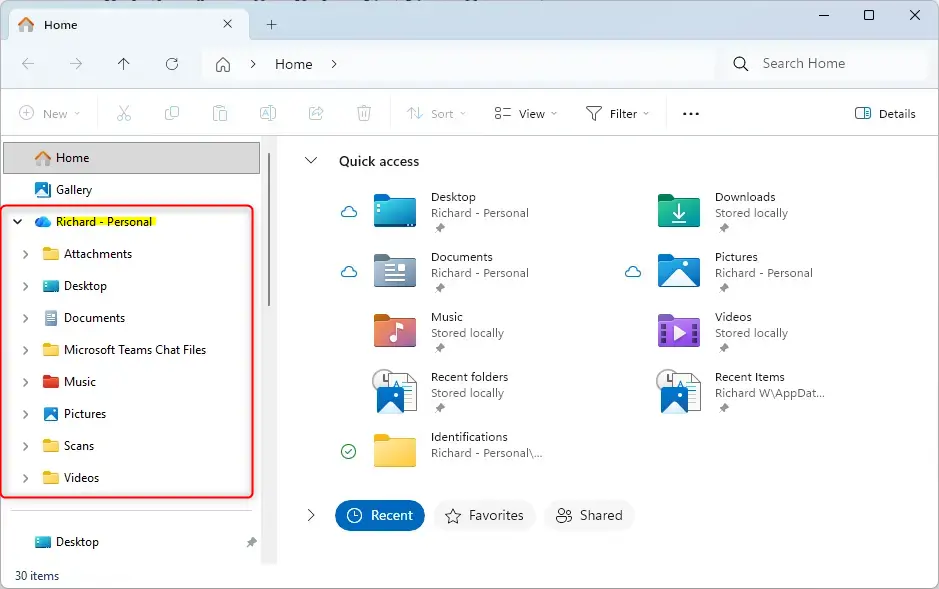
You find your OneDrive folder in File Explorer, the app you use to browse files on your PC. It only takes a couple of clicks.
- Open File Explorer. Click the folder icon on your taskbar, or press
Windows key + E. A File Explorer window opens. - Look for OneDrive in the left-hand pane and click it. Your cloud files and folders appear on the right. If you use both a personal and a work account, you will see two OneDrive entries, so pick the right one.
- Find the files or folders you want to remove from your computer. Make a note of them, because you will come back to them in a later step.
If you do not see OneDrive in the left pane, OneDrive is probably not signed in or not running. Open it from the Start menu and sign in first.
Step 2Turn On Files On-Demand
Files On-Demand lets Windows decide which files stay on your computer and which live only in the cloud. Check that it is turned on before you try to free up space.
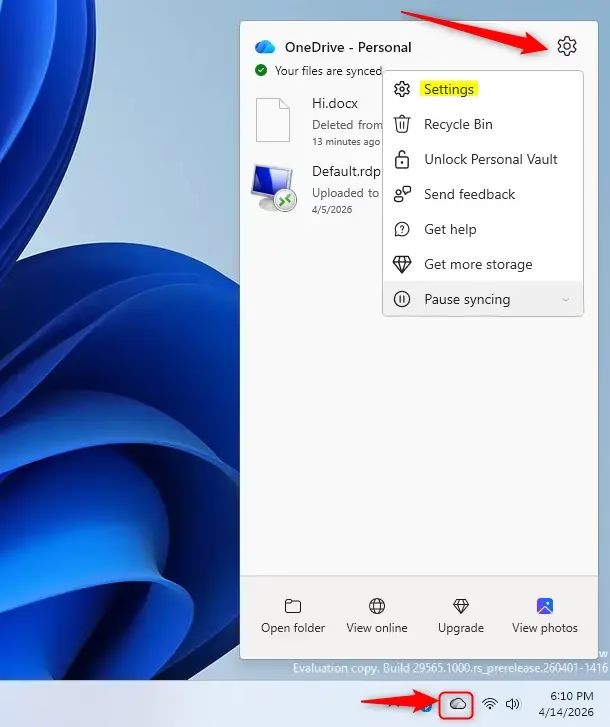
- Find the OneDrive cloud icon in the notification area at the bottom-right corner of the screen, near the clock. If you do not see it, click the small up arrow to show hidden icons.
- Click the OneDrive icon. A OneDrive panel opens. Right-clicking the icon also works in some versions.
- Click the gear icon (Help & Settings), then choose Settings. The OneDrive settings window opens.
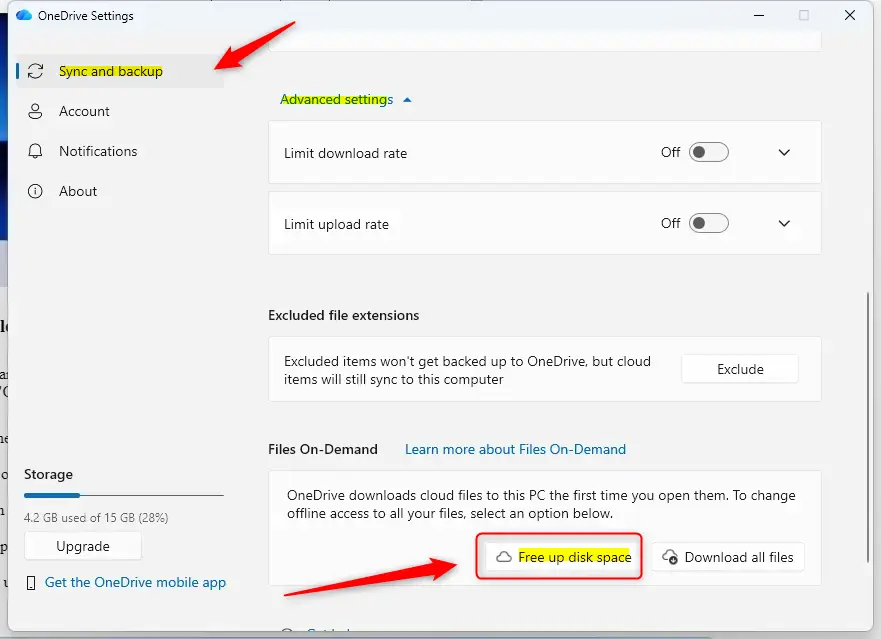
- Open the Sync and backup tab and expand Advanced settings. On older OneDrive versions, the Files On-Demand option is on the Settings tab instead.
- Find Files On-Demand. Make sure Save space and download files as you use them is selected. If you see a toggle instead, make sure it is on.
If your menus look different from these steps, update OneDrive. The settings window has been reorganized in recent releases. You can undo this later by choosing Download all files now in the same place, as long as you have enough free disk space.
Step 3Make Files "Online-Only"
Before you start, let OneDrive finish syncing. A file that is still uploading, or that shows a sync error, should not be freed up yet. Wait for the sync to finish, or you risk losing the only good copy.
- Open your OneDrive folder in File Explorer.
- Find the files or folders you want to make online-only. You can select several at once with Ctrl+click, or select a whole folder.
- Right-click the selection. A context menu appears.
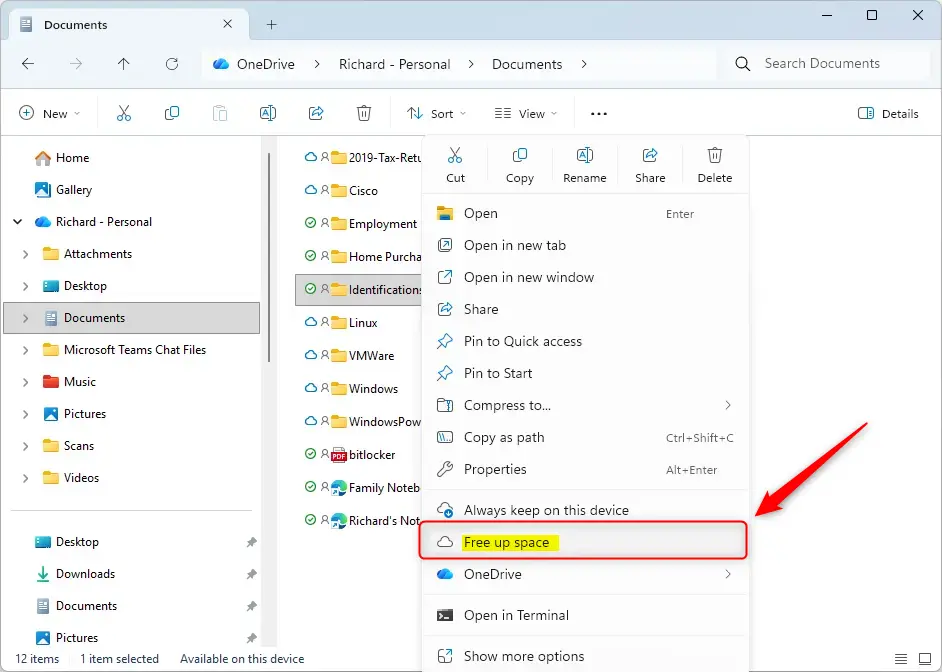
- Look for Free up space. On Windows 11 it may be listed directly, or inside an OneDrive submenu. If you do not see it, click Show more options (or press Shift+F10) to open the full classic menu.
- Click Free up space. The icon on each item changes to a cloud. That means the file is now online-only and no longer takes up space on your drive.
If Free up space is missing or greyed out, the item may already be online-only. Files On-Demand may also be off, the file may not be synced yet, or the file may be outside your OneDrive folder. To bring a file back, right-click it and choose Always keep on this device.
What the icons mean:
Blue cloud icon: The file is online-only. It is in OneDrive but not on your computer. You need internet to open it.
White circle with a green outline and a green checkmark: The file is on your computer and in OneDrive because you opened it or downloaded it. It takes up space, but Windows can turn it back into an online-only file when you use Free up space or when Storage Sense (the Windows feature that cleans up disk space automatically) is set to do so.
Solid green circle with a white checkmark: The file is always available on your computer because you chose Always keep on this device. OneDrive will not remove it automatically.
Reference:
https://support.microsoft.com/en-us/onedrive/delete-files-or-folders-in-onedrive
Summary
Use Free up space to remove local copies, never the regular delete command, and check that syncing is finished before you do.
Did this guide fix your problem?

About the Author
Richard
Tech Writer, IT Professional
Richard is a writer at Geek Rewind who turns complex IT tasks into clear, step-by-step guides. He draws on years of hands-on experience in system administration and enterprise IT operations, focusing on Windows, Linux and WordPress: the problems people actually run into, and the fixes that work. His server and WordPress guides come from systems he runs himself. Richard builds and maintains the platform behind Geek Rewind, from its Ubuntu servers and Nginx configuration to its custom WordPress plugins. Many new tutorials start with readers' questions, and he's always glad to answer them in the comments.
No comments yet — be the first to share your thoughts!