How to Share Your Screen with Sound in Microsoft Teams

Screen sharing with sound in Microsoft Teams sends your computer’s audio straight into a virtual meeting, so everyone hears your videos, music, or apps. Microsoft Teams version 1.5.00.2381.4 and newer includes this built-in feature to stream system sound without extra cables or messy workarounds.
Turn on the setting with a few clicks before you start your presentation. Once it is active, your meeting group hears your computer’s output at the same time they see your screen. Do this before the meeting if you can, because the sound switch only appears in the sharing panel.
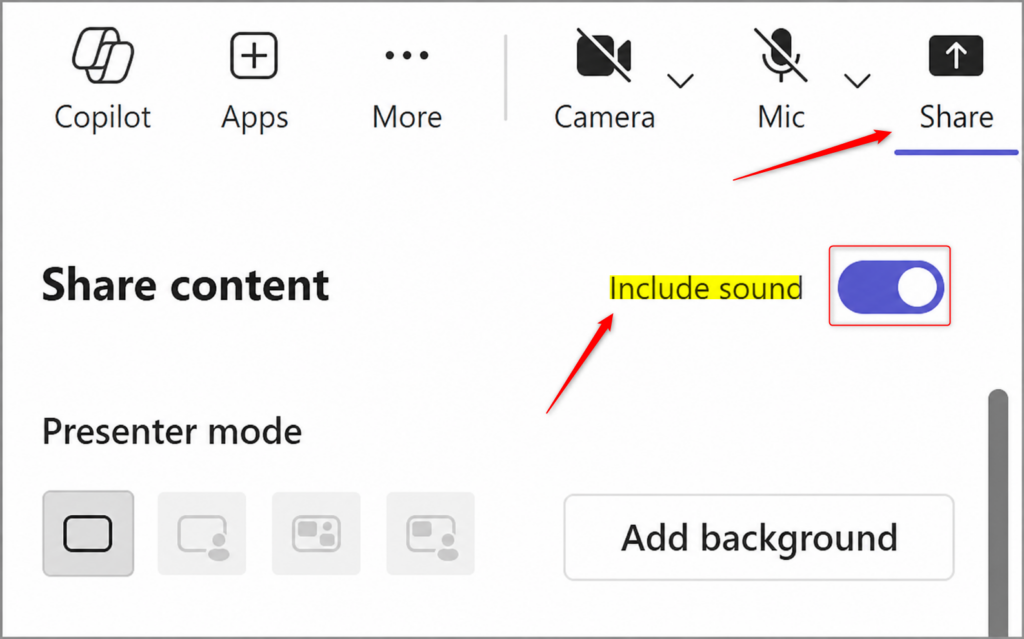
Click the Share button (box with arrow) during your Teams meeting, select Desktop or Window, then toggle on Include sound near the top of the sharing panel. Your screen and computer audio now stream to all attendees.
Sharing Your Screen with Sound in Teams
Microsoft Teams lets meeting participants clearly hear shared audio. This screen sharing feature, part of the Teams application version 1.5.00.22753, simplifies audio sharing for users. Attendees receive the sound whenever a presenter shares their screen with sound on.
Teams leaves out the meeting’s own audio so people don’t hear an echo of themselves. If you want to share a video with sound, test it first so you know it plays properly on your machine.
Step 1Start Sharing Your Screen
Microsoft Teams lets you share your screen and audio with everyone in a meeting using the share button in your meeting controls. The button looks like a box with an arrow pointing up.
- Join the Teams meeting where you want to share. You can only share from inside an active meeting.
- Look at the meeting controls and find the icon that looks like a box with an arrow pointing up. This is the Share button. Click it.
- Look at the panel or box that opens with the sharing options. You should see choices for your whole computer screen (Desktop), a single program window (Window), a PowerPoint file, and a whiteboard.
- Pick the item you want to show. Choose Desktop or Window if you need sound, because the sound option does not apply to every choice. The PowerPoint and whiteboard options normally don’t offer it.
If the Share button is greyed out or missing, you may not be in the meeting yet, or the organizer may have limited who can present. Ask the organizer to change your role to presenter.
Step 2Turn on Sound Sharing
To include computer audio in your Microsoft Teams screen share, turn on the audio sharing switch before you start broadcasting. After you choose the window or screen to share, look near the top of the sharing options panel for the "Include sound" toggle and click it.
- Look near the top of the sharing box after you select the window or screen. Find the switch labeled Include sound. Some Teams versions word it as "Include system audio". It is the same setting.
- Click the Include sound switch to turn it on. It usually changes color or shows a checkmark when it is on.
If you can't find the switch, make sure you selected Desktop or Window rather than a PowerPoint file or whiteboard. Also check that Teams is up to date and that your PC has an audio output device set as the default.
Stop sharing and restart the process with the switch on. Some Teams versions also show a sound toggle in the toolbar at the top of the screen while you present. If yours does, you can use that instead of restarting.
Step 3Begin Sharing
To begin your Microsoft Teams screen share with sound, double-check your selected window and click the final share button. Once you confirm the sound switch is on, that click makes your screen and computer audio visible and audible to everyone in the meeting.
- Look again at your selection and make sure you picked the right window or screen. Close anything private on a shared Desktop first, such as email or chat notifications.
- Click the final button to start. It might say "Share" or something similar. Your screen now appears to the other attendees, with sound.
- Look for a red border around the shared content. This tells you the content is live. Attendees hear any audio playing from the shared content.
To stop, use the stop sharing button in the meeting controls. Sharing ends and the red border disappears.
Reference:
https://support.microsoft.com/en-US/teams/meetings/manage-audio-settings-in-microsoft-teams-meetings
Summary
Sharing your screen with sound in Microsoft Teams takes three things. Click the 'Share' button, pick what you want to show, and turn on the 'Include sound' option before you start. If you forget the last one, stop sharing and begin again.
Have a question about this guide?
Answered by AI from this guide. Good questions may be added to this page — please don't include personal details.
Did this guide fix your problem?

About the Author
Richard
Tech Writer, IT Professional
Richard is a writer at Geek Rewind who turns complex IT tasks into clear, step-by-step guides. He draws on years of hands-on experience in system administration and enterprise IT operations, focusing on Windows, Linux and WordPress: the problems people actually run into, and the fixes that work. His server and WordPress guides come from systems he runs himself. Richard builds and maintains the platform behind Geek Rewind, from its Ubuntu servers and Nginx configuration to its custom WordPress plugins. Many new tutorials start with readers' questions, and he's always glad to answer them in the comments.
No comments yet — be the first to share your thoughts!