How to Change Audio Sources in Microsoft Teams

Audio sources in Microsoft Teams let you pick the exact microphone, speaker, and headphones you want to use for meetings. When your computer has more than two or three sound devices plugged in, this feature stops you from talking into the wrong microphone or listening through the wrong speakers.
You can switch your sound setup right before a meeting starts or even while a call runs in the background. Teams lets you test your new microphone and speakers instantly so people hear you clearly on the first try. Changing the source in Teams only affects Teams. It does not change the default devices you have set in Windows.
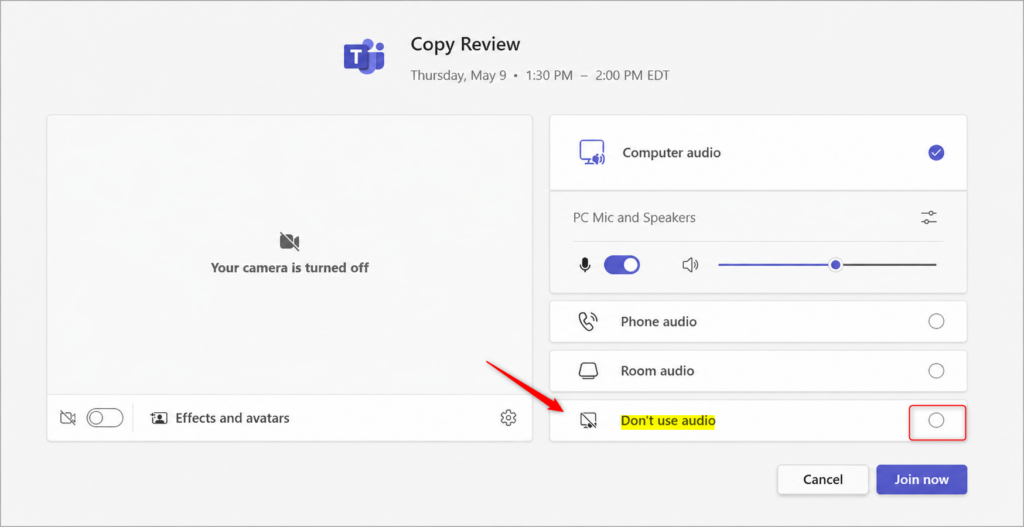
Open Microsoft Teams and look at the pre-join screen before joining a meeting. In the Audio section, select your preferred device from the list—Computer audio for built-in speakers and microphone, Phone audio to use your mobile device, or Room audio for a meeting room system. Click Join now.
Setting Up Your Audio Before You Join
The Microsoft Teams meeting join screen allows users to check their audio setup before joining a call. This screen provides an opportunity to confirm sound input and output devices are correctly selected. Testing audio here is like performing a sound check before a live event, ensuring clear communication.
It takes a few seconds, and it is much easier than fixing the problem after everyone has heard you say “can you hear me?” three times.
Using Your Computer’s Sound
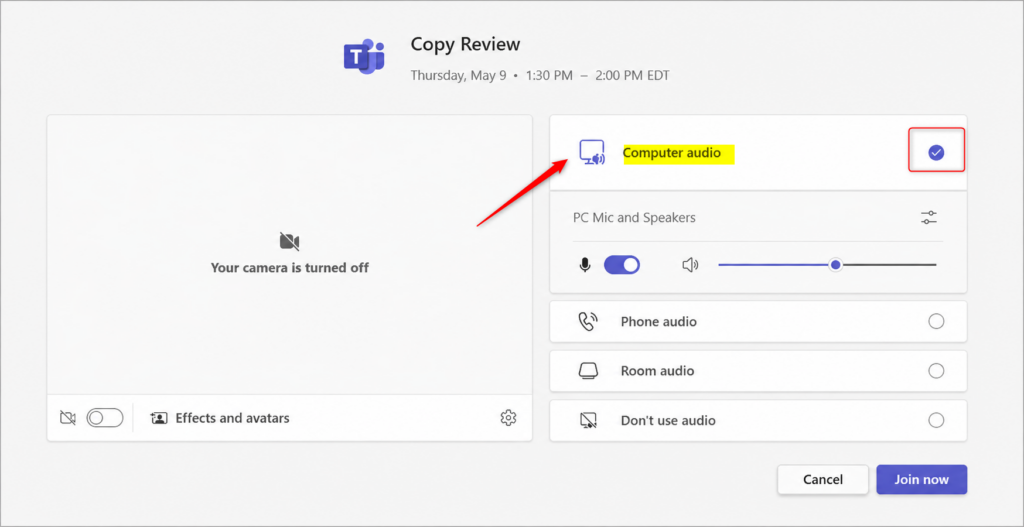
To change Teams audio source to your computer’s built-in speakers and microphone, select Computer audio on the pre-join screen before entering a meeting. This uses whatever default audio hardware you have already set up in Windows, ensuring your sound works right away without needing extra equipment.
Upon clicking to join a meeting, the pre-join screen appears. Follow these steps:
- Look for the Audio section on the pre-join screen. You should see a list of audio choices.
- Check that Computer audio is selected. It is usually the default.
- Open the device list under Computer audio if you want a specific speaker or microphone. Choose the device you want from the list.
- Speak for a moment and watch the microphone level bar. If it moves, Teams hears you.
- Click Join now.
If a device you plugged in does not appear in the list, unplug it and plug it back in, then reopen the pre-join screen. If it is still missing, check Settings System Sound in Windows to confirm that Windows can see it.
Switching to Your Phone's Sound
To change Teams audio source to your phone when your computer mic fails, select Phone audio on the pre-join screen and choose Call me. Microsoft Teams will then call your phone directly, letting you use your mobile handset's microphone and speaker for the call.
Here are a couple of methods for using your phone for audio:
- On the Teams screen before joining, go to the Audio section.
- Choose Phone audio. You will see two choices:
- Call me: Teams will call your phone. You need to type in your phone number. Then Teams will connect you to the meeting sound. Your phone will be your microphone and speaker.
- Dial in manually: This gives you a phone number, a Conference ID, and a toll-free number. You can call this number using your phone's dialer to join the meeting's audio.
- For Call me, enter your phone number and answer the call when it comes in.
- For Dial in manually, dial the number shown, then enter the Conference ID when the phone system asks for it.
The phone options only show up if your organization allows dial-in audio for the meeting. If Phone audio is missing, ask your Teams administrator or the meeting organizer. Standard call rates from your carrier may apply, so check the number before you dial.
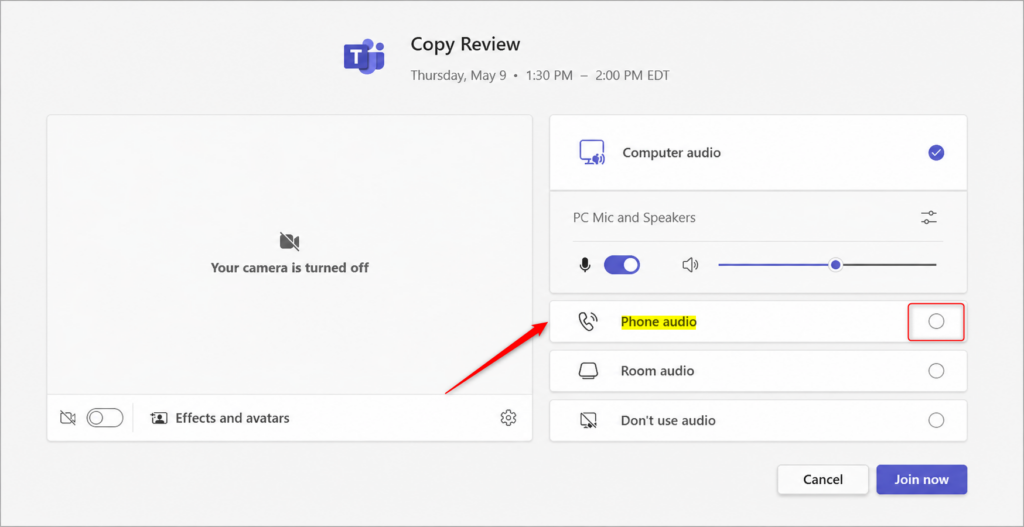
Once you select your phone as the audio source and complete the steps, your phone will manage the audio playback and recording. Your computer will still show the meeting video and chat, but it will not send or play any sound. To hang up the audio only, end the phone call. You can then pick another audio source from the meeting controls.
Using a Meeting Room's Sound System
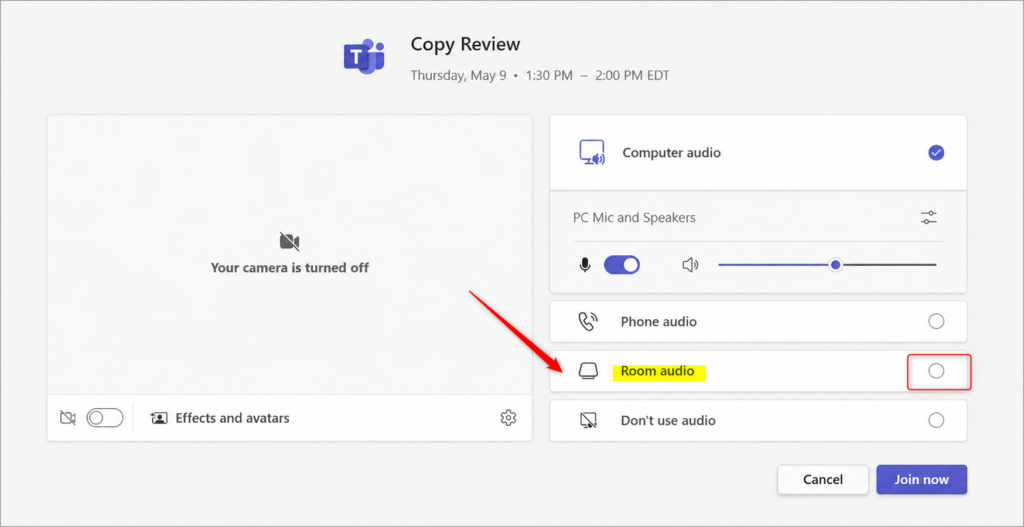
To change Teams audio source to a meeting room's sound system, choose Room audio on the pre-join screen and pick the correct room from the list. This connects your meeting directly to the conference room speakers and microphones so everyone in the room can participate clearly.
- On the screen before joining, find the Audio options.
- Choose Room audio.
- A list will show up with meeting rooms and their sound systems. Pick the right room.
- Click Join now.
If you join with room audio and also keep your laptop speaker and microphone active, you will get echo and feedback. If the room you need is not in the list, the room device may be turned off or may not be set up for Teams, so contact whoever manages it.
Joining Without Any Sound
To change Teams audio source to completely off when you only want to watch or use text chat, select Don't use audio on the pre-join screen. This stops your computer from sending or receiving any sound, which is helpful in large meetings or quiet environments.
- On the screen before joining, under the Audio section, select Don't use audio.
- Click Join now.
This setting is practical for large meetings where speaking is not required. It also helps if audio problems exist and you want to join silently first. You can turn on your sound later if needed. Use the in-meeting steps in the last section to choose a speaker and microphone once you are inside.
Changing Audio While In a Meeting
To change Teams audio source while already inside a meeting, click the three dots in the meeting controls and open Device settings. From there, you can pick a new speaker or microphone from the dropdown menus to fix sound problems live without leaving the call.
- In the Teams meeting controls, click on More actions (it looks like three dots ...). A menu opens.
- Hover over Device settings. In some versions of Teams, this item sits under Settings in the same menu. A panel opens.
- Under Audio devices, you will see options for your speaker and microphone.
- Click the dropdown menu next to Speaker to choose where you want to hear sound from.
- Click the dropdown menu next to Microphone to choose which microphone you want to use.
Teams will immediately begin using your newly selected audio devices. No restart is needed, and you stay in the meeting. To undo the change, open the same menu and select your previous device again.
If a headset you just plugged in does not appear, unplug and reconnect it, then reopen the menu. Bluetooth headsets must be connected in Windows before Teams can list them.
Reference:
https://support.microsoft.com/en-US/teams/meetings/manage-audio-settings-in-microsoft-teams-meetings
Summary
Changing your audio source in Microsoft Teams helps you hear meetings better and ensures others hear you clearly by telling the app which hardware to use. Knowing how to change Teams audio source quickly fixes common sound problems before or during any call.
Switching your audio source tells Teams which device to use for sound output and voice input. This action ensures clear audio during meetings. Check the pre-join screen each time you join, and use the in-meeting device settings when something sounds wrong.
Frequently asked questions
How to delete the audio in Microsoft Teams?
Teams does not keep a separate audio file for a call, so there is nothing to delete during the meeting. To remove a recording that includes sound, open the meeting chat or the folder where Teams saved it, usually OneDrive or SharePoint, and delete the file there. Deleted recordings can't be recovered, so confirm you no longer need it first.
How to make a Teams recording take up audio from the room?
Teams records the audio from the meeting, not the sound in your room. To include the room, pick the room's microphone under Settings and more, then Device settings, before you start recording. Check the microphone level with a test call so the recording picks up everyone clearly.
How to make sound appear on Teams?
Sound comes through when Teams uses the right speaker and its volume is up. Open Settings and more, select Device settings, and confirm the correct device is chosen under Speaker. Then raise the volume and play a test call to hear the result.
How to get audio to play on ms Teams meeting?
Check three things. First, confirm the correct speaker is selected in Teams under Device settings. Second, open the Windows volume mixer and make sure Teams is not muted or set too low. Third, make sure you have not been muted by the meeting host, which Teams shows as a notice.
How to change audio in Teams?
Open Settings and more, the three dots at the top of the meeting window, and choose Device settings. Use the Speaker and Microphone drop-down menus to pick the device you want. The change applies only to Teams, and your default devices in Windows stay the same.
How to share system audio in Teams meeting?
Select Share in the meeting toolbar and choose your entire screen. Turn on Include computer sound in the share tray before you start sharing. Teams sends the sound your computer plays, so participants can hear videos or other audio you open during the share.
Still have a question?
Answered by AI from this guide. Good questions may be added to this page — please don't include personal details.
Did this guide fix your problem?

About the Author
Richard
Tech Writer, IT Professional
Richard is a writer at Geek Rewind who turns complex IT tasks into clear, step-by-step guides. He draws on years of hands-on experience in system administration and enterprise IT operations, focusing on Windows, Linux and WordPress: the problems people actually run into, and the fixes that work. His server and WordPress guides come from systems he runs himself. Richard builds and maintains the platform behind Geek Rewind, from its Ubuntu servers and Nginx configuration to its custom WordPress plugins. Many new tutorials start with readers' questions, and he's always glad to answer them in the comments.
No comments yet — be the first to share your thoughts!