How to Change Your Language and Regional Settings in Teams on Windows 11

Language and regional settings in Microsoft Teams control how the app displays text, dates, and times separately from Windows 11. Changing them lets you match another time zone or switch date formats from month-day-year to day-month-year across your account.
You can update these preferences inside the Teams desktop app without touching your Windows setup. It takes less than a minute. Teams may ask you to restart the app for some changes to take effect, so save any work in progress first.
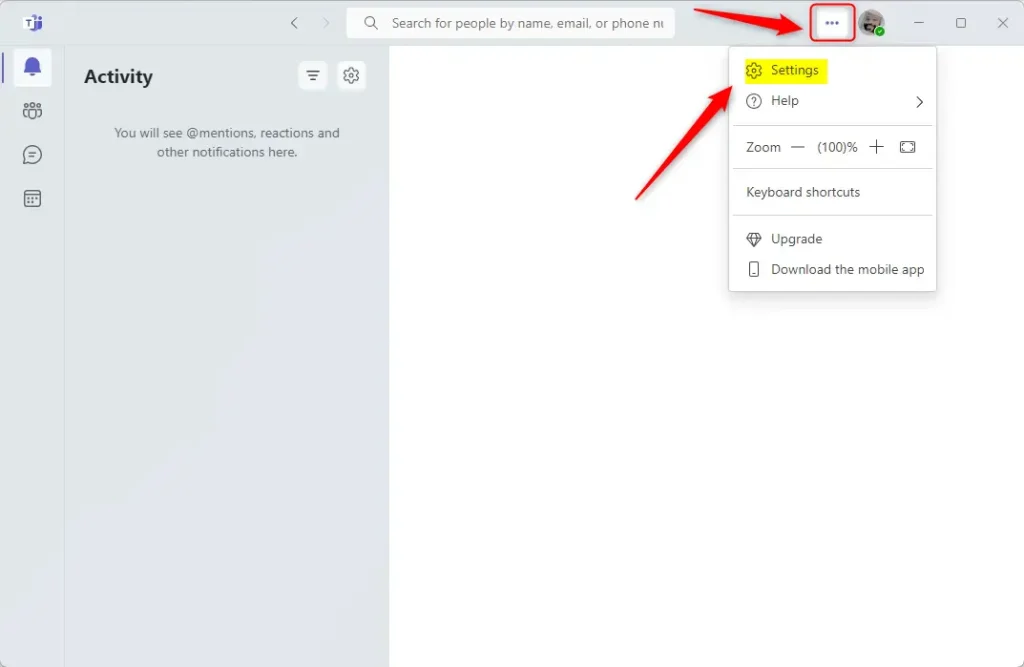
Open the Teams desktop app, click your profile picture in the top right, select Settings, go to the General tab, and toggle Follow OS settings on to match Windows or off to manually set App language, Date format, and Time format for Teams alone.
Step 1Find Teams Settings
Start in the Teams settings panel. This is where your regional preferences and app behavior live.
- Open the Teams desktop app on your Windows 11 PC.
- Find your profile picture in the top right corner of the Teams window.
- Click the picture. A drop-down menu with your account controls appears.
- Select Settings from the list. A settings panel opens with options for tailoring how Teams behaves.
If you don’t see Settings under your profile picture, your Teams version may keep it in the Settings and more (three dots) menu next to it. The panel it opens is the same.
Step 2Should Teams Copy Your Windows Settings?
Next, decide whether Teams should copy your Windows language and regional preferences or use its own. The switch that controls this is on the General page, so you don’t have to set the same options twice if you want them to match.
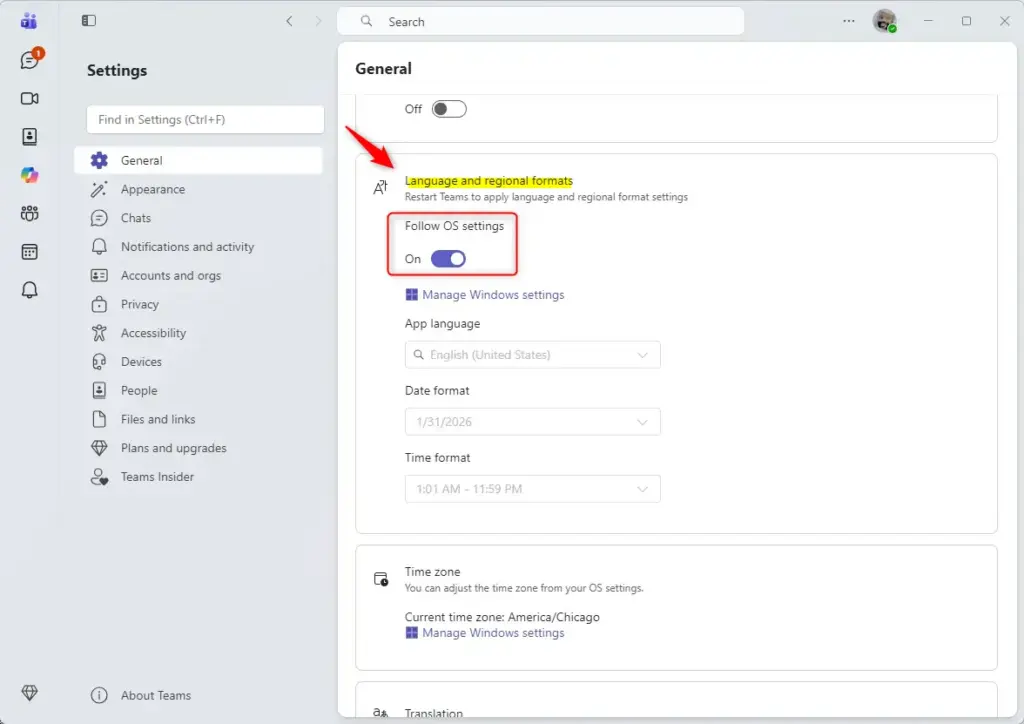
- In the settings panel, select the General tab.
- Find the language and region section on this page.
- Look for the toggle labeled Follow OS settings (or a similar option). The exact wording can vary slightly between Teams versions.
Choose the setting that fits your situation:
- If you want Teams to automatically use your Windows settings: Make sure the switch is turned ON. If you change your language, date, or time in Windows, Teams changes with it. This is the easiest option if your PC is already set up the way you want.
- If you want to set Teams' language and formats yourself: Turn the Follow OS settings switch OFF. You can then change these settings just for Teams, and Windows stays as it is.
That is expected. Turn the switch off to edit them.
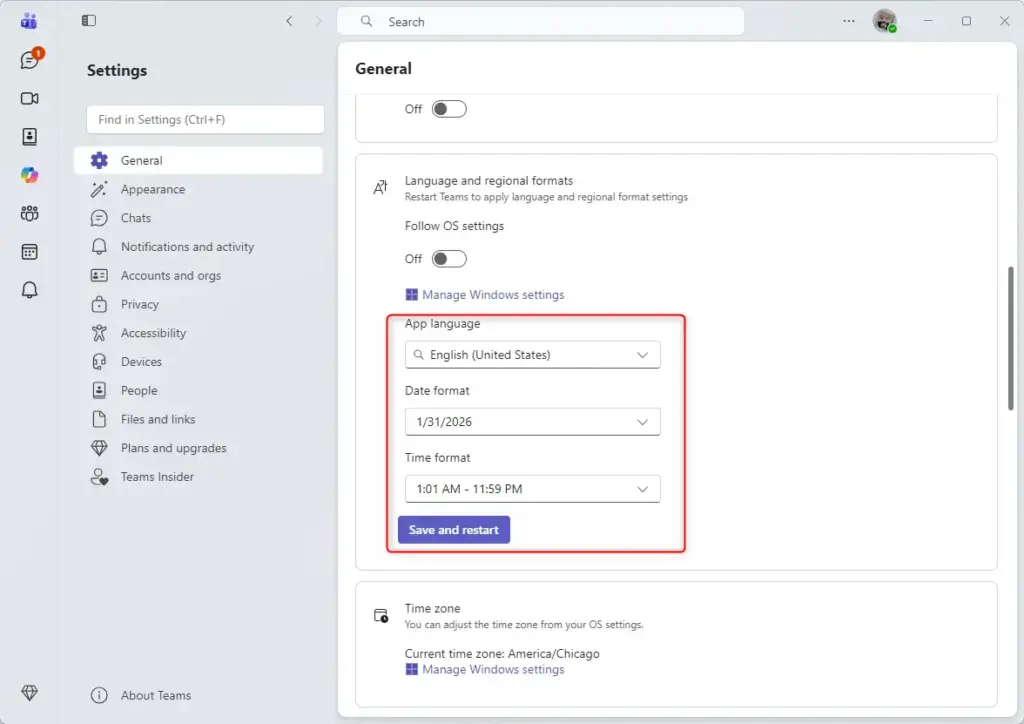
To configure things manually, turn the Follow OS settings toggle off. Then set each option yourself:
- Set App language to the language you want Teams to display. If Teams prompts you to restart, accept it so the new language loads.
- Set Date format to the order you prefer, such as month-day-year or day-month-year.
- Set Time format to the clock style you want.
Check a chat timestamp or a calendar entry afterward to confirm the new formats appear. To undo your changes, turn Follow OS settings back on and Teams goes back to your Windows preferences.
If you only want a change in Teams, use the manual settings above rather than changing Windows itself.
Reference:
https://support.microsoft.com/en-US/teams/notifications-settings/change-settings-in-microsoft-teams
Summary
Teams language preferences adapt to your workflow, whether you choose to mirror Windows or set manual configurations. You can switch between the two at any time with the Follow OS settings toggle.
Have a question about this guide?
Answered by AI from this guide. Good questions may be added to this page — please don't include personal details.
Did this guide fix your problem?

About the Author
Richard
Tech Writer, IT Professional
Richard is a writer at Geek Rewind who turns complex IT tasks into clear, step-by-step guides. He draws on years of hands-on experience in system administration and enterprise IT operations, focusing on Windows, Linux and WordPress: the problems people actually run into, and the fixes that work. His server and WordPress guides come from systems he runs himself. Richard builds and maintains the platform behind Geek Rewind, from its Ubuntu servers and Nginx configuration to its custom WordPress plugins. Many new tutorials start with readers' questions, and he's always glad to answer them in the comments.
No comments yet — be the first to share your thoughts!