How to Show or Hide App Names (Labels) in Microsoft Teams

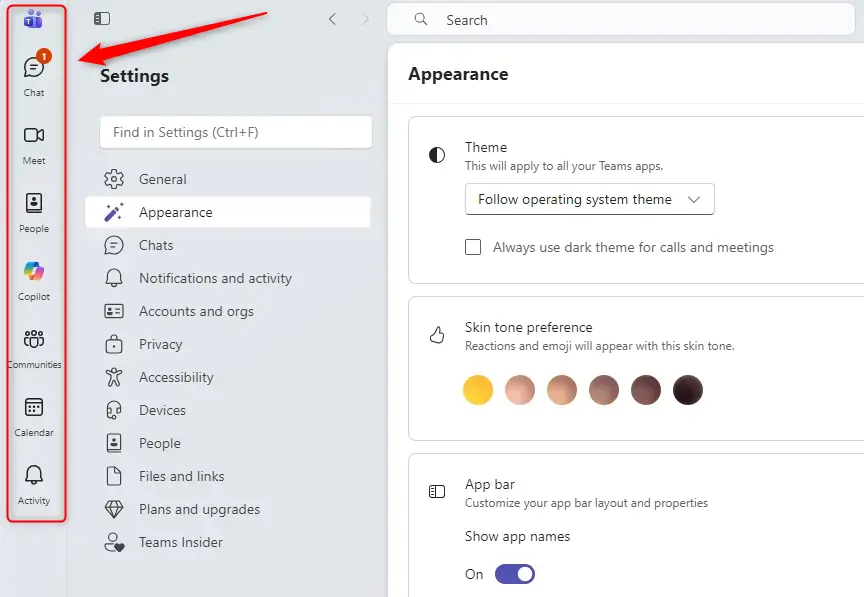
App names in Microsoft Teams are the text labels that sit below app icons in the left sidebar. Hiding these labels makes the sidebar narrower and less cluttered, so more of the window is left for chats, channels and meetings.
This layout option works in Microsoft Teams version 1.7.0 and newer. If you turn off app names, you keep the icons but lose the text, so your most-used tools stay easy to reach. The change only affects how your own Teams window looks. It does not change anything for other people in your organization.
Open Teams Settings Appearance and toggle the Show app names switch off to hide labels or on to show them. The icons remain either way, and the change takes effect immediately without restarting Teams.
Step 1Go to Teams Settings
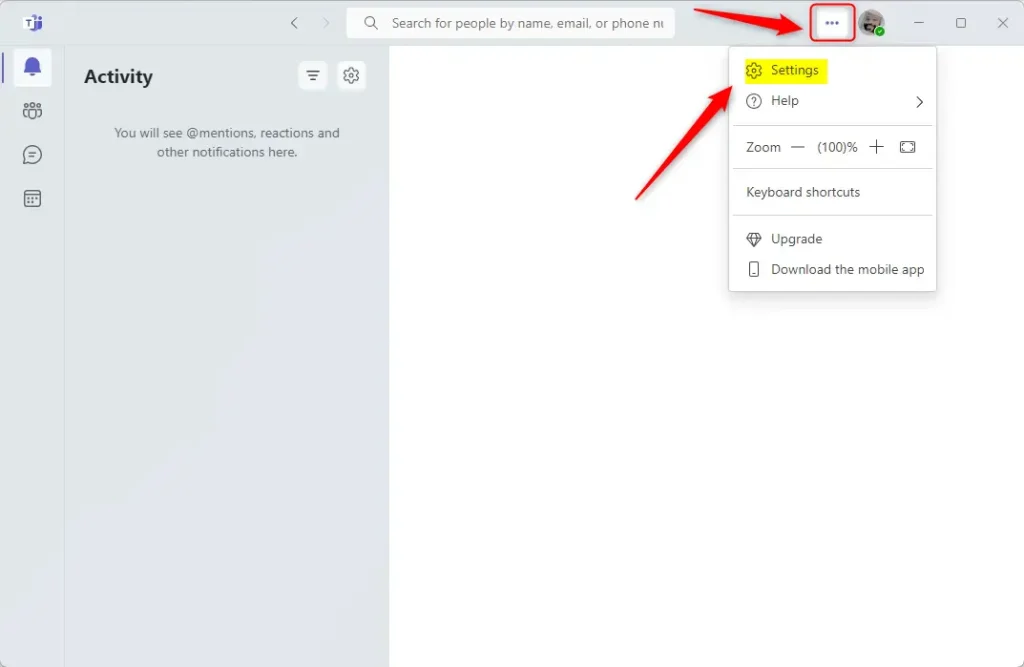
Start in the Teams settings. Everything below, including the switch for app names, is reached from there.
- Look at the top-right corner of the Teams window. You should see your profile picture, and in newer versions a three-dot Settings and more button next to it.
- Click your profile picture. A menu with your account options should open.
- Click Settings. If you don’t see it under your profile picture, open the Settings and more menu instead and pick Settings there. Which one you get depends on your Teams version.
- Wait for the settings area to open. You should see a list of categories on the left and the options for the selected category on the right.
Step 2Find Appearance Settings
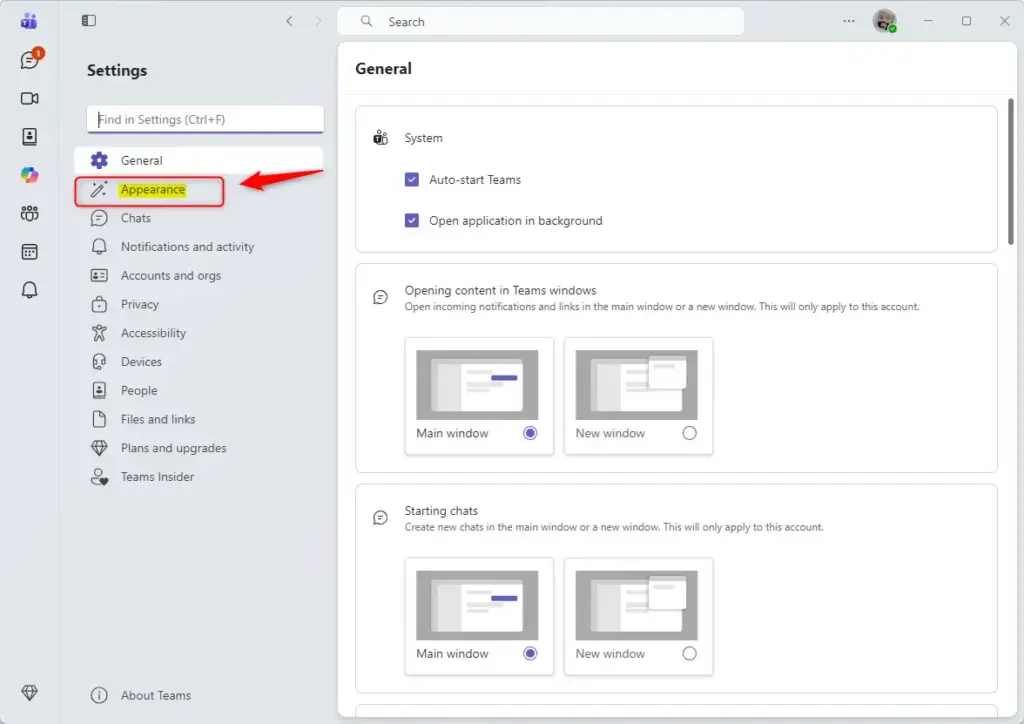
Next, open the appearance options. These are the display controls that decide how Teams looks, and the app name switch is among them.
- In the Settings window, look at the list on the left side.
- Click Appearance. In some versions the entry is longer, for example with “accessibility” added to the name. Pick the one that covers how Teams looks.
- Check the right side of the window. You should now see the display options, such as theme and layout choices, with about 10 customization options in total.
Step 3Show or Hide App Names
Now find the switch that controls the labels and set it the way you want.
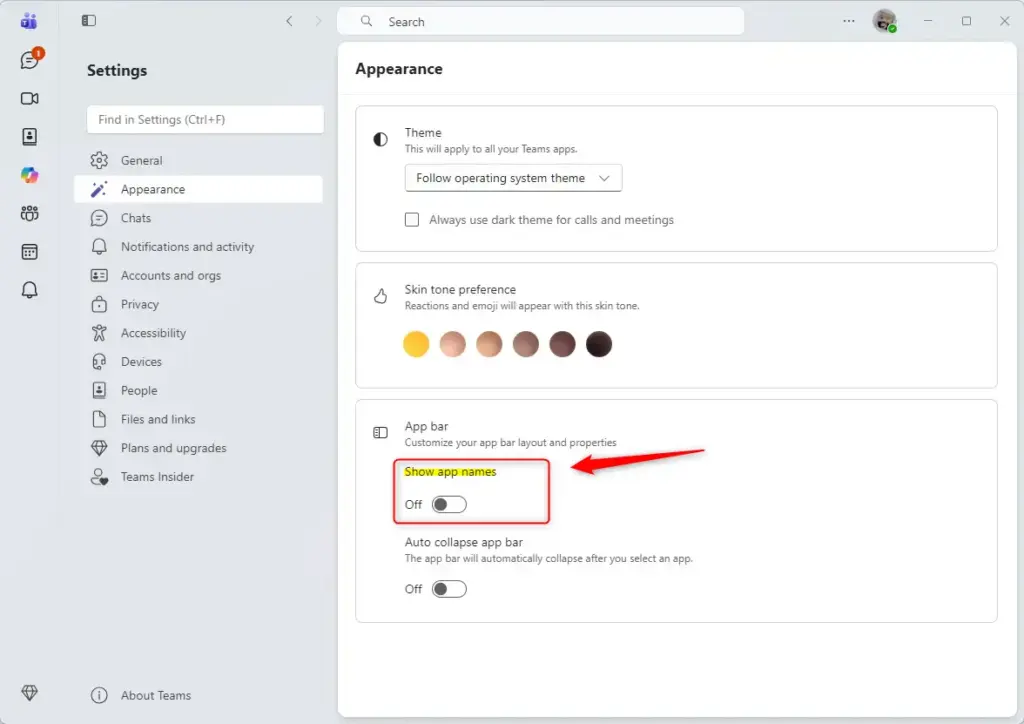
- In the Appearance settings, look for a switch named Show app names or App labels. The exact wording can differ slightly between versions.
- Click the switch to change it. Turn it off to hide the names, or on to show them again.
- Check the colour of the switch. A coloured switch is usually on, and a grey one is off.
- Look at the left sidebar. When the switch is off, the text labels should disappear and only the icons remain. When it is on, the names should return below the icons.
If the switch is missing, update Teams first, because older builds before version 1.7.0 don’t have this option. On a work or school account, your organization’s policies can also affect which options appear. In that case, ask your IT admin. To undo the change, go back to the same switch and flip it again.
Why would you do this?
Which setting is better depends on how you work:
- Hide app names: If you have many apps in your sidebar, hiding the names makes it more compact. You go by the icons alone to tell the apps apart, and most people get used to this quickly.
- Show app names: If you are new to Teams, or if you switch between many apps often, the names help you find the right app quickly. They prevent mix-ups between icons that look alike and help you pick apps faster.
You can switch them back on at any time.
Reference:
https://support.microsoft.com/en-US/teams/notifications-settings/change-settings-in-microsoft-teams
Summary
To change whether app names or labels show next to icons in your Microsoft Teams sidebar, go to Settings, then Appearance, and use the toggle switch. The change takes effect straight away, and you can reverse it with the same switch.
Did this guide fix your problem?

About the Author
Richard
Tech Writer, IT Professional
Richard is a writer at Geek Rewind who turns complex IT tasks into clear, step-by-step guides. He draws on years of hands-on experience in system administration and enterprise IT operations, focusing on Windows, Linux and WordPress: the problems people actually run into, and the fixes that work. His server and WordPress guides come from systems he runs himself. Richard builds and maintains the platform behind Geek Rewind, from its Ubuntu servers and Nginx configuration to its custom WordPress plugins. Many new tutorials start with readers' questions, and he's always glad to answer them in the comments.
No comments yet — be the first to share your thoughts!