How to Manage How People Find You in Microsoft Teams

Microsoft Teams privacy settings control who can find your account by searching for your name, phone number, or email address. Changing them cuts down the number of people who can locate your profile through search. This guide shows where those options are and what each one does.
To get started, open Teams, go to Settings Privacy, and look for the options that control your search visibility and contact details.
Open Teams, click your profile picture in the top right, select Settings Privacy, then toggle off the switches next to Email address, Phone number, or Profile name under “Manage how people can find you.” Changes take effect immediately for new searches.
How to Control Who Finds You in Microsoft Teams
Why do this?
The main reason to control how people find you is privacy. You decide whether strangers can reach you by your email address, your phone number, or your name. If you only want people who already know you to contact you, these settings do that.
One caution: these options are mainly meant for personal Teams accounts. If you sign in with a work or school account, your organization’s admin controls much of what is searchable, and you may not see every option described here. If a setting is missing or greyed out, that is the most likely reason, and your IT team is the one to ask.
What happens when you do this?
Teams privacy settings control your profile visibility. Turning off the search options reduces the number of people who can find your profile in Teams searches. It does not hide you from everyone. Existing contacts and people you have already communicated with can still find you. You can also choose which contact details appear on your profile card, which is covered further down.
1Go to Your Privacy Settings
The privacy settings decide who can find and message you in the app. To reach them, follow these steps.
- Click or tap your profile picture. It sits in the top right of the Teams window on desktop. In the mobile app, it is usually in the top left corner.
You should see a menu open below it. - Select Settings from the menu. This is where you change how Teams behaves for your account.
A Settings window or screen opens. - Click Privacy. This section covers your personal information and who can contact you.
The privacy options now appear on the right side of the window.
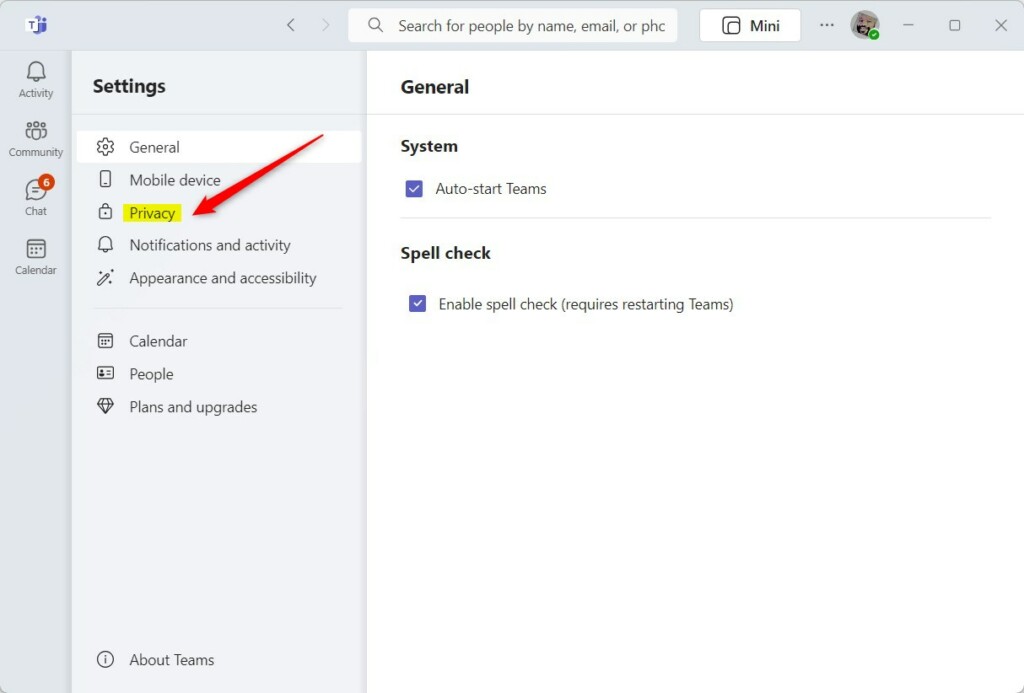
Click the three dots, then select 'Settings' to continue. The exact layout varies a little between Teams versions, so if your menu looks different, check both the profile picture menu and the three-dot menu.
2Manage How People Can Find You
You can choose whether coworkers and other users can search for you by phone number or email address. To change this, open your privacy settings, find the section that controls how people find your profile, and switch each search method on or off. The change applies to new searches only, and you can reverse it at any time by turning the switch back on.
2.1. Turn Search Options On or Off
- Go to Manage how people can find you in your Privacy settings.
If you can't see it, you are probably signed in with a work or school account, or your version of Teams doesn't offer it. Check that you are in the right account first. - Look at your current settings. You will see switches for your email address, your phone number, and your profile name.
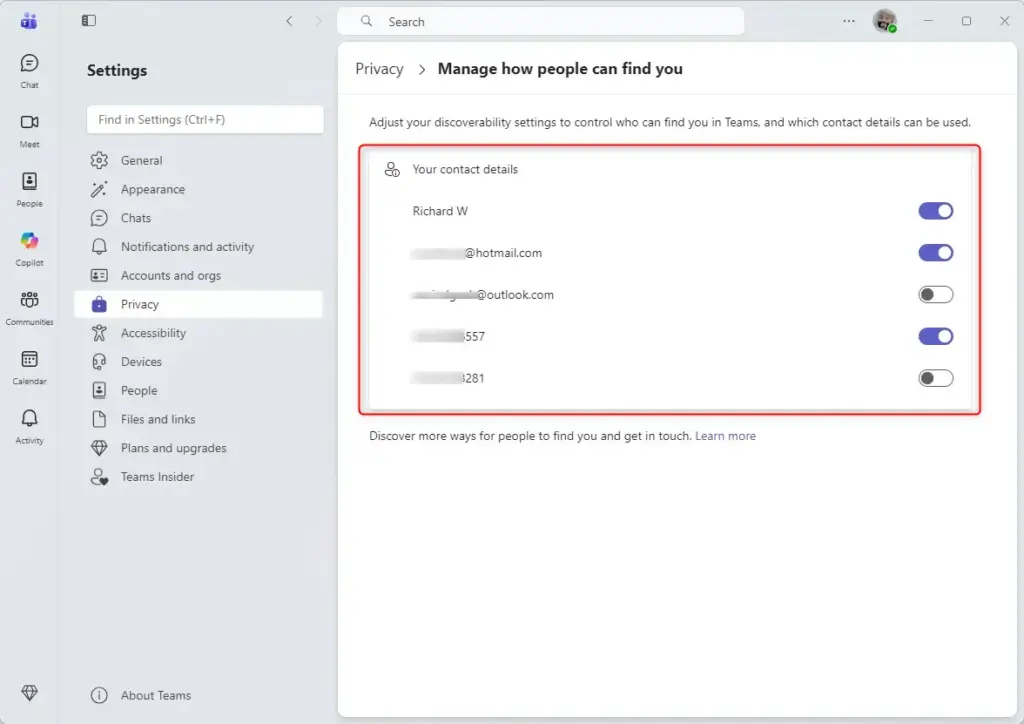
- Turn off the switches you don't want people to use. If you don't want to be found by phone number, turn that switch off. Do the same for your email address or profile name if you prefer.
The switch should now show as off. There is no separate save button for these toggles in most versions, but reopen the page afterwards to confirm the setting stuck.
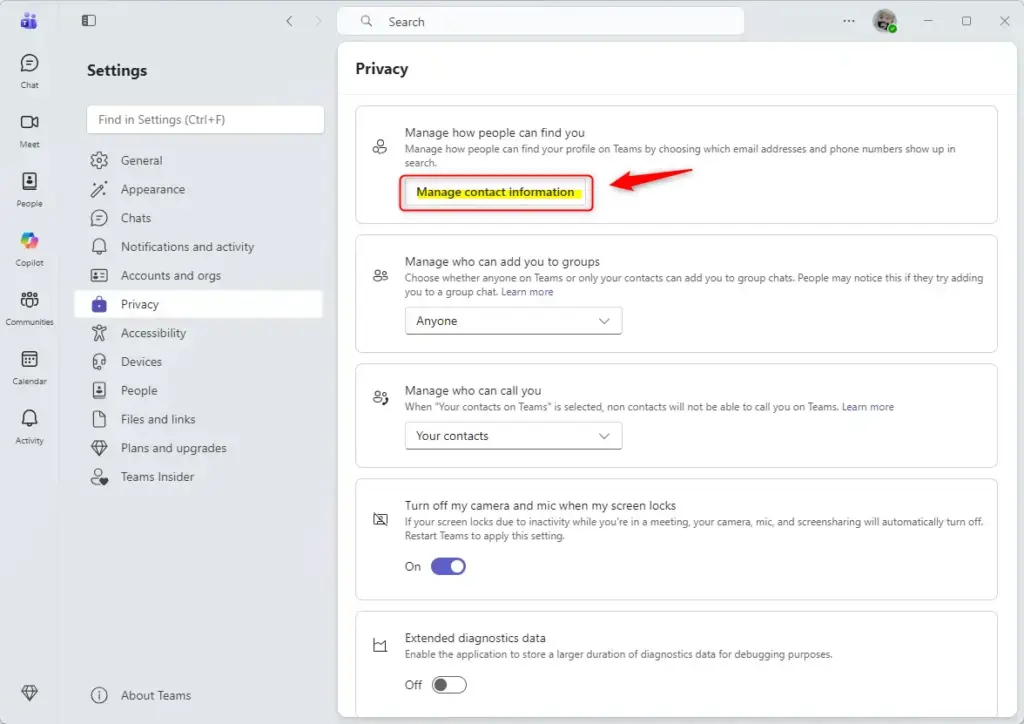
Profile visibility settings control how people find you. Disabling profile visibility prevents new contacts from finding your profile through search. Existing contacts and people you have chatted with before can still reach you through those existing connections. For added safety, these visibility settings are turned off by default for users under 18. No restart is needed for any of these changes.
2.2. Show or Hide Profile Details
You can also control which contact details show when someone opens your profile card. This is most useful for your email address and phone number.
- Go back to your Privacy settings.
- Select Your profile or Manage profile. The exact wording can differ depending on your app version.
Your profile details should now appear. - Choose Hide or Show for your email address and phone number. This affects your chats, group chats, and any groups you belong to. Show the details if you want people to reach you easily, or keep them private on your profile card.
If you hide it, you can miss important meeting invitations. Decide which matters more for how you use Teams: personal privacy or reliably receiving invites. If you change your mind, go back to your profile settings and set the email address to Show again.
Reference:
Summary
To sum up, you manage your Microsoft Teams privacy by adjusting how people can find you and by choosing whether your email address and phone number appear on your profile. Remember that existing contacts can still find you, and that hiding your email can affect meeting invites.
Was this guide helpful?

About the Author
Richard
Tech Writer, IT Professional
Richard is a writer at Geek Rewind who turns complex IT tasks into clear, step-by-step guides. He draws on years of hands-on experience in system administration and enterprise IT operations, focusing on Windows, Linux and WordPress: the problems people actually run into, and the fixes that work. His server and WordPress guides come from systems he runs himself. Richard builds and maintains the platform behind Geek Rewind, from its Ubuntu servers and Nginx configuration to its custom WordPress plugins. Many new tutorials start with readers' questions, and he's always glad to answer them in the comments.




No comments yet — be the first to share your thoughts!