How to Update Your Connected Service Settings in Microsoft Teams

Connected service settings in Microsoft Teams control optional cloud features like web link previews, GIPHY GIF suggestions, and OneDrive file recommendations in your chats. Turning them off stops Teams from sending your data to these cloud services. It also cuts down on chat distractions, and the app keeps working normally.
You can turn these optional features off on Windows at any time from the app settings. You might do it for more privacy or for a quieter workspace. The change is easy to undo, and the steps below show how.
Click your profile picture in the top-right corner of Teams, select Settings, then go to Privacy. Toggle “Optional Connected Experiences” off to disable features like link previews and GIFs. This reduces reliance on cloud services but may disable some helpful functions.
Step 1Open Your Teams Settings
All of these controls live in the Teams Settings window. From there you can manage connected services, privacy preferences, and notifications. Once the window is open, you move between its tabs using the left sidebar.
Here is how to find it:
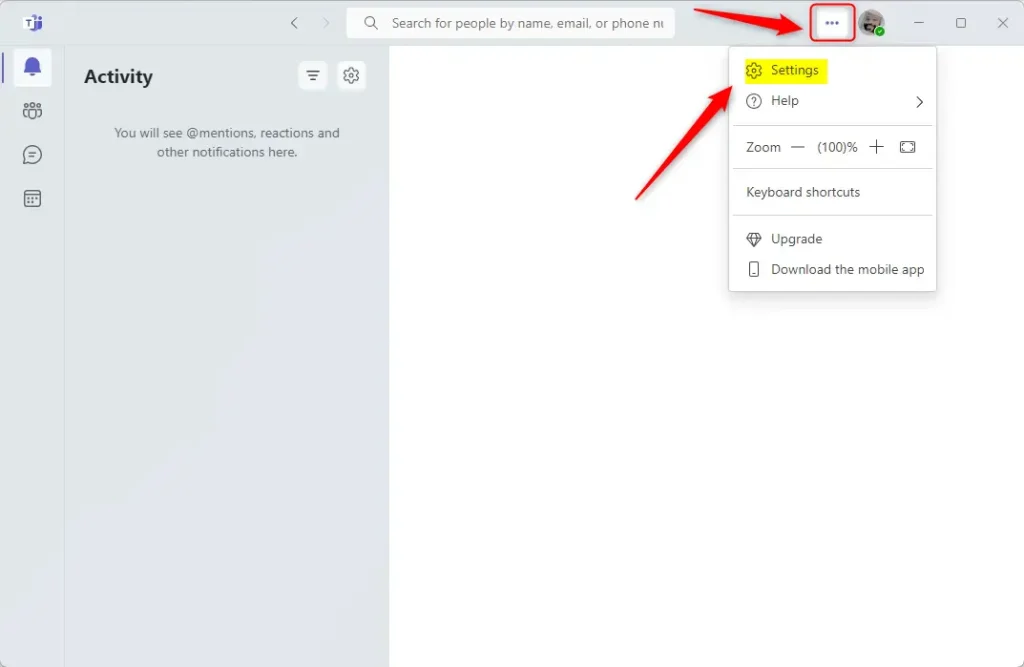
- Look at the top-right corner of the Microsoft Teams window. You should see your profile picture, or a small circle with your initials if you have no photo.
- Click your profile picture. A menu opens with options for your account and the Teams app.
- Click Settings. The main Settings window for Microsoft Teams opens, with a list of tabs down the left side.
If you do not see Settings in that menu, check the Settings and more button (the three dots) next to your profile picture. In some versions of Teams, Settings is listed there instead. The exact layout can vary slightly between Teams versions.
Step 2Change General Connected Experiences
The Privacy tab holds the switch for general connected experiences. When these are on, Teams can download link previews and fetch online content for you automatically. You can switch them on or off whenever you like, depending on how much data you want Teams to share with external Microsoft servers.
Here is how to get there:
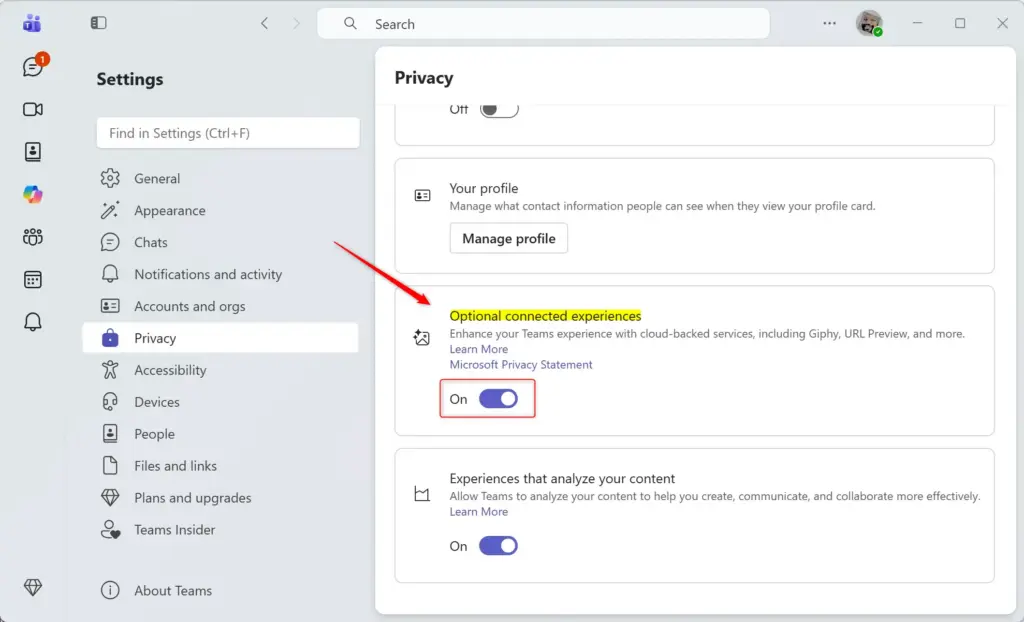
- In the left sidebar of the Settings window, click Privacy. This page lets you manage how Teams uses outside services and your information.
- Look for the section or switch named Optional connected experiences. This is where you control services like GIPHY and URL Preview (for non-video links).
- Click the switch next to Optional connected experiences to turn it off. The switch should now show as off.
Turning this off stops many features that rely on Microsoft or other companies’ cloud services, including website link previews. If a change does not seem to take effect right away, close Teams fully and open it again.
If the switch is missing or greyed out on a work or school account, your organization’s administrator may control it through a policy. In that case you will need to ask your IT team to change it.
Turning off Optional connected experiences reduces how much Teams relies on external servers, which helps protect your privacy. The trade-off is that you lose some helpful conveniences, such as hover-card link summaries.
To undo the change, go back to Settings Privacy and turn Optional connected experiences back on. The features return once the switch is on.
Reference:
Summary
In short, optional connected experiences in Microsoft Teams, including link previews and GIFs, are all controlled from the Privacy page in Settings.
Have a question about this guide?
Answered by AI from this guide. Good questions may be added to this page — please don't include personal details.
Did this guide fix your problem?

About the Author
Richard
Tech Writer, IT Professional
Richard is a writer at Geek Rewind who turns complex IT tasks into clear, step-by-step guides. He draws on years of hands-on experience in system administration and enterprise IT operations, focusing on Windows, Linux and WordPress: the problems people actually run into, and the fixes that work. His server and WordPress guides come from systems he runs himself. Richard builds and maintains the platform behind Geek Rewind, from its Ubuntu servers and Nginx configuration to its custom WordPress plugins. Many new tutorials start with readers' questions, and he's always glad to answer them in the comments.
No comments yet — be the first to share your thoughts!