How to Fix Sound Issues When You Share Your Computer’s Sound in Microsoft Teams


When you share your screen in a Teams meeting, other people should be able to hear the audio and video you play. Two things usually break this. The Include computer sound switch in the sharing tray is off, or the wrong device is set as your default playback device. Windows 10 and Windows 11 both behave this way.
The fix takes a couple of minutes. Turn on the sound switch in the Teams sharing tray, then check that your default speaker in Windows is the device you actually use. In newer versions of Teams this switch may be labelled Include system audio. It does the same job.
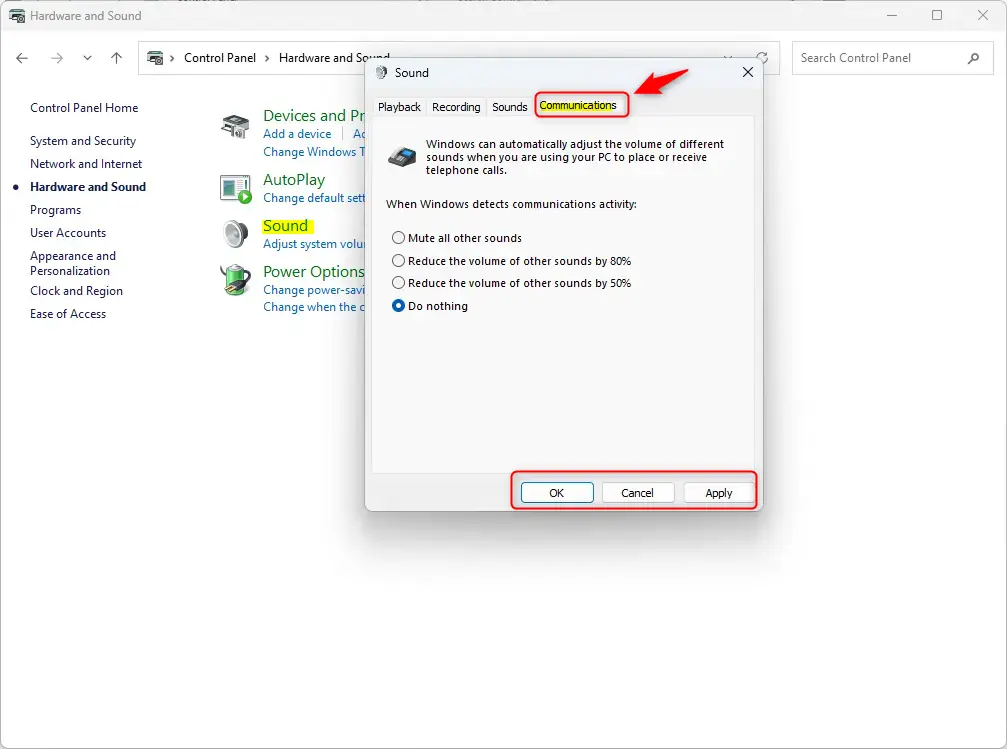
To fix quiet shared sound in Microsoft Teams, open the Sound control panel by right-clicking the speaker icon and selecting “Sounds.” Navigate to the Communications tab and select “Do nothing” under communication activity. Click Apply and OK to save the changes.
Fixing Low Shared Sound
Windows lowers the volume of other sounds when it detects an active call. Teams counts as a call, so any music or video you play can reach the other attendees much quieter than you expect. You may hear it fine on your own speakers and still get complaints from the meeting.
What are Windows Communication Settings?
Windows does this on purpose, so you can hear the person talking over background noise. The same setting also turns down any media you are sharing. It applies to all sound except the call itself, and Windows does not know the difference between a notification and the video you are presenting.
If the sound is missing completely rather than quiet, check these first:
- You are in a live meeting and have opened the sharing tray with the Share button.
- The Include computer sound switch (or Include system audio) is turned on before or while you share.
- The speaker you normally listen on is the default playback device in Windows. Teams shares the audio going to that device.
- The volume in Windows and in the app you are playing from is not muted.
Adjusting Sound Settings for Clearer Audio
To fix the low volume, change how Windows handles communications activity. By default, Windows lowers media sounds when it detects a call. That makes music or videos shared in a meeting quiet or hard to hear. If you tell Windows to do nothing, everyone in the call hears your shared audio at the volume you set. The change takes effect straight away, and you do not need to restart the PC. If the volume still sounds low, leave the meeting and rejoin, or restart Teams.
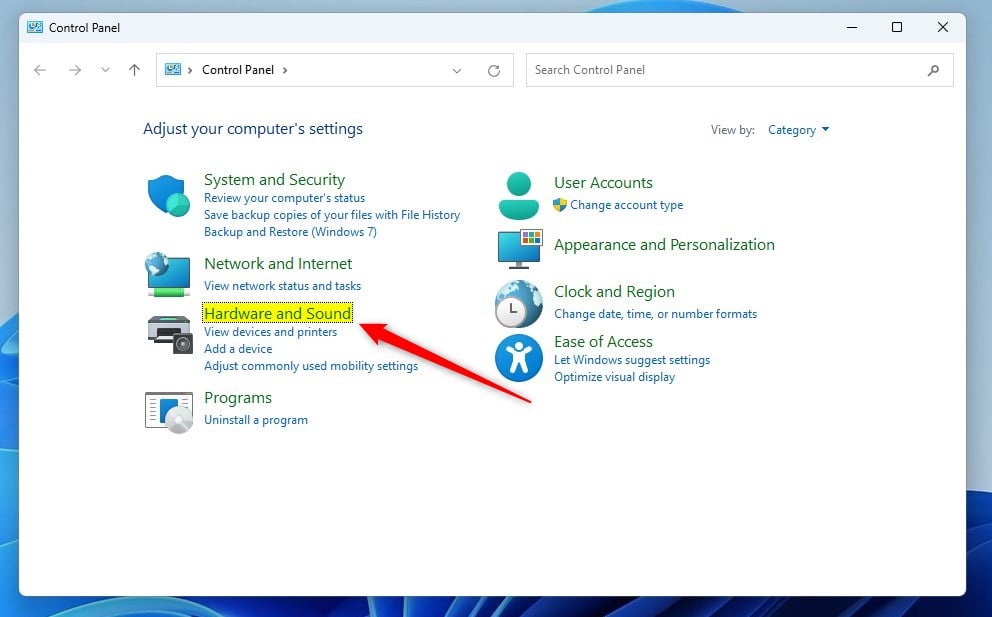
Open the Sound Control Panel. Right-click the speaker icon in the taskbar, usually in the bottom-right corner. On Windows 10, choose Sounds. You should see the Sound window open with several tabs.
On Windows 11 the right-click menu may only show Sound settings. In that case, open it, scroll down to the advanced options, and click More sound settings. You can also reach it through Settings System Sound On Windows 10, you may need to click Open Sound settings first, then use the Sound Control Panel link on the right side of that window.
Go to the Communications tab. At the top of the Sound window you will see the tabs Playback, Recording, Sounds, and Communications. Click Communications. You should see a list of options under the heading "When Windows detects communications activity".
Select Do nothing. Click the circle next to Do nothing. This tells Windows to keep all volumes as you set them, even during a Teams meeting.
⚠️WarningMake sure you choose Do nothing.The other options (mute all other sounds, or reduce other sounds by 80% or 50%) will keep lowering your volume. Windows normally ships with the 80% reduction selected.
Apply your changes. Click Apply, then click OK to close the window. Your changes are saved right away.
Test it. Start a meeting, or a call with a colleague, share your screen with Include computer sound turned on, and play a short clip. Ask them whether it sounds right. If your computer sound is still silent, go back to the checklist above and check your default playback device on the Playback tab.
To undo this, return to the Communications tab and choose another option, such as the 80% reduction, then click Apply and OK. Keep in mind that this setting is not limited to Teams. It affects any app Windows treats as a communications app, so you may notice the difference in other calls too.
Reference:
Summary
In short, Windows detects a call and turns down other audio to protect the conversation. Setting the Communications option to Do nothing stops that, and your shared media plays at full volume.
Have a question about this guide?
Answered by AI from this guide. Good questions may be added to this page — please don't include personal details.
Did this guide fix your problem?

About the Author
Richard
Tech Writer, IT Professional
Richard is a writer at Geek Rewind who turns complex IT tasks into clear, step-by-step guides. He draws on years of hands-on experience in system administration and enterprise IT operations, focusing on Windows, Linux and WordPress: the problems people actually run into, and the fixes that work. His server and WordPress guides come from systems he runs himself. Richard builds and maintains the platform behind Geek Rewind, from its Ubuntu servers and Nginx configuration to its custom WordPress plugins. Many new tutorials start with readers' questions, and he's always glad to answer them in the comments.
No comments yet — be the first to share your thoughts!