How to Request (Export) a Copy of Your Microsoft Teams Data

Requesting a copy of your Microsoft Teams data gives you a downloadable archive of your chat history, shared files, and pictures. It works as an offline backup, so you keep your conversations and documents even if you lose access to the account later.
Microsoft says it can take up to 30 days to prepare your download link after you submit the request. In practice it is often much faster (see the waiting section below). This export is for people who use Microsoft Teams Free or hold a personal Microsoft account.
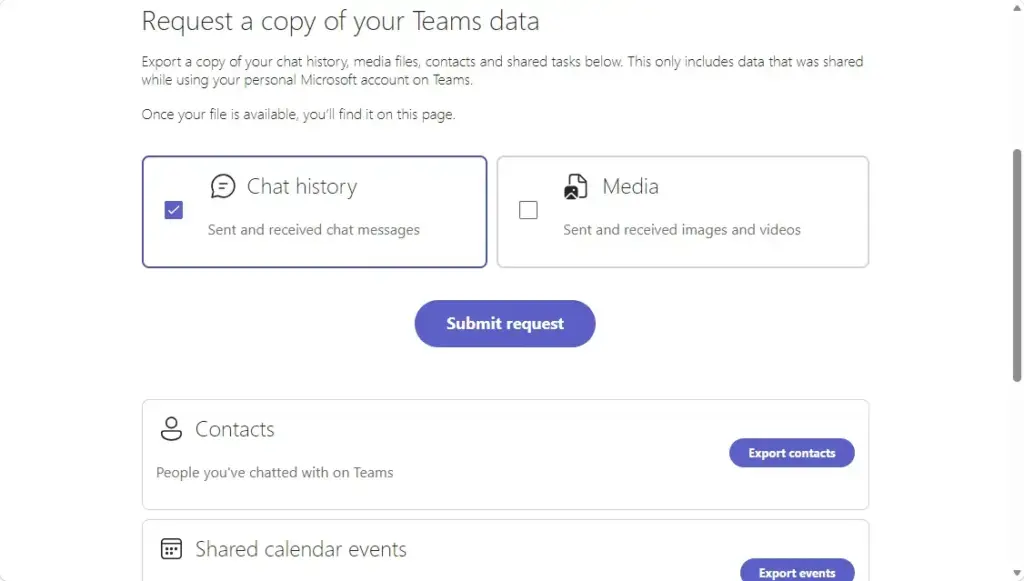
Go to the Export page and sign in with your Microsoft account. Select the data types you want—chat history, files, pictures—check the boxes, then click Submit request. Microsoft prepares your archive within hours to days, and you download it as a.tar file from the same page when ready.
Why Export Your Microsoft Teams Data?
Why Export Your Microsoft Teams Data?
How to Export Your Chats and Media
Go to the Export Page
The export starts on Microsoft’s privacy dashboard, and you sign in there with your Microsoft account. Before you begin, get two things ready:
- The password for the Microsoft account you use with Teams.
- Your phone, in case Microsoft sends a security verification code by text or asks you to approve the sign-in in an authenticator app.
The tool described here is meant for personal and Teams Free accounts. If you sign in to Teams with a work or school account, your organization controls the data. Ask your IT administrator how to get a copy.
- Open your web browser.
- Go to the Export page.
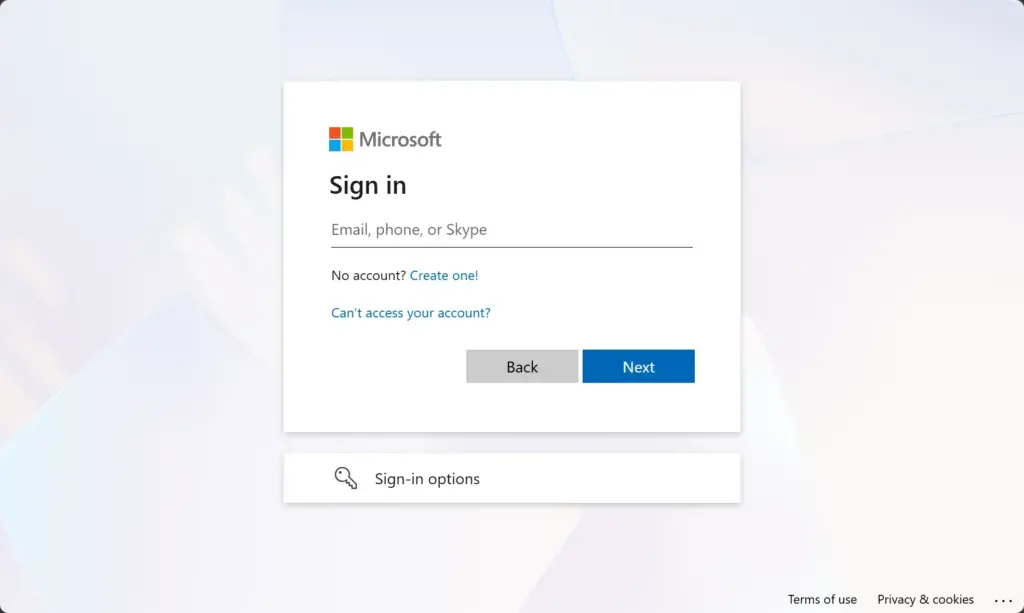
- Enter your Microsoft account email and password, then enter the verification code if Microsoft asks for one.
If sign-in works, you land on the export page for your account. If you end up on a different account’s page, sign out and sign in again with the account you use for Teams.
Additional security steps, such as phone verification codes, require similar preparation. A locked-out or half-finished sign-in is the most common reason people give up at this stage.
Choose What to Download
Once you are signed in, choose which kinds of Microsoft Teams data to include.
- Look through the data types the page offers, such as chat history and media files.
- Tick the types you want in your archive.
- Leave out anything you do not need. A smaller request is usually ready sooner and gives you a smaller download.
If you are not sure, pick everything. You can always ignore files you do not want later.
If you think you might be removed from a group, export before that happens.
Submit Your Request
Once you have picked your data, tell Microsoft to start preparing it.
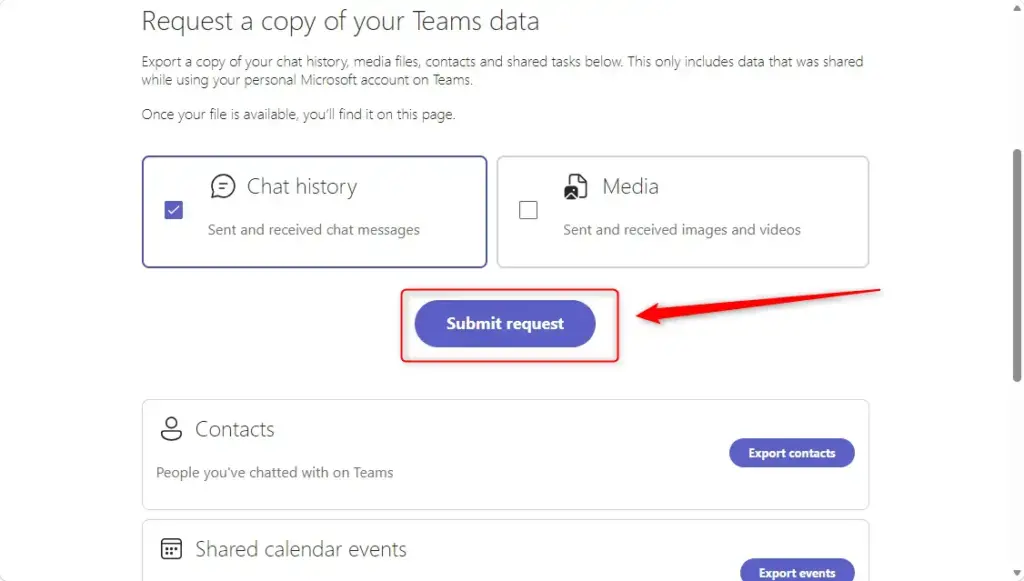
- Check that the right data types are ticked.
- Click Submit request.
- Wait for the page to confirm that your request was received. The page should now show that the export is in progress rather than offering a download.
Microsoft's servers now gather the records, which takes time. You do not need to keep the browser open. You can close the page and your PC will not be involved in the work.
Be Patient and Check Back
You cannot download your files instantly. Microsoft has to gather everything into a download package first. Depending on how much chat history and how many files you have, that takes anywhere from a few hours to a few days. Microsoft's stated upper limit is 30 days, so do not panic if nothing shows up after a day or two.
- Bookmark the export page in your browser so you can find it again quickly.
- Set a calendar reminder to check back after a day or two.
- Return to the export page, signing in again if needed, and look for the download link.
Until the package is ready, the page keeps showing your request as pending. Submitting the request again will not make it faster.
Download Your Files
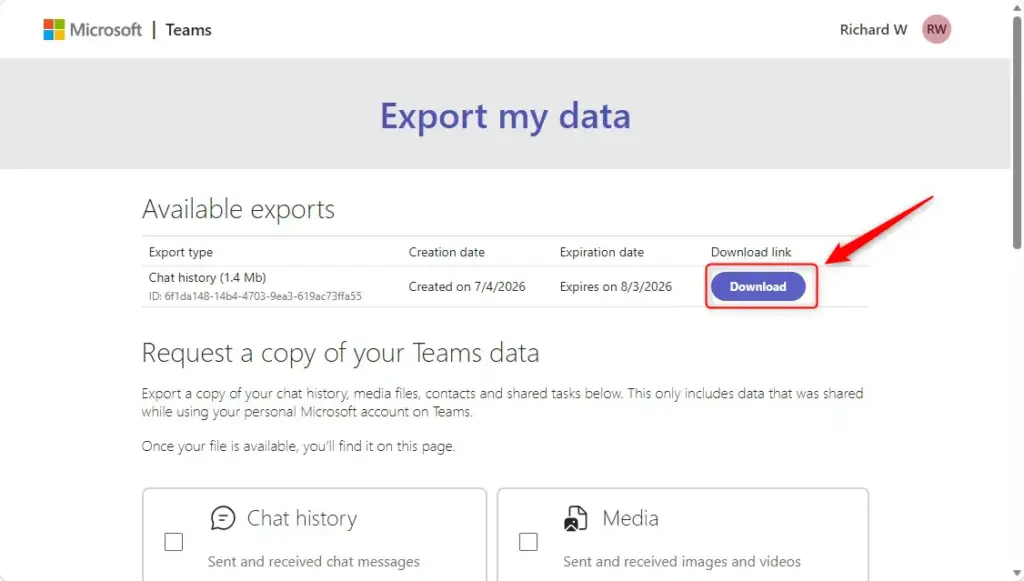
When Microsoft finishes preparing your files, the download button appears on the same export page.
- Go back to the export page and sign in with the same Microsoft account.
- Click the download button.
- Save the file somewhere with enough free disk space. Large chat and media archives can be big.
The download arrives as a .tar file. Older Windows builds cannot open this format on their own. Recent Windows 11 builds may open it in File Explorer, but results vary. A free tool like 7-Zip is the reliable option, so install it first and use it to extract the contents.
- Install 7-Zip if you do not already have it.
- Right-click the downloaded file.
- Choose the 7-Zip extract option and pick a destination folder.
- Open the folder to browse your chat logs and pictures.
Warning: The downloaded file arrives as a .tar archive. Windows cannot open this format natively like a standard ZIP file, requiring a separate utility to extract contents. Copy the extracted folder to an external drive or a second storage location if you want a real backup.
Reference:
Summary
To sum up: Microsoft Teams Free chats and media can be exported. Visit the dedicated management page, sign in with a Microsoft account, select the data categories you want, and submit the request. Then wait for Microsoft to prepare the file, download it, and extract it with a tool like 7-Zip.
Frequently asked questions
How to export a chat from Teams?
For a personal or Teams Free account, you can't export a single chat alone. Request a full copy of your Teams data from Microsoft's privacy dashboard, which includes your chat history. To keep one conversation, copy the messages into a file yourself. Work or school accounts must ask their IT admin, because the organization controls that data.
How to download chat in ms Teams?
Teams has no button that downloads one chat's history. Personal and Teams Free users request a full copy of their data at Microsoft's privacy dashboard, then download the archive when it's ready. Work and school users need their IT admin to export the data, since their organization controls it.
Is it possible to export workplace Teams contacts and/or chat history to personal Teams?
No, not directly. Work or school chats and contacts belong to your organization, and Teams doesn't move them into a personal account. A personal Teams account can export only its own data. To keep work conversations, ask your IT admin about an approved export.
How to export team chat history?
You can't export team channel history yourself in Teams. Personal and Teams Free users can request a copy of their own Teams data from Microsoft's privacy dashboard. For a work or school team, your IT admin has to run the export, since the organization owns that data.
Still have a question?
Answered by AI from this guide. Good questions may be added to this page — please don't include personal details.
Did this guide fix your problem?

About the Author
Richard
Tech Writer, IT Professional
Richard is a writer at Geek Rewind who turns complex IT tasks into clear, step-by-step guides. He draws on years of hands-on experience in system administration and enterprise IT operations, focusing on Windows, Linux and WordPress: the problems people actually run into, and the fixes that work. His server and WordPress guides come from systems he runs himself. Richard builds and maintains the platform behind Geek Rewind, from its Ubuntu servers and Nginx configuration to its custom WordPress plugins. Many new tutorials start with readers' questions, and he's always glad to answer them in the comments.
No comments yet — be the first to share your thoughts!