How to Change Your Microsoft Account Display Name


Your Microsoft account display name is the name friends, family, and coworkers see across services like Outlook and Windows. You can change it in less than 5 minutes on your online Microsoft account page. Updates usually show up across all your apps within 24 hours.
This display name is separate from your local computer login name, though you can make both match if you want. You only need a browser. Sign in to your Microsoft account profile and update your first and last name to change how you appear to others online.
These steps are written for the current Microsoft account website. Microsoft changes the layout from time to time, so a label may differ slightly from what you see. I point out where that is likely.
Go to account.microsoft.com, sign in, select Your info, then select Edit name next to your current name. Type your new first and last name and select Save. The change appears across Outlook, Windows, and other Microsoft services within 24 hours.
How to Change Your Microsoft Account Display Name
The whole change happens on the Microsoft account website, not in Windows Settings . The steps below go in order. Each one has a screenshot or note to help you confirm you are in the right place.
If the account is a work or school account, your organization’s administrator usually controls the name, and you may not be able to edit it. If it is a child account in a Microsoft family group, the name is managed from the parent’s family settings.
Step 1Go to the Microsoft Account Website
- Open any browser, such as Microsoft Edge, Chrome, or Firefox.
- Go to https://support.microsoft.com/en-us/accounts-billing/manage/how-to-change-your-microsoft-account-name-or-address or type account.microsoft.com into the address bar.
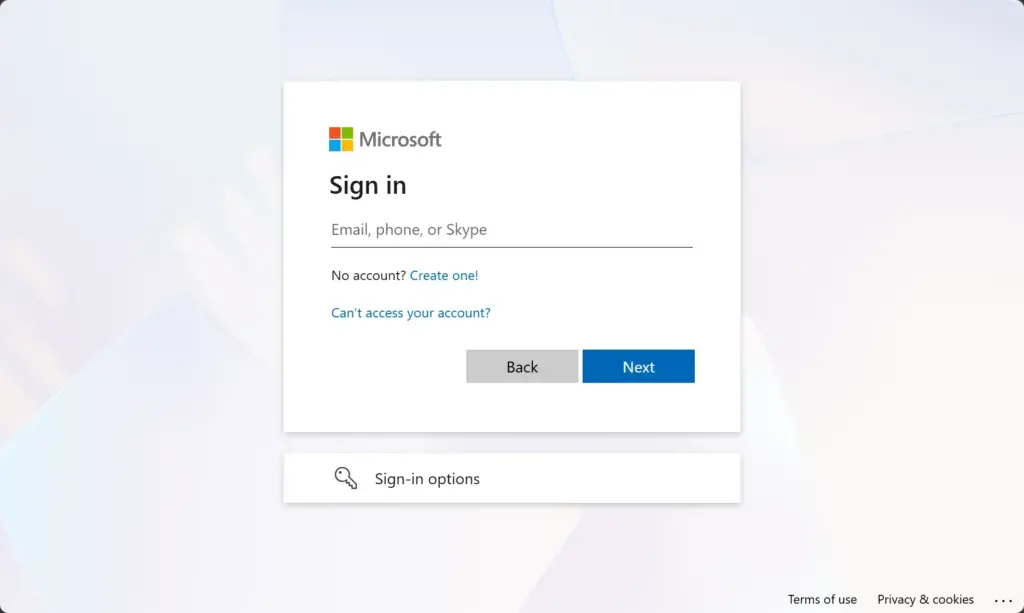
You should see either the Microsoft account sign-in page or, if you are already signed in, your account home page. This is the portal for managing your account details.
Step 2Sign In to Your Account
- Enter the email address, phone number, or Skype name tied to your Microsoft account, then select Next.
- Enter your password and select Sign in.
- If the account uses two-step verification, complete that check. This might be a code sent to your phone, an approval in the Microsoft Authenticator app, or a security key.
After sign-in you should land on your account dashboard with your name or picture near the top. Make sure you signed in with the account you want to change. If you have more than one, use the account picture at the top right to check which one is active.
Step 3Find Your Profile Information
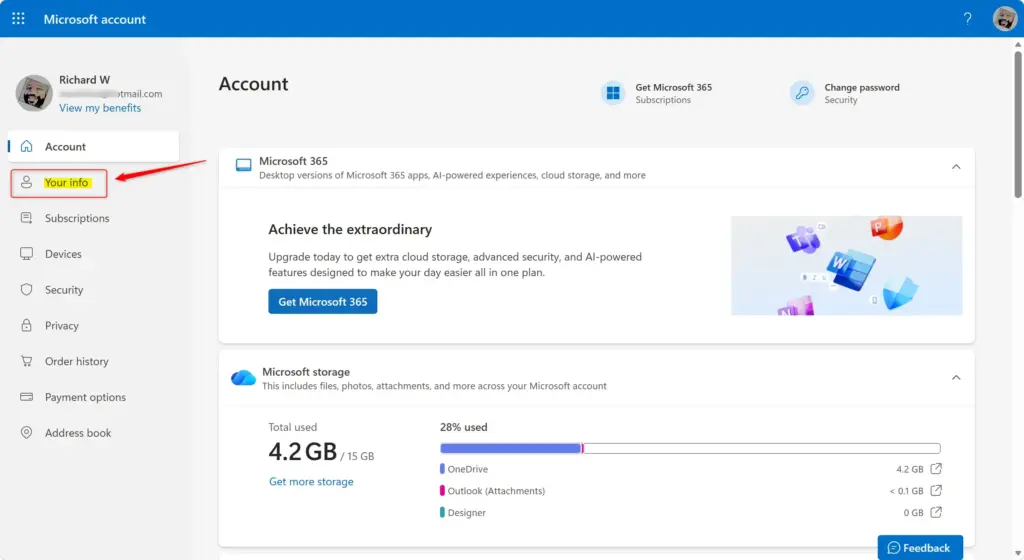
Your Microsoft account name lives in the profile information section. Once you are signed in, look for the personal details area. It usually sits in the menu on the left side of the screen or appears as a tab across the top. It is labeled Your info, Personal info, or Profile, depending on your screen size and the current page design.
- Select Your info (or the matching label on your page).
You should now see your profile page, with your current name, your picture, and other details such as your date of birth and contact information.
Step 4Find the "Edit Name" Option
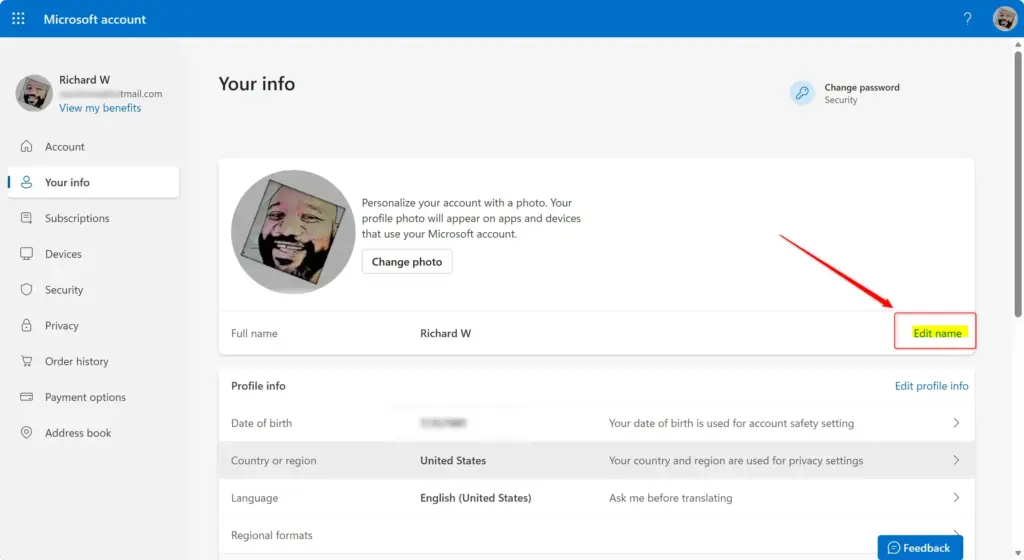
The profile page shows the name currently attached to your account, usually under a Full name heading. Beside it you will see an Edit name or Change name link. On some layouts this is a pencil icon instead of text.
- Select Edit name (or the pencil icon) next to your current name.
A name editor opens, either as a pop-up or as a new page, with boxes for your first and last name.
If you cannot find the link, check that you are on the correct account and refresh the page. If it is still missing, the account is probably managed by an organization or a family group, as described above.
Step 5Enter Your New Display Name
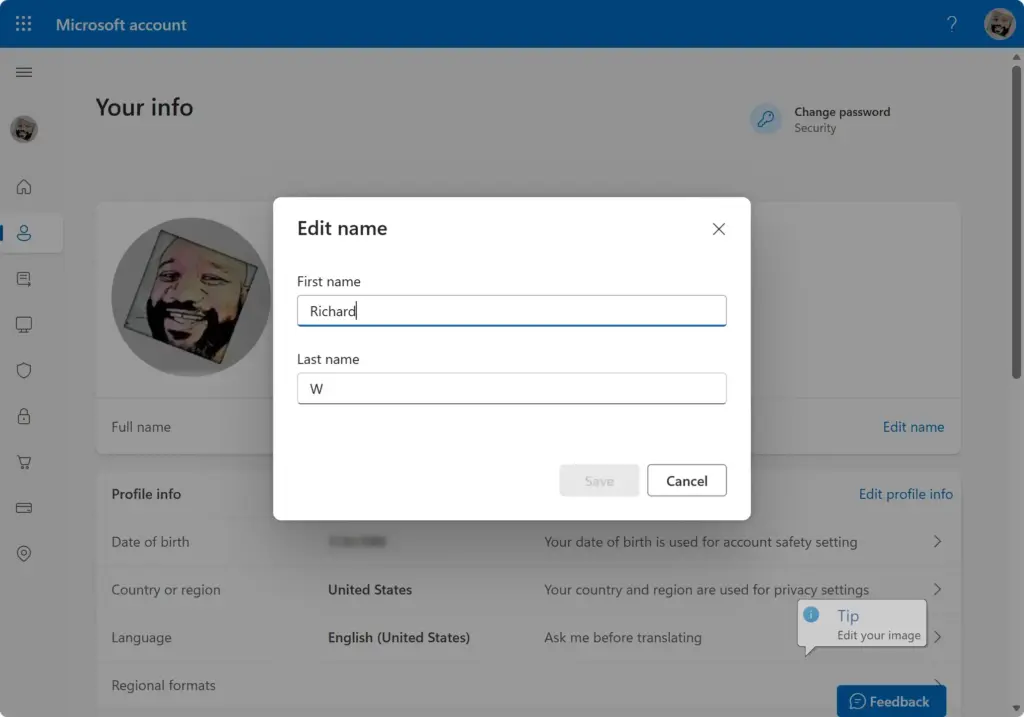
- Click the First name box and type the new first name.
- Click the Last name box and type the new last name. You can change just one of the two or both.
Think about how your contacts will see the new name. It appears in emails you send from Outlook, in shared documents, and in other Microsoft services. A name people recognize is better than a nickname that confuses coworkers. Check the spelling before you move on.
Step 6Save Your Changes
- Find the Save button below the text fields.
- If Microsoft shows a verification box, such as a set of characters to type, complete it.
- Select Save to commit the changes.
You should return to your profile page, and the new name should appear in place of the old one. Services start reflecting the new name soon after you save, but it can take up to 24 hours to show everywhere.
There is no separate undo button.
The Windows sign-in screen and the Settings app may keep showing the old name for a while. Signing out of Windows and back in, or restarting the PC, usually refreshes it. If that does not help, wait for the sync to finish and check again. This does not change your local account folder name, such as the folder under C:\Users. That stays the same.
Reference:
Summary
Your Microsoft account name controls how other people see you across Windows, Outlook, and other Microsoft services. You can change it at any time by signing in to your online Microsoft account dashboard and editing your profile information. Changes usually appear everywhere within 24 hours, though some apps update right away.
Services begin reflecting the new name soon after you save, but full synchronization across Microsoft's services can take up to 24 hours. If an app still shows the old name after a day, sign out of the app and sign back in. The Microsoft account dashboard is the central place for managing this and all your other account details.
Did this guide fix your problem?

About the Author
Richard
Tech Writer, IT Professional
Richard is a writer at Geek Rewind who turns complex IT tasks into clear, step-by-step guides. He draws on years of hands-on experience in system administration and enterprise IT operations, focusing on Windows, Linux and WordPress: the problems people actually run into, and the fixes that work. His server and WordPress guides come from systems he runs himself. Richard builds and maintains the platform behind Geek Rewind, from its Ubuntu servers and Nginx configuration to its custom WordPress plugins. Many new tutorials start with readers' questions, and he's always glad to answer them in the comments.
No comments yet — be the first to share your thoughts!