Windows 11 Privacy Settings: Control App Access and Data

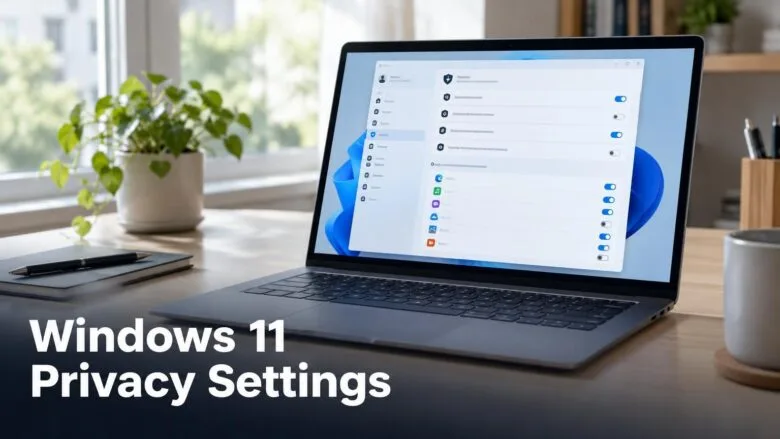
Privacy settings in Windows 11 decide which apps can use your camera, microphone, location, screenshots and personal information. Most of these controls sit in Settings Privacy & security.
Each permission has a main switch at the top of its page. Below that switch, you get a separate list for each app. The main switch covers every app, so the app list is where you pick individual apps.
A change in one place does not always stop an app from reaching your data another way. Start with the full list of apps and their permissions to see what is already allowed. Then check each list you care about, and read the guide for each permission before you change it.
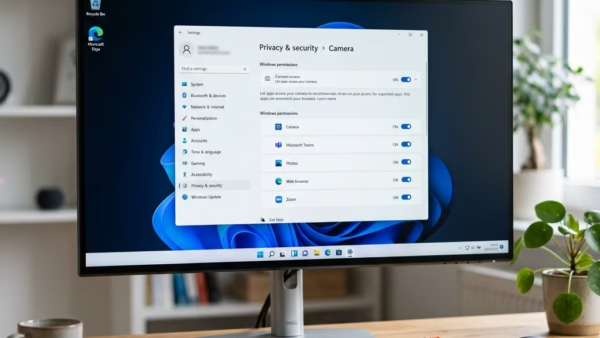
To control which apps can use your camera, microphone, location and screenshots in Windows 11, open Settings, select Privacy & security, and check the global switch at the top of each permission. Then open the app list below it to turn off access for individual apps.
See which apps can access your data
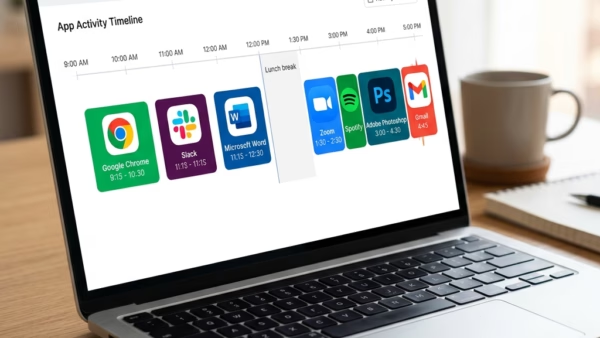
Start here if you want an overview of your current permissions before you change any of them. The app access controls show every app that has asked for a permission on this PC, which is the fastest way to find the ones you did not expect.

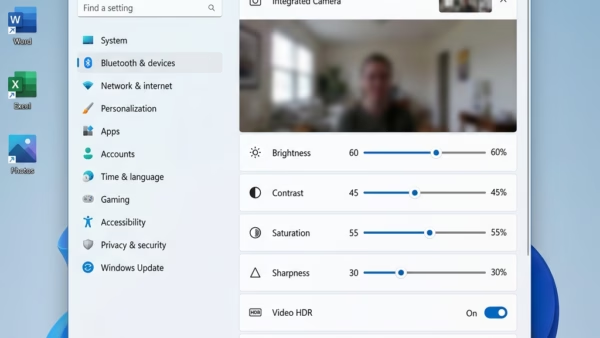
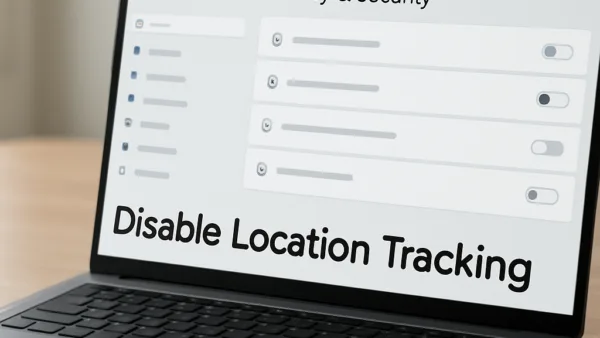
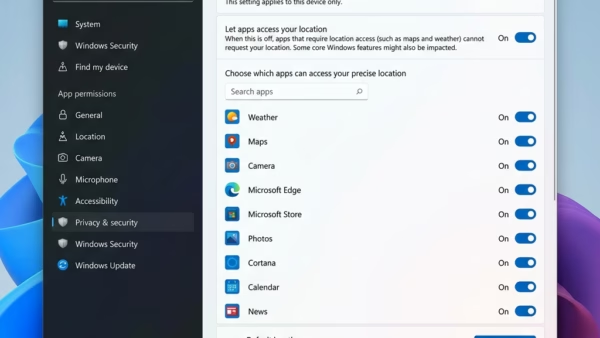
Lock down the camera, microphone and location

Limit what apps know about you
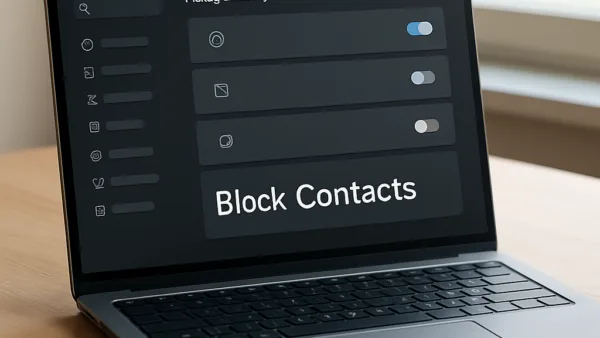
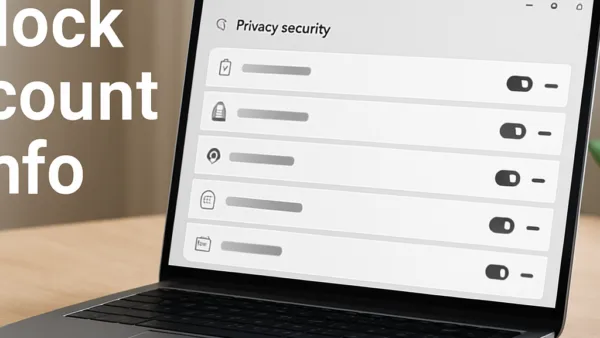
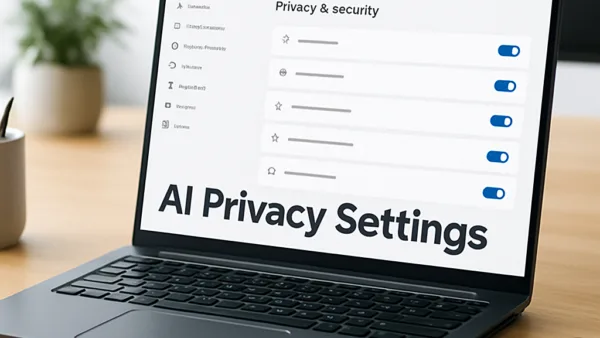
Use these guides to stop apps from reading your contacts, account details and language settings, or using your advertising ID (a unique code Windows gives apps so they can show you targeted ads)., along with the controls for AI text and image generation. Most apps keep working normally after these changes, but apps that sync contacts or sign you in automatically may need to be set up again.


Control screenshots and screen recording
Screenshot and screen recording access lets an app capture what is on your display, which can include private messages and passwords. These guides explain how to turn the permission on or off, how to check which apps have used it recently, and what stops working when it is blocked.
Reduce Microsoft recommendations and data sharing
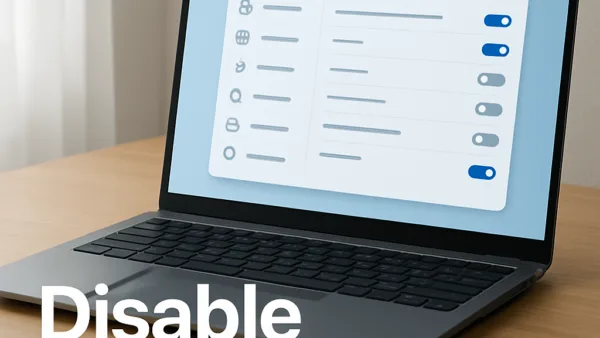
Windows 11 can show you tips, promoted apps and suggested content, and it sends some usage data to Microsoft to support those features. These guides explain what is collected, what each toggle controls, the notification banners you may see, and the features that stop working when you turn recommended content off.
Common questions
Where are the 🪟 Windows 11 app permission settings?
Open Settings, then select Privacy & security. The list includes device permissions such as Camera, Microphone and Location, plus data permissions for Contacts, Account info and Screenshots and screen recording. Each entry has a global switch and a list of apps that have asked for that permission.
Will turning off location in 🪟 Windows 11 break apps?
Yes, some apps depend on location to work. Maps, weather and some browser features may show less accurate results or stop working, while most desktop programs will not be affected. Check the location guides in this section before you switch it off, so you know what you will lose.
Does blocking the camera or microphone stop all apps from using them?
The global switch stops new access requests, but it also blocks apps that you have allowed before, which is usually what you want. Apps such as video calls will show an error when they try to use the camera or microphone. You can turn the permission back on in the same place when you need it.
Can 🪟 Windows 11 apps take screenshots without asking me?
Turning it off stops apps from capturing your screen, but it can also affect some recording tools and accessibility tools, such as the screen readers that help people who are blind or have low vision. The recent activity guide shows you which apps have used it.
Is it safe to turn off 🪟 Windows 11 recommendations and offers?
Yes. Turning off recommendations and offers stops Windows from showing promoted content and sending related usage data to Microsoft, and your files and installed apps are not affected. A few suggestion features, such as some tips and recent-item lists, will stop showing. The recommendations guides list each toggle and what it changes.
Do privacy settings in Edge also control what 🪟 Windows 11 shares?
No, Edge has its own permission controls for websites, including location. A site can only use location if both Windows and Edge allow it, so you may need to check both. The Edge location guide explains how to manage website access.
Frequently asked questions
How to control privacy in 🪟 Windows 11?
Open Settings, select Privacy & security, and pick the permission you want to change, such as Camera or Location. Turn off the main switch at the top to block all apps, or turn off individual apps in the list below it. Check the app list first, since one switch may not block access another way.
What privacy settings does 🪟 Windows 11 have?
Windows 11 privacy settings include controls for camera, microphone, location, screenshots, and other personal data. Each has a main switch that covers every app, plus a list where you allow or block individual apps. Most sit under Settings Privacy & security. You can also review which apps have used each permission recently.
How do I manage permissions & privacy in 🪟 Windows 11?
Open Settings, then select Privacy & security. Review the list under Windows permissions and App permissions, then open each permission you want to limit. Turn off the main switch to stop all apps, or turn off single apps in that permission's list. Read what each permission controls before you change it, since some apps may need it to work.
What are windows privacy settings?
Windows privacy settings are the controls that decide which apps and Windows features can use your camera, microphone, location, screenshots, and personal information. You find them in Settings under Privacy & security. Use them to see what each app has access to and to block the access you do not want.
Still have a question?
Answered by AI from this guide. Good questions may be added to this page — please don't include personal details.
Did this guide fix your problem?

About the Author
Richard
Tech Writer, IT Professional
Richard is a writer at Geek Rewind who turns complex IT tasks into clear, step-by-step guides. He draws on years of hands-on experience in system administration and enterprise IT operations, focusing on Windows, Linux and WordPress: the problems people actually run into, and the fixes that work. His server and WordPress guides come from systems he runs himself. Richard builds and maintains the platform behind Geek Rewind, from its Ubuntu servers and Nginx configuration to its custom WordPress plugins. Many new tutorials start with readers' questions, and he's always glad to answer them in the comments.
No comments yet — be the first to share your thoughts!