How to block app access to contact lists in Windows 11 Privacy Settings
App access to contact lists in Windows 11 is controlled by the built-in privacy permissions. When a program asks for your address book, Windows checks the permission. If you have turned access off, the request is blocked or returns an empty list.
Windows splits software into two kinds: traditional desktop programs, and apps from the Microsoft Store. The permission toggles work most reliably for Store apps, which are the ones that appear in the per-app list. Windows allows most apps to request data by default, so you have to change these settings yourself if you want to lock down your personal information.
⚡ Quick Answer
Open Settings›Privacy & security›App permissions›Contacts, then set the toggle for Let apps access your contacts to Off to block all apps, or turn off individual app switches below to block specific ones. Changes take effect immediately without restart.
Advertisement
Manage Privacy Settings in 🪟 Windows 11
You change contact permissions in the Settings app. A standard user account is enough for your own permissions. On a shared computer, changes that apply to every user, such as the device-wide contacts setting, may ask for administrator credentials. The exact wording of the options can differ slightly between Windows 11 versions, but the path is the same.
Block All Apps From Accessing Contacts
To block every app from reading your contacts at once, turn off the main contacts permission switch. Every Store app, and any other program that respects this permission, loses access to your address book straight away. You do not need to restart.
Advertisement
Press Win+I to open Settings. Windows 11 Start menu with Settings gear icon highlighted.
Select Privacy & security from the left-hand navigation menu.
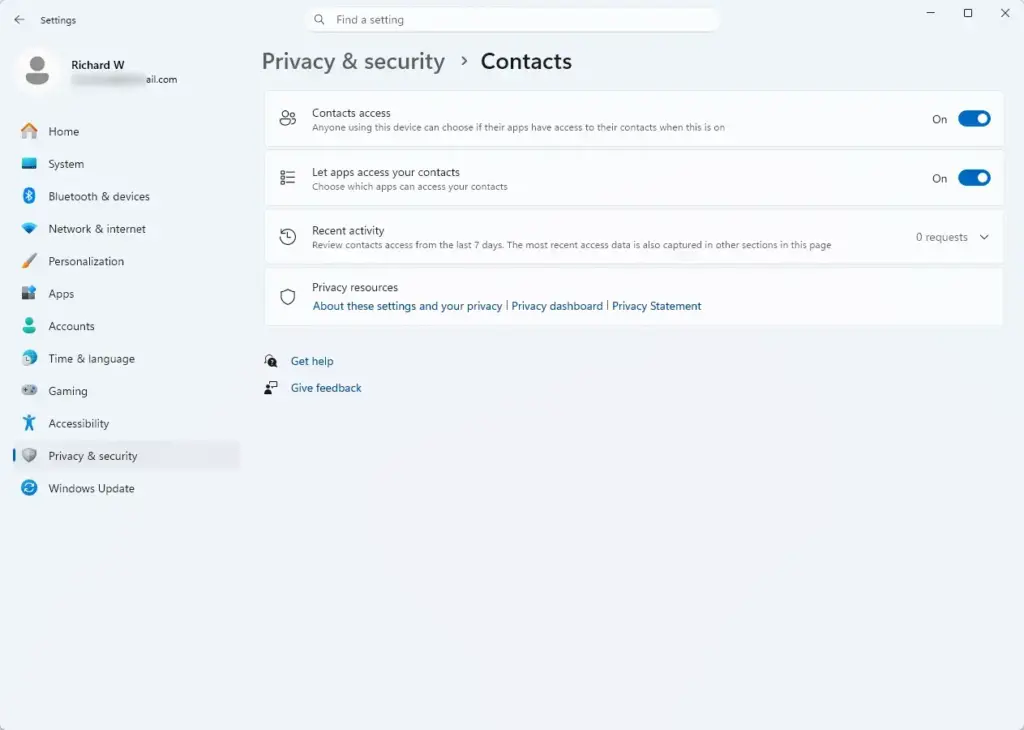
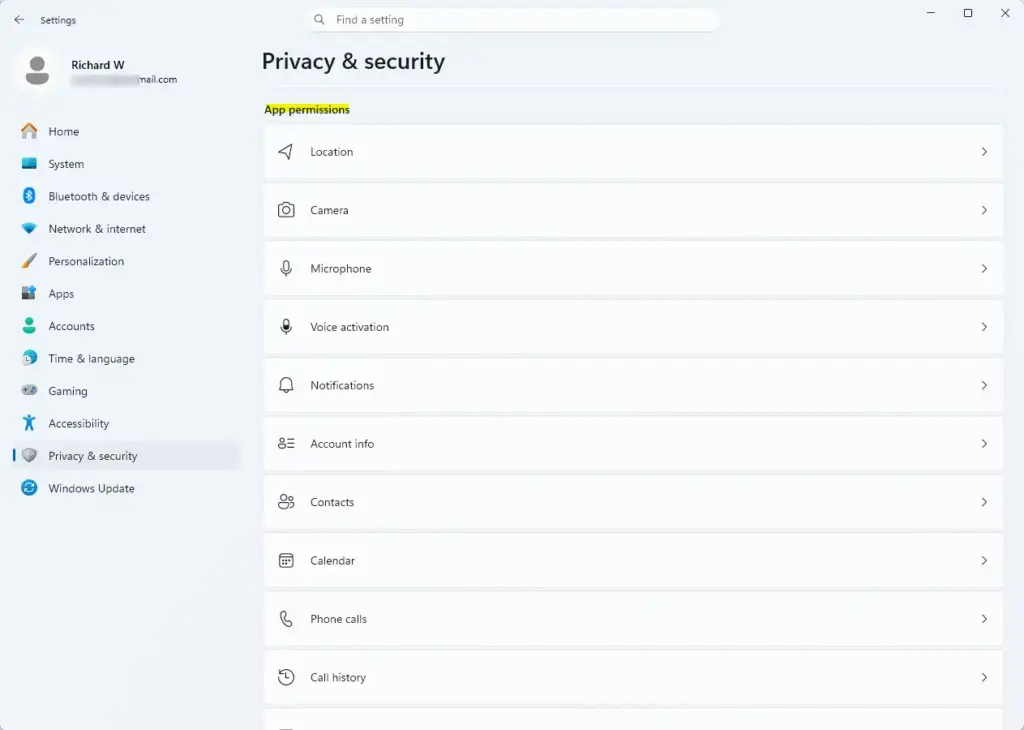
Scroll down to the App permissions section and click Contacts. Settings › Privacy & security › Contacts The Contacts page opens with the main switch at the top and a list of apps below it.
Find the toggle labeled Let apps access your contacts and set it to Off. The per-app switches below it become unavailable, because the main switch overrides them.
To undo this, return to the same page and turn the toggle back to On. Your per-app choices are still there when you do.
Block Individual Apps From Accessing Contacts
If you only want to block certain apps, such as games and utilities, leave the main switch on and turn off the individual ones. Trusted communication programs keep working while the rest are shut out.
Press Win+I to open Settings.
Click Privacy & security in the left sidebar.
Select Contacts under the App permissions heading. Settings › Privacy & security › App permissions
Make sure the main toggle, Let apps access your contacts, is set to On. If it is off, the per-app switches are greyed out and you cannot change them.
Scroll through the list of apps and set the switch next to each app you want to block to Off. The change takes effect immediately.
An app only shows up in this list after it has requested contact access, or if it is a Store app that declares it. If an app you expected is missing, it either has not asked yet or does not use this permission system. To undo a block, set that app’s switch back to On.
Exceptions to the Privacy Settings
Some core Windows 11 components and background services are exceptions and are not governed by these toggles. Built-in tools that handle basic functions such as telephony, messaging and data syncing keep running even when you turn off contact access globally. Web browsers running web apps inside tabs may also keep access through separate system permissions. If you are worried about a particular site or web app, check the permission prompts and site settings in the browser itself.
Advanced Contact Data Protection Strategies
⚠️WarningThe toggles in Settings only stop future requests. They do not remove data an app has already collected. Desktop applications that do not come from the Microsoft Store often cache address book data locally on your hard drive. To check for this and clean it up:
List the desktop programs you have used that could have read your contacts, such as email clients, messaging tools and sync utilities.
Open each program’s own settings and look for options to sign out, remove an account or clear cached data. Do this before you delete anything by hand.
Find the program’s local storage folders and delete the contact data it has stored there. Back up anything you may still need first.
If you no longer use a program, uninstall it, then check whether it left data folders behind and remove them.
⚠️WarningClearing these local folders removes contact data that was collected before you changed your privacy settings. Deleting files by hand cannot be undone from Settings, so make sure your contacts are saved in your main account or a backup first.
📬 Get new Windows tips in your inbox
One email when we publish something worth your time. We send a link to confirm. No spam, unsubscribe anytime.
Share
Have a question about this guide?
Answered by AI from this guide. Good questions may be added to this page — please don't include personal details.
Richard is a writer at Geek Rewind who turns complex IT tasks into clear, step-by-step guides. He draws on years of hands-on experience in system administration and enterprise IT operations, focusing on Windows, Linux and WordPress: the problems people actually run into, and the fixes that work.
His server and WordPress guides come from systems he runs himself. Richard builds and maintains the platform behind Geek Rewind, from its Ubuntu servers and Nginx configuration to its custom WordPress plugins.
Many new tutorials start with readers' questions, and he's always glad to answer them in the comments.




No comments yet — be the first to share your thoughts!