How to Allow Apps in Windows 11 Controlled Folder Access

Controlled Folder Access is a Windows 11 security feature that protects your personal files from ransomware and other untrusted programs. It locks down folders such as Documents and Pictures, so apps can’t change or delete files there unless you give them permission.
If a game or work tool gets blocked, you can add it to the allowed list in the Windows Security app. The short route is Windows Security Virus & threat protection Manage ransomware protection This guide covers three ways to do it: the Windows Security app, PowerShell and the registry. It also shows how to find out which app was blocked and how this works on managed business PCs.
To allow an app through Controlled folder access in Windows 11, open Windows Security Virus & threat protection Manage ransomware protection, click Allow an app through Controlled folder access, then choose Add an allowed app and select the program’s.exe file. The change applies right away, and no restart is needed.
Understanding 🪟 Windows 11 Controlled Folder Access
Controlled Folder Access watches the folders Windows treats as protected, such as Documents, Pictures, Videos, Music, Desktop and Favorites. If a program Windows does not trust tries to change a file in one of them, the change is blocked. This is aimed at ransomware, which tries to encrypt your files and then demands payment.
The feature is part of Microsoft Defender and works on both Windows 11 Home and Pro. It is not always on by default, so you may need to switch it on first, as shown in the steps below.
Why do this?
Sometimes Windows 11 blocks a safe app because it doesn’t recognize the program. This happens often with older software, small utilities, games that save to Documents, and tools that edit or sync files. You may see a “Unauthorized changes blocked” notification, or the app may simply fail to save its files.
Adding the app to the allowed list tells Windows you trust it. The app then works normally, and the rest of your files stay protected.
Do not allow a program just because it asked for access, especially one you don’t remember installing .
What happens when done?
Once you add an app to the list, it can read and write files in your protected folders without being blocked. The permission applies to that one program only. Ransomware and other unknown apps are still blocked by default, so your data stays safe from being locked by attackers.
The change takes effect right away and you don’t need to restart. You can remove an app from the list at any time, which is covered at the end of the next section.
Allowing apps through Controlled folder access
The Windows Security app is the easiest way to allow an app. You need an administrator account, because Windows may ask you to confirm with a User Account Control prompt.
- Click the search box on your taskbar , type Windows Security, and click Windows Security. The Windows Security window opens.
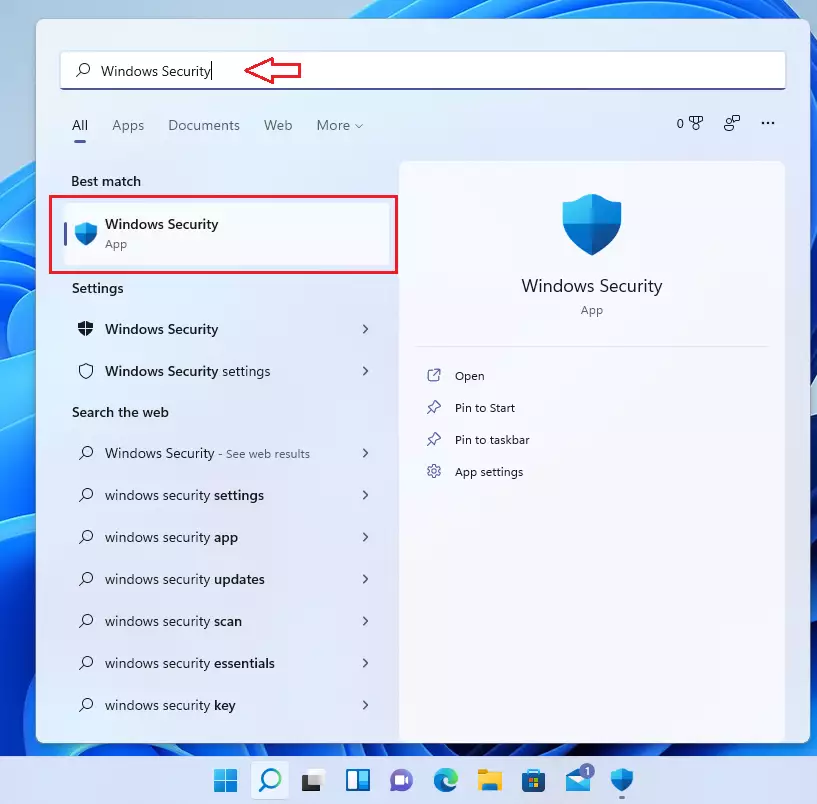
open windows security app - Click Virus & threat protection. You now see your scan options and protection status.
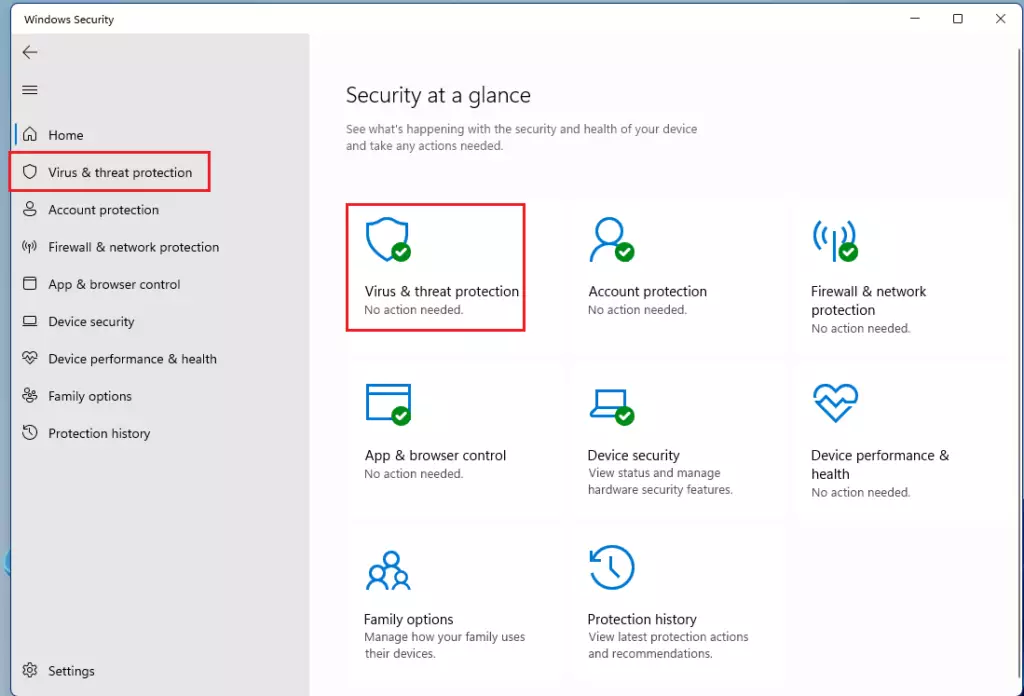
open windows virus and protection - Scroll down to Ransomware protection and click Manage ransomware protection.
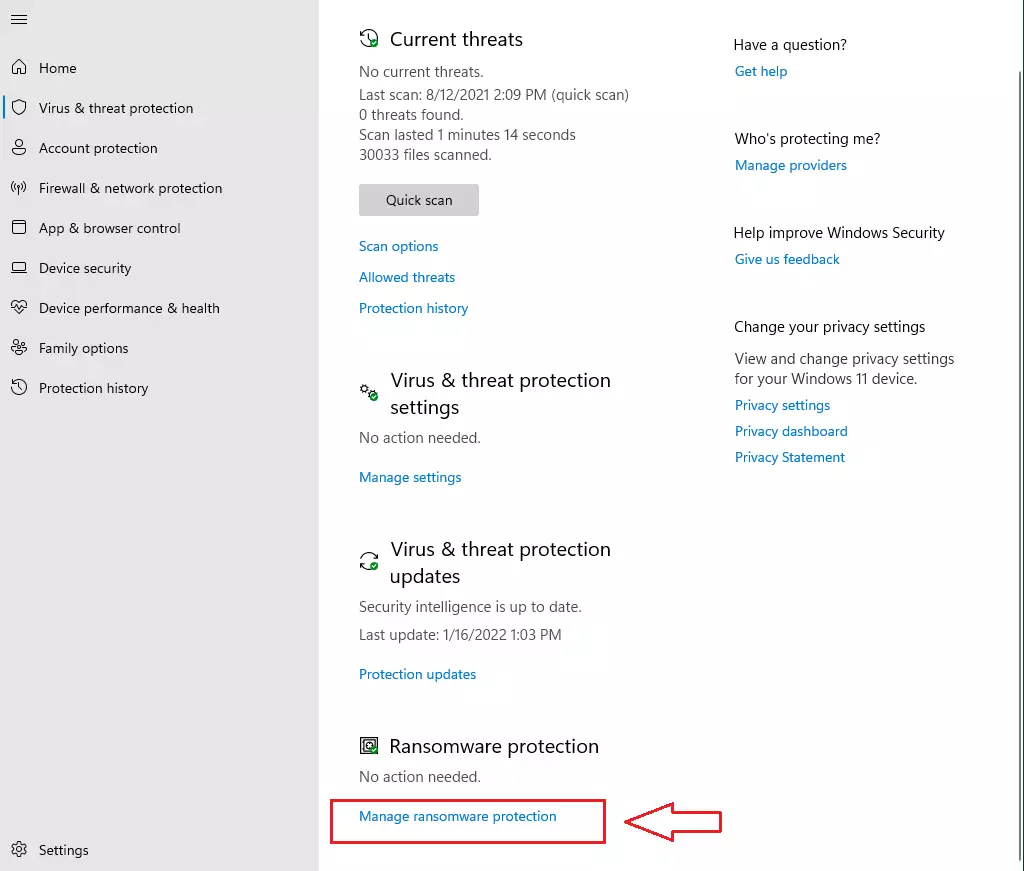
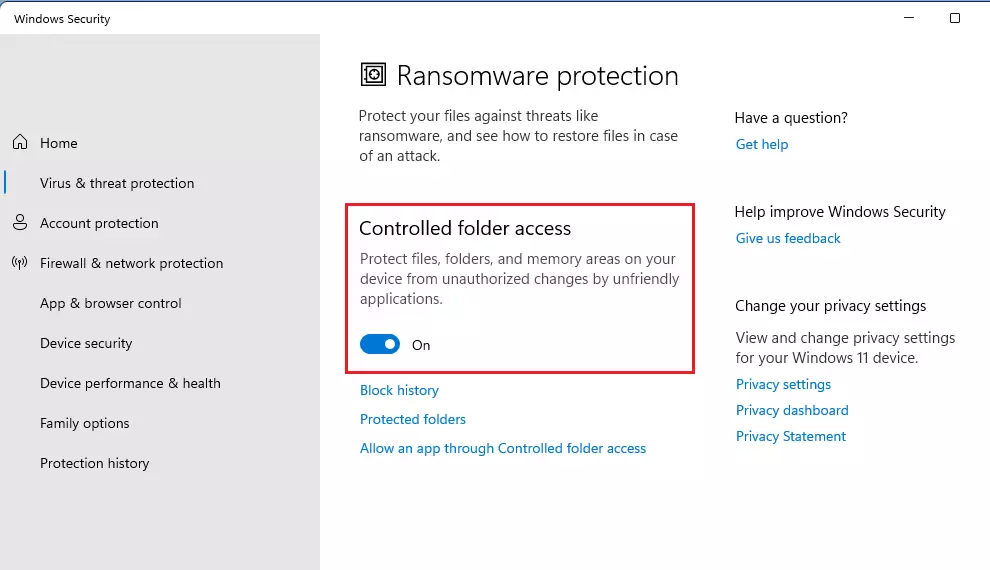
windows 11 controlled folder access turn on - Make sure the Controlled folder access toggle is set to On. When it is on, you see extra links under it. If the toggle is greyed out or the section is missing, another antivirus program may be managing your protection, or your organization may control the setting.
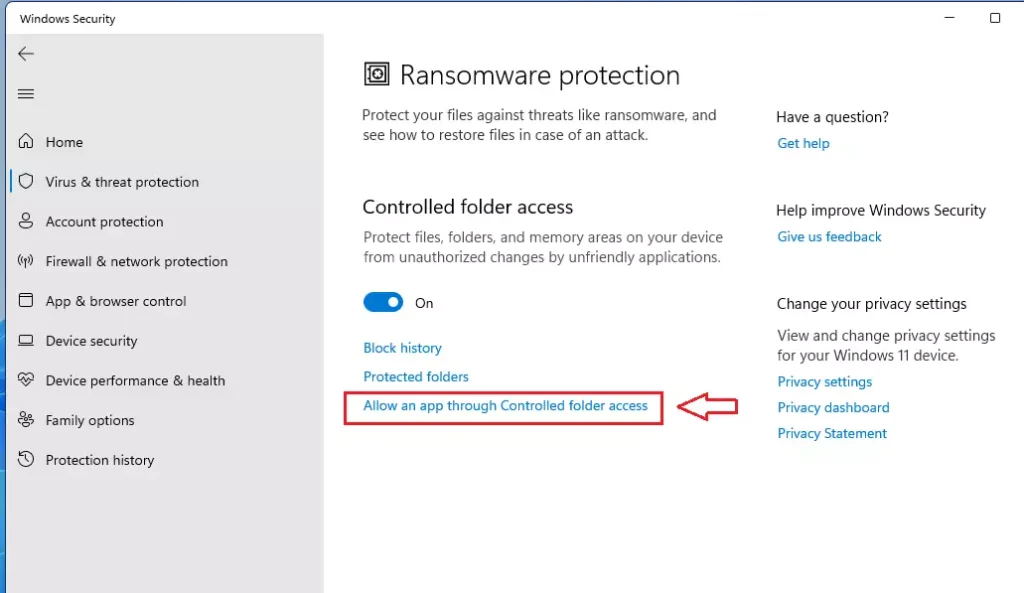
windows 11 turn on controlled access folder - Click the link that says Allow an app through Controlled folder access. A page opens with the list of apps that are already allowed.
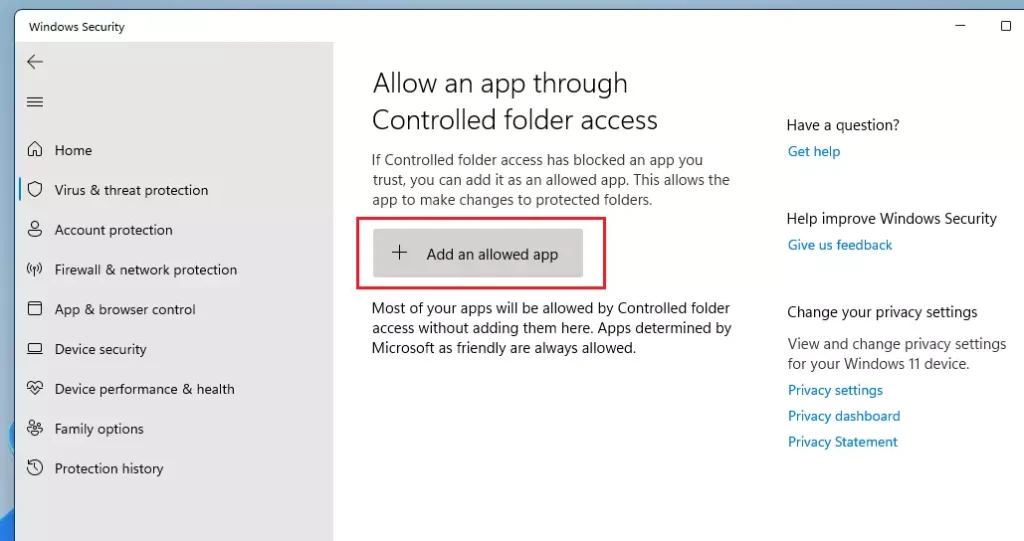
windows 11 allow app through protected folders - Click Add an allowed app. If Windows asks for permission, click Yes. Then choose Browse all apps, find the program’s .exe file on your computer and click Open. If the app was blocked recently, you can pick it from Recently blocked apps instead. The app now appears in the allowed list.
windows 11 allow app through protected folder button
To undo this later, go back to the same list, click the app and choose Remove. The app is then treated as untrusted again. If an app still fails after you add it, check that you picked the right .exe. Some programs use a separate helper or launcher file that also needs to be allowed.
Managing access with PowerShell (Admin)
PowerShell is a command-line tool for administration tasks. It lets you manage Controlled Folder Access with a text command instead of clicking through menus. This is handy when you need to allow several apps or want to repeat the same setup on more than one PC.
- Right-click the Start button and choose Terminal (Admin). You can also search for PowerShell, right-click it and choose Run as administrator. Click Yes at the User Account Control prompt.
- Check that the window title says Administrator. Without admin rights, the command fails with an access error.
- Run the command shown below. Replace the example path with the full path to your app’s .exe file. If the path contains spaces, keep it inside quotation marks.
The app is added to the allowed list immediately. Open the allowed list in Windows Security to confirm that it shows up.
The command you use adds the specified executable to the whitelist. This action allows the executable to bypass the Controlled Folder Access restriction immediately. This bypass is crucial for applications like photo editors that need to save files to protected folders on your Windows 11 device.
Managing access with Registry (Admin)
Advanced users can edit the registry to manage allowed apps. Use this method only if the Windows Security app and PowerShell don’t suit your situation. A wrong change in the registry can cause problems, so export a backup of the key before you edit it (in Registry Editor, File Export).
- Search for Registry Editor, right-click it and choose Run as administrator.
- Go to 🗝️HKEY_LOCAL_MACHINE\
SOFTWARE\ . You can paste the path into the address bar at the top of the window.Microsoft\ Windows Defender\ Windows Defender Exploit Guard\ Controlled Folder Access\ AllowedApplications - Right-click the AllowedApplications key and choose New String Value, then enter the full path of your application as the value name. The app should then appear in the allowed list in Windows Security.
If Windows Defender Tamper Protection is on, or the PC is managed by your organization, Windows may block or overwrite manual registry changes. In that case, use the Windows Security app instead. To undo the change, delete the value you added.
Troubleshooting and Event Viewer
When Controlled Folder Access blocks an app, Windows records the event, so you can see exactly which program was stopped. This helps when an app fails and you aren’t sure which file needs to be allowed.
- Search for Event Viewer and open it.
- In the left pane, go to Applications and Services Logs Microsoft Windows Windows Defender Operational
- Look for events with ID 1123. These are entries where Controlled Folder Access blocked a change. Click an entry and read the General tab, which shows the protected file and the path of the program that tried to change it.
Use that program path when you add the app to the allowed list.
Enterprise and MDM Deployment
In a business environment, IT administrators use Microsoft Defender for Endpoint and Attack Surface Reduction (ASR) rules to manage these settings across many computers. Using Intune or Group Policy, admins can push a centralized list of allowed applications to ensure consistent threat prevention across the entire organization.
On a work PC, the list may be locked, and the options in Windows Security may be greyed out or show a message that your organization manages them. In that case, ask your IT team to add the app to the central list. Changes you make locally may be overwritten the next time the policy refreshes.
Summary
Controlled Folder Access is a vital layer of data security. By managing your allowed apps through the Windows Security app, PowerShell or the registry, you make sure legitimate software works correctly while ransomware stays blocked. If you suspect a legitimate app is being blocked, check the Event Viewer first, then add only that specific program. Keep the allowed list short and remove entries you no longer need.
Have a question about this guide?
Answered by AI from this guide. Good questions may be added to this page — please don't include personal details.
Did this guide fix your problem?

About the Author
Richard
Tech Writer, IT Professional
Richard is a writer at Geek Rewind who turns complex IT tasks into clear, step-by-step guides. He draws on years of hands-on experience in system administration and enterprise IT operations, focusing on Windows, Linux and WordPress: the problems people actually run into, and the fixes that work. His server and WordPress guides come from systems he runs himself. Richard builds and maintains the platform behind Geek Rewind, from its Ubuntu servers and Nginx configuration to its custom WordPress plugins. Many new tutorials start with readers' questions, and he's always glad to answer them in the comments.
No comments yet — be the first to share your thoughts!