How to Allow Apps Through Microsoft Defender Firewall in Windows 11

Microsoft Defender Firewall in Windows 11 blocks apps from sending or receiving data over your network until you give them permission. This built-in security tool acts as a gatekeeper for Windows 11. It stops unauthorized programs from reaching your PC, but it can also trap harmless games or work tools. Most of the time Windows asks you when a new app wants network access. If you click Cancel on that prompt, or the prompt never appears, the app stays blocked.
You can let a blocked program connect to the internet by adding it to the allowed apps list instead of turning off your firewall entirely. This keeps your PC safe while letting trusted software reach online servers. The method below works the same on Windows 11 Home and Pro.
Open Windows Security, click Firewall & network protection, then click Allow an app through the firewall. Select Change settings (you need administrator rights), click Allow another app, browse to the program’s.exe file, and tick its Private and Public boxes. The app can connect right away, and the rest of your firewall stays on.
How to allow an app through the firewall
To allow an app through the firewall in Windows 11, you add an exception in the Windows Security settings so the program can connect to the network without being blocked. This grants internet access to one specific game or tool while the rest of your system protection stays on. You can do all of it from the Settings app and the Windows Security window, with no extra software. You need an administrator account, or the password of one. You do not need to restart the PC afterwards.
- Open the Settings app. You can press the Win+I on your keyboard at the same time. The Settings window opens with the list of categories on the left.

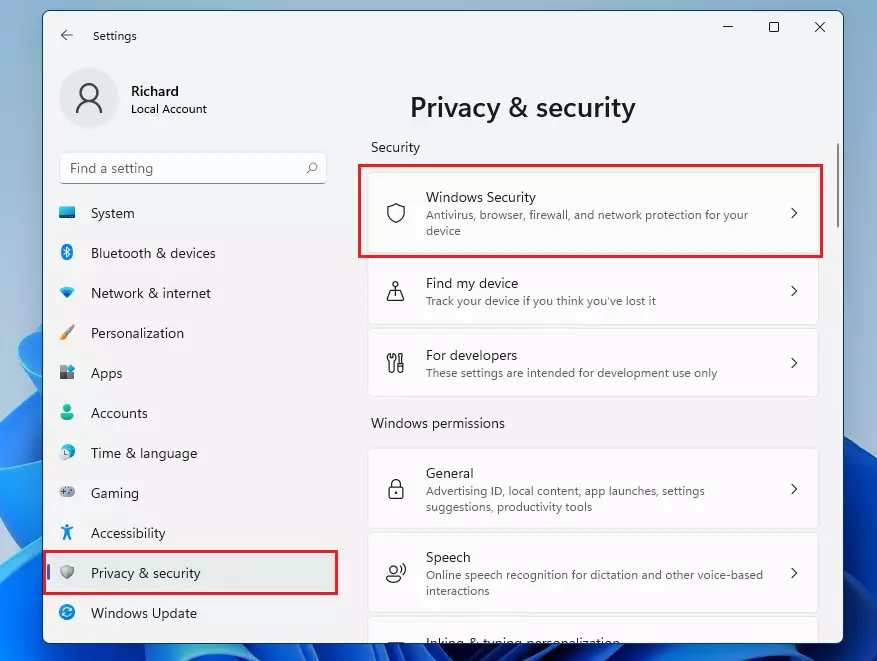
windows 11 start settings - In the menu on the left, click Privacy & security. Then click the Windows Security box on the right. The Windows Security page opens and lists your protection areas.
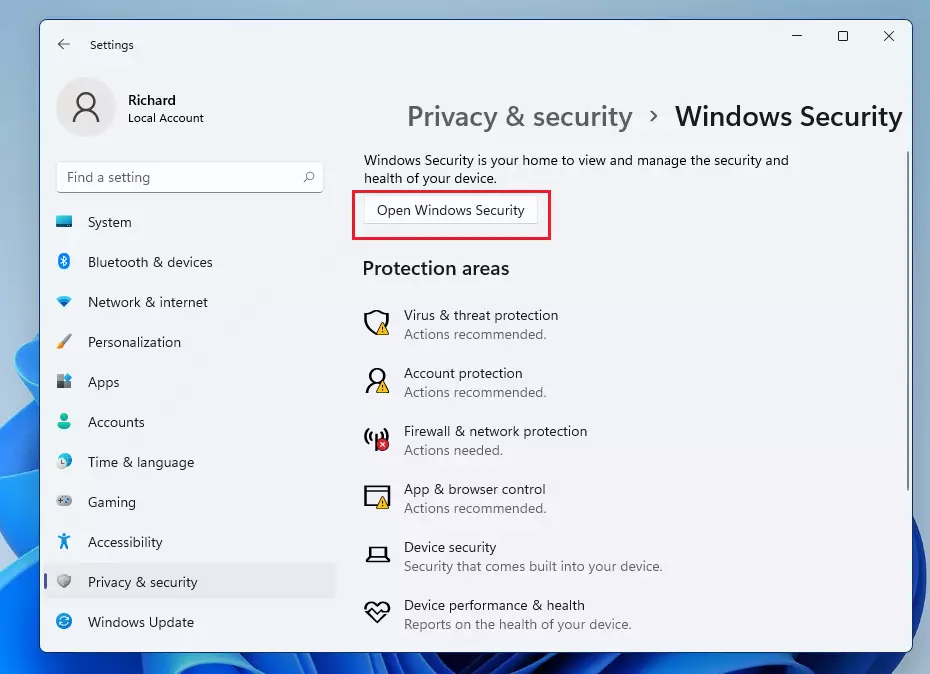
windows 11 windows security - Click the button that says Open Windows Security. The Windows Security app opens in its own window.
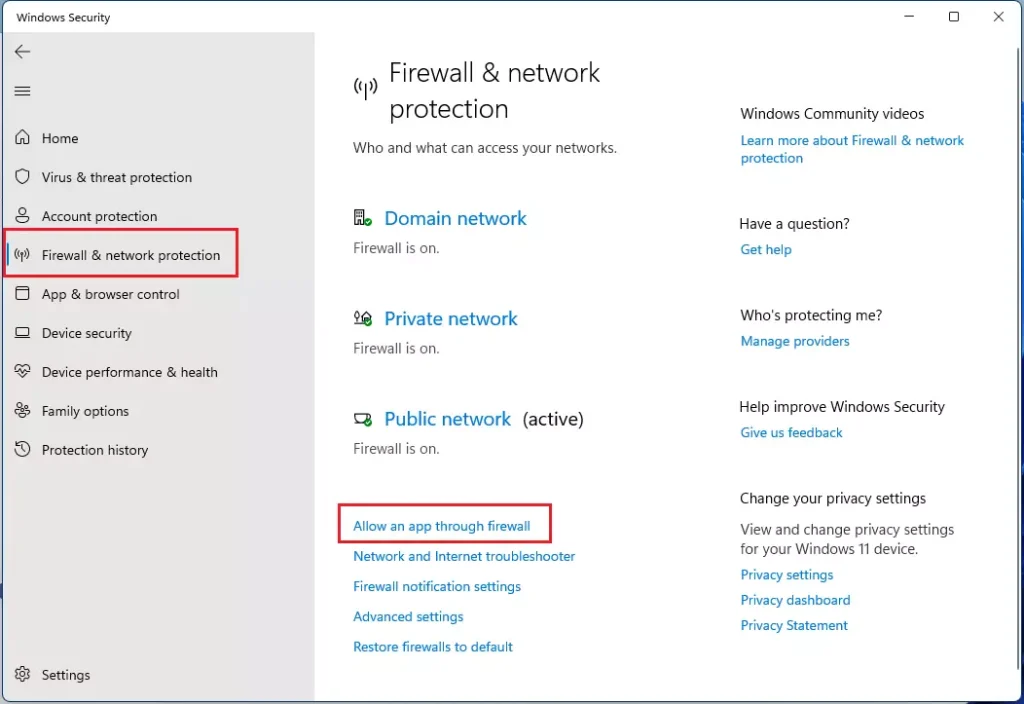
windows 11 open windows security 1 - In the new window, click Firewall & network protection in the left menu. You now see your three network profiles: Domain, Private and Public. Whichever one is marked as active is the one your PC is using right now.
- Look for the link that says Allow an app through the firewall and click it. A classic Control Panel window called Allowed apps opens. The list shows every app and feature the firewall already knows about, with checkboxes for Private and Public networks.
allow an app through firewall in windows 11 - Click the Change settings button at the top. Note: This step requires administrator privileges. If User Account Control asks for permission, click Yes, or enter an administrator password. Until you do this, the list and the buttons below it are greyed out. If Change settings stays greyed out after that, your account is a standard one, or a policy from your workplace or a third-party security suite is managing the firewall.
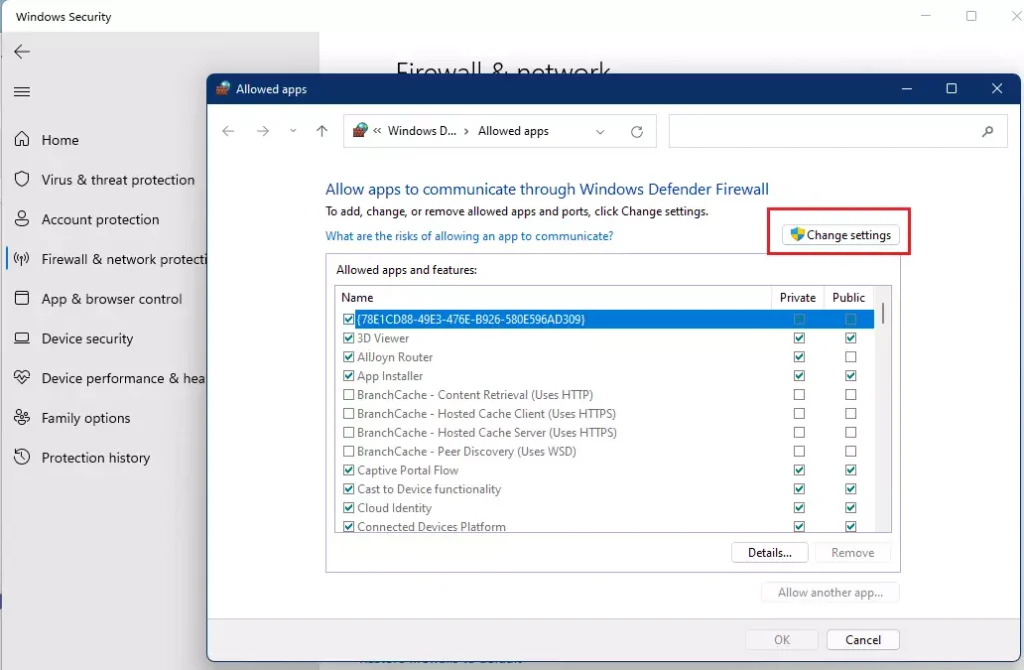
windows 11 allow app through firewall change button - Click the Allow another app… button at the bottom. An Add an app window opens. Click Browse to find the program on your computer. If the app is already in the list, you don’t need to add it. Just tick its checkbox instead.
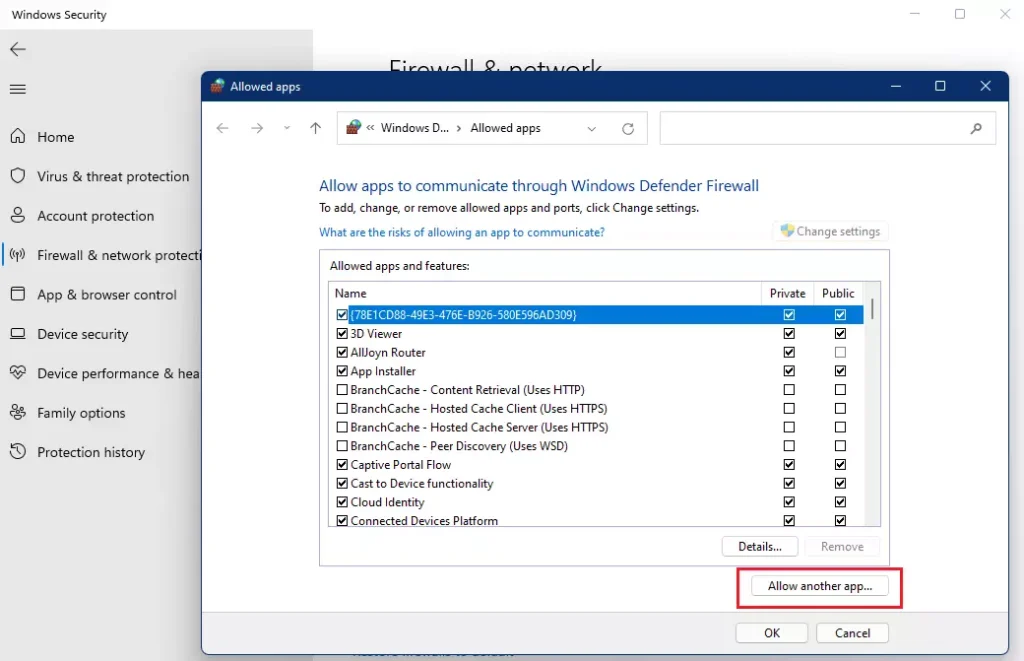
windows 11 allow another app through firewall - Locate the app’s file (usually in a folder like 📁C:\
Program Files\ , select it, and click Open. Choose the program’s .exe file, not a shortcut or a folder. Some 32-bit programs are in Program Files (x86) instead. Games installed through a launcher often sit in the launcher’s own library folder. The app’s name and path now appear in the Add an app window.YourApp) 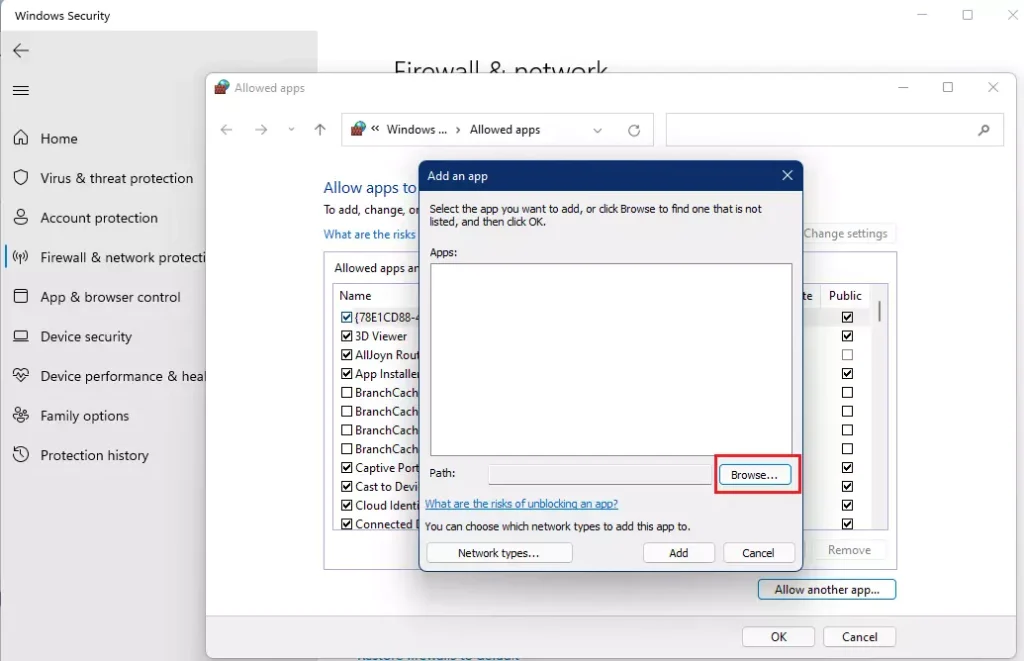
windows 11 add an app windows 11 - Click the Add button to save your changes. The app now appears in the Allowed apps list. Check its Private and Public boxes, then click OK to apply the change.
Tick Private for networks you trust, such as your home Wi-Fi . Tick Public only if the app must work on networks like cafe or airport Wi-Fi , because those carry more risk. If the app still cannot connect, close it and open it again so it makes a fresh connection.
Then either clear the app’s checkboxes, or select the app and click Remove. Built-in Windows entries cannot be removed, but you can clear their checkboxes.
Advanced Security and Troubleshooting
Windows Defender Advanced Security offers more control if the basic method doesn’t work for allowing apps through the firewall. The advanced console lets you create rules for a specific program, port or direction of traffic (inbound or outbound). That helps with servers, game hosting and other cases where the simple allow list is not enough. You can find it by searching for the firewall’s advanced settings in the Start menu . Changes there also need administrator rights, so only create rules you understand.
To verify your changes, use the command line. Run Command Prompt as an administrator and type: netsh advfirewall show allprofiles. This displays your current network security settings. To open an elevated Command Prompt, search for it in the Start menu, right-click it and choose Run as administrator. Read through the output and confirm that the firewall is on for the profile you use.
Summary
Managing your firewall rules properly lets you allow apps through firewall settings without leaving your computer exposed to outside threats. Keeping the main security system turned on while only unblocking trusted programs is the safest way to fix connection problems. Only allow apps you downloaded from a source you trust. You should only turn off the firewall completely if you use a different security suite and know the risks involved.
Disabling or turning off the Microsoft Defender Firewall can leave your computer vulnerable. For more information about protecting your computer from ransomware, you can consult resources on disabling or turning off the Microsoft Defender Firewall. If a single app is the problem, allowing just that app is almost always the better fix.
Have a question about this guide?
Answered by AI from this guide. Good questions may be added to this page — please don't include personal details.
Did this guide fix your problem?

About the Author
Richard
Tech Writer, IT Professional
Richard is a writer at Geek Rewind who turns complex IT tasks into clear, step-by-step guides. He draws on years of hands-on experience in system administration and enterprise IT operations, focusing on Windows, Linux and WordPress: the problems people actually run into, and the fixes that work. His server and WordPress guides come from systems he runs himself. Richard builds and maintains the platform behind Geek Rewind, from its Ubuntu servers and Nginx configuration to its custom WordPress plugins. Many new tutorials start with readers' questions, and he's always glad to answer them in the comments.
No comments yet — be the first to share your thoughts!