How to Change AutoPlay Settings in Windows 11

AutoPlay controls what Windows 11 does the moment you plug in a USB drive, camera or phone, or insert a disc. It lets your PC automatically open a specific app, such as File Explorer or a photo viewer, every time you connect a particular type of media or device.
You can turn AutoPlay off completely, or set a different action for each kind of device. Setting these preferences stops Windows from guessing what you want, so your computer behaves the same way every time you plug in hardware. This guide covers three ways to do it. The first two are the everyday options. The third is for cases where you need to set it through the registry.
- Using the Settings app.
- Using the Control Panel .
- Making changes in the Registry Editor (using the graphical method, no downloads needed).
Open Settings , go to Bluetooth & devices, then select AutoPlay to change or disable these settings. You can also use Control Panel for more detailed options.
Option 1Adjusting AutoPlay in 🪟 Windows 11 Settings
The Settings app is the main place to manage AutoPlay in Windows 11. It works the same on Home and Pro, and you don’t need an administrator account for these changes because they apply only to your own user account.
Step 1Open the Settings App
- Press Win+I on your keyboard.
The Settings window opens straight away. If it doesn’t, right-click the Start button and choose Settings instead.
Step 2Go to AutoPlay Settings
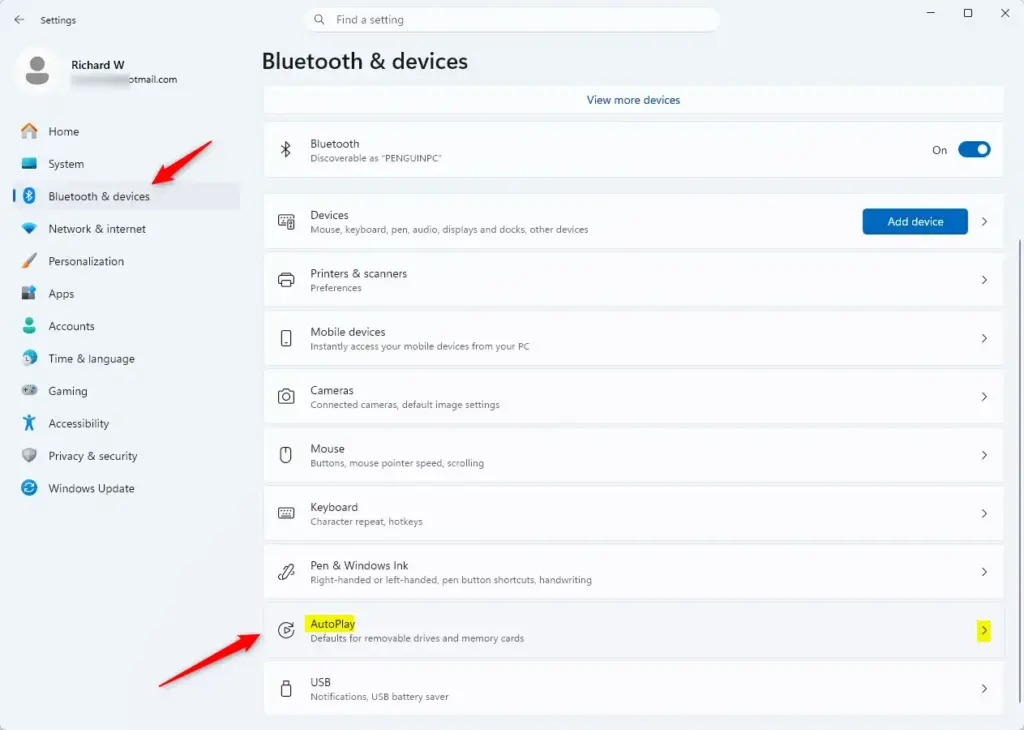
- In the Settings window, look at the list on the left side and click Bluetooth & devices.
- On the right side, scroll down and click AutoPlay.
You should now see the AutoPlay page. It has a main switch at the top and a section below it for default actions. The full path is Settings Bluetooth & devices AutoPlay
Step 3Control AutoPlay for All Items
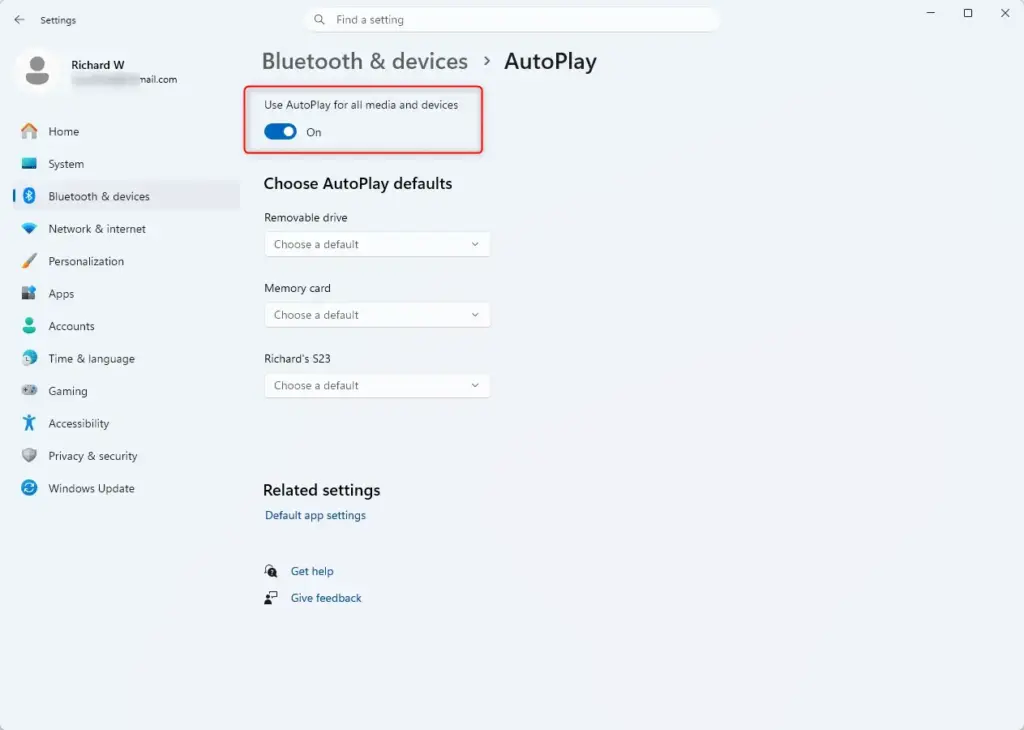
Turning AutoPlay on or off for all devices takes one switch. It is the first control on the AutoPlay page. It is labelled Use AutoPlay for all media and devices.
- To turn AutoPlay ON: Set the switch to On. This is how Windows usually works by default.
- To turn AutoPlay OFF: Set the switch to Off. Windows will then do nothing automatically when you connect new items.
The switch moves as soon as you click it, and there is no Save or Apply button. When it is Off, the default-action options below it are greyed out or hidden, because they no longer apply. To change them, turn the switch back On first.
If AutoPlay gets in your way, turning it off is a safe choice. You can always open files and apps yourself after you connect a device. Turning it off also means a USB stick won't launch anything on its own. To undo the change, set the switch back to On.
Step 4Set Specific Actions (If AutoPlay is On)
If you leave AutoPlay on, you can choose what happens for each type of device. The options are on the same page, under the Choose AutoPlay defaults heading. Each device type has its own drop-down menu.
- Scroll down the AutoPlay page to the defaults section.
- Find the device type you want to change.
- Click the drop-down menu next to it.
- Click the action you want from the list.
The device types are:
- Removable drive (like USB sticks)
- Memory card
- Camera
- Phone
- CD, DVD, and Blu-ray
The Settings page may list only some of these, depending on your Windows 11 version and what you have connected. On many builds it shows just Removable drive and Memory card. The Control Panel method below lists all of the categories.
For each one, the drop-down menu offers choices like:
- Ask me every time: Windows will ask you what you want to do.
- Take no action: Nothing will happen automatically.
- Open folder to view files (File Explorer): The contents will open in File Explorer.
- Choose a default: You can pick a specific app to open that type of content (like the Photos app for pictures).
The exact list changes with the device type and the apps you have installed. You can pick a different action for each device type. If you aren't sure, Ask me every time is a safe choice. Nothing runs until you say so.
Step 5Close Settings
When you are happy with your AutoPlay settings, close the Settings window. Your changes are saved automatically. To test them, plug in a USB drive and see what Windows does.
Option 2Managing AutoPlay via the Control Panel
The Control Panel is an older but still useful way to manage Windows settings. Some people prefer its layout. It offers the same AutoPlay controls, and it lists more device categories than the Settings app does. It also has a button to reset everything to the defaults.
Step 1Open the Control Panel
- Click the search box on your taskbar and type "Control Panel".
- Click the matching Control Panel result.
- In the top-right corner, find View by and set it to Large icons or Small icons. Leave it off Category.
The AutoPlay option only shows up as its own icon in the icon views. In Category view you would have to find it under Hardware and Sound.
Step 2Find the AutoPlay Icon
- In the Control Panel window, find the icon named AutoPlay.
- Click it.
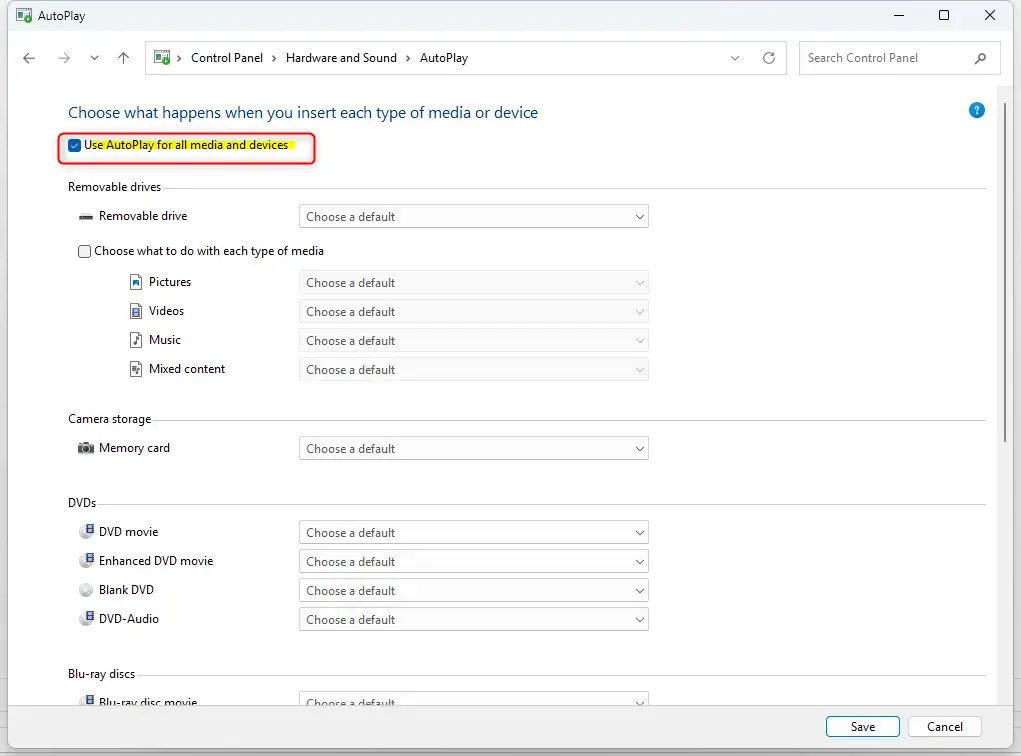
The AutoPlay window opens. It has a checkbox at the top and a list of device categories below it.
Step 3Turn AutoPlay On or Off Globally
Like the Settings app, the Control Panel's AutoPlay window has a main switch at the top. Here it is a checkbox labelled "Use AutoPlay for all media and devices."
- Check the box to turn AutoPlay ON.
- Uncheck the box to turn AutoPlay OFF.
Nothing is applied yet. The change takes effect when you click Save, which is covered below.
Step 4Set Specific Actions
Choosing a default action for each item stops unwanted apps from opening when you plug in hardware. Leave the box at the top checked, then work through the categories below it. Each one has a drop-down menu with options such as ask me every time, take no action, or open folder to view files.
- Find a category in the list, such as Removable drive, Memory card, Camera or DVD.
- Click the drop-down menu next to it.
- Choose the action you prefer.
- Repeat for each category you want to change.
If you want to start over, use the Reset all defaults button near the bottom of the window. It puts every category back to its original action.
Step 5Save Your Changes
- Click the Save button at the bottom of the AutoPlay window.
If you don't save, your changes won't be applied. The window closes after you click Save, which tells you the settings were stored.
Step 6Close the Control Panel
You can now close the Control Panel window. No restart is needed for this method.
Option 3Using the Registry Editor (Graphical Method)
The Registry Editor (a database for low-level system settings) lets you control AutoPlay directly. Use this method carefully, because mistakes in the registry can cause system problems. It is useful on a PC where you can't get to the other methods, or where you want one fixed value instead of a setting you can click on and off.
This method turns AutoPlay on or off for your own user account. We will use the Registry Editor directly, not by creating or editing files. A value set here is a policy. It can override what the Settings app and Control Panel show, so those pages may look greyed out or may not match what you chose there.
Step 1Open the Registry Editor
- Press Windows key + R to open the Run dialog box.
- Type
regeditand press Enter, or click OK. - If a message asks whether you want to allow the app to make changes, click Yes.
The Registry Editor window opens, with a folder tree on the left and values on the right.
Step 2Go to the Correct Registry Location
The AutoPlay value for your account lives at HKEY_CURRENT_USER\Software\Microsoft\Windows\CurrentVersion\Policies\Explorer. You can type this path into the address bar at the top of the window and press Enter to jump straight there.
HKEY_CURRENT_USER\Software\Microsoft\Windows\CurrentVersion\Policies\Explorer
- Click the address bar at the top of the Registry Editor.
- Copy and paste the path above, or type it.
- Press Enter.
The right pane now shows the values stored in that key. If Windows says it can't find the key, the Explorer key under Policies doesn't exist on your PC yet. Right-click the Policies key, choose New Key, and name it Explorer. Then select it.
Step 3Change the "NoDriveTypeAutoRun" Value (to Turn AutoPlay OFF)
To turn AutoPlay off, you change the NoDriveTypeAutoRun value in the right-hand pane. If it isn't there, you create it first.
- Look in the right pane for the NoDriveTypeAutoRun value. If
NoDriveTypeAutoRundoesn't exist, create it. Right-click in the empty space on the right side, then select New DWORD (32-bit) Value. - Name this new value exactly
NoDriveTypeAutoRun. A new value appears in the right pane, with its name ready to edit. - Double-click the
NoDriveTypeAutoRunvalue, whether it was already there or you just created it. The Edit DWORD (32-bit) Value box opens. - In the "Value data" box, type
0xFF. - Click OK.
Setting NoDriveTypeAutoRun to 0xFF turns AutoPlay OFF for your user account. The new data shows in the Data column of the right pane.
Step 4Change the "NoDriveTypeAutoRun" Value (to Turn AutoPlay ON)
To turn AutoPlay back on, change the NoDriveTypeAutoRun data back to 0x00, or delete the value. Either one restores the default automatic actions for your connected drives.
- Go back to the same Explorer key in the Registry Editor.
- If the
NoDriveTypeAutoRunvalue exists, double-click it. - In the "Value data" box, type
0x00. - Click OK.
Alternatively, if you previously set it to 0xFF, you can try deleting the NoDriveTypeAutoRun value entirely.
- Right-click
NoDriveTypeAutoRunin the right pane. - Select Delete.
- Confirm the deletion if asked.
Setting NoDriveTypeAutoRun to 0x00 or deleting it turns AutoPlay ON (or restores it to its default behavior). Deleting is the cleaner way to undo your change, because it removes the policy completely.
Always double-check that you are in the right location and changing the correct value. If you are unsure, stick to the Settings app or Control Panel methods.
Step 5Restart Your PC
For changes made in the Registry to take full effect, restart your computer. Save your work and then restart. Signing out and back in may be enough on some PCs, but a restart is the sure way.
Summary
Your connected devices will now respond according to the configuration you applied. To check, plug in a USB drive or insert a disc. If the result isn't what you expected, go back to the method you used and look at the setting again.
Was this guide helpful?

About the Author
Richard
Tech Writer, IT Professional
Richard is a writer at Geek Rewind who turns complex IT tasks into clear, step-by-step guides. He draws on years of hands-on experience in system administration and enterprise IT operations, focusing on Windows, Linux and WordPress: the problems people actually run into, and the fixes that work. His server and WordPress guides come from systems he runs himself. Richard builds and maintains the platform behind Geek Rewind, from its Ubuntu servers and Nginx configuration to its custom WordPress plugins. Many new tutorials start with readers' questions, and he's always glad to answer them in the comments.


Tried this, and it still does not work.
[…] This post shows students and new users steps to mount and unmount a removable USB or thumb drive in the Windows Systems for Linux (WSL) environment. Windows 11 allows users to mount removable drives with ease. Simply insert a removable drive, and Windows will recognize and mount it. […]
[…] choose to upload your photos and videos from your camera to Dropbox automatically by configuring Windows’ AutoPlay settings. By default, AutoPlay prompts what to do with the camera or device you insert when you connect a […]
[…] default, Windows will automatically initiate when you insert a blank recordable CD or DVD into your optical drive. When you do that, a “Burn a Disc” window will […]
[…] AutoPlay settings in Windows allow users to choose different actions when devices are inserted or attached to a Windows […]
[…] If you want to learn more about AutoPlay, click here. […]
[…] Learn more about AutoPlay settings […]