How to Open the Settings App in Windows 11

- 14 steps
- Needs administrator rights
The Settings app in Windows 11 is the central hub where you control system preferences, customize the desktop, and manage hardware devices. It replaces most of what used to live in the old Control Panel. Pressing the Win+I keyboard shortcut opens it instantly on any Windows 11 PC, whether it runs Home or Pro.
You can also launch the app by clicking its icon on the Start menu or typing “Settings” into the taskbar search box and pressing Enter. These built-in methods work without third-party tools and need no administrator rights. This guide covers each one, so you have a fallback if a shortcut doesn’t work on your machine.
Press Win+I to open Settings on Windows 11. Alternatively, click the Start button, find the gear-shaped Settings icon at the top of the menu, and click it. You can also right-click the Start button and select Settings from the power user menu.
Why Use the Settings App?
The Settings app controls how your computer looks, sounds, and connects to the internet. From one place you can change screen brightness, fix audio problems, and manage Wi-Fi networks. It is also where you keep the PC secure and install Windows updates, which bring bug fixes, security patches, and new features.
- Change the brightness and colors of your screen, including night light and resolution under System Display
- Adjust the volume, choose an output or input device, and troubleshoot sound settings
- Connect to Wi-Fi or manage your network, including known networks and Ethernet connections
- Keep your computer safe and private by reviewing app permissions and Windows Security options
- Update Windows to get new features and fixes under Windows Update
4 Easy Ways to Open the Settings App
1Use the Start Menu
- Click the Start button, the Windows logo on the taskbar . On a default Windows 11 setup it sits in the center of the taskbar. If you have set the taskbar to left alignment, it is in the bottom-left corner.
- Find the gear-shaped Settings icon and click it. Settings is normally pinned to the top of the Start menu . If you can’t see it, click All apps and scroll to Settings, or use the search box at the top of Start.
- The Settings window opens, with the category list on the left and the main options on the right.

If you use Settings often, right-click its icon in the Start menu and choose Pin to taskbar. To undo it later, right-click the taskbar icon and choose Unpin from taskbar.
Keyboard shortcuts offer a faster route.
- Click anywhere on the desktop or in any open app so the keyboard is active.
- Press
Windows key + Isimultaneously. - The Settings window opens straight away, no matter which app you were in.
If nothing happens, check that your keyboard’s Win isn’t disabled by a gaming mode or a keyboard utility.
2Use the Power User Menu
This is the Start button’s power user menu, and it also gives you quick access to tools such as Device Manager and Task Manager.
- Right-click the Start button, or press
Windows key + X. - The pop-up menu appears just above the Start button .
- Select Settings from the menu to open the application.
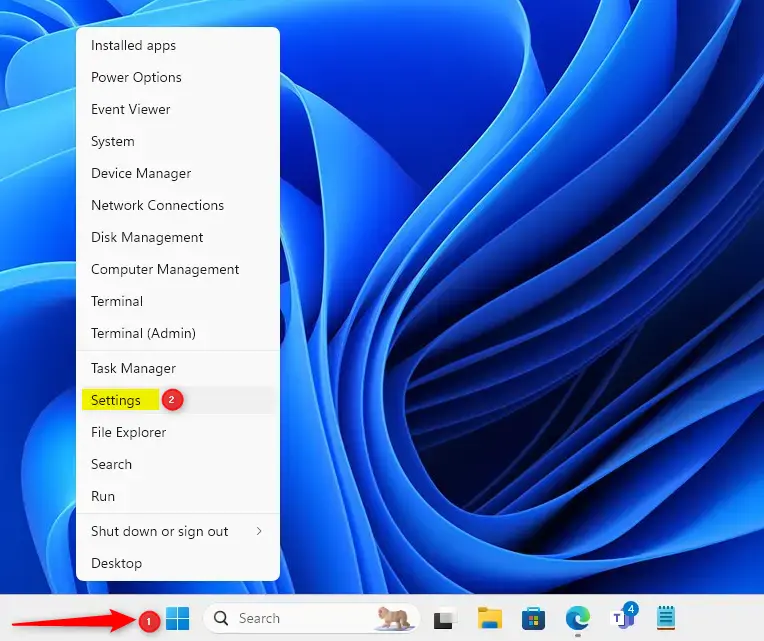
This menu is a handy fallback when the Start menu itself is slow or won’t open. You can also use it to jump to other admin tools without hunting through Start.
3Use Quick Settings
- Press
Windows key + Ato open Quick Settings. The panel slides up above the system tray at the right end of the taskbar , with tiles for Wi-Fi , Bluetooth , and more. - Click the “All settings” button to launch the main configuration panel.
If you can’t find a button for the full Settings app there, use one of the other methods in this guide.
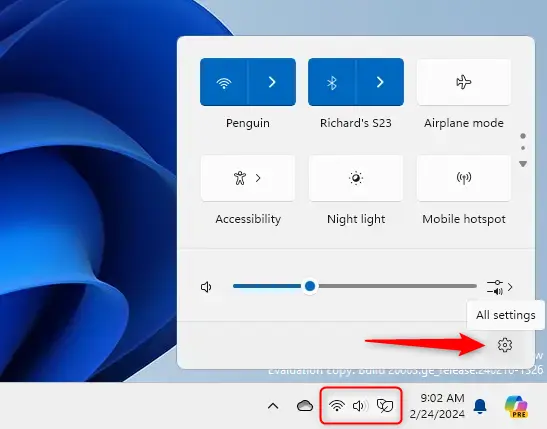
Quick Settings is best for fast toggles such as Wi-Fi, Bluetooth, and volume. Use the full Settings app when you need deeper options.
4Use the Run Box
- Press
Windows key + Rto open the Run dialog box. A small window appears in the bottom-left corner of the screen. - Type
ms-settings:into the Open field. - Press Enter or click OK.
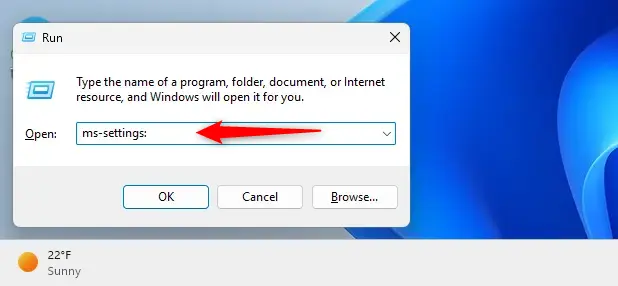
The same command also works from the address bar of File Explorer, which is useful if you already have a window open.
The panel appears immediately, with no loading screen.
PowerShell, Windows Terminal, or Command Prompt can also launch the utility with a specific command. Open any of them, type the command shown below, and press Enter:
start ms-settings:What the Settings App Looks Like
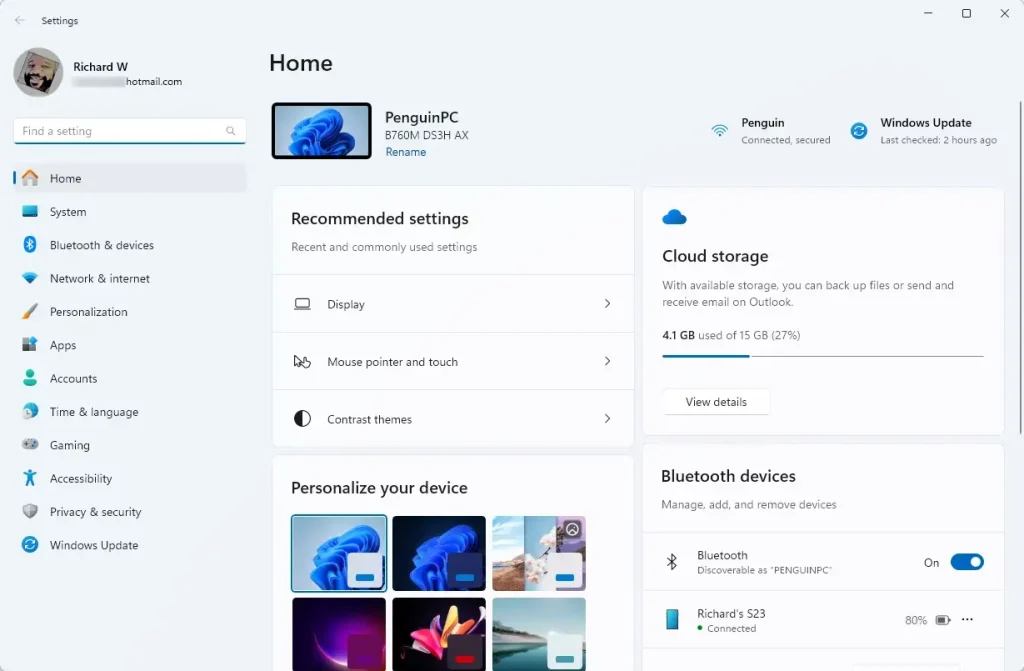
The Settings window opens as soon as the command runs. You don't need to open the terminal as administrator for this. It is mainly useful in scripts or when you are already working in a command window.
Summary
- The Settings app lets you manage your computer's screen, sound, network, privacy, and updates easily.
- Press
Windows key + Ior click the Start button and the gear icon to open it quickly. - You can also right-click the Start button and select Settings from the menu.
- Quick Settings (
Windows key + A) gives you quick access to the Settings app on builds that show the button. - Use the Run box (
Windows key + R) and typems-settings:to open Settings if you like typing commands.
Opening the Settings app in Windows 11 takes just a couple of seconds using keyboard shortcuts, the Start menu, or the taskbar. You can press the Windows key plus I on your keyboard, click the gear icon in the Start menu, or right-click the Start button to find Settings right away. Pick the method that suits how you work, and keep the Run box or command line in mind for the times when the usual routes are not available.
Have a question about this guide?
Answered by AI from this guide. Good questions may be added to this page — please don't include personal details.
Did this guide fix your problem?

About the Author
Richard
Tech Writer, IT Professional
Richard is a writer at Geek Rewind who turns complex IT tasks into clear, step-by-step guides. He draws on years of hands-on experience in system administration and enterprise IT operations, focusing on Windows, Linux and WordPress: the problems people actually run into, and the fixes that work. His server and WordPress guides come from systems he runs himself. Richard builds and maintains the platform behind Geek Rewind, from its Ubuntu servers and Nginx configuration to its custom WordPress plugins. Many new tutorials start with readers' questions, and he's always glad to answer them in the comments.
[…] Press Win + I to open Settings. […]
[…] Press Win + I on your keyboard to open Settings. […]
[…] Settings by pressing Win + I on your […]