How to Manage Wi-Fi Settings in Windows 11

- 13 steps
- Needs administrator rights
- Includes a restart or sign-out
Wi-Fi settings in Windows 11 control your wireless connections, saved passwords, and available networks. You can view nearby networks, turn the wireless radio on or off, or remove old connections from the Quick Settings panel or the Settings app.
Managing these options helps you fix slow speeds, switch between access points, and save battery on a laptop or tablet. Quick Settings is the fast route for everyday changes. For the full list of saved networks, go to Settings Network & internet Wi-Fi.
Click the Wi-Fi icon on the taskbar and then click the Wi-Fi button to toggle it on or off. Administrators can disable this option entirely by modifying a registry setting.
Turning Wi-Fi On or Off in 🪟 Windows 11
You can turn your wireless connection on or off from the taskbar without opening the Settings app. This is handy when you need to disconnect quickly or save battery. The steps below work on both Home and Pro editions.
- Click the Wi-Fi icon on the right side of your taskbar , near the clock. The Quick Settings panel opens with tiles for Wi-Fi , Bluetooth , Airplane mode and others.
- Click the Wi-Fi button to toggle it on or off. When it is on, the tile is highlighted in your accent color. When it is off, the tile is grey.
- If Wi-Fi is on, your device tries to connect to known networks automatically. Give it a few seconds, and the taskbar icon changes to show the signal strength once it connects.
If you don’t see a Wi-Fi button at all, the PC may have no wireless adapter, or Airplane mode may be on. Check the Airplane mode tile first. On a desktop with no Wi-Fi card, Windows shows a network (Ethernet) icon instead. If the tile is missing but you know the PC has Wi-Fi, click the pencil (Edit quick settings) icon at the bottom of the panel to see whether it was removed from the panel.
To see nearby networks, click the arrow next to the Wi-Fi button. To pick one, click its name and then click Connect. Enter the password if asked.

Why You Might Want to Disable Wi-Fi
There are two common reasons to turn Wi-Fi off, or to stop others from changing it:
- Save batteryTurning off Wi-Fi when you don’t need it helps your laptop last longer. The saving is small on most machines, but it adds up on a long trip or an older battery.
- Control accessIf you share your computer, you might want to stop others from turning Wi-Fi on or off. This is more common on shared lab, kiosk, or family PCs.
How Administrators Can Stop Users from Changing Wi-Fi Settings
Shared hardware environments need tight control over network adapters to prevent unauthorized changes. Administrators do this by editing the Registry, a hierarchical database that stores low-level settings for Windows.
Proceed carefully inside Registry Editor, because a wrong edit can cause problems. You need an administrator account, and Windows may ask you to confirm with a User Account Control prompt. Before you start, consider backing up the Registry. In Registry Editor, choose File Export and save a copy. You can import it later if something goes wrong.
Steps to Restrict Wi-Fi Switching
- Click the Start menu, type Registry Editor, and open the app. Click Yes if the User Account Control prompt appears.
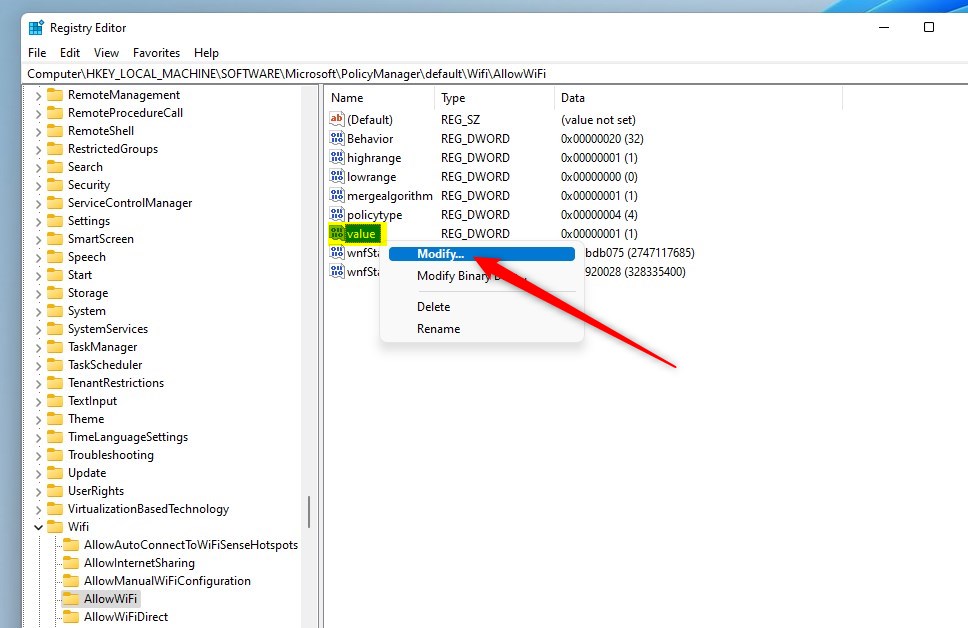
- In the Registry Editor window, go to this path. You can copy and paste it into the address bar at the top, or browse the tree on the left side:
HKEY_LOCAL_MACHINE\SOFTWARE\Microsoft\PolicyManager\default\Wifi\AllowWiFi - Click the AllowWiFi key (it appears as a folder in the left pane). Its contents show up on the right side.
- On the right side, find the entry named value. Its type should be REG_DWORD.
- Double-click value. A small window opens where you can change the number.
- Set the number to:
- 0 to disallow Wi-Fi (users cannot turn it on or off),
- 1 to allow Wi-Fi (default setting).
- Click OK to save. The new number appears in the Data column.
- Close Registry Editor.
The change may not apply until you sign out or restart the PC, so restart before you test it. To undo it, open the same entry, set the number back to 1, click OK, and restart again.
If you can’t find the AllowWiFi key or the value entry, don’t guess. Check that you followed the path exactly and that you are signed in with an administrator account. Also note that if the PC is managed by an organization (for example through a work or school account), management policies may overwrite what you set here.
Blocking users from changing Wi-Fi settings comes down to one edit in Registry Editor, the tool for advanced system settings. The restriction stops people from turning the wireless adapter on or off, which helps lock down shared computers. You apply it by going to the PolicyManager folder and updating the AllowWiFi DWORD value.
Summary
- You can turn Wi-Fi on or off from the taskbar in Windows 11 using the Quick Settings panel.
- Turning Wi-Fi off can save battery or prevent unwanted network access.
- Administrators can use Registry Editor to stop users from changing Wi-Fi settings by setting a special value. Set it back to 1 to undo it.
Controlling Windows 11 Wi-Fi settings helps you manage your internet connection, save laptop battery, and secure network access. You can toggle the wireless adapter from the taskbar in seconds, or lock down the setting with Registry Editor on shared computers. Knowing these controls also makes it quicker to troubleshoot connection problems and keep your computer configured correctly.
Frequently asked questions
What to disable in Wi-Fi proprities?
Leave most items in the Wi-Fi Properties list turned on. Only clear a box if you know you don't need that feature, such as File and Printer Sharing on a home network you don't share from. Turning off Internet Protocol Version 4 (TCP/IPv4) will cut off most websites. If you're unsure, click Cancel.
How to stop win 11 managing network?
Windows 11 connects to known Wi-Fi networks on its own. To stop one network from connecting automatically, open Settings, go to Network & internet Wi-Fi Manage known networks, select the network, and turn off Connect automatically when in range.
How to ope Wi-Fi rightess settigs I laptop?
Open the Settings app by pressing Windows + I, then select Network & internet in the left pane and click Wi-Fi. For a quick switch, click the Wi-Fi icon near the clock on the taskbar, then click the arrow beside the Wi-Fi tile to open the list of networks.
How to disable and enable Wi-Fi in my lapto?
Click the Wi-Fi icon on the taskbar near the clock, then click the Wi-Fi tile in Quick Settings to turn it off or on. A highlighted tile means Wi-Fi is on, and a grey tile means it is off. You can also press Windows + A to open Quick Settings.
How to manage Wi-Fi connections?
Open Settings, go to Network & internet Wi-Fi, and click Manage known networks to see every saved network. Click a network, then click Forget to remove it. Forgetting a network deletes its saved password, so you must enter it again to reconnect. To find new networks, click Show available networks.
How to switch off the Wi-Fi from my kids window eleven?
Your kid can turn Wi-Fi back on from the Quick Settings tile, so turning it off on their PC is not a reliable block. To stop internet access, set limits in Microsoft Family Safety, or use your router's parental controls to pause their access. Changing the Wi-Fi password also works.
Still have a question?
Answered by AI from this guide. Good questions may be added to this page — please don't include personal details.
Did this guide fix your problem?

About the Author
Richard
Tech Writer, IT Professional
Richard is a writer at Geek Rewind who turns complex IT tasks into clear, step-by-step guides. He draws on years of hands-on experience in system administration and enterprise IT operations, focusing on Windows, Linux and WordPress: the problems people actually run into, and the fixes that work. His server and WordPress guides come from systems he runs himself. Richard builds and maintains the platform behind Geek Rewind, from its Ubuntu servers and Nginx configuration to its custom WordPress plugins. Many new tutorials start with readers' questions, and he's always glad to answer them in the comments.
No comments yet — be the first to share your thoughts!