How to Turn On or off Wi-Fi in Windows 11

Turning Wi-Fi on or off in Windows 11 takes only a couple of clicks from the Quick Settings menu. You can also use a physical laptop switch, a dedicated keyboard key, the Settings app, or the Game Bar. Wi-Fi is the wireless networking feature that connects your PC to a router and the internet using radio signals instead of an ethernet cable.
You might switch it off to troubleshoot a connection problem, save battery while traveling, or move to a wired network. You might switch it on again after Airplane mode or a hardware switch has turned it off. Windows 11 lets you do all of this from the taskbar, so you rarely need to dig through system settings. This guide covers each method, so pick whichever works on your machine.
Access Quick Settings by pressing Win+A and click the Wi-Fi button. Alternatively, open Settings by pressing Win+I, navigate to Network & internet, and toggle the Wi-Fi switch.
What is Wi-Fi?
Wi-Fi links computers to local networks and the internet using radio frequencies instead of ethernet cables. The signal travels between your router and a wireless adapter inside your laptop or desktop. Most laptops have one built in. Many desktops don’t, unless you added a Wi-Fi card or a USB adapter. If your PC has no wireless adapter, none of the Wi-Fi controls below will appear.
Why Turn Wi-Fi Off?
- Save BatteryThe wireless adapter draws power even when you aren’t using it. Turning Wi-Fi off helps on a laptop that is running on battery.
- Stay SecureYour PC can’t join an unwanted network, such as an open hotspot, while Wi-Fi is off. Turning it off in public places is a sensible habit.
Ways to Turn Wi-Fi On or Off in 🪟 Windows 11
Option 1Use a Wi-Fi Button or Switch on Your PC
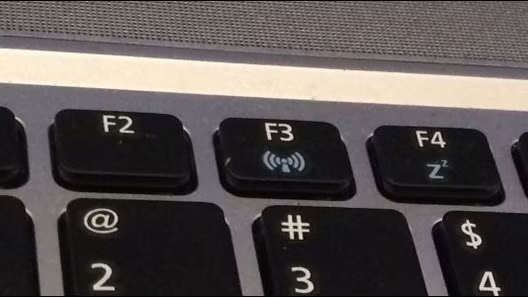
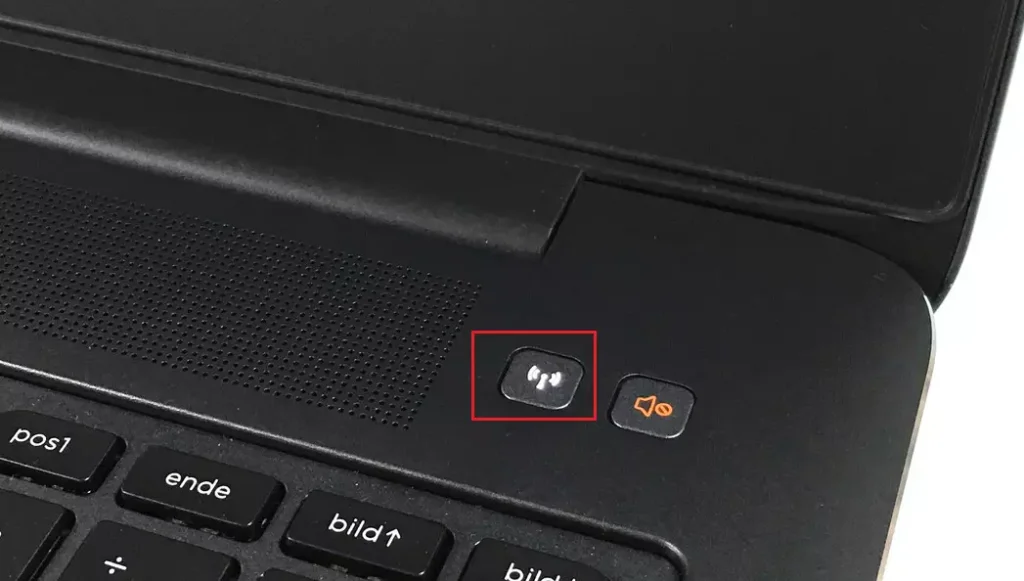
Many laptops have a dedicated function key or a physical slider on the chassis for turning the wireless hardware on and off. This is the quickest method when it is available.
- Look for a key with a wireless symbol. It is usually one of the F-keys along the top of the keyboard. Some laptops have a physical switch on the side or front edge instead.
- Press the key, or slide the switch. On some models you must hold the Fn key while you press the F-key.
- Check the taskbar . The Wi-Fi icon near the clock should change to show whether Wi-Fi is on or off.
If Wi-Fi stays off after you press the key, check whether Airplane mode is on. A hardware switch and a software switch can both block the adapter, and you may need to turn off both.
Option 2Use Quick Settings on the Taskbar
- Press
Windows key + Ato open Quick Settings. A panel with tiles appears above the taskbar , near the clock. - Find the Wi-Fi button. It is usually in the top row of tiles.
- Click the left side of the Wi-Fi button to turn Wi-Fi on or off. The tile is highlighted when Wi-Fi is on and greyed when it is off.
If the Wi-Fi button isn’t there, it may have been removed from the panel. Click the pencil icon (Edit quick settings) at the bottom of the panel, click Add, and choose Wi-Fi. If it still doesn’t appear, Windows probably doesn’t detect a wireless adapter.
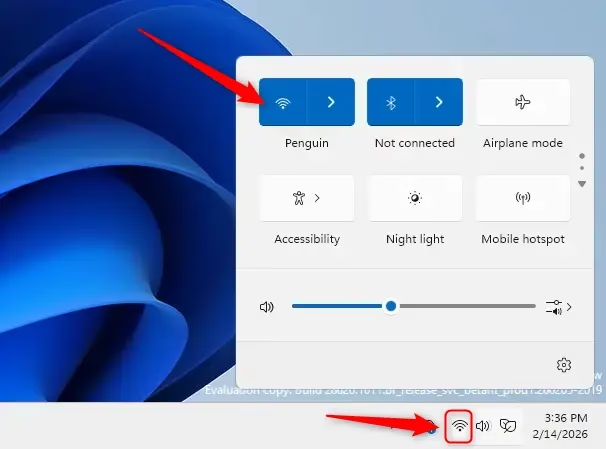
Bonus tip: Click the right side of the Wi-Fi button, the part with the arrow, to see the list of available networks and connect to one. You can switch networks this way without turning Wi-Fi off.
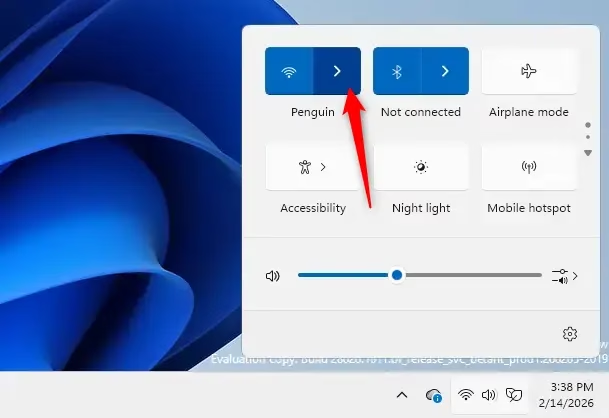
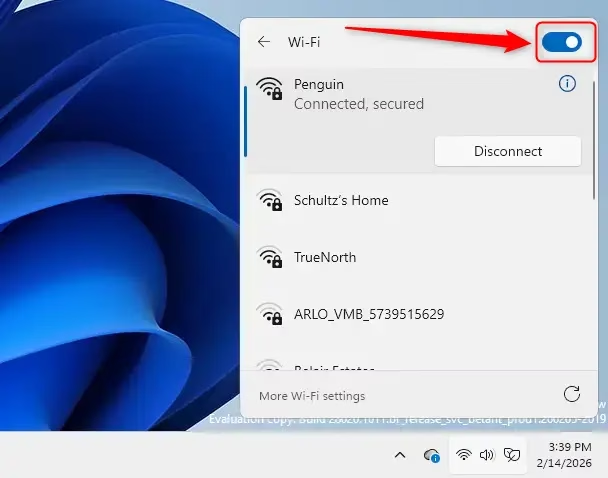
Option 3Turn Wi-Fi On or Off in Settings
- Press
Windows key + Ito open Settings . - Click Network & internet in the menu on the left. The network options appear on the right.
- On the right side, click the switch next to Wi-Fi to turn it on or off.
Use the Settings app if the taskbar shortcuts aren’t working. The shortcut is the Win plus I. You can also reach the same page from the Start menu by opening Settings and choosing Network & internet.
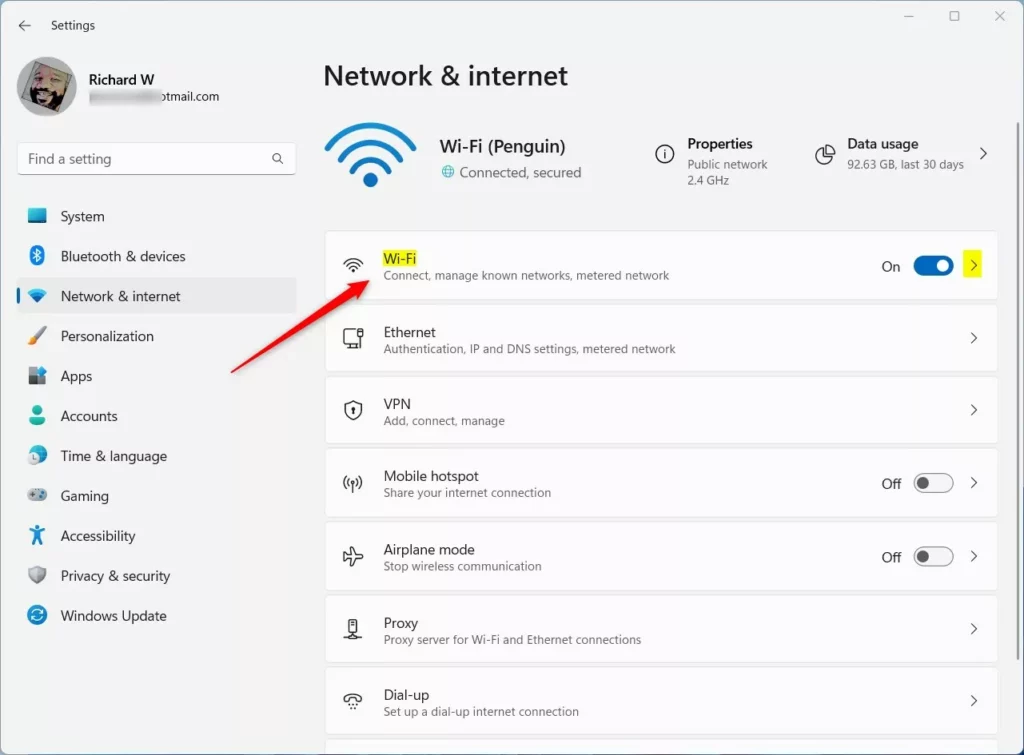
When you turn Wi-Fi off in Settings, you can also choose when it turns back on by itself. Pick a preset interval, and Windows restores the connection at that time. If you leave it on manual, Wi-Fi stays off until you switch it on yourself. This is handy if you turn Wi-Fi off for a short task and are likely to forget about it.
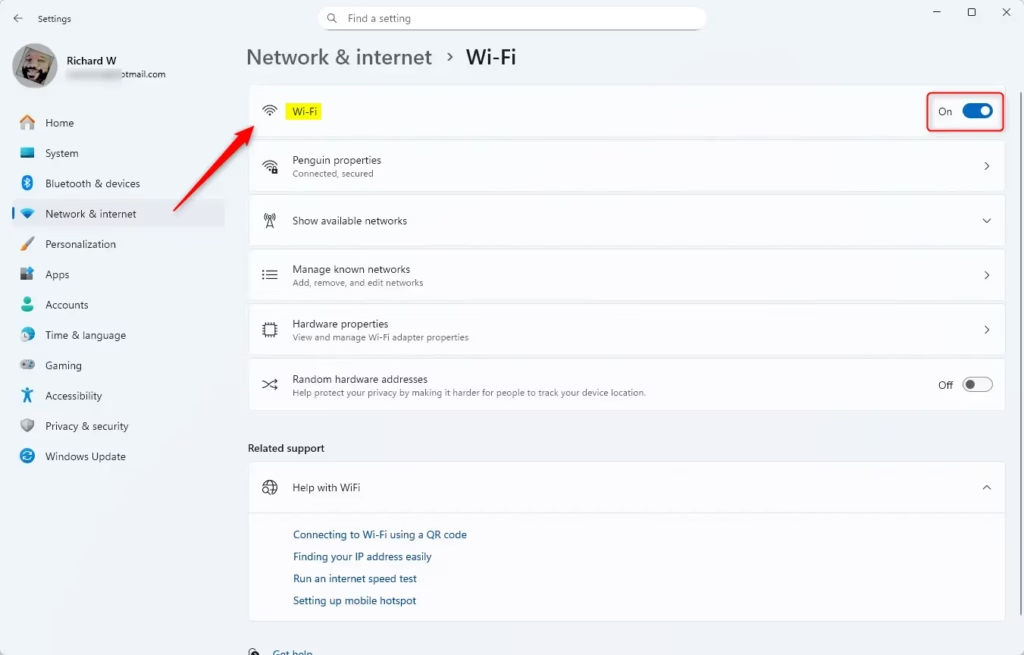
Option 4Use Airplane Mode Settings
- Press
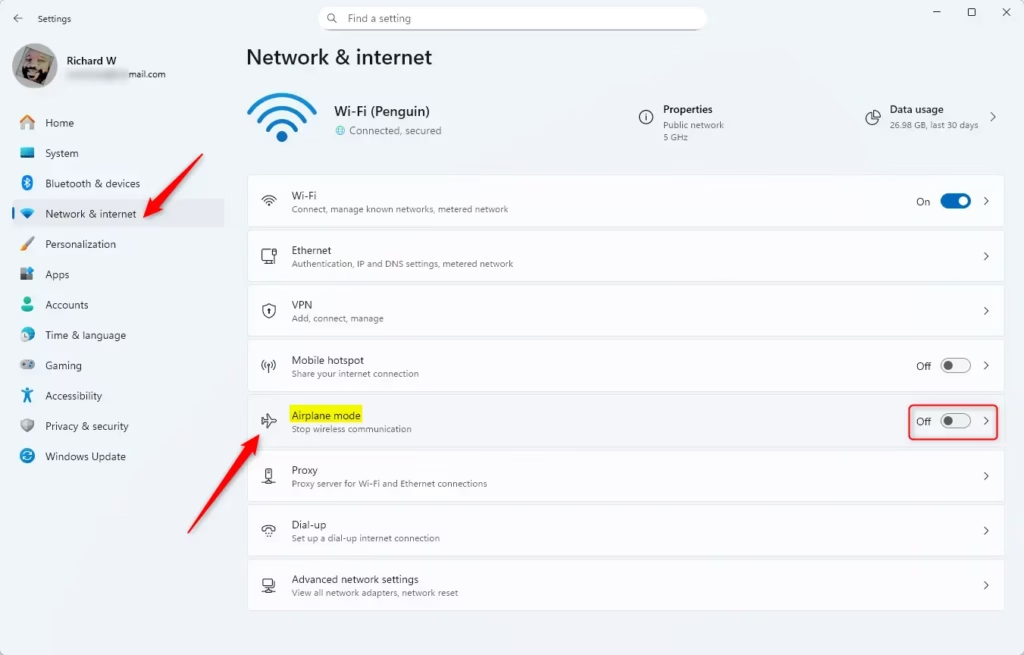
Windows key + Ito open Settings . - Click Network & internet on the left, then Airplane mode on the right.
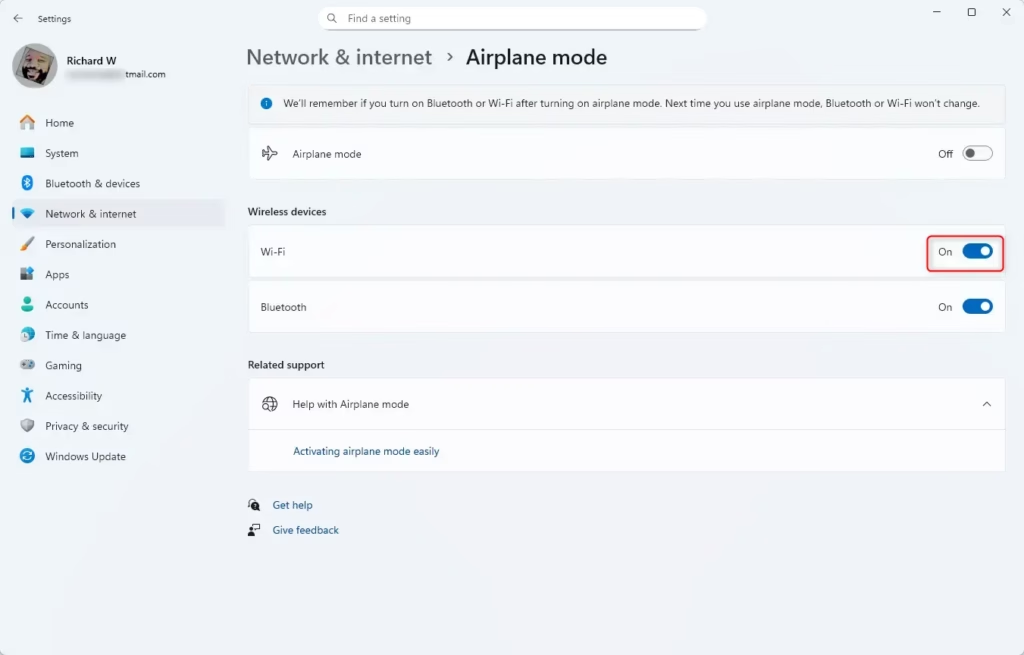
- Under Wireless devices, turn Wi-Fi on or off.
The main Airplane mode switch on this page turns off every wireless radio at once, including Bluetooth. If you only want to control Wi-Fi, use the individual switches under Wireless devices. This is also the first place to look if Wi-Fi keeps turning itself off. Airplane mode may be on, or Wi-Fi may have been switched off here.
Accessing Airplane Mode Settings
Option 5Use the Game Bar
- Press
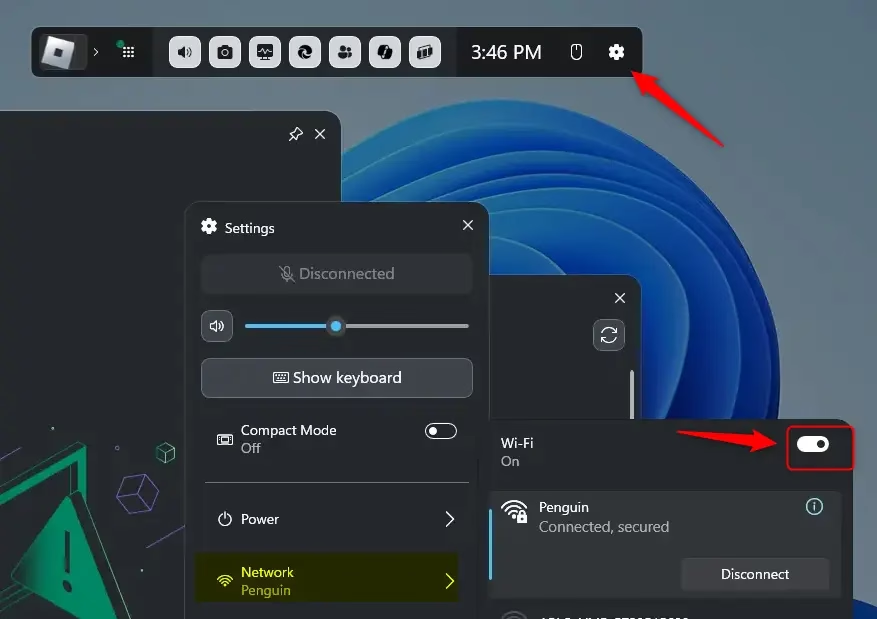
Windows key + Ato open the Game Bar. An overlay appears on top of whatever you are doing. - Click the Settings (gear) icon on the top bar.
- Go to the Network tab.
- Turn Wi-Fi on or off.
The Game Bar must be enabled for the shortcut to work. If the overlay doesn't open, or you don't see a Network tab, use one of the other methods above. Press the same shortcut again, or press Esc, to close the Game Bar.
Summary
You can turn your Windows 11 WiFi toggle on or off using several methods, including the quick settings menu, keyboard buttons, airplane mode, or the main Settings app. Turning off your wireless connection saves battery life and keeps your computer secure when you do not need internet access.- You can turn Wi-Fi on or off in many easy ways – using a button on your keyboard, quick settings, the main Settings app, airplane mode, or even the Game Bar.
- Turning off Wi-Fi saves battery and helps keep your PC safe from unwanted connections.
- Windows 11 supports new Wi-Fi technology for faster and safer internet.
- For more info about the latest Wi-Fi features in Windows 11, visit the official Microsoft page: Faster and more secure Wi-Fi in Windows - Microsoft Support
Have a question about this guide?
Answered by AI from this guide. Good questions may be added to this page — please don't include personal details.
Did this guide fix your problem?

About the Author
Richard
Tech Writer, IT Professional
Richard is a writer at Geek Rewind who turns complex IT tasks into clear, step-by-step guides. He draws on years of hands-on experience in system administration and enterprise IT operations, focusing on Windows, Linux and WordPress: the problems people actually run into, and the fixes that work. His server and WordPress guides come from systems he runs himself. Richard builds and maintains the platform behind Geek Rewind, from its Ubuntu servers and Nginx configuration to its custom WordPress plugins. Many new tutorials start with readers' questions, and he's always glad to answer them in the comments.
No comments yet — be the first to share your thoughts!