How to Access Xbox Game Bar in Windows 11

Xbox Game Bar is a built-in Windows 11 overlay that lets you record video clips, take screenshots, and check your PC’s performance by pressing the Win+G keys together. Microsoft includes this tool on every Windows 10 and Windows 11 computer so you can capture gameplay without installing extra software.
The overlay also gives you a quick way to control background music, connect with friends, and check system resources without leaving your game.
Press Win+G to open the Xbox Game Bar. This built-in overlay lets you record gameplay, monitor performance, and manage audio. You can also access it via the Start Menu or an Xbox controller.
How to open the Xbox Game Bar
You can open the Xbox Game Bar in Windows 11 by pressing the Win and the G key on your keyboard at the same time. This built-in overlay shortcut works instantly from anywhere on your computer, whether you are playing a PC game, running an application, or sitting on your desktop.
- Keyboard Shortcut: Press the Win+G at the same time. This works while you are in a game, an app, or on your desktop.
- Start Menu : Click the Start button, select All apps, and scroll down to find Xbox Game Bar.

Windows 11 Start menu All app button 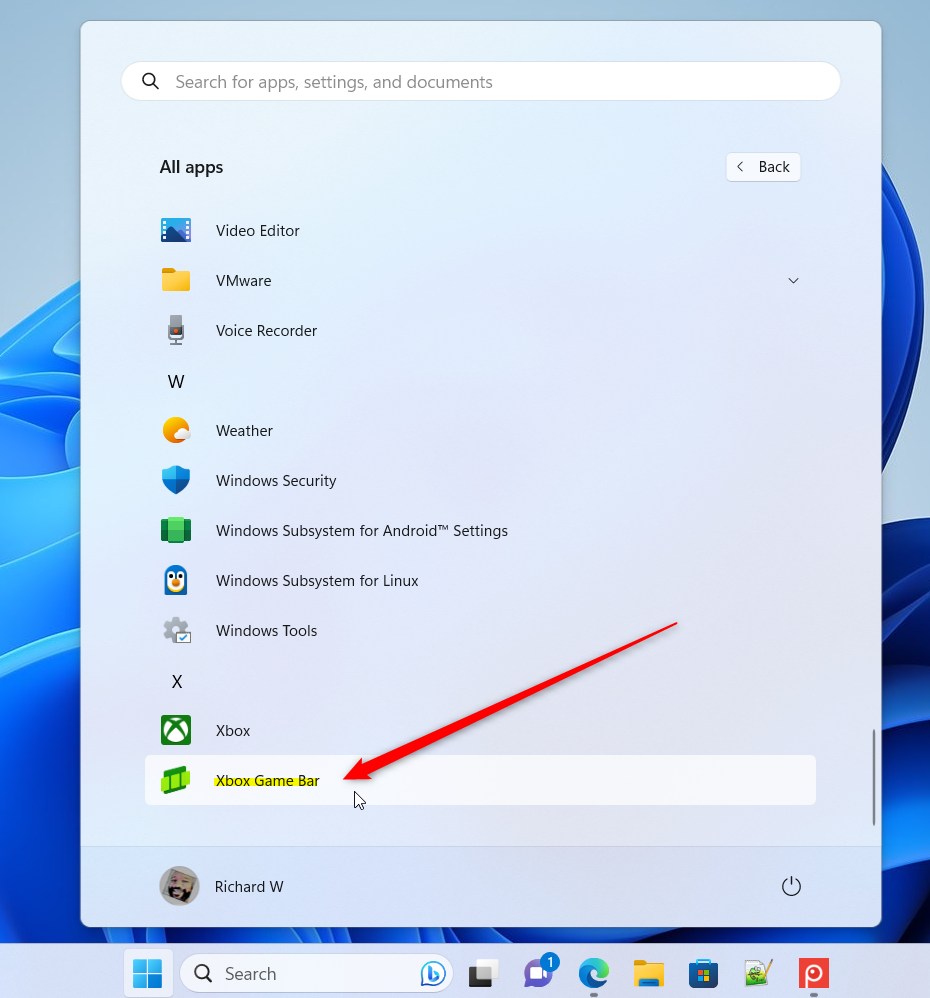
Xbox Game Bar menu item in Windows 11 - Game Controller: If you have an Xbox controller plugged in, simply press the Xbox button in the center.
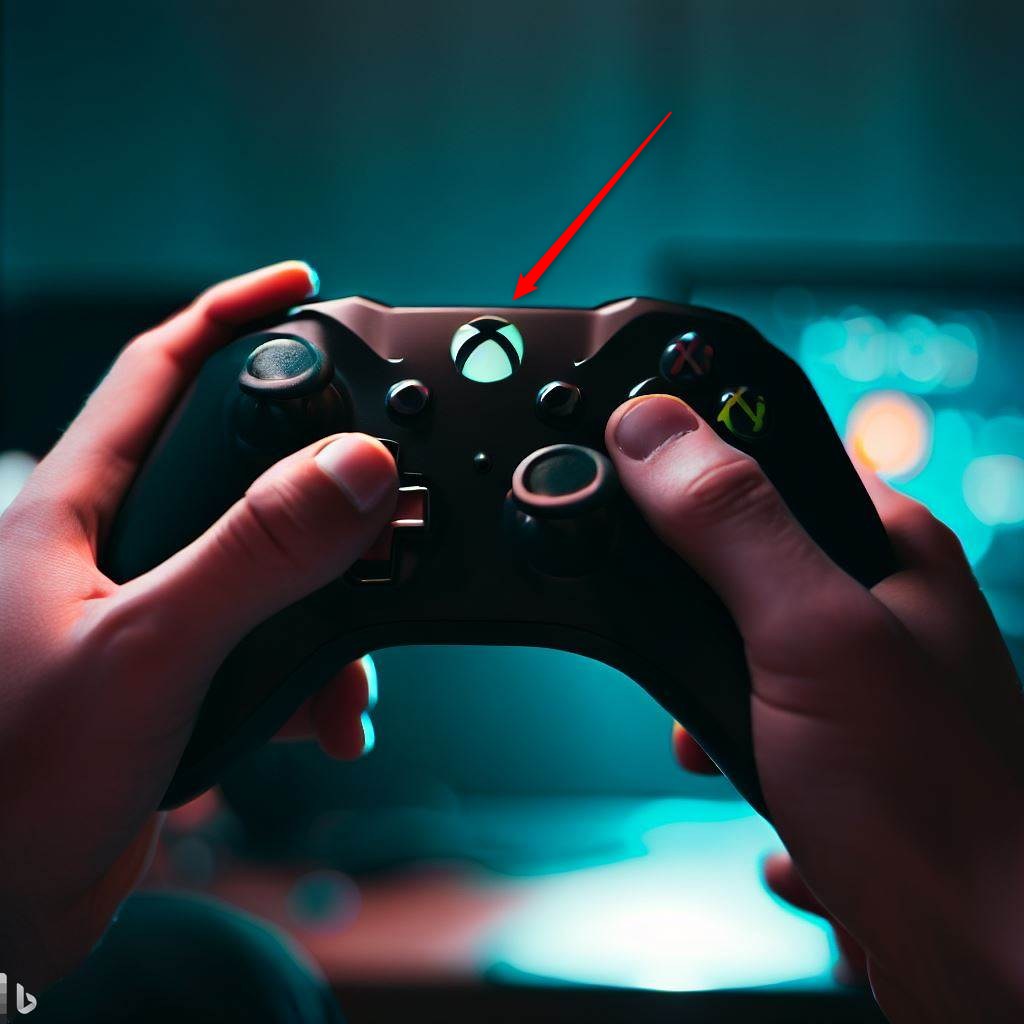
Xbox game controller in hand
Essential Keyboard Shortcuts
Mastering shortcuts saves time. Use these to control your gaming overlay quickly:
- Win+G: Open the Game Bar.
- Win+Alt+R: Start or stop screen recording.
- Win + Alt + Print Screen: Take a screenshot.
- Win+Alt+M: Toggle your microphone on or off.
Performance Metrics and Resource Monitoring
The Xbox Game Bar’s Performance widget helps you keep an eye on your computer’s CPU, GPU, and RAM usage while you play games.
Configuration and Settings
Troubleshooting Xbox Game Bar
If your Xbox Game Bar isn't working in Windows 11, you can usually fix it by checking if it's turned on in settings or by resetting the app.
Does Xbox Game Bar affect gaming performance?
However, recording high-quality video can use system resources. If you have a lower-end computer, you might notice a small dip in performance while recording. To minimize this, lower your capture resolution in the settings menu.
Summary
The Xbox Game Bar is a handy tool for Windows 11 users, letting you easily record your screen, check performance, and mix audio using shortcuts like Win + G.
Was this guide helpful?

About the Author
Richard
Tech Writer, IT Professional
Richard is a writer at Geek Rewind who turns complex IT tasks into clear, step-by-step guides. He draws on years of hands-on experience in system administration and enterprise IT operations, focusing on Windows, Linux and WordPress: the problems people actually run into, and the fixes that work. His server and WordPress guides come from systems he runs himself. Richard builds and maintains the platform behind Geek Rewind, from its Ubuntu servers and Nginx configuration to its custom WordPress plugins. Many new tutorials start with readers' questions, and he's always glad to answer them in the comments.




[…] Assist is accessed via Game Bar, a gaming overlay that lets you use in-game widgets, including Xbox Social for connecting with […]
[…] The Xbox Game Bar on Windows devices has a Controller Bar feature that allows you to quickly access games and apps using any Xbox controller, including standard controllers, the Elite Controller Series 2, and the Xbox Adaptive Controller. […]
[…] Xbox Game Bar on Windows devices is designed to make gaming easier. Usually, if you are playing a game and press […]
[…] Xbox Game Bar on your PC has a special feature called the Controller Bar. It lets you get to your games and apps […]
[…] Xbox Game Bar on Windows devices includes a Controller Bar. This handy tool lets you launch your favorite games […]