How to Enable or Disable Run at Startup for Xbox App in Windows 11

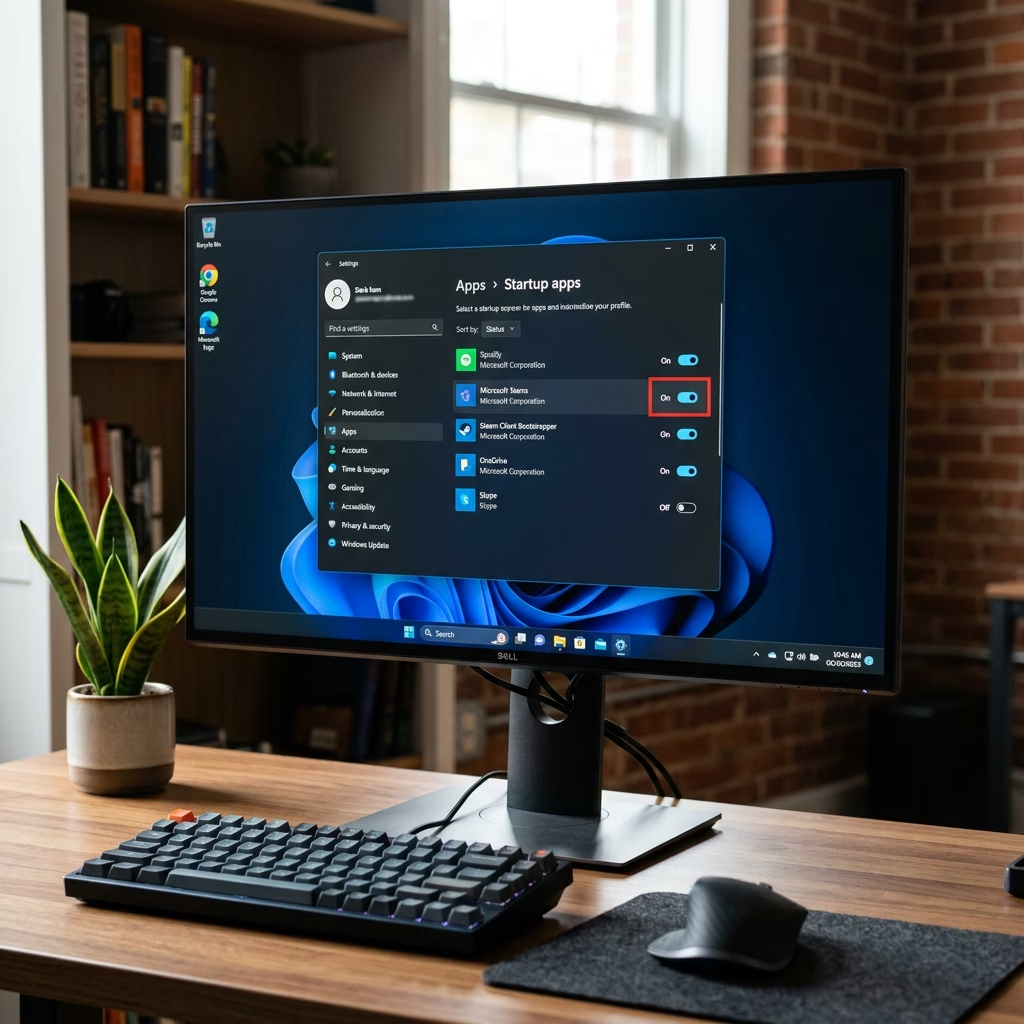
The Xbox app startup setting in Windows 11 controls whether the gaming platform opens automatically as soon as you sign in to your PC. When the app launches in the background, it uses some memory and adds to sign-in time. Stopping it can help on older or low-memory machines.
This guide covers four ways to change the setting: inside the Xbox app, with the Windows Registry, in Windows Settings , and in Task Manager . The change only applies to your own user account. Other people who use the PC keep their own settings. You don’t need to restart. The change takes effect the next time you sign in.
Open the Xbox app, click your Profile picture, select Settings, click App, then toggle the Launch Xbox when I start my computer switch on or off. The change takes effect when you next sign in, with no restart needed.
Option 1Use Xbox App Settings
Turn Xbox App On or Off at Startup
The simplest way is to use the preference built into the Xbox app. It controls the same behavior as the other methods, so use this one first.
- Open the Xbox app from the Start menu .
- Click your Profile picture at the top of the window, then click Settings. The Settings page opens with a list of categories on the left.
- Click App in the left side menu. The layout can vary slightly between Xbox app versions, so if you don’t see App, look for a similar general section.
- Under Startup settings, turn the Launch Xbox when I start my computer switch on or off. The default is off.
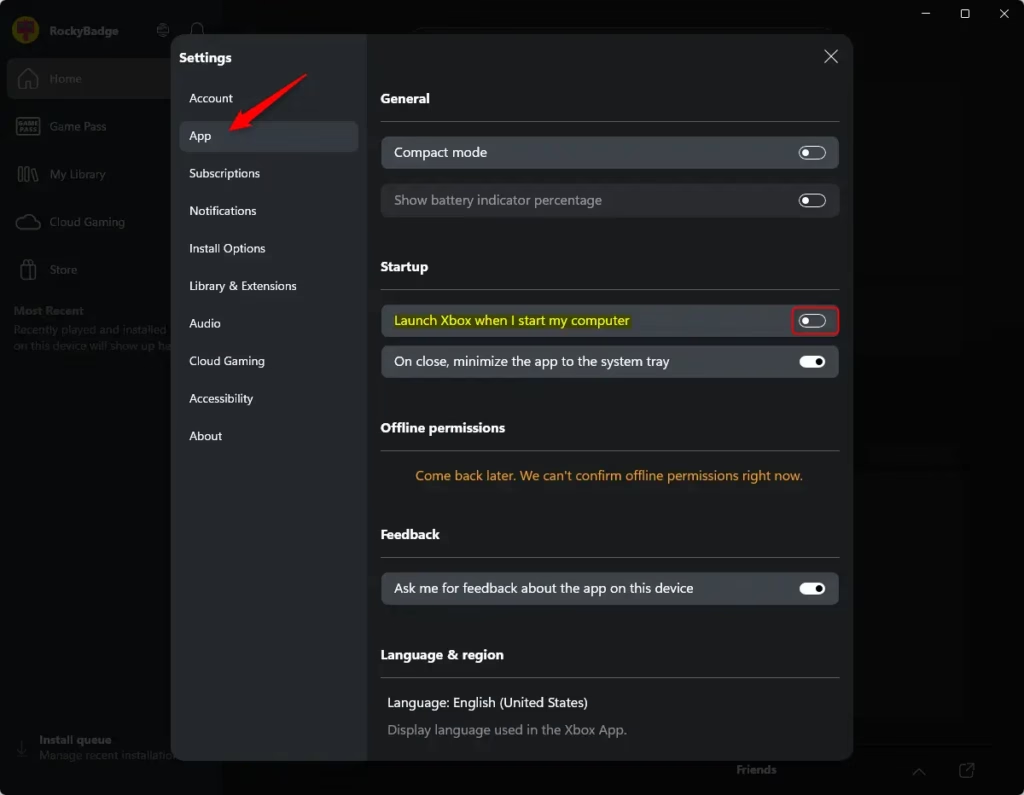
The new choice applies the next time you sign in to Windows. To undo it, come back to this page and flip the switch again.
Option 2Use Registry Editor
Turn On or Off Run Xbox App at Startup Using the Registry
It changes a value that tells Windows whether to start the app at sign-in. Be careful here. A wrong edit in the registry can cause problems, so follow the commands below exactly and don’t change anything else. If you’re unsure, use one of the other methods.
Open Windows Terminal (run it as administrator if the command is refused) and run the command below. Or open Registry Editor and browse to the registry key to edit the value by hand. Either way, the change applies the next time you sign in.
Turn On Run Xbox app at Startup:
reg add "HKEY_CURRENT_USER\Software\Classes\Local Settings\Software\Microsoft\Windows\CurrentVersion\AppModel\SystemAppData\Microsoft.GamingApp_8wekyb3d8bbwe\Xbox.App.Tasks.FullTrustComponent" /v State /t REG_DWORD /d 2 /f
Turn Off Run Xbox app at Startup (default):
reg add "HKEY_CURRENT_USER\Software\Classes\Local Settings\Software\Microsoft\Windows\CurrentVersion\AppModel\SystemAppData\Microsoft.GamingApp_8wekyb3d8bbwe\Xbox.App.Tasks.FullTrustComponent" /v State /t REG_DWORD /d 0 /f
To undo a change, run the other command. Running the “off” command puts you back to the default.
Option 3Use Windows Settings
Enable or Disable Run Xbox App at Startup in Settings
Windows Settings lists every app that can start with Windows, with a switch next to each one. This is handy if you want to review several startup apps at once. If you need help finding Settings, see Open Startup settings.
- Press Win+I to open Settings .
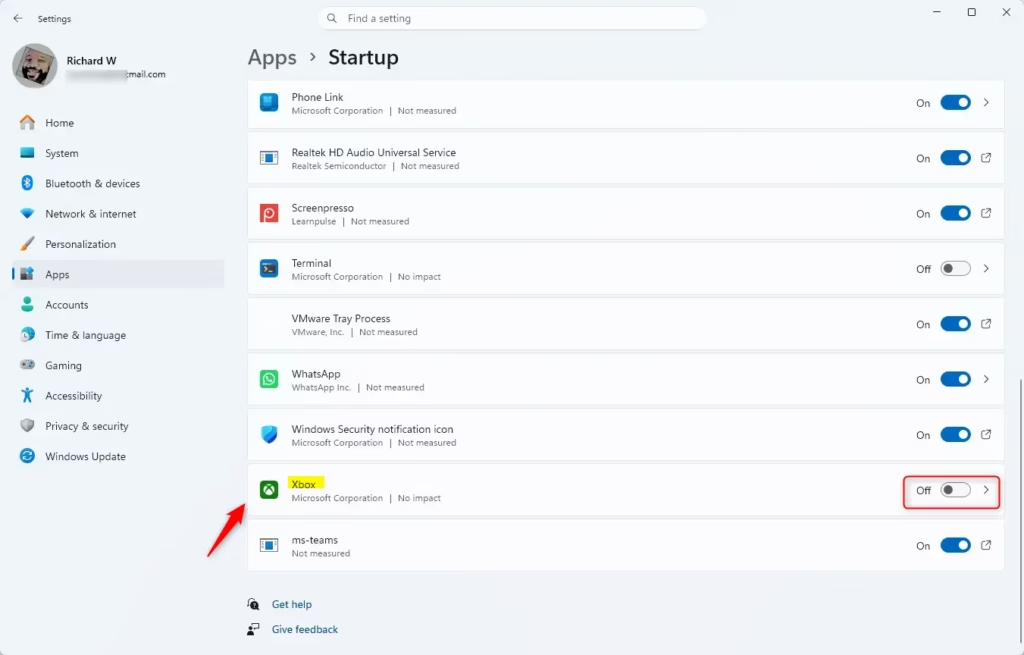
- Click Apps on the left side, then click Startup on the right side. You’ll see a list of apps, each with a switch and a startup impact label.
- Find Xbox in the list and toggle its switch On or Off. You can sort the list by name, status or startup impact to find it faster.
If Xbox isn’t listed, the app may not be installed for your account, or it hasn’t registered itself as a startup app yet. Turn the option on once from inside the Xbox app and check again.
Option Four: Use Task Manager
Enable or Disable Run Xbox App at Startup in Task Manager
Task Manager gives you a quick view of every startup app and how much it slows sign-in. It's useful when you want to turn Xbox off along with other apps.
- Press Ctrl+Shift+Esc to open Task Manager. If you see a small window, click More details to expand it.
- Click Startup apps in the left-hand list (in older builds of Windows 11 this is the Startup tab across the top). A list of apps appears with a Status column showing Enabled or Disabled.
- Select Xbox in the list.
- Click Enable or Disable at the top of the window. You can also right-click the app and choose the same option. The Status column updates right away.
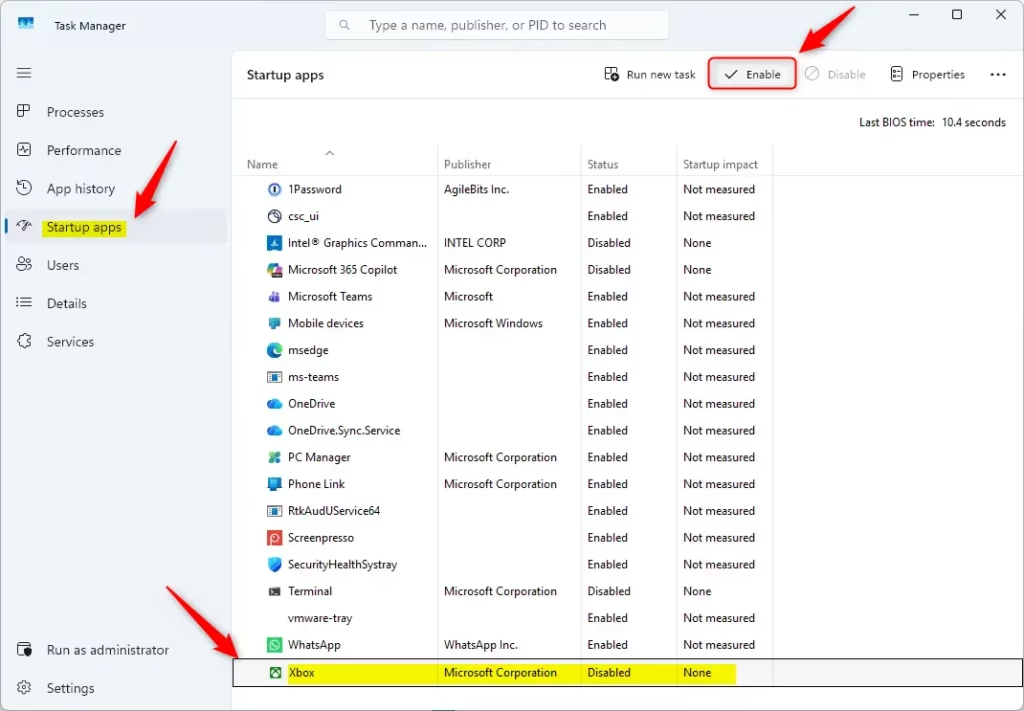
Close Task Manager when done. To undo the change, select Xbox again and click the opposite button.
Summary
You now have four ways to control whether the Xbox app starts automatically with Windows 11: the app's own settings, the Windows Registry, Windows Settings, and Task Manager. All of them change the same behavior for your account, so pick whichever is easiest for you. The change takes effect at your next sign-in, and you can reverse it with the same method at any time.
Have a question about this guide?
Answered by AI from this guide. Good questions may be added to this page — please don't include personal details.
Did this guide fix your problem?

About the Author
Richard
Tech Writer, IT Professional
Richard is a writer at Geek Rewind who turns complex IT tasks into clear, step-by-step guides. He draws on years of hands-on experience in system administration and enterprise IT operations, focusing on Windows, Linux and WordPress: the problems people actually run into, and the fixes that work. His server and WordPress guides come from systems he runs himself. Richard builds and maintains the platform behind Geek Rewind, from its Ubuntu servers and Nginx configuration to its custom WordPress plugins. Many new tutorials start with readers' questions, and he's always glad to answer them in the comments.
No comments yet — be the first to share your thoughts!