How to Manage Startup Apps in Windows 11 to Improve Boot Speed

Startup apps in Windows 11 are programs that launch automatically in the background as soon as you sign in. Each one uses CPU time, disk activity and memory (RAM) while the desktop is still loading. Managing them keeps the PC from slowing down during boot and leaves more memory free for the work you actually do.
Disabling even one unneeded background program can save several seconds on every start. Task Manager is the built-in system monitor that shows and controls running programs, and it is the main tool for deciding which apps start with Windows 11. Settings and PowerShell give you two other views of the same list.
Turning an app off at startup does not uninstall it. You can still open it by hand whenever you need it, and you can switch it back on later.
Open Settings , select Apps, then click Startup. Toggle off any app you don’t need at login—the change takes effect after your next restart. To see which apps slow boot most, press Ctrl+Shift+Esc to open Task Manager , click the Startup apps tab, and disable entries marked “High” in the Startup impact column.
Using the 🪟 Windows 11 Settings Menu
The Settings app lets you turn off programs that open automatically when your computer starts. It is the quickest method, and it suits anyone who just wants to switch things off without looking at technical detail. Stopping unneeded programs here cuts the waiting time after you log in to the desktop.
The steps below are in order. Each one is shown in the screenshots or text that follow it.
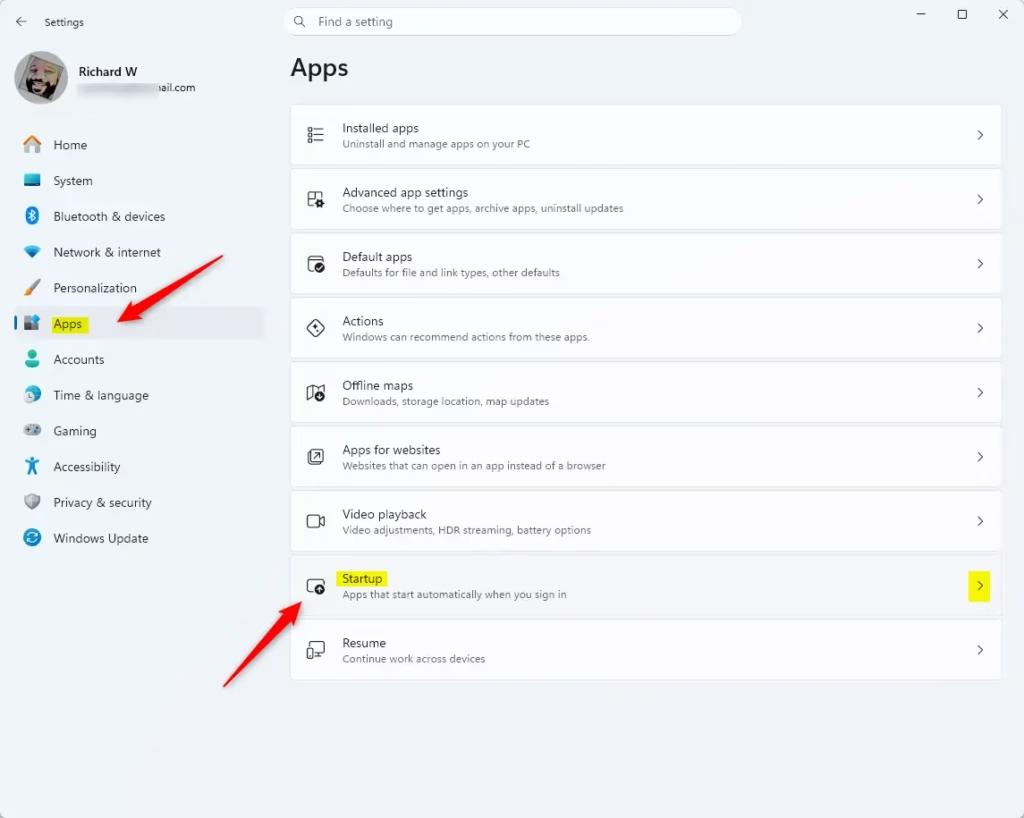
- Open the Start menu and click on the Settings gear icon.
- Select Apps from the left-hand sidebar.
- Click on Startup in the main window.
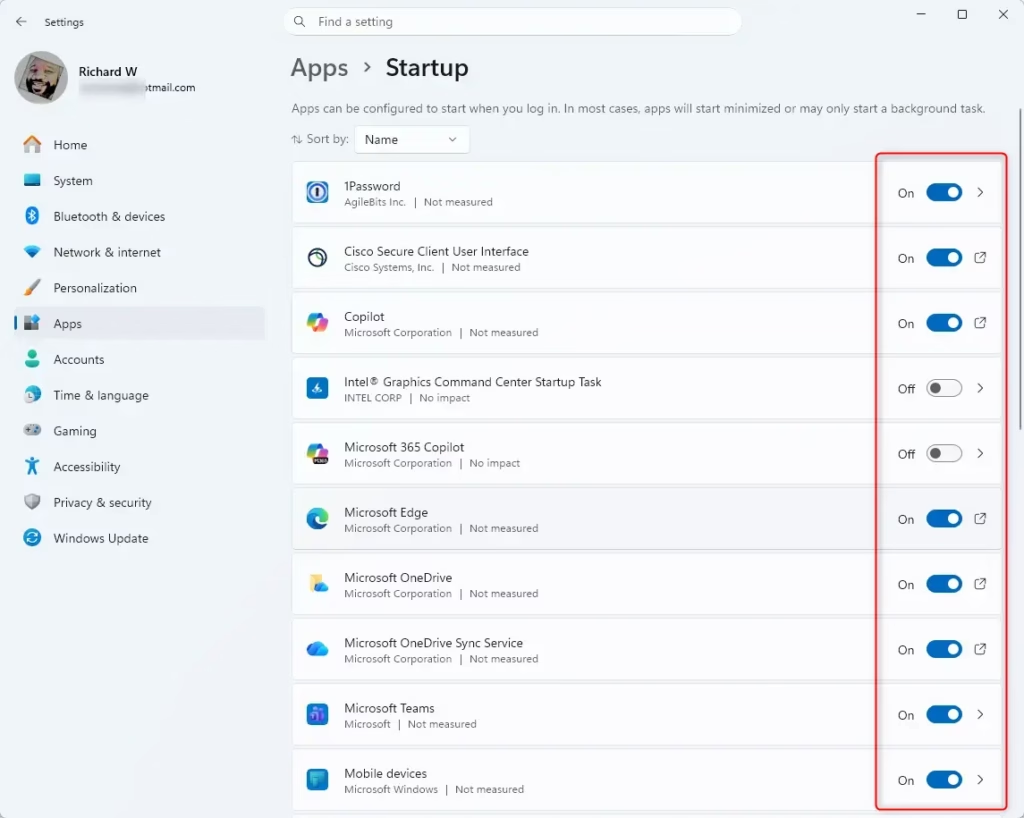
- You will see a list of apps. Look for the toggle switch next to each app.
- Switch the toggle to Off for any app you do not need immediately upon logging in.
The change takes effect the next time you sign in or restart, so you do not need to restart straight away. If an app you switched off is still running, that is normal. Closing it now and letting it stay off from the next boot is enough.
To undo a change, return to the same list and switch the app back on. If an app is missing from the list, it may be a system component or a service rather than a normal startup app. Task Manager or PowerShell, covered below, will show more.
If you do not recognise an entry, search for its name before you switch it off. Turn off one or two items at a time and restart, so you can tell which change caused a problem if something stops working.
Using Task Manager for Advanced Control
Task Manager is the better choice when you want to know which programs cost you the most time. It shows how much each program slows the boot, so you can pick out the heavy ones and disable them first. It also shows the publisher and whether each item is currently enabled, which helps you judge whether an entry is safe to turn off.
You can open Task Manager quickly with Ctrl+Shift+Esc. Then follow the steps below.
- Press Ctrl + Shift + Esc on your keyboard to open the Task Manager.
- If you see a small window, click More details at the bottom.
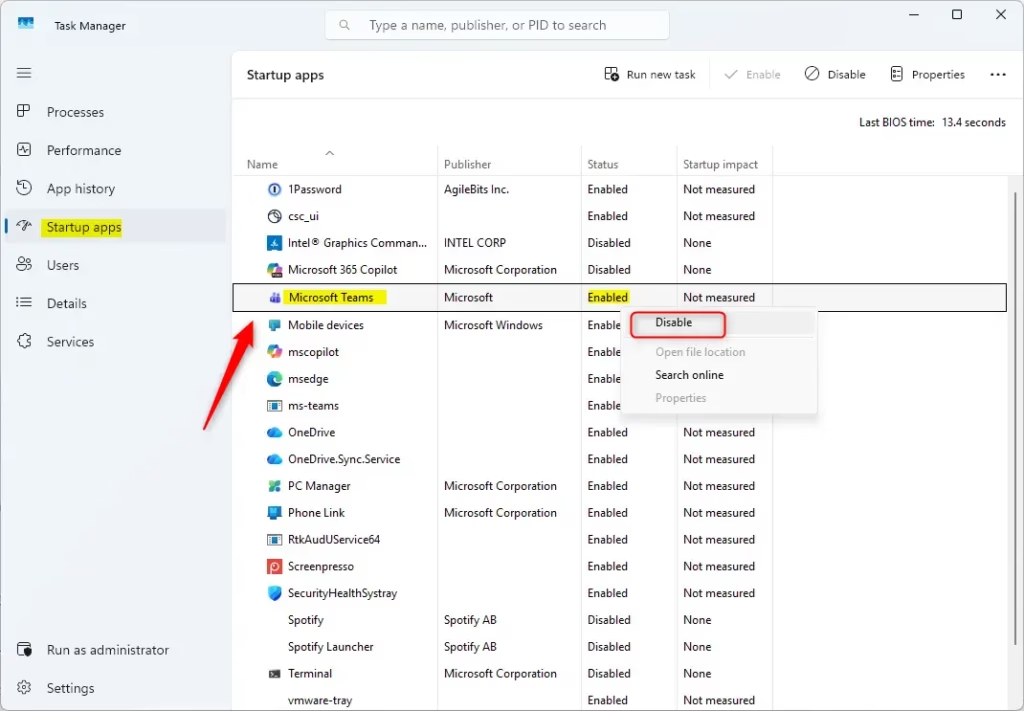
- Click on the Startup apps tab on the left.
- Review the list. Look at the Startup impact column.
- Right-click any app that shows "High" impact and select Disable.
As with Settings, the change applies from the next sign-in or restart. To reverse it, find the same entry in the startup list and enable it again. If you are not signed in as an administrator, Windows may ask for approval before it lets you change some entries.
Interpreting Startup Impact: "High" means the app significantly slows the boot sequence. "Medium" and "Low" have a smaller effect. "Not measured" usually indicates the app was recently installed or remains inactive. Windows builds these ratings from real start-up measurements, so give a new app a few restarts before you trust its rating. Start with the "High" items you do not need at logon, such as chat clients, game launchers and updaters.
Command Line Management with PowerShell
PowerShell gives you a more technical view. It lists every startup app and where it launches from on your system, including the exact registry entries and file paths. That makes it useful for tracking down programs that start with Windows but do not appear where you expect. Open PowerShell from the Start menu first.
Type the following command to list startup items: Get-CimInstance Win32_StartupCommand | Select-Object Name, Command, Location
The output is a list you can read through. Each line names an item and shows the command that starts it and the location it comes from. Use the list to identify anything unfamiliar, then disable it through Settings or Task Manager.
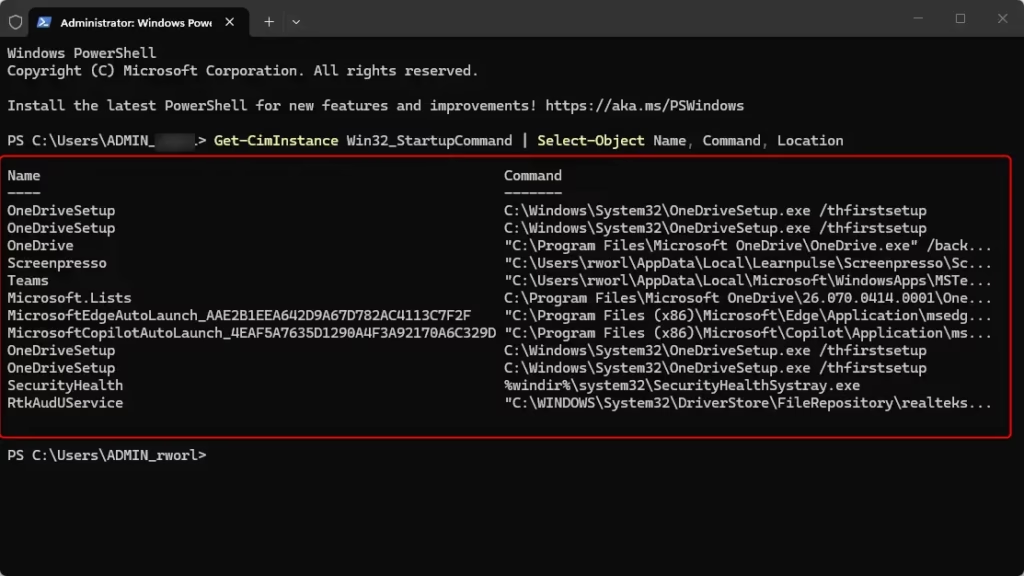
Every startup program has a source, such as a registry entry or a specific folder within Windows 11. Knowing the source tells you where an app is configured to launch and why it keeps coming back after you remove it from one place. It also helps you decide which tool to use to control it. Controlling these sources is how you keep unwanted apps from starting automatically and improve boot speed.
Third-Party Tool: Sysinternals Autoruns
For a deep look at every process that starts with Windows, use the official Microsoft Sysinternals Autoruns tool. It shows hidden tasks and services that Task Manager misses, so it suits cases where an unwanted program keeps returning. It is a powerful utility and the standard reference for system resource management. Treat it with care, because it can switch off things Windows needs. Note what you change so you can reverse it.
Windows Services vs. Startup Apps
Windows Services (accessible via services.msc) are background processes that keep the system operational. Warning: Do not disable services unless you have advanced system knowledge, as this breaks core functions like networking or audio. If a program is slowing your boot, handle it as a startup app first. Services are rarely the right place to start.
When to Avoid Disabling
Security software, audio drivers, graphics control panels and keyboard utilities should stay active at startup. Disabling essential applications such as antivirus software or the NVIDIA graphics control panel can make hardware misbehave and hurt overall performance. If you have already switched one off by mistake, enable it again in Settings or Task Manager and restart.
Summary
To make a Windows 11 computer start faster, manage which apps launch automatically when you turn the machine on. Use Settings for quick switches and Task Manager when you want to see each app's startup impact. Check one or two items at a time, restart, and see how the boot feels before you disable more.
Does disabling startup apps affect Windows background services?
Disabling startup apps does not affect essential Windows background services. Startup apps operate as user-level programs launching at login, whereas services run as system-level processes. Turning off startup apps stops only interactive programs, leaving critical system services untouched to maintain computer stability and functionality.
Have a question about this guide?
Answered by AI from this guide. Good questions may be added to this page — please don't include personal details.
Did this guide fix your problem?

About the Author
Richard
Tech Writer, IT Professional
Richard is a writer at Geek Rewind who turns complex IT tasks into clear, step-by-step guides. He draws on years of hands-on experience in system administration and enterprise IT operations, focusing on Windows, Linux and WordPress: the problems people actually run into, and the fixes that work. His server and WordPress guides come from systems he runs himself. Richard builds and maintains the platform behind Geek Rewind, from its Ubuntu servers and Nginx configuration to its custom WordPress plugins. Many new tutorials start with readers' questions, and he's always glad to answer them in the comments.
No comments yet — be the first to share your thoughts!