App Resume After Sign-in Causes Startup Lag in Windows 11

- 17 steps
- Needs administrator rights
- Includes a restart or sign-out
App resume in Windows 11 reopens the folders, documents and programs from your last session when you sign back in. When dozens of apps launch at once, they compete for the processor (the chip that does the computing) and for memory, and the screen can look frozen for a while.
Older hard drives suffer the most. A drive that has to load many programs at the same time can turn a quick startup into a long wait. If you turn off app resume, Windows stops reopening those programs, and you get a responsive desktop sooner.
To stop app resume from causing startup lag in Windows 11, open Settings, select Accounts, then click Sign-in options. Under Additional settings, set “Automatically save my restartable apps and restart them when I sign in” to Off. Windows then stops reopening your previous programs at sign-in, freeing the processor and memory for the desktop. Repeat this for each user account on the PC.
How to Stop 🪟 Windows 11 from Reopening Your Apps
This setting lives in Settings, under Accounts and Sign-in options. It is saved per user account, so repeat the steps for each account on the PC if several people use it. The option is on the same page for Windows 11 Home and Pro.
- Click the Start button and open Settings. The Settings window opens.
- Select Accounts from the menu on the left. The account options appear on the right.
- Click Sign-in options. The path is Settings Accounts Sign-in options.
- Scroll down, usually to the Additional settings area, until you find Automatically save my restartable apps and restart them when I sign in.
- Set the toggle to Off. The switch should now read Off.
That’s it. App resume is now off for this account, so Windows will no longer try to restore your previous session. You get a clean desktop with your system resources free for what you want to do right now.
No restart is needed for the change to be saved. It applies the next time you sign out or restart and sign back in.
If the setting is missing, check that you are on Windows 11 and fully updated. The wording of the option can change slightly between versions. Do not confuse it with the nearby option that uses your sign-in info to finish setting up the device after an update. That one is a different setting.
To undo the change, follow the same steps and set the toggle back to On.
Checking Startup Apps via Task Manager
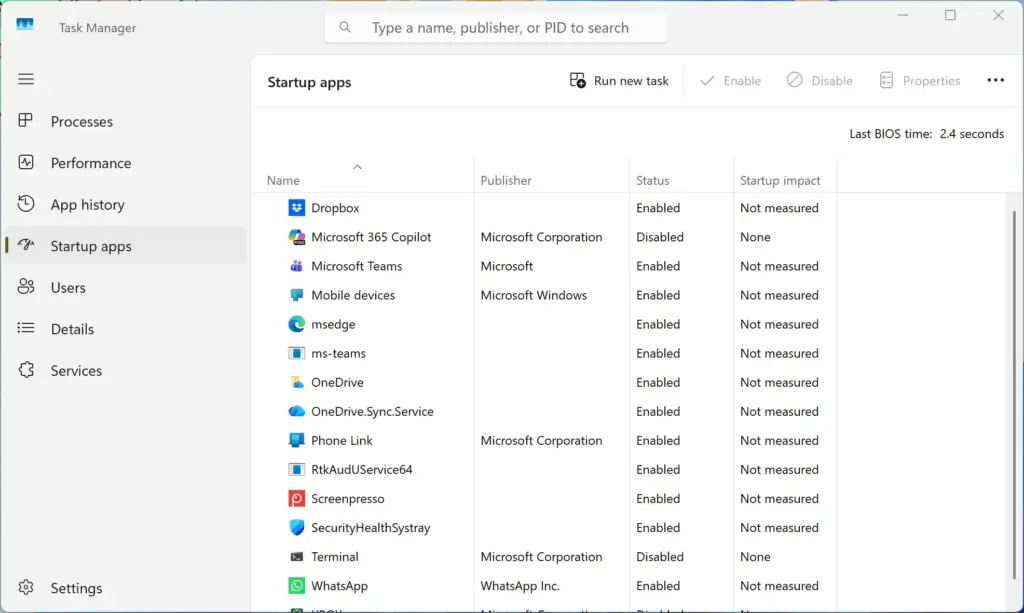
Task Manager shows which programs start with Windows, and it lets you switch off the ones that slow the boot. Even with app resume off, a long list of startup programs can cause lag. This check works the same on Windows 11 Home and Pro.
- Open Task Manager. Press Ctrl+Shift+Esc, or right-click an empty space on the taskbar and select Task Manager. On some builds the taskbar menu does not list it. If so, use the keyboard shortcut or right-click the Start button.

If Task Manager opens in a small view with only a list of apps, click More details at the bottom. The full window with the side menu should now appear.

- Click the gauge or speedometer icon in the left menu. This is the Startup apps tab. A list of programs that start automatically appears.
- Look at the Startup impact column. Each program is rated, for example Low, Medium or High. Start with the High ones.
- Right-click a program you do not need right away and select Disable. The Status column should change to Disabled.
That’s it. You should now have a shorter list of programs that launch at sign-in, which leaves more processor time and memory for the desktop.
Disabling a startup entry does not uninstall the program. To undo it, right-click the same entry and select Enable. Changes take effect at the next startup, so restart once afterwards to see the difference.
Windows 11 also lets you manage startup apps without opening Task Manager. Go to Settings Apps Startup. That page lists each app with an impact rating and a toggle, which many people find simpler to read than the Task Manager list.
Addressing Hibernate and Sleep Mode Delays
Sleep and hibernate problems show up as a slow wake-up, a blank taskbar, or a PC that struggles to restore memory. The usual causes are outdated drivers, power settings that do not suit the hardware, and hybrid sleep (a mode that saves your session to disk while the PC sleeps).
- Update your drivers. Graphics drivers matter most. Run Windows Update and check its optional updates, or download the latest driver from your PC or graphics card maker. Outdated drivers are a common cause of freezes after waking.
- Review your power settings. Check the active power plan, especially the advanced sleep options. Hybrid sleep mainly applies to desktop PCs, and turning it off there can shorten wake-up problems. If it makes no difference, turn it back on.
- Close heavy applications first. Even with plenty of memory installed, background processes can clutter your workspace. Closing large programs before you put the PC to sleep gives Windows less to restore when it wakes.
Keep Windows itself up to date as well. Updates often include fixes for wake-up and power bugs.
How to Improve Overall Performance on Your PC
Sluggish PCs usually have leftover temporary files, full drives, bloatware (unwanted preinstalled programs) running in the background, or a long uptime. Restarting regularly instead of relying on sleep helps most, and clearing out clutter does the rest.
To clear temporary files:
- Open Settings and select System, then Storage.
- Click Temporary files. Windows takes a moment to scan, then lists the categories.
- Tick the categories you want to remove. Read the descriptions first, and leave Downloads unticked unless you are sure you have nothing you need there.
- Click Remove files and wait for the list to clear.
That’s it. You should now have the selected temporary files gone and more free space on the system drive.
Windows can also do this cleanup for you. Storage Sense, found at Settings System Storage, can delete temporary files automatically on a schedule, so the clutter does not build up again.
Try to keep some free space on the system drive. A drive that is nearly full slows down both Windows and your apps.
Restart your computer regularly instead of relying only on sleep. A restart clears temporary glitches and frees memory that long-running programs have been holding. Once a week is a reasonable habit if you normally put the PC to sleep every day.
Also check for pending Windows updates. Microsoft often releases patches that fix performance problems and background bugs. Install them, then restart if Windows asks you to.
Advanced Performance Tweaks for 🪟 Windows 11
If the basic steps do not fix your speed problems, reduce the visual effects Windows draws. This helps most on older computers with weak graphics hardware.
- Open the Start menu and type Visual Effects.
- Select Adjust the appearance and performance of Windows. The Performance Options window opens on the Visual Effects tab.
- Choose Adjust for best performance. Alternatively, pick Custom and manually untick the animations and shadows you do not want.
- Click Apply, then OK. The screen may flicker briefly, and windows will look plainer.
That’s it. You should now have a plainer but faster-drawing desktop, with fewer animations for the graphics hardware to handle.
To undo it, return to the same window and select Let Windows choose what’s best for my computer.

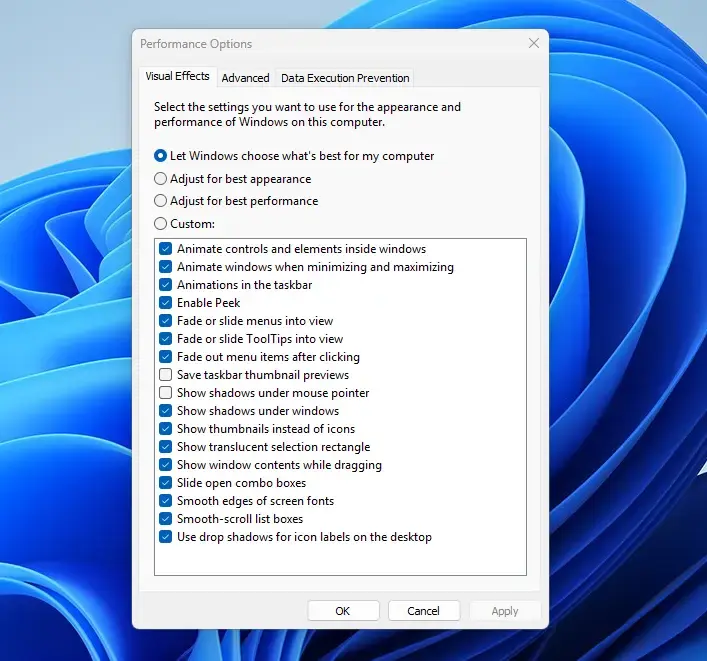
This change reduces the work your graphics processor has to do, so windows open and close faster, especially on older hardware. The trade-off is a less polished look, such as no shadows or animations. If that bothers you, restore the default setting.
Summary
Startup lag in Windows 11 is often caused by app resume, which reopens old programs the moment you sign in. Turn off that setting under Accounts and Sign-in options, trim your startup apps in Task Manager or Settings Apps Startup, and keep the system tidy and updated. These steps should shorten your startup time noticeably.
Have a question about this guide?
Answered by AI from this guide. Good questions may be added to this page — please don't include personal details.
Did this guide fix your problem?

About the Author
Richard
Tech Writer, IT Professional
Richard is a writer at Geek Rewind who turns complex IT tasks into clear, step-by-step guides. He draws on years of hands-on experience in system administration and enterprise IT operations, focusing on Windows, Linux and WordPress: the problems people actually run into, and the fixes that work. His server and WordPress guides come from systems he runs himself. Richard builds and maintains the platform behind Geek Rewind, from its Ubuntu servers and Nginx configuration to its custom WordPress plugins. Many new tutorials start with readers' questions, and he's always glad to answer them in the comments.
No comments yet — be the first to share your thoughts!