Should You Disable Windows 11 Startup Apps Using Task Manager or Autoruns

- 13 steps
- Needs administrator rights
Startup apps in Windows 11 are programs that launch automatically the moment you turn on your computer, often slowing down your boot time and draining memory in the background. Task Manager and Autoruns are the two main tools you can use to manage these background items. Task Manager handles everyday apps, and Autoruns uncovers hidden tasks across Windows 11 version 23H2 and earlier builds.
Stopping unnecessary background programs prevents your PC from lagging right after startup. Which tool you pick depends on whether you need a simple fix for standard apps or a deep system scan for stubborn startup items. For most people the short answer is Task Manager first, and Autoruns only if that does not solve the problem. This guide covers both, plus the Settings app and Task Scheduler.
Yes, you should use Task Manager for managing Windows 11 startup apps because it is built into the system and designed for everyday users, while Autoruns is an advanced tool meant only for tech experts who need to find hidden background programs.
Why apps start automatically on 🪟 Windows 11
Apps start automatically on Windows 11 because software developers set their programs to launch the moment you turn on your computer so they are ready to use right away. That is helpful for a chat app or a cloud storage client you rely on every day. But many programs add themselves to startup without asking, such as updaters, game launchers and printer utilities. Too many of them at startup slow down your computer and use up memory before you even start working.

Running too many automatic startup programs at once overwhelms your computer’s limited memory and processing power. When ten or twenty programs try to launch together during startup, your hard drive or solid-state drive gets bogged down reading data, and your processor spikes to maximum usage. The desktop may appear quickly, but it stays sluggish for a minute or two while everything finishes loading.
Stopping startup programs from opening on their own is one of the best ways to speed up an old computer or keep a new computer running fast. It does not delete the programs from your computer. It only prevents them from running until you click their icons to open them. You can reverse the change at any time, and the program itself keeps working as normal.
Using the 🪟 Windows 11 Settings app for basic cleanup

The Windows 11 Settings app has a dedicated page for basic startup cleanup. It is the safest and most practical place to start, because it only lists apps that are meant to be user-controlled. Open Settings, go to Apps, and select Startup to turn off unneeded programs. This page is the same on Windows 11 Home and Pro.
Here is how to find your startup apps in the Settings menu:
- Click the Start button on your taskbar and open the Settings app. You can also press the Win+I on your keyboard at the same time.
The Settings window should now be open on the screen.

- Click Apps in the menu on the left side of the screen.
- Click Startup in the list of options. You will see a list of apps with an On or Off switch next to each one.
- Click the switch next to any program you do not need right away, such as a music player or a game launcher. The switch moves to Off.
Each entry also shows a startup impact label, and you can sort the list by name, status or startup impact to find the heaviest items first. The change applies the next time you start or sign in to Windows, so you do not need to restart to save it. To undo it, come back to this page and switch the app back to On.
Using Task Manager to manage startup apps
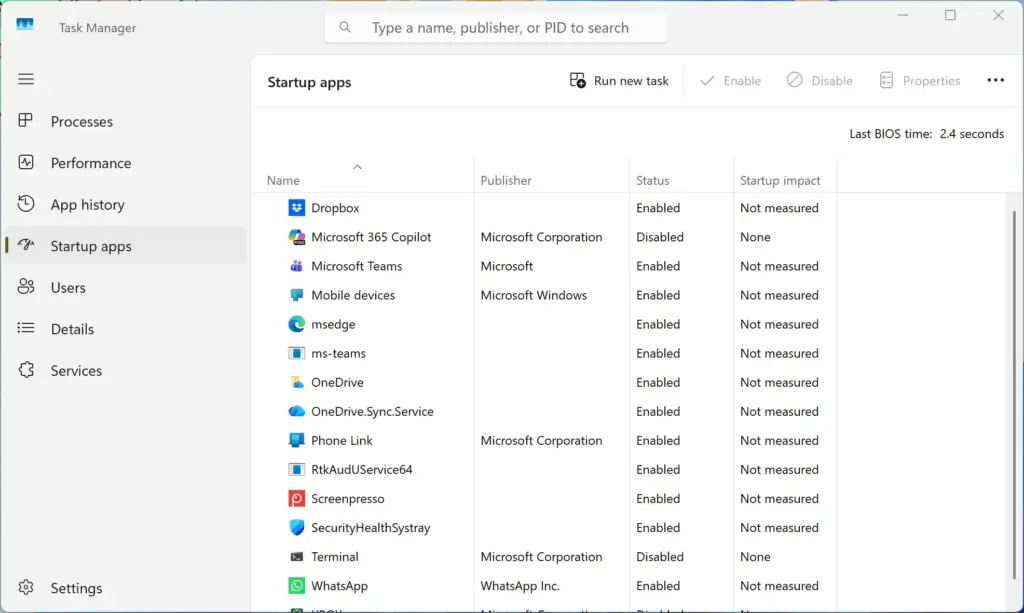
Task Manager is the most popular pre-installed tool for managing startup apps on Windows 11 because it gives you a clear list of what opens when your computer boots up. It also shows how much each program affects your system’s performance, which helps you decide what to turn off. It works the same on Home and Pro.
Task Manager categorizes the startup impact into three levels:
- Low ImpactThe app takes very little time and resources to start. Total CPU usage is very low, and disk usage is minimal.
- Medium ImpactThe app takes a little longer to open, using up some processor time and disk resources.
- High ImpactThe app takes a long time to load, uses a lot of processor power, or reads heavily from your hard drive during startup.
You may also see Not measured for an item you recently changed or added. Windows has not recorded a startup for it yet, so check it again after a reboot. Start with the High Impact items you do not need, since they give the biggest gain.
Step-by-step: How to use Task Manager for startup apps
Opening Task Manager and stopping unwanted startup programs takes only a few steps:
- Press Ctrl+Shift+Esc on your keyboard at the same time to open Task Manager directly. You can also right-click your taskbar and select Task Manager.
- Look at the left-hand menu and click the icon that looks like a gauge or speedometer. This is the Startup apps tab in Windows 11. If you only see a small list of processes, click the menu icon in the top left corner to expand the sidebar.
- Check the list of programs set to run when your computer boots up. Each one has a status and a startup impact rating.
- Click the program you want to stop from opening automatically.
- Click the Disable button in the top right corner of the Task Manager window. You can also right-click the app name and choose Disable. The Status column for that app changes to Disabled.
If you are not sure what an item is, right-click it and look at its publisher and name first. Leave your antivirus or security software, and driver utilities for your touchpad or audio, alone unless you know you do not need them.
If you change your mind later, come back to this same screen, click the disabled app, and click Enable. Nothing is deleted or permanently broken. The change takes effect the next time you start Windows.
What is Autoruns and when should you use it?
Autoruns is a free, advanced tool created by Microsoft that shows you every piece of software, background service, scheduled task, driver and script that runs when your computer starts. Use it only when you are an advanced user trying to track down stubborn background programs that do not appear in Task Manager. It is a separate download from Microsoft’s Sysinternals tools, and you should run it as an administrator to see everything.
Autoruns looks deep into hidden system corners that the standard Windows Task Manager cannot reach. It is a good fit when:
- Your computer is still running slowly even after you disabled everything in Task Manager.
- You suspect your computer has a virus, malware, or an annoying pop-up program that keeps coming back.
- You are an advanced user who wants absolute control over every background process on your machine.
Autoruns is not built for beginners, because it lists hundreds of startup items with technical names, file paths and publisher details. If you turn off the wrong system file, your computer might fail to start properly. If you do use it, follow these habits:
- Use the tabs, such as Logon, Scheduled Tasks and Services, to narrow the list instead of working through Everything.
- Hide Microsoft and Windows entries from the Options menu, so you only see third-party items.
- Clear the checkbox next to an entry to disable it. This can be undone by ticking the box again. Avoid deleting entries, because deleting cannot be undone.
- Change one item at a time, and restart to test it before moving on.
Comparing Task Manager and Autoruns
Task Manager is safe and easy for everyday users managing common apps. Autoruns is a complex tool meant for advanced users who need to see every hidden file and deep system startup item on the entire PC. Here is how they compare:
- Ease of useTask Manager is very easy for beginners. Autoruns is complex and meant for advanced users.
- SafetyTask Manager is very safe and only shows user-facing apps. Autoruns is risky because it shows deep system files.
- VisibilityTask Manager shows common startup apps. Autoruns shows every startup item on the entire PC.
- InstallationTask Manager is built right into Windows 11. Autoruns must be downloaded separately from Microsoft.
- Impact ratingsTask Manager shows High, Medium or Low impact. Autoruns does not show impact ratings.
So the answer to the title question is that you should use both only when needed. Begin with Task Manager, and reach for Autoruns if something keeps coming back or you suspect malware.
Hidden dangers of third-party startup cleaners
Third-party startup cleaners and registry optimizers carry hidden dangers. Many of them are unnecessary, and some are malicious software that can harm your computer. Windows 11 already includes all the safe, built-in tools you need to manage your startup apps without risking your system stability.
Using built-in tools like Task Manager keeps your personal data safe and prevents untrusted software from digging into your computer settings. If you do want a deeper tool, Autoruns comes from Microsoft itself, so it is a better choice than an unknown cleaner.
Unique expert tip: Check for hidden scheduled tasks
Checking for hidden scheduled tasks is essential when disabled apps keep turning themselves back on. Some programs use Windows Task Scheduler to bypass the standard startup controls. You can check and stop these hidden triggers with the built-in Task Scheduler, without downloading extra software.
Windows Task Scheduler manages over 50 default background tasks that run automatically. Most of them belong to Windows, so only look at tasks from apps you recognize.
- Click the Start button, type Task Scheduler into the search bar, and press Enter.
- Click Task Scheduler Library in the left pane. A list of tasks appears in the middle of the screen.
- Look through the list. You will see automated tasks created by programs installed on your computer.
- If you find a task belonging to an app you do not want running automatically, click it, then click Disable in the right-hand panel. The task’s status changes to Disabled.
This stops stubborn background programs from launching themselves behind your back. To undo it, select the same task and click Enable. Do not disable tasks that belong to Windows or to your security software unless you are sure what they do.
Summary
Startup apps can drastically slow down your Windows 11 computer, so it is worth managing them to make your PC boot faster and run more smoothly. For everyday users, the built-in Task Manager is the safest and most effective tool to view startup impacts and turn off unwanted programs. Save Autoruns and Task Scheduler for the cases where an app keeps coming back, and make changes one at a time so you can easily undo them.
Have a question about this guide?
Answered by AI from this guide. Good questions may be added to this page — please don't include personal details.
Did this guide fix your problem?

About the Author
Richard
Tech Writer, IT Professional
Richard is a writer at Geek Rewind who turns complex IT tasks into clear, step-by-step guides. He draws on years of hands-on experience in system administration and enterprise IT operations, focusing on Windows, Linux and WordPress: the problems people actually run into, and the fixes that work. His server and WordPress guides come from systems he runs himself. Richard builds and maintains the platform behind Geek Rewind, from its Ubuntu servers and Nginx configuration to its custom WordPress plugins. Many new tutorials start with readers' questions, and he's always glad to answer them in the comments.
No comments yet — be the first to share your thoughts!