Should You Enable App Resume After Sign-in in Windows 11 Advanced Settings

- 24 steps
- Needs administrator rights
App resume in Windows 11 saves a snapshot of your open apps when you shut down or restart, so they can reopen when you sign back in. It puts you back where you left off without opening each program one by one. The switch lives at Settings Accounts Sign-in options.
It works best with apps that support being restarted, and not every program does. Some people like returning to a ready desktop. Others find a burst of windows messy and prefer a clean screen.
This article covers the trade-offs and shows how to switch the setting on or off. It also explains a second, similar-sounding sign-in setting that is easy to confuse with app resume.
No, you should not enable app resume after sign-in if you have an older PC, share your account, or prefer a clean desktop. Enabling it saves time by reopening your apps automatically, but it slows startup, drains battery on laptops, and raises privacy concerns if others can see your screen. The choice depends on your hardware and workflow.
The Pros of Enabling App Resume
The main benefit of app resume is time. When you start your PC, Windows reopens the restartable programs you had running, so your workspace is ready as soon as you sign in.
- Time SavingsYou do not have to spend the first few minutes of your day reopening your browser, email client and chat apps.
- Better FocusYour workspace looks the way you left it, so it is easier to remember what you were doing.
- Smoother WorkflowIf you restart to install a Windows update, you do not lose your place or your active windows.
If you use the same set of programs every day, leaving this feature on gets you working faster. It matters most on machines that restart often for updates.
The Cons and Risks of App Resume
The costs are slower startup and extra load on your hardware. Launching many heavy programs at once uses a lot of processor and memory. Your PC can feel frozen or slow right after you sign in.
- Slower Startup Times: Dozens of resource-heavy programs starting at the same time put a heavy load on the CPU (central processing unit, the chip that does the computing) and RAM (the memory your open programs use). On an older or low-memory PC, it may feel sluggish for several minutes after sign-in.
- Privacy Concerns: If you share your PC with family or coworkers, they might see private documents, web pages or messages the moment you sign in. This matters most if they use your account or can see your screen.
- Battery Drain on Laptops: Launching a heavy workload right after turning on a laptop uses extra battery power, especially when it is not plugged in.
- Cluttered Desktop: Windows sometimes open in odd places, and you end up rearranging your screen.
How to Check Your Current Settings
Before you change anything, check how your PC is set now. The setting is in the main Settings app. Looking at it does not need administrator permission, and nothing changes until you flip the switch.
- Open Settings from the Start menu.
- Select Accounts in the left-hand list.
- Click Sign-in options. You should see the sign-in methods for your account, such as PIN, password and security key.
- Scroll to Additional settings and find the restartable apps option. If the switch is On, Windows will restart your restartable apps after a restart or sign-in.
That’s it. You now know whether app resume is active on your PC. The setting decides whether your open programs come back on their own, so it gives you control over startup speed and privacy.
Exact wording and placement can vary a little between Windows 11 builds. If you cannot find the option, check that Windows is fully updated. The switch works the same way on Home and Pro.
While you are in Additional settings, you may also see a separate option: Use my sign-in info to automatically finish setting up my device after an update or restart. It is not the same thing as app resume. App resume saves a list of your open apps and reopens them when you sign in. The sign-in info option lets Windows use your credentials to finish setting up the device after an update or restart, so you are not held up at the sign-in screen.
Because the two settings work at different points, they can give different results. With app resume off but the sign-in info option on, Windows can still complete update setup for you, but your own apps will not be restored by app resume. Turn the sign-in info option off if you prefer that Windows waits for you to sign in before it finishes setup. It is a separate switch, so changing one does not change the other.
Step-by-Step Guide: How to Turn Off App Resume in 🪟 Windows 11
Turning app resume off gives you a clean desktop on every sign-in. Nothing is reopened for you, and you launch what you need yourself.
- Click the Start button on the taskbar and select Settings (the gear icon). The Settings window opens.
- Click Accounts in the left-hand menu.
- Scroll down the list and click Sign-in options.
- Scroll down to the section labeled Additional settings.
- Find the option Automatically save my restartable apps and restart them when I sign back in.
- Set the switch to Off. The change applies straight away, and no restart is needed. The next time you sign in, your desktop should be empty.
That’s it. App resume is now off, and Windows will no longer reopen your apps after you sign in. To undo this, follow the same steps and set the switch back to On.

Step-by-Step Guide: How to Turn On App Resume in 🪟 Windows 11
Turning app resume on brings back your restartable programs after you restart or sign back in. It is the same switch as before, set the other way.
- Click the Start button and open Settings.
- Select Accounts from the left sidebar.
- Click Sign-in options.
- Scroll down to the Additional settings area.
- Find Automatically save my restartable apps and restart them when I sign back in.
- Set the switch to On. Nothing visible changes on screen yet.
You should now have app resume active. Windows will remember your open apps the next time you restart or shut down, and you will not see a difference until then.
Only apps that support restarting will come back. Some older desktop programs will not reopen, and others may reopen without your unsaved work, so keep saving your files as usual. To turn the feature off again, set the switch back to Off.
Unique Expert Tip 1: Controlling Apps via Task Manager Startup Tab
If your PC is still slow after you turn off app resume, the cause is probably your startup apps. These launch every time Windows boots. They use system resources and slow down startup. Task Manager lets you see them and turn them off.
- Press Ctrl+Shift+Esc to open Task Manager.
- Click Startup apps in the left-hand menu (the icon looks like a speedometer or gauge). A list of programs that start with Windows appears.
- Review the list. The Status and Startup impact columns show which programs are enabled and how much they slow startup.
- Right-click any program you do not need right away and select Disable. The Status column for that program changes to Disabled.
That’s it. The programs you disabled will no longer launch when Windows starts. Disabling a startup entry does not uninstall the program, and you can still open it by hand.
To undo it, right-click the entry in the same list and select Enable. The change takes effect the next time you start your PC.
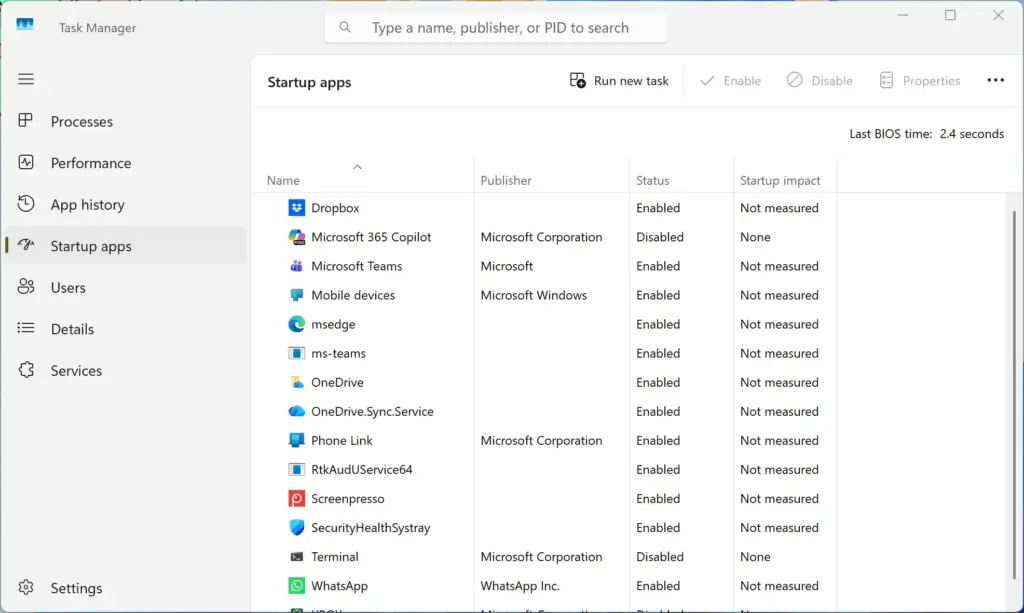
Managing both app resume and startup apps gives you the fastest boot and the most control over what runs when you sign in.
Unique Expert Tip 2: Using Sign-Out Instead of Restart for Better Control
- Click the Start button.
- Click your account name or picture at the bottom of the Start menu. A small menu opens.
- Select Sign out. Windows closes your session and returns to the sign-in screen.
- Sign back in when you return. If app resume is on, your restartable apps should reopen.
You should now be signed out of your own session and back in again. This is useful if you are stepping away from a shared PC and want to close your own session.
If you only need to protect your screen for a few minutes, lock the PC with Win+L instead. Locking keeps everything open and does not close any apps. Signing out does close your apps, so save your work first.
Summary
App resume after sign-in in Windows 11 reopens your restartable programs when you log back in. It saves time. It can also slow down startup and create privacy risks if other people use your device.
Choose the setting that fits how you work, and check Task Manager if the PC still starts slowly. Remember that the separate sign-in info option for finishing setup after an update or restart is its own switch, so review it too.
Have a question about this guide?
Answered by AI from this guide. Good questions may be added to this page — please don't include personal details.
Did this guide fix your problem?

About the Author
Richard
Tech Writer, IT Professional
Richard is a writer at Geek Rewind who turns complex IT tasks into clear, step-by-step guides. He draws on years of hands-on experience in system administration and enterprise IT operations, focusing on Windows, Linux and WordPress: the problems people actually run into, and the fixes that work. His server and WordPress guides come from systems he runs himself. Richard builds and maintains the platform behind Geek Rewind, from its Ubuntu servers and Nginx configuration to its custom WordPress plugins. Many new tutorials start with readers' questions, and he's always glad to answer them in the comments.
No comments yet — be the first to share your thoughts!