Should You Use Windows 11 Pin Sign-in or a Traditional Password

- 6 steps
- Needs administrator rights
A Windows 11 PIN is a short code, usually four or more numbers, that you type to sign in to your PC instead of your full Microsoft account password. It is quicker to type, and it is built to be safer for everyday use than a traditional password.
The reason is that your PIN is tied to the specific hardware inside your computer. If someone learns your PIN, they cannot use it to get into your account from another device across the internet. They would need your actual PC in their hands as well. This post explains how the two options differ, which one suits which situation, and how to switch between them.
Yes, you should use a Windows 11 PIN sign-in instead of a traditional password. A PIN is actually safer because it stays entirely on your specific computer and never travels across the internet, meaning a hacker cannot use it to access your account from another device.
Understanding How Windows Sign-In Options Work
Windows gives you several ways to sign in. These include a text password, a PIN, facial recognition, a fingerprint, and a physical security key. Which ones you see depends on your hardware. Face and fingerprint sign-in, for example, need a compatible camera or reader.
Microsoft groups these methods under a feature called Windows Hello. Windows Hello keeps your sign-in credentials on your device instead of sending them out to be checked. Older versions of Windows made you type a long password every time. Windows 11 leans on these built-in options instead, so signing in is fast without making your account less safe. The PIN is part of Windows Hello, which is why Settings labels it PIN (Windows Hello). It works the same way on Windows 11 Home and Pro.
What Is a Traditional Password?
A traditional password is a string of letters, numbers and symbols that protects your Microsoft account. It is the same password everywhere you use that account. That includes your PC, the Microsoft website, Outlook and other Microsoft services. When you use it to sign in, it is checked against Microsoft’s servers to confirm who you are.
This is the weak point of a password. It exists in more than one place, so it can be exposed outside your PC. A data breach at a site where you reused it, a phishing page, or malware that logs your keystrokes can all give it away. Long, unique passwords are strong. In practice, though, people pick ones that are easy to remember and reuse them, and that is where the trouble starts.
What Is a 🪟 Windows 11 PIN?
A Windows 11 PIN is a short code that you type to unlock your computer quickly. By default it is four or more digits. You can also allow letters and symbols for a longer, harder PIN by ticking Include letters and symbols when you create it.
Unlike your account password, your PIN is not sent across the internet to a server. It is set up for one device and stays on that device. If you use the same account on a second PC, you create a separate PIN there. The two do not have to match, and neither works on the other machine.
Why a Local PIN Is Actually Safer Than It Sounds
A PIN is safer than a password for two main reasons.
- It is stored on your computer, usually inside a security chip called the TPM (Trusted Platform Module). Most modern PCs have one, and Windows 11 requires it. Because the PIN stays inside the machine, nobody can steal it from a website or a remote server.
- Windows blocks guessing. After too many wrong attempts, the device locks you out for a while. Someone sitting at your PC cannot simply try every combination.
A PIN does not protect you from everything. Anyone who watches you type it and then gets hold of your PC can sign in. If you are in public places a lot, consider a longer PIN with letters and symbols, or use face or fingerprint sign-in instead.
Comparing Security: PIN vs. Traditional Password
On paper, a long, random password is very secure. In real life it is hard to remember, so people reuse it or write it down. A PIN avoids that problem. It is short enough to remember without notes, and it only works on the one device it was created on.
That makes a PIN the better choice for day-to-day protection of your local files. Here is a quick way to think about it:
- Passwordworks from any device, but if it leaks, it can be used anywhere. It also needs an internet connection to verify when you first sign in to a Microsoft account on a new device.
- PINworks only on the PC it was set up on, and it can unlock that PC even when you are offline.
Your account password does not go away when you use a PIN. You still need it to sign in on other devices, on the Microsoft website, and to recover your account.
How to Change Your Sign-In Options in 🪟 Windows 11
If you use a PIN and want to go back to a password, or if you use a password and want the speed of a PIN, you can change it in the Settings app. You can switch back and forth at any time. No restart is needed.
Switching Between a PIN and a Password Using Settings
The steps below use the Settings app. You need to be signed in with your own account. Some changes may ask for your current password or PIN to confirm it is really you.
- Click the Start button and open the Settings app.
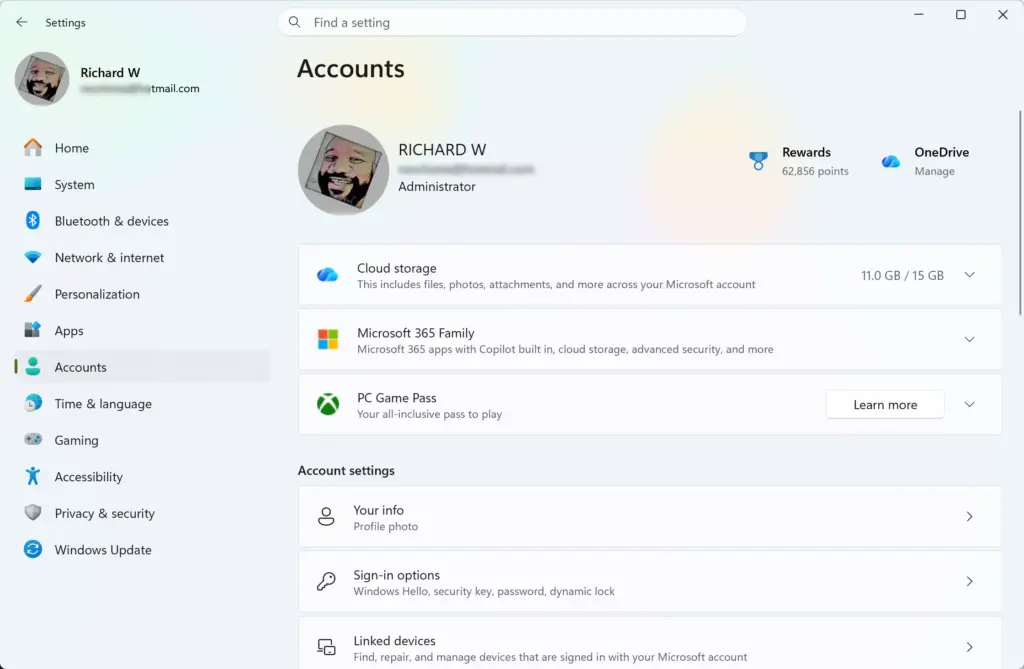
- Select Accounts from the menu on the left side.
- Click Sign-in options on the right side of the screen. The list of sign-in methods should now appear.
Settings › Accounts - Look for the section labeled Ways to sign in.
- Click PIN (Windows Hello) or Password to expand the choices. You should see buttons such as Change PIN, Remove or Change, depending on what is set up.
- Follow the on-screen instructions to remove your current method or set up a new one.
If the Remove button for your PIN is greyed out, look further down the Sign-in options page for the setting that only allows Windows Hello sign-in for Microsoft accounts on this device. While it is turned on, Windows will not let you remove the PIN. Turn it off, then try again. If you forget your PIN, click I forgot my PIN on the same page or on the sign-in screen. You will have to verify your account to set a new one.
Summary
Choosing between a Windows 11 PIN and a traditional password comes down to balancing convenience and security. Passwords feel familiar, but they carry more risk because they work across the internet and can be reused or leaked. A PIN stays on your computer hardware, works offline and protects you from online attackers. For most people, using a PIN for daily sign-in and keeping a strong, unique password for the account itself is the best of both.
Have a question about this guide?
Answered by AI from this guide. Good questions may be added to this page — please don't include personal details.
Did this guide fix your problem?

About the Author
Richard
Tech Writer, IT Professional
Richard is a writer at Geek Rewind who turns complex IT tasks into clear, step-by-step guides. He draws on years of hands-on experience in system administration and enterprise IT operations, focusing on Windows, Linux and WordPress: the problems people actually run into, and the fixes that work. His server and WordPress guides come from systems he runs himself. Richard builds and maintains the platform behind Geek Rewind, from its Ubuntu servers and Nginx configuration to its custom WordPress plugins. Many new tutorials start with readers' questions, and he's always glad to answer them in the comments.
No comments yet — be the first to share your thoughts!