What to Do When Windows 11 Pin Sign In Stops Working After an Update

- 22 steps
- Needs administrator rights
- Includes a restart or sign-out
Windows 11 PIN sign-in issues usually start when an update damages your login files, and you end up locked out with an error message. The bug often shows up right after a major upgrade such as Windows 11 version 24H2. Your PIN, and sometimes your Windows Hello fingerprint or face sign-in, stops working.
You can still get in with your Microsoft account password. Once you are on the desktop, you can clear the NGC folder, where Windows stores your login data, and set up a fresh PIN. This guide covers that fix and two backups: a check of your account sync status and a CertUtil reset. It ends with a few habits that make a repeat less likely.
If Windows 11 PIN sign-in stops working after an update, sign in with your Microsoft account password instead. Then open File Explorer, turn on Hidden items, and delete the NGC folder in 📁C:\
Why Updates Break Your Windows Hello PIN
Windows Hello PINs are tied to a set of secure files on your PC. An update changes core login components and restarts the machine, sometimes more than once. If something goes wrong partway through, the PIN data can end up corrupted or no longer matching your account. The PIN you type is then rejected, or Windows tells you the PIN is not available.
Work and school accounts add another cause. A recent patch can change the security rules your organization applies, and your usual sign-in method stops being accepted. If the PC is managed by an employer or school, check the rest of this guide against what your IT team allows.
How to Sign In When Your PIN Fails
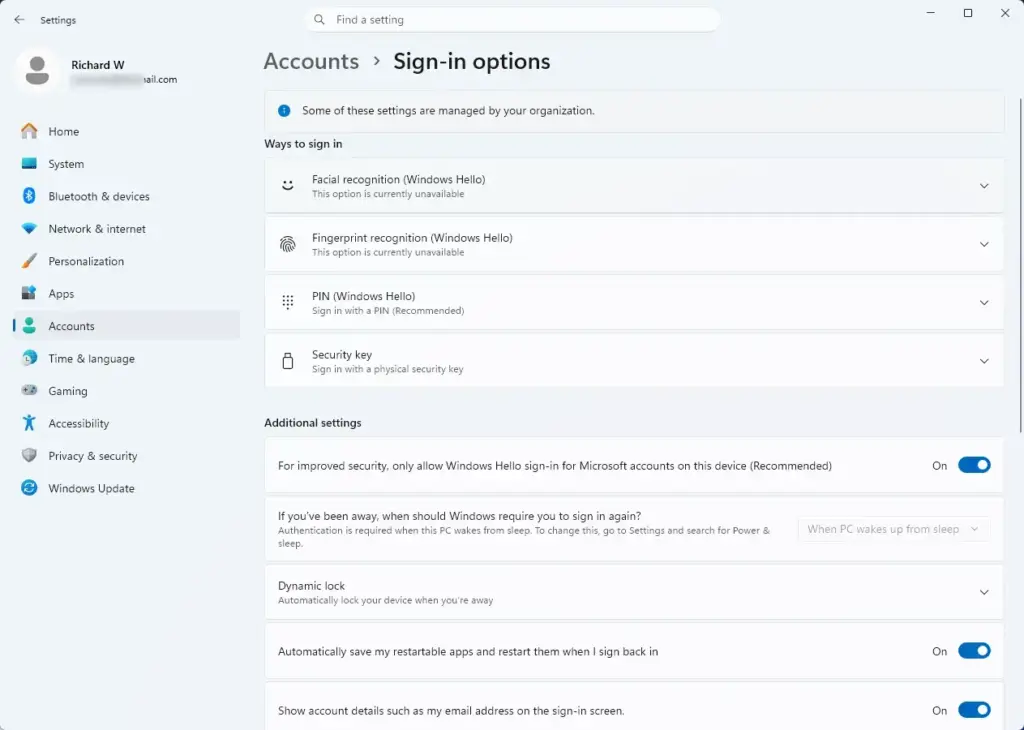
When your PIN fails, you don’t need to reinstall anything. You only need a different way past the lock screen. Windows lists every sign-in method set up on the account, and the password is almost always one of them.
- Look directly below the PIN text box on the sign-in screen.
- Click Sign-in options.
A row of icons appears, one for each method your account supports. These can include PIN, fingerprint, face, security key and password. The password option usually shows a key icon. If you only see a PIN box and an I forgot my PIN link, that link also works. It asks you to verify your account and then lets you create a new PIN straight away.
- Select the password icon, or the security key option if you have a key set up.
- Type your password carefully and press Enter.
You should land on your normal desktop. If the password is rejected, check that Caps Lock is off and that the keyboard layout shown in the bottom corner is the one you expect.
Fix 1: Delete and Reset the NGC Folder
NGC is a hidden folder where Windows keeps your PIN and Windows Hello credentials. When an update damages it, the PIN stops working even though your password is fine. Deleting the contents clears the corrupted data, and Windows builds a clean copy when you create a new PIN.
Before you start, know that this removes the saved PIN and Windows Hello data for every account on the PC. Each user has to set up a new PIN afterwards. Your files and passwords are not touched.
- Open File Explorer from your taskbar.
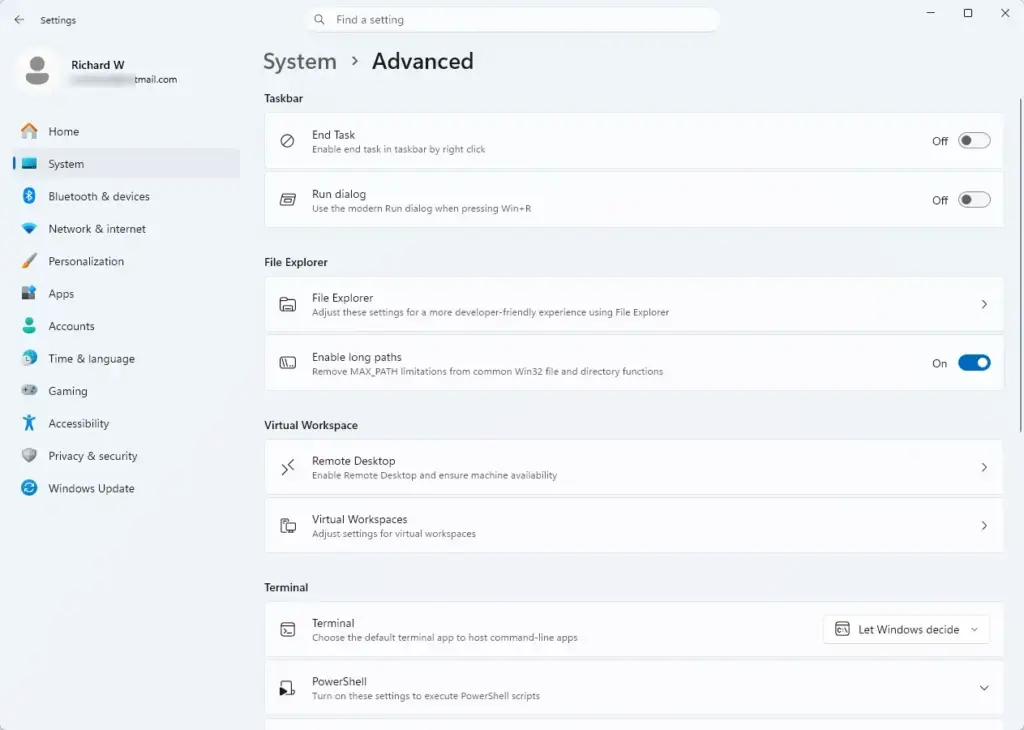
- Click View at the top, point to Show, and tick Hidden items. Protected folders now appear in the file list.
- Go to this folder by pasting the path into the address bar:
C:\Windows\ServiceProfiles\LocalService\AppData\Local\Microsoft. Windows may ask you to click Continue to get permission to open the folder. - Look for the folder named NGC.
- Right-click the NGC folder and select the trash can icon to delete it. Windows often blocks this with an access denied message. If it does, right-click the folder, choose Properties, open the Security tab and click Advanced. Next to Owner, click Change and set your administrator account as the owner. Then try the delete again. If it still refuses, delete the items inside the folder instead.
- Restart your computer right away.
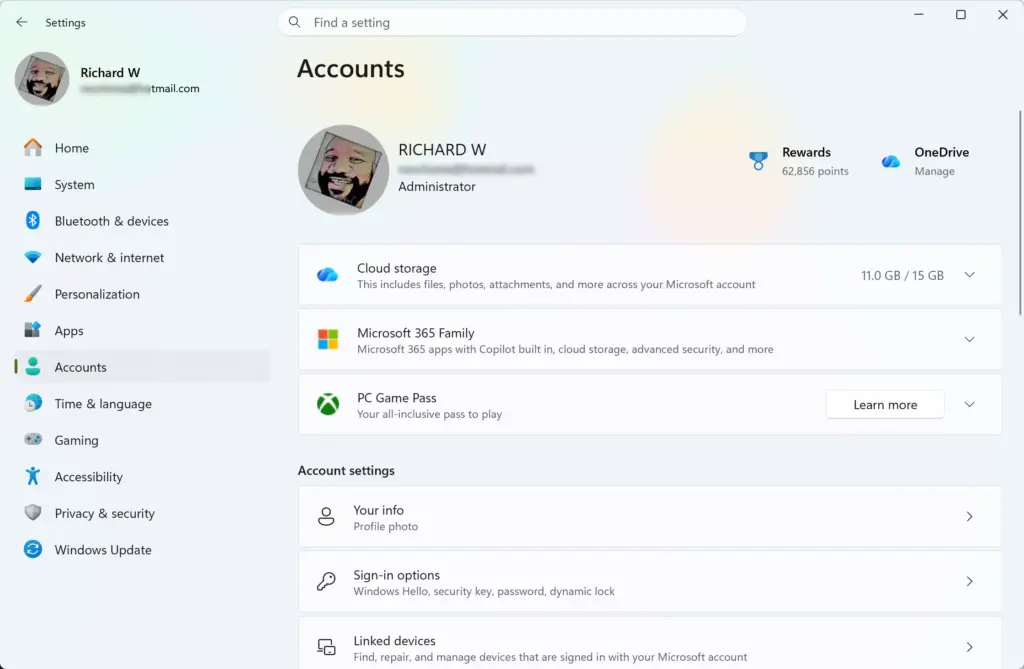
- When Windows is back up, sign in with your password. Then open Settings Accounts Sign-in options, expand PIN (Windows Hello) and click Set up. Follow the prompts to create a new PIN.
To undo the change, there is nothing to restore. The new PIN simply replaces the old one. If you have a fingerprint or face sign-in, set those up again on the same Sign-in options page.
Fix 2: Check for Account Name Changes and Sync Issues
If you see the “PIN is not available” error, the cause is often a broken link between your PC and your Microsoft, work or school account. An update can drop that connection or leave your user details out of step. The Command Prompt can show you the current state, so you can tell whether the problem is the account and not the PIN files.
Note: You must be signed in with an administrator account to complete these steps.
- Click the Start button and type
cmdinto the search bar. - Right-click Command Prompt in the results and choose Run as administrator. If a User Account Control prompt appears, click Yes.
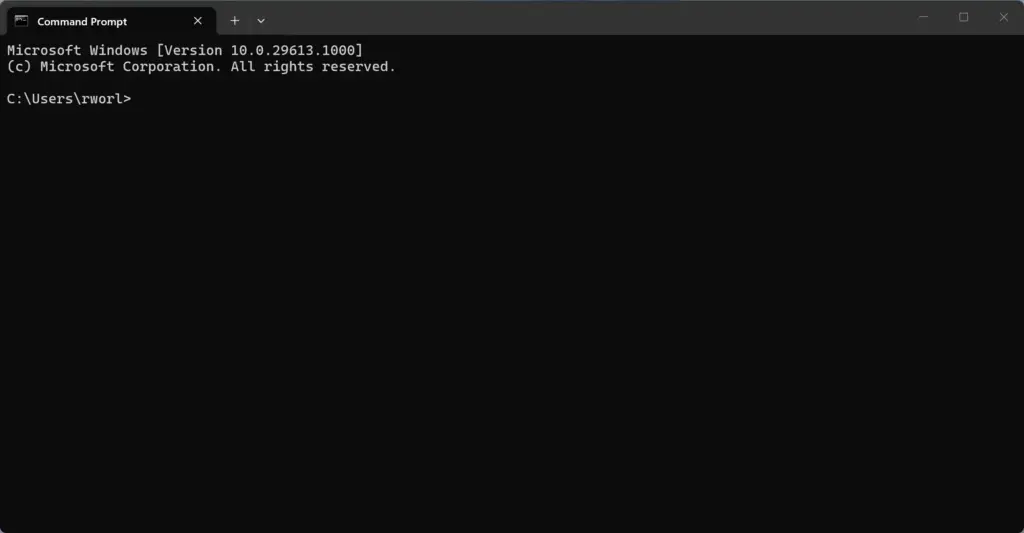
- Type the following command into the black window and press Enter:
dsregcmd /status - Scroll through the output to the User State and Device State sections. They show how your PC connects to your Microsoft or work account. Check that the account details and email address match the profile you are signed in with. Under User State, the NgcSet line tells you whether a PIN is registered for the account.
- If you see errors about workplace or school account syncing, go to Settings Accounts Access work or school, disconnect the work account, and restart your PC. Then reconnect it. On a work-owned PC, ask your IT team first, because disconnecting can remove access to company apps.
Fix 3: Use CertUtil to Clear NGC Credentials
CertUtil is a built-in command-line program for managing certificates. It can also clear the Windows Hello container, which is useful when you can’t delete the NGC folder by hand. It removes the corrupted PIN data without you having to fight folder permissions.
Note: You must be signed in with an administrator account to complete these steps.
- Open the Start menu and type
cmd. - Right-click Command Prompt and select Run as administrator.
- Type the following command carefully and press Enter:
certutil -DeleteHelloContainer - Wait for the tool to finish clearing the broken container files. It should print a completion message when it is done. If you see an access error, close the window and reopen Command Prompt as administrator.
- Restart your computer.
- Sign in with your password, then go to Settings Accounts Sign-in options and create a new PIN under PIN (Windows Hello).
As with the NGC folder method, your old PIN and any Windows Hello fingerprint or face data are gone after this. You need to enroll them again.
Unique Expert Tips: Preventing Future Sign-In Glitches
You can’t stop every update bug, but a few habits keep a bad patch from locking you out.
First, keep a traditional password active alongside your PIN and biometric settings. If you rely only on a PIN, a patch that disables the PIN module or a fingerprint sensor leaves you stranded. A password is always there as a way back in.
Second, don’t force-shut down your PC while a major update is installing. Interrupting an update while it changes the security registry hives is a common cause of corrupted login folders. On a laptop, plug in the charger before a big update starts. If the screen looks stuck, give it time before you press the power button.
Summary
When your Windows 11 PIN stops working after an update, the fix comes down to three things. Sign in with your backup password, clear out the broken NGC data, or run the command-line checks and the CertUtil reset. An update glitch can feel alarming, but in most cases you are back at a normal login screen within a few minutes.
Have a question about this guide?
Answered by AI from this guide. Good questions may be added to this page — please don't include personal details.
Did this guide fix your problem?

About the Author
Richard
Tech Writer, IT Professional
Richard is a writer at Geek Rewind who turns complex IT tasks into clear, step-by-step guides. He draws on years of hands-on experience in system administration and enterprise IT operations, focusing on Windows, Linux and WordPress: the problems people actually run into, and the fixes that work. His server and WordPress guides come from systems he runs himself. Richard builds and maintains the platform behind Geek Rewind, from its Ubuntu servers and Nginx configuration to its custom WordPress plugins. Many new tutorials start with readers' questions, and he's always glad to answer them in the comments.
No comments yet — be the first to share your thoughts!